Quick Answer
Installing the Neo Geo CD SD Loader replaces the original CD-ROM drive with an SD card-based optical drive emulator (ODE). This guide walks through the essential steps, from disassembly to testing, to get your console running games from SD cards.
What You Need for the Install
Before starting, ensure you have the Neo Geo CD SD Loader kit, a compatible SD card (formatted to FAT32), and standard tools like a small Phillips-head screwdriver and plastic opening tools. The console itself should be a Neo Geo CD (front-loader or top-loader models are both supported).
A clean, well-lit workspace is critical. Static electricity can damage electronics, so work on a non-carpeted surface and consider using an anti-static wrist strap.
Important Considerations
The SD Loader install is a permanent modification that requires opening the console and disconnecting the original laser assembly. If you are not comfortable with soldering or delicate ribbon cables, consider using a send-in service from a professional mod shop.
The SD Loader kit is a drop-in replacement for the CD-ROM drive, meaning no permanent case modifications are typically needed. However, you must have the correct kit version for your Neo Geo CD model.
Step-by-Step Installation
- 1. Disassemble the Console: Remove all screws from the bottom of the Neo Geo CD. Carefully lift the top shell. Disconnect the ribbon cable from the original CD-ROM drive to the mainboard. Remove the drive assembly by unscrewing its mounting brackets. Common mistake: Forgetting to unplug the console and remove the disc before disassembly. Always double-check for hidden screws under rubber feet or labels.
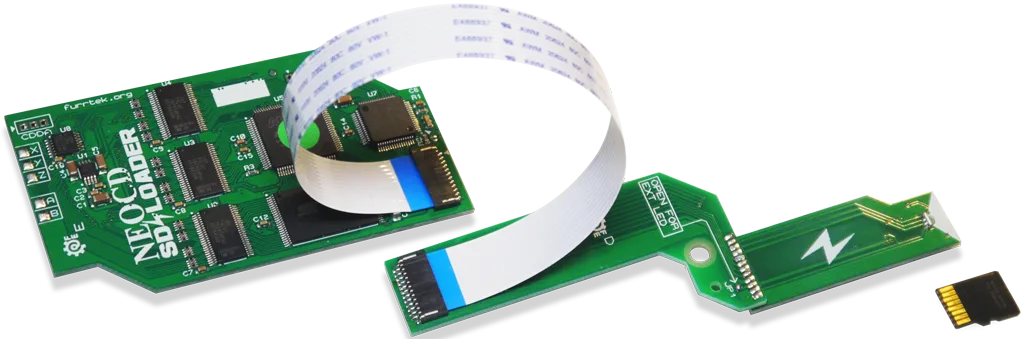
- 2. Install the SD Loader: Place the SD Loader board into the same mounting holes as the original drive. Connect the provided ribbon cable from the SD Loader to the mainboard's CD-ROM connector. Ensure the cable is fully seated and not pinched. Checkpoint: The SD Loader board should sit flat. If it rocks, check that no original drive parts remain underneath. Do not force the ribbon cable; it only fits one way.
- 3. Prepare the SD Card: Format a high-quality SD card (16GB or less recommended for compatibility) to FAT32. Download the correct firmware for your SD Loader version and copy it to the root of the SD card. Also, add your game ROMs in the appropriate folder structure (usually /games/). Common mistake: Using an SD card larger than 32GB or not formatting as FAT32. The SD Loader may not recognize exFAT or NTFS formats.
- 4. Insert SD Card and Test: Insert the prepared SD card into the SD Loader's slot. Reassemble the console shell (but do not fully tighten screws yet). Power on the console. You should see the SD Loader menu on screen. Navigate to a game and load it. Checkpoint: If the console boots to a black screen or the CD player error, power off and reseat the ribbon cable. If the menu appears but games don't load, check your SD card's formatting and game file names.
- 5. Final Assembly: Once everything works, power off the console. Tighten all screws, replace any rubber feet or labels, and perform a final test. Enjoy your Neo Geo CD library from an SD card without relying on the aging laser. Common mistake: Overtightening screws can crack the plastic shell. Snug is sufficient.
Product Facts
-
Neo Geo CD SD Loader: This listing is for the Neo Geo CD SD Loader service option. Choose “Yes (Customer Provides SD Loader Kit)” if you will provide your own SD Loader kit for installation. If you already own an SD Loader kit, you can select the service-only option to have a professional install it, avoiding the risk of damaging your console during a DIY attempt.
Neo Geo CD SD Loader