Quick answer
Replacing a Nintendo DS Lite screen is a doable DIY repair if you have the right tri-wing screwdriver, a plastic opening tool, and steady hands. The top screen is more delicate because of the ribbon cable routing through the hinge; the bottom screen is simpler but still requires careful cable handling. Expect the job to take 30–60 minutes for your first time.
What you will need
Before you open your DS Lite, gather a tri-wing Y00 screwdriver, a Phillips #00 screwdriver, a plastic spudger or opening pick, tweezers, and a clean workspace with good lighting. A magnetic mat helps you keep track of the tiny screws. You will also need the replacement screen—make sure it is labeled for the DS Lite (top or bottom) because the ribbon cable connectors differ between models.
A common mistake is using a regular Phillips screwdriver on the tri-wing screws, which strips them instantly. Always use the correct tri-wing bit for the four outer screws on the back. For the inner screws, a standard #00 Phillips works fine.
Safety precautions before you start
Disconnect the battery first. The DS Lite battery is held in by a small latch—slide it, lift the battery out, and set it aside. This prevents any short circuits while you work near the logic board. Also avoid wearing wool or synthetic fabrics that create static discharge; touch a metal surface before handling internal components.
The ribbon cables for the screens are extremely fragile. Never pull on the cable itself—use a spudger to gently lift the connector latch. If you tear a ribbon cable, the screen will not work and you will need a replacement. Work slowly and check each connection before reassembling.
Step-by-step DS Lite screen replacement
- Remove the back cover and battery: Use a tri-wing Y00 screwdriver to remove the four screws on the back of the DS Lite. Lift the back cover off. Slide the battery latch, remove the battery, and set it aside. Checkpoint: If the screws are stripped, use a rubber band over the screw head for extra grip. Do not force the cover off—make sure all four screws are out.
- Remove the logic board shield and disconnect ribbon cables: Unscrew the two Phillips screws holding the metal shield over the logic board. Gently lift the shield. Use a plastic spudger to flip up the latches on the ribbon cable connectors for the top screen, bottom screen, and touch digitizer. Slide each cable out carefully. Common mistake: Forgetting the order of the ribbon cables. Take a photo before disconnecting so you know which cable goes where. The top screen cable is the longest and routes through the hinge.
- Separate the upper half of the shell: Remove the two Phillips screws at the hinge area and the two screws near the shoulder buttons. Gently separate the top half of the shell from the bottom half. The top screen ribbon cable will still be threaded through the hinge—pull it through slowly. Checkpoint: If the shell does not separate easily, double-check for hidden screws under the rubber grip pads near the hinge. Forcing it can crack the plastic.
- Replace the top screen (if needed): Remove the four Phillips screws holding the top screen bracket. Lift the old screen out. Insert the new screen, route its ribbon cable through the hinge, and secure the bracket screws. Reconnect the ribbon cable to the logic board. Common mistake: Routing the ribbon cable incorrectly through the hinge. The cable must lie flat and not pinch when the hinge closes. Test the hinge movement before tightening everything.
- Replace the bottom screen (if needed): Remove the four Phillips screws around the bottom screen. Gently lift the old screen. Disconnect its ribbon cable and the touch digitizer cable. Connect the new screen and digitizer, then press the screen into place and secure the screws. Checkpoint: The touch digitizer cable is very thin and easy to tear. Use tweezers to align it before pressing the connector latch down. Test touch response before fully reassembling.
- Reassemble and test: Reconnect all ribbon cables in reverse order, replace the logic board shield, insert the battery, and snap the back cover on. Power on the DS Lite. Test both screens for brightness, color, and touch input on the bottom screen. Final checkpoint: If one screen stays black, power off and reseat that ribbon cable. If the touch screen does not register, check the digitizer cable connection. Do not fully tighten the screws until everything works.
Related products at Retro vGames
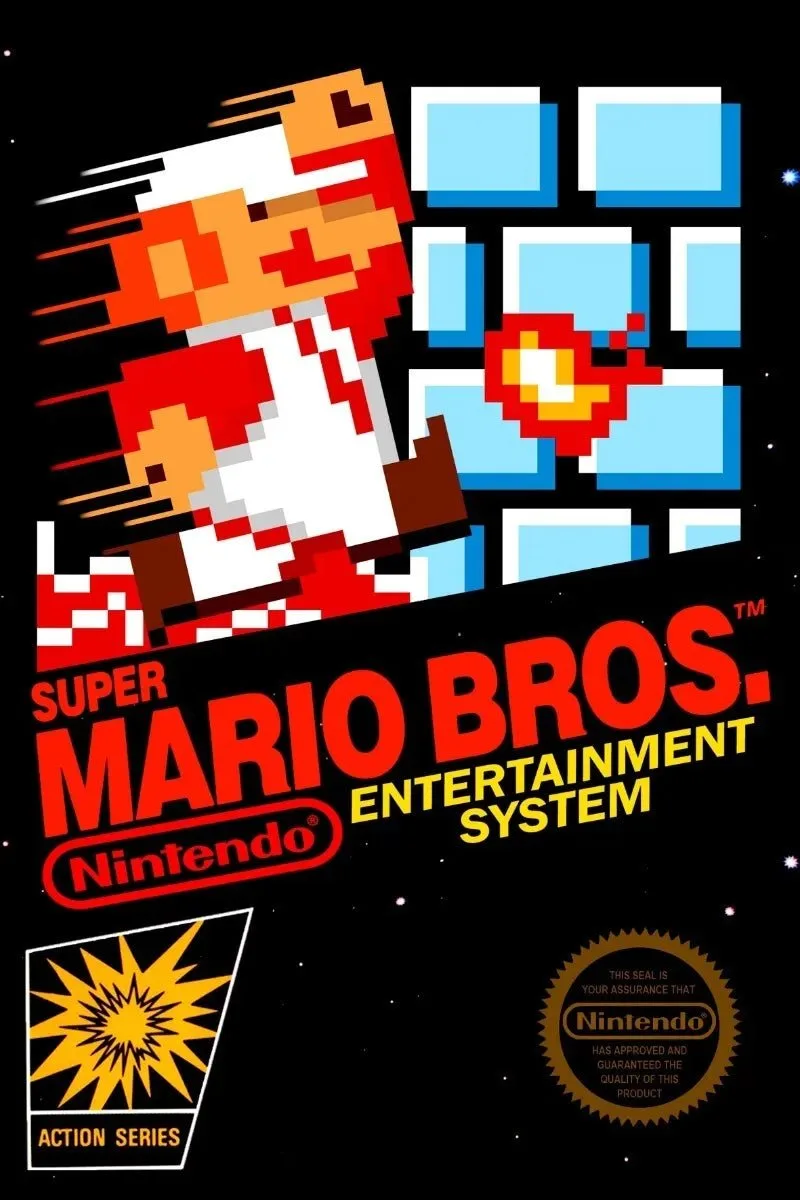
- Super Mario Bros – NES Game: Super Mario Bros – NES Game cartridge. Original, tested, and ready to ship. Game is fully tested & working. Once your DS Lite is repaired, you can pair it with classic handheld titles, but if you also enjoy retro console gaming, this NES classic is a reliable cartridge to add to your collection.
- Ratatouille - Wii Game: Ratatouille - Wii Game. Fully tested & guaranteed to work. Region: NTSC (N. America). ESRB: Everyone. If you prefer console gaming after your handheld repair, this Wii title offers family-friendly action-adventure gameplay that works on any NTSC Wii system.
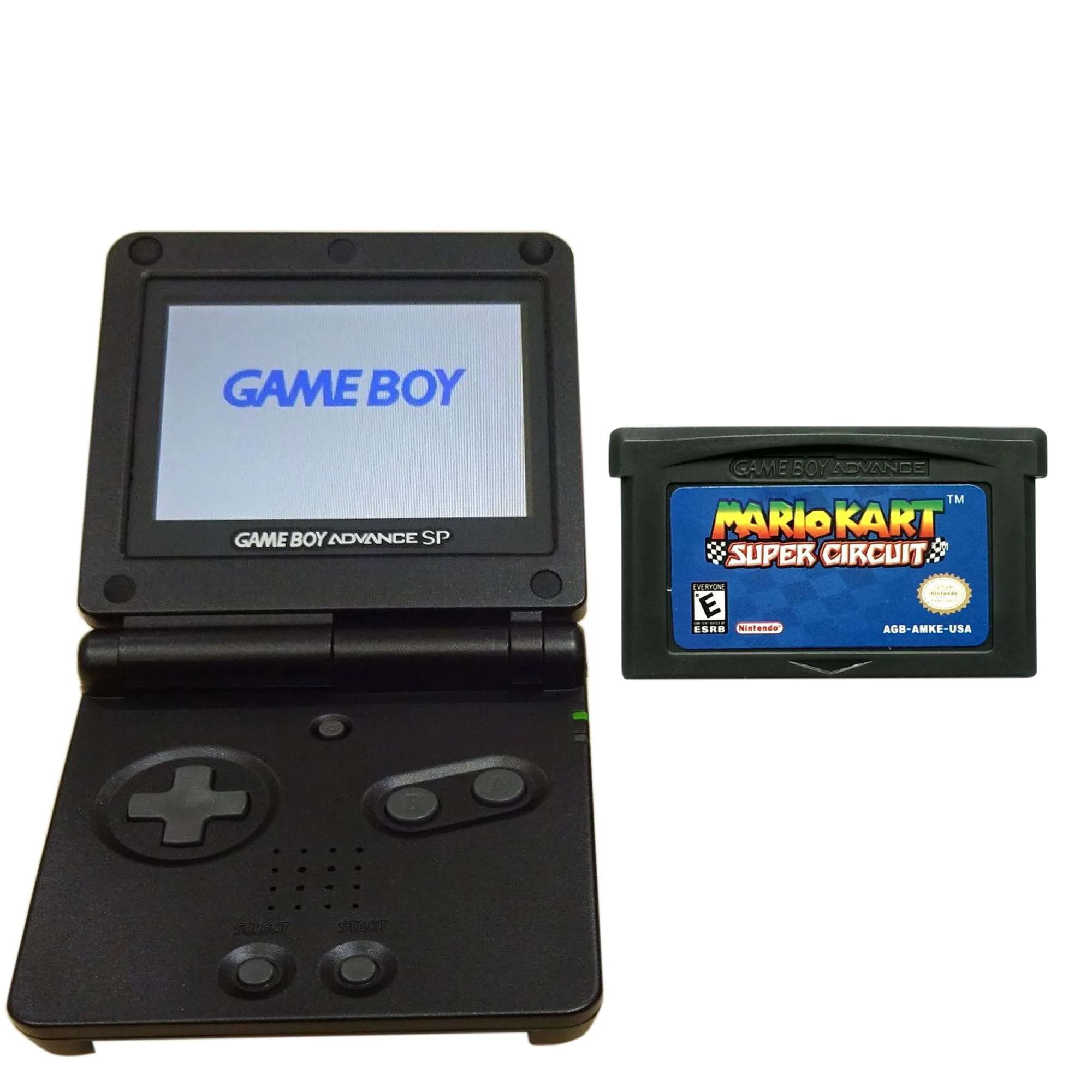
- Nintendo Gameboy Advance SP Console: Mario Kart Super Circuit Bundle: Nintendo Gameboy Advance SP Console: Mario Kart Super Circuit Bundle. Refurbished condition, includes console and game. If your DS Lite repair reveals deeper motherboard damage, this GBA SP bundle is a ready-to-play alternative that still plays original Game Boy Advance games and is fully tested.