Quick Answer
Clean your Wyze gaming headset regularly with a soft dry cloth, use a gentle brush for the mic foam, and store it in a cool, dry place away from dust and moisture.
Why Regular Cleaning Matters
Dust, skin oils, and earwax build up on ear cushions and headbands over time. This can affect comfort and sound quality, and it may shorten the life of the padding. A quick wipe-down after each session helps keep things fresh.
The boom microphone is especially important. A dirty foam cover can muffle your voice and pick up unwanted noise, making your teammates hear you less clearly. Cleaning the foam and mic regularly keeps communication crisp.
What to Avoid When Cleaning
Do not use harsh chemicals, alcohol wipes, or submerge any part of the headset in water. These can damage the plastic, foam, and electronics. Stick to dry or slightly damp cloths and gentle brushes.
For the mic foam cover, avoid pulling it off too roughly. If it tears, replace it with a compatible cover to keep the mic protected and clean.
Step-by-Step Cleaning and Storage Guide
- Step 1: Gather Your Supplies: Collect a soft, lint-free microfiber cloth, a small soft-bristled brush (like a clean toothbrush), a cotton swab, and a mild soap solution (a drop of dish soap in warm water). Avoid abrasive pads or strong solvents. Having the right tools prevents accidental damage.
- Step 2: Wipe Down the Exterior: Unplug the headset from your device. Dampen the cloth slightly with the soap solution and gently wipe the ear cups, headband, and outer surfaces. Do not let moisture enter any openings. Dry immediately with a dry cloth. Never spray liquid directly on the headset.
- Step 3: Clean the Ear Cushions: If your ear cushions are removable, take them off and wipe them with a damp cloth. Let them air dry completely before reattaching. If they are not removable, gently wipe them in place without soaking the foam. Drying fully prevents mold and odor.
- Step 4: Clean the Boom Mic and Foam Cover: Remove the foam cover if possible. Wash it by hand in mild soapy water, rinse thoroughly, and let it air dry. Use a dry brush or cotton swab to gently remove dust from the mic itself. Do not use water on the mic. A dry foam cover prevents muffled audio and bacteria buildup.
- Step 5: Inspect Cables and Connectors: Check the cable for kinks, frays, or bent connectors. Wipe the connector with a dry cloth. If you notice damage, replace the cable if possible to avoid sound issues. Catching cable problems early prevents sudden audio failure.
- Step 6: Store Properly: Place the headset on a stand or in a dedicated case, never draped over a monitor or left on the floor. Keep it in a cool, dry place away from direct sunlight and dust. Coil the cable loosely without tight bends. Proper storage reduces wear and keeps the headset ready for use.
Wyze Accessories That Help
-
Wyze Gaming Headset Boom Mic: The Wyze Gaming Headset Boom Mic attaches to compatible headsets and is designed for focused voice pickup with reduced background noise. A clean boom mic ensures your voice comes through clearly, and replacing it is a simple way to restore audio quality if the original mic wears out.
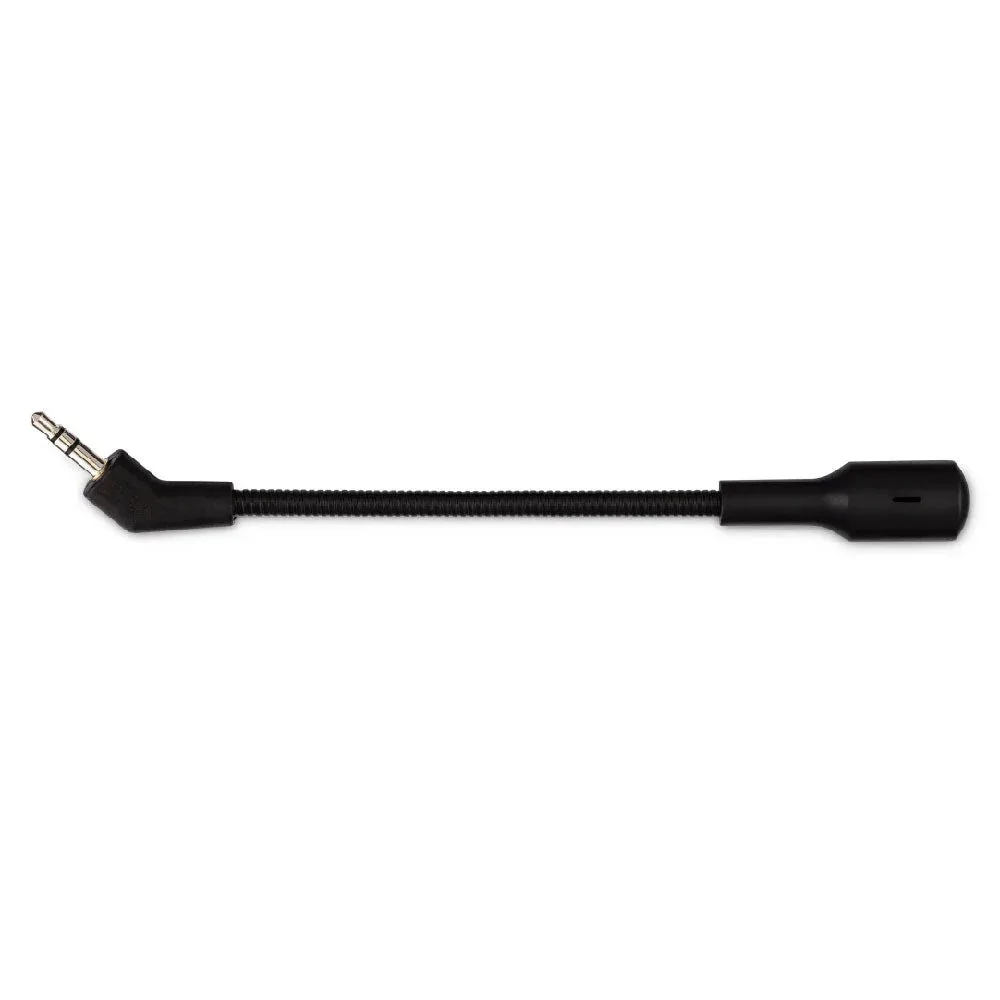
Wyze Gaming Headset Boom Mic
-
Wyze Gaming Headset Boom Mic Cover: The Wyze Gaming Headset Boom Mic Cover fits over the boom microphone to help minimize background noise and plosive sounds. Swapping in a fresh foam cover keeps your mic hygienic and reduces muffled sound, especially after heavy use.
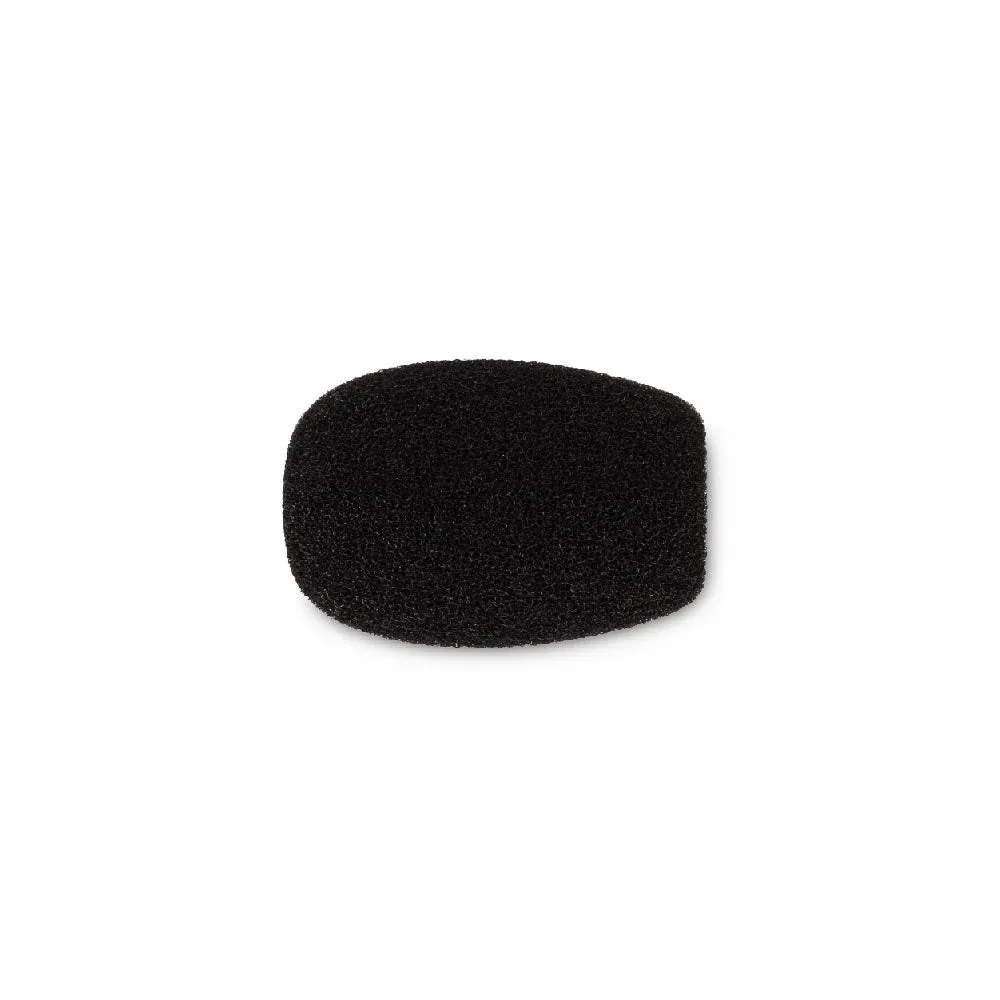
Wyze Gaming Headset Boom Mic Cover