Quick answer
Reduce Reolink false alerts by setting a realistic motion sensitivity, drawing precise motion zones that exclude triggers like trees and roads, and enabling smart detection for people or vehicles. Use the Reolink app to test and refine each change, then adjust push notification schedules so you only get alerts when they matter.
Why Reolink cameras send false alerts
Reolink cameras detect motion by analyzing pixel changes in the video feed. Anything that alters enough pixels in a short time can trigger an alert: moving tree branches, passing cars, shifting shadows, rain, or even a pet walking through the frame. The camera does not inherently know what is important to you. That is why the default settings often produce a flood of notifications. The fix is not to disable motion detection, but to tell the camera what to ignore and what to watch. This guide walks through the exact settings to adjust, in order, so you can cut false alerts without missing real events.
Tools you'll need
You can make all these changes from the Reolink app on your phone or the Reolink Client on a computer. Make sure your camera firmware is up to date, as newer firmware often improves detection accuracy. If you have multiple cameras, adjust them one at a time so you can see the effect of each change.
Step-by-step: reduce Reolink false alerts
- Update firmware and restart the camera: Open the Reolink app, go to Settings > Firmware, and check for updates. Install any available update and restart the camera. Firmware updates often include improved motion detection algorithms. Checkpoint: After restart, confirm the camera is online and streaming live video before moving on.
- Set motion sensitivity to a moderate level: In the app, go to Settings > Motion Detection > Sensitivity. Start at a middle value (e.g., 50%). Higher sensitivity catches more motion but also more false triggers. Lower it gradually if you still get too many alerts. Common mistake: Setting sensitivity to the lowest value can cause missed events. Adjust in small increments and test for a day.
- Draw precise motion zones: Use the motion zone editor to mask out areas you don't care about, such as public sidewalks, tree branches, or a neighbor's driveway. Focus the zone on entry points like doors and windows. Checkpoint: After saving, walk through the zone to confirm the camera detects you, then walk outside the zone to ensure no alert.
- Enable smart detection for people or vehicles: If your camera supports it, turn on Person Detection or Vehicle Detection under Settings > Smart Detection. This filters out alerts from animals, shadows, or rain. Common mistake: Leaving smart detection off and relying only on basic motion. Smart detection is the single most effective way to reduce false alerts.
- Adjust push notification schedule: Go to Settings > Push Notifications and set a schedule for when you want to receive alerts. For example, disable notifications during work hours if someone is home, or only enable them at night. Checkpoint: Test by triggering motion during an active schedule and confirm you receive a notification.
- Test and refine over a few days: After making changes, monitor the alerts you receive for 2–3 days. If false alerts persist, revisit sensitivity, zones, or smart detection settings. Small tweaks often yield big improvements. Next step: If false alerts continue, consider adding a second camera angle or using a camera with auto-tracking like the Argus Track to better distinguish real threats.
Reolink cameras with advanced motion features
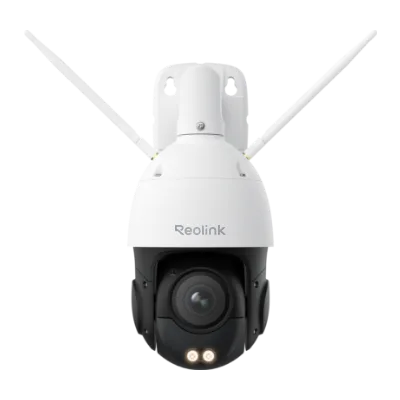
- RLC-823S1W: The Reolink RLC-823S1W is a 4K 360° PTZ security camera with dual-band Wi-Fi 6 connectivity, designed for comprehensive home and business surveillance. It offers 4K ultra-high-definition resolution, 360° pan-tilt-zoom functionality, and weather-resistant construction for indoor or outdoor use. Its 360° PTZ coverage means you can adjust the viewing angle remotely to focus on specific areas, which helps you create more precise motion zones and reduce alerts from irrelevant areas.
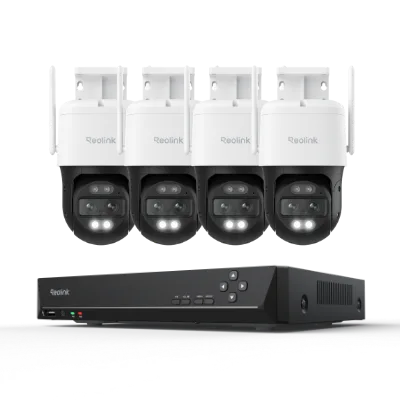
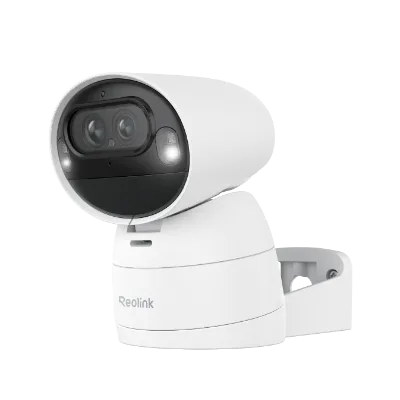
- Argus Track: The Reolink Argus Track is a 4K dual-lens Wi-Fi solar/battery camera with auto-zoom tracking that follows moving subjects. It has a wire-free design powered by solar and battery. Auto-zoom tracking keeps the subject in frame, which can reduce missed events, but you still need to set sensitivity and zones to avoid tracking irrelevant motion like swaying branches.
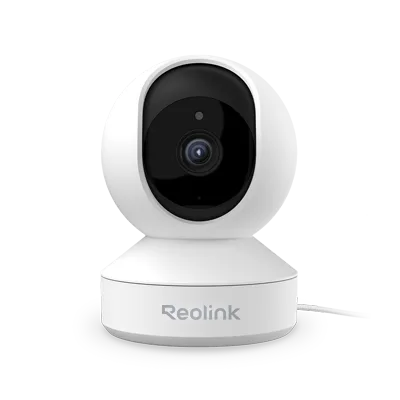
- E1: The Reolink E1 is a versatile smart home WiFi IP camera with 4MP Super HD video, pan and tilt, and two-way talk. Pan and tilt let you aim the camera away from busy streets or sidewalks, a simple physical adjustment that can dramatically cut false alerts without complex settings.