Quick answer
To reduce background noise on a microphone or headset, lower your input gain until your normal speaking voice peaks around -12 dB to -6 dB, move the mic element two to four finger-widths from your mouth and slightly off-axis, and treat the room before adding software. Start with the free fixes: gain, placement, and room choice. Software noise removal is a supplement, not a substitute for those three.
Why noise shows up in the first place
Most complaints about noisy microphones come from three sources: the mic is too far from your mouth, the gain is set high enough to amplify room reflections and keyboard clatter, or the room itself has hard, parallel surfaces that bounce sound back into the element. Fixing the room and the signal path is more reliable than relying on a single noise-suppression toggle, because software has to guess which parts of the signal are speech and which are not.
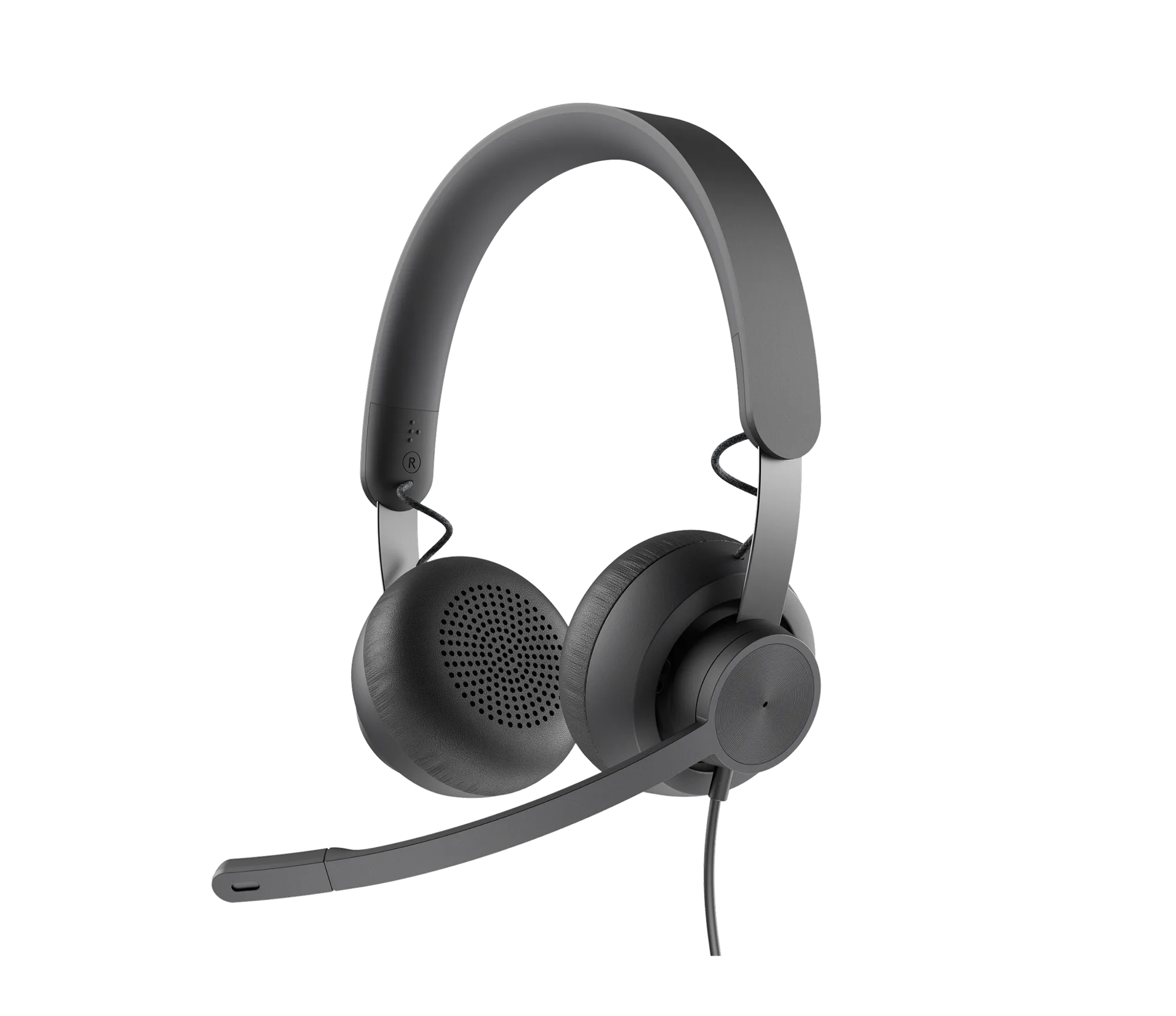
A headset like the Logitech ZONE VIBE 100 in Graphite places the microphone close to your mouth by design, which reduces the distance problem before you touch any settings. That does not make it immune to a noisy room, but it gives you a better starting point than a desktop mic sitting 12 inches away.
What to check before you change any setting
Plug the headset or microphone directly into the computer rather than through a hub or monitor, and confirm the operating system is using the correct input device. On Windows, check Sound Settings > Input; on macOS, check System Settings > Sound > Input. If your headset appears twice, pick the one labeled as the headset microphone rather than a webcam or display input.
Record a 20-second test clip of yourself talking normally, then play it back with headphones. Write down what you hear: fan hum, keyboard clicks, room echo, or a steady hiss. That list tells you which step below to prioritize.
Step-by-step: reduce background noise
- Set your input gain correctly: Open your operating system sound settings or your meeting app's audio settings and lower the microphone input level. Speak in your normal voice and watch the level meter. Aim for peaks around -12 dB to -6 dB, with no clipping. If the meter hits the top of the scale, you are too hot and the mic will pick up more room noise. Checkpoint: record a test clip. If you still hear hiss when you are not talking, lower gain another 10 percent and test again.
- Position the microphone two to four finger-widths away: For a headset boom, bring the tip to the corner of your mouth rather than directly in front of your lips. For a desktop mic, angle it 15 to 30 degrees off-axis and keep it 4 to 6 inches from your mouth. Speaking across the element instead of straight into it reduces plosives and breath noise without making you quieter. Common mistake: pushing the boom directly against your lips. That increases breath noise and makes the mic pick up handling and cable rustle.
- Treat the room before adding software: Move the mic away from your computer fan, air vent, or window. Place a rug, curtains, or a bookshelf behind you to break up reflections. If you cannot change the room, turn your back to the noisiest wall and speak toward a soft surface such as a curtain or couch. Checkpoint: clap once and listen. If you hear a sharp slap-back echo, you still have a reflective surface close to the mic.
- Use hardware noise suppression as a last layer: If your headset or microphone has a noise-canceling microphone element, enable it in the manufacturer's software. In meeting apps, turn on noise suppression only after you have set gain and placement. Strong suppression can make your voice sound thin or cut off the start of words. Next step: if suppression makes you sound robotic, back it down to a lower setting and rely on the room and gain fixes instead.
- Confirm the fix with a real call: Join a test meeting or record a two-minute conversation with a colleague. Ask them whether they hear keyboard clicks, fan noise, or room echo. Repeat the gain and placement steps if any of those remain. Checkpoint: if the noise is gone but your voice sounds distant, you lowered gain too far. Raise it slightly and re-test.
Product facts
- ZONE VIBE 100 - Graphite: The Logitech ZONE VIBE 100 in Graphite is a headset designed for clear communication, available in Graphite, Off-white, and Rose, and engineered for all-day comfort during extended use. If you spend hours on calls, a headset with a close-mounted microphone and a comfortable fit reduces the need to crank gain, which is a common cause of background noise.
Run the steps in order: gain, placement, room, then software. Most people find that the first three solve the problem without any noise-suppression plugin.