Quick answer
Set up the Reolink E1 Pro in this order: place the camera on a stable surface or mount it, power it on, add it in the Reolink app, join your 2.4 GHz Wi-Fi network, insert a microSD card for local recording, then adjust pan-tilt limits and motion tracking. If pairing fails, move the camera closer to the router before changing any other settings.
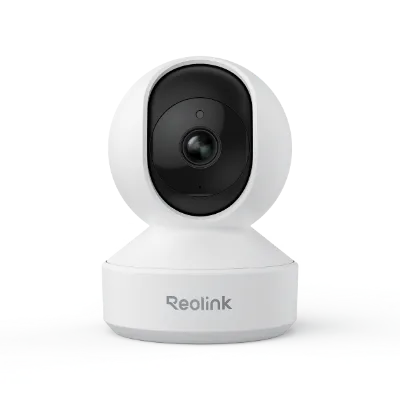
E1 Pro
Before you start: placement and network checks
Pick a spot that covers the room rather than a single wall. The E1 Pro pans and tilts, so a corner shelf or a wall point about 2 to 2.5 meters high usually gives a better sweep than a low table, which tends to catch furniture edges instead of faces. Keep the camera within reach of a power outlet, because this model is not battery powered, and avoid pointing it through glass at night, where reflections can wash out the image.
On the network side, have your Wi-Fi name and password ready and confirm the camera is in range of the 2.4 GHz band. If your router splits 2.4 GHz and 5 GHz into separate names, connect your phone to the 2.4 GHz network during setup. Also decide now whether you want local recording on a microSD card, an NVR, or both, since that choice affects which settings you touch first.
What the app asks for and why order matters
The Reolink app walks through device discovery, network selection, and naming. Doing these in sequence prevents the most common failure, which is a camera that joins the wrong network or gets added twice under different names. Give the camera a room-based name such as Living Room or Nursery so clips and alerts stay readable once you add more cameras.
If you plan to record continuously, insert the microSD card before finalizing app setup so the recording menu appears with the card already detected. Format the card inside the app rather than on a computer, because the camera expects its own file structure.
Setup steps and the mistake to avoid at each one
- Mount or place the camera: Set the E1 Pro on a flat, stable surface or fix it to a wall or ceiling using the supplied base. Point it toward the center of the room, not at a wall or window. Checkpoint: the camera should be able to pan a full sweep without hitting a shelf, curtain, or cabinet door.
- Power on and wait for the indicator: Connect the power adapter and let the camera complete its start-up rotation. Do not unplug it during this movement, which is a self-check, not a fault. Common mistake: powering the camera from a switched outlet or USB hub that cannot supply steady current.
- Add the camera in the Reolink app: Open the app, tap Add Device, and let it scan the QR code on the camera body. Keep your phone within a few meters of the camera during this step. Checkpoint: the camera appears once in the device list. If it appears twice, delete the duplicate before continuing.
- Connect to 2.4 GHz Wi-Fi: Select your network and enter the password, then wait for the camera to confirm the connection. If your router uses one combined network name, temporarily separate the 2.4 GHz band or move the camera closer during pairing. Common mistake: entering a 5 GHz password and assuming the camera failed, when the band is simply unsupported.
- Insert and format the microSD card: Power the camera off, insert the card, power it back on, then open Storage settings in the app and format the card. Set recording to motion, scheduled, or continuous based on how much you need to review. Checkpoint: the app shows the card's capacity and remaining recording time. If it does not, reseat the card and format again.
- Set pan-tilt presets: Use the app's pan-tilt controls to frame the areas you care about, then save each position as a preset, such as Door, Sofa, and Window. Presets let you jump back to a view without dragging the controls manually. Common mistake: setting presets while the camera is still auto-rotating, which saves the wrong angle.
- Tune motion tracking and alerts: Enable motion tracking, then adjust sensitivity and set a detection zone around the floor and doorway rather than the whole frame. Reduce sensitivity if ceiling fans, TVs, or pets trigger constant alerts. Checkpoint: walk through the room and confirm you get one alert per pass, not a stream of them.
Where a doorbell or LTE camera fits instead
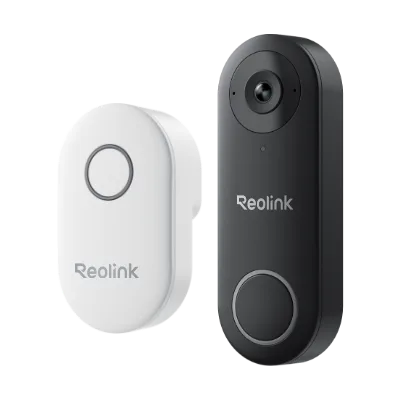
- Reolink Video Doorbell WiFi: The Reolink Video Doorbell WiFi offers 2K+ 5MP resolution, wired power, Wi-Fi, and an included chime. If your main concern is the front door rather than a room, this covers the entry with a wired power source and an audible indoor chime, so you do not need the E1 Pro's pan-tilt coverage there.
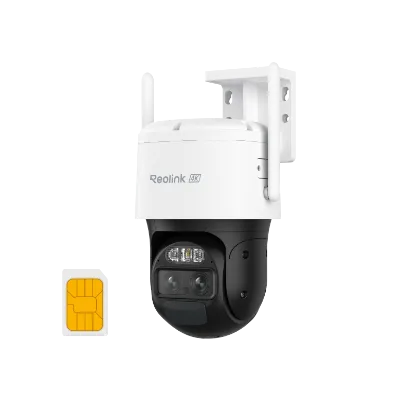
- Reolink TrackMix LTE: The Reolink TrackMix LTE uses 4G LTE connectivity and a dual-lens system with auto-zoom tracking. Choose this when the location has no broadband or reliable Wi-Fi, since the E1 Pro depends on your home network.