Quick answer
A ScanSmart backpack unzips so the laptop compartment lies flat and stays visible to the X-ray scanner, which means you usually do not have to pull the laptop out of the bag at the checkpoint. Pack the laptop in the ScanSmart sleeve, close every other pocket, and open only the lay-flat panel before you reach the bin. It is faster because you handle one item instead of two, and the laptop never leaves your sight.
Airport security is rarely the slow part of flying. The slow part is the two minutes you spend unzipping, digging, and re-packing while a tray slides away without you. A ScanSmart backpack is designed to remove that specific pause.
The idea is simple: instead of taking the laptop out, you open the bag so the laptop sits flat and alone in the X-ray image. This guide covers what ScanSmart actually means, how to pack for it, and the small habits that decide whether you clear the checkpoint in thirty seconds or three minutes.
What ScanSmart actually changes at the checkpoint
A standard laptop backpack puts the computer in a padded sleeve buried behind a main zipper, a front organizer, and sometimes a second compartment. When the laptop sits at an angle behind other gear, the X-ray image is cluttered, so screeners ask you to remove it. A ScanSmart laptop bag adds a dedicated panel that unzips and folds open, laying the laptop flat and separated from the rest of your items.
That design is why a TSA friendly laptop backpack can save time even when lines are long. You still follow the instructions of the officer at your lane, and some checkpoints may ask for laptops out regardless of bag design. ScanSmart is not a guarantee of bypassing a rule. It is a packing system that makes the common case faster and keeps your electronics in your hands.
- Checkpoint rules can change by airport and by day; follow the lane officer over any bag feature.
- ScanSmart helps most when the laptop compartment is the only thing you open.
Choose a bag that matches how you actually travel
Not every trip needs the same layout. If you fly weekly with a 15-inch laptop, cables, and a change of clothes, a roomier travel laptop backpack with a ScanSmart panel and an organizer gives you one bag for the whole trip. If you commute daily and fly a few times a year, a slimmer lay flat laptop backpack keeps the weight down and still clears security quickly.
Look at three things before you buy: the laptop sleeve size, whether the lay-flat panel opens without unzipping the main compartment, and whether the bag has a trolley strap for stacking on rolling luggage. Those details matter more at the checkpoint than the number of pockets.
- Measure your laptop before ordering; a snug sleeve protects better than a loose one.
- A trolley strap keeps a loaded bag stable when you are moving fast through the terminal.
Pack the night before, not in the security line
The fastest checkpoint experience starts at home. Put the laptop in the ScanSmart sleeve first, then build the rest of the bag around it. Keep chargers, dongles, and a power bank in a separate pouch so they do not sit on top of the laptop in the X-ray image. Liquids and anything that needs its own tray go in an outer pocket you can reach without opening the main compartment.
A packing cube is a quiet time-saver here. It keeps clothes compressed and contained so the bag holds its shape when you open the lay-flat panel. A bag that stays flat and organized scans cleaner, and you spend less time re-folding at the end of the belt.
- Leave the laptop sleeve empty of anything else; a pen or cable under the laptop creates a shadow on the scan.
- Charge your devices before the trip so you are not asked to power anything on at the lane.
Move through the lane in one smooth pass
When you reach the tables, put your keys, phone, and loose metal in your personal item or an outer pocket before you get to the bin. Then open only the ScanSmart panel and lay the bag flat in the tray, laptop side up. Keep your hands free, keep your eyes on the tray, and step through when the officer waves you on.
On the other side, close the panel, shoulder the bag, and walk to a bench before you reorganize anything. Re-packing at the end of the belt is what creates the traffic jam behind you. If you use a crossbody bag or a tote as a personal item, keep it closed and ready to lift so you are not juggling three open bags at once.
- Wear slip-on shoes and empty your pockets into your bag before the bin line, not at the scanner.
- If you are selected for additional screening, stay calm and keep the bag closed until the officer directs you.
Your ScanSmart checkpoint routine, step by step
- Step 1: Pack the laptop alone in the ScanSmart sleeve: Slide the laptop into the dedicated sleeve with nothing on top of it. Cables, chargers, and a power bank go in a separate pouch. Common mistake: stuffing a notebook or a second device into the same sleeve, which clutters the X-ray image and can trigger a bag check. Checkpoint: the sleeve should close with the laptop sitting flat and nothing pressing on the screen.
- Step 2: Pre-load your pockets before the bin line: Move keys, coins, phone, and anything metal into an outer pocket or your personal item while you are still in line. Common mistake: waiting until you reach the tray, then holding up the queue while you empty four pockets one at a time. Checkpoint: hands free and nothing loose in your pockets when you step up to the bins.
- Step 3: Open only the lay-flat panel: Unzip the ScanSmart compartment and fold it open so the laptop lies flat and faces up in the tray. Leave the main compartment, front organizer, and side pockets closed. Common mistake: opening the whole bag to look for something, which exposes everything and slows the scan. Checkpoint: one zipper open, laptop visible, everything else sealed.
- Step 4: Place the bag flat and step through: Set the tray on the belt with the laptop panel facing up, then walk through when the officer signals. Common mistake: stacking a jacket or second bag on top of the laptop, which hides it in the scan and usually means a re-run. Checkpoint: the laptop is the top layer in its tray, not buried under clothing.
- Step 5: Clear the belt before you repack: Pick up your tray, close the ScanSmart panel, and carry the bag to a bench or seating area before reorganizing. Common mistake: stopping at the end of the belt to zip everything and re-fold clothes, which blocks the next traveler and slows you down too. Next step: once you are clear of the lane, do a quick check that the laptop sleeve is zipped before you walk to the gate.
ScanSmart bags worth knowing
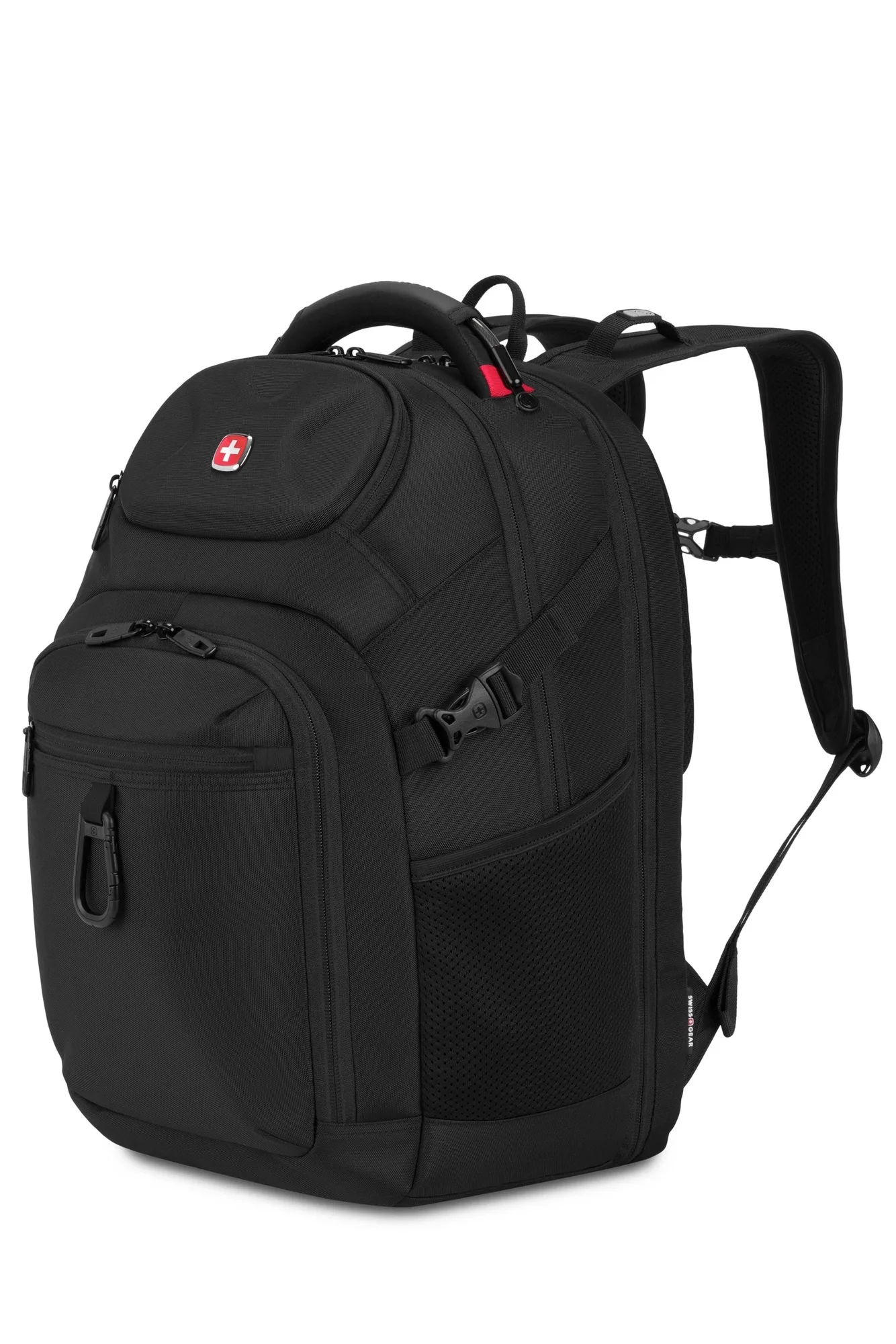
- SWISSGEAR Stride ScanSmart Laptop Backpack: Feature-packed everyday backpack with dedicated laptop and tablet pockets, room for cables and adaptors, and a gusseted organizer. The separate laptop and tablet pockets keep the lay-flat panel clean, so the scan image stays readable and you avoid unpacking at the lane.
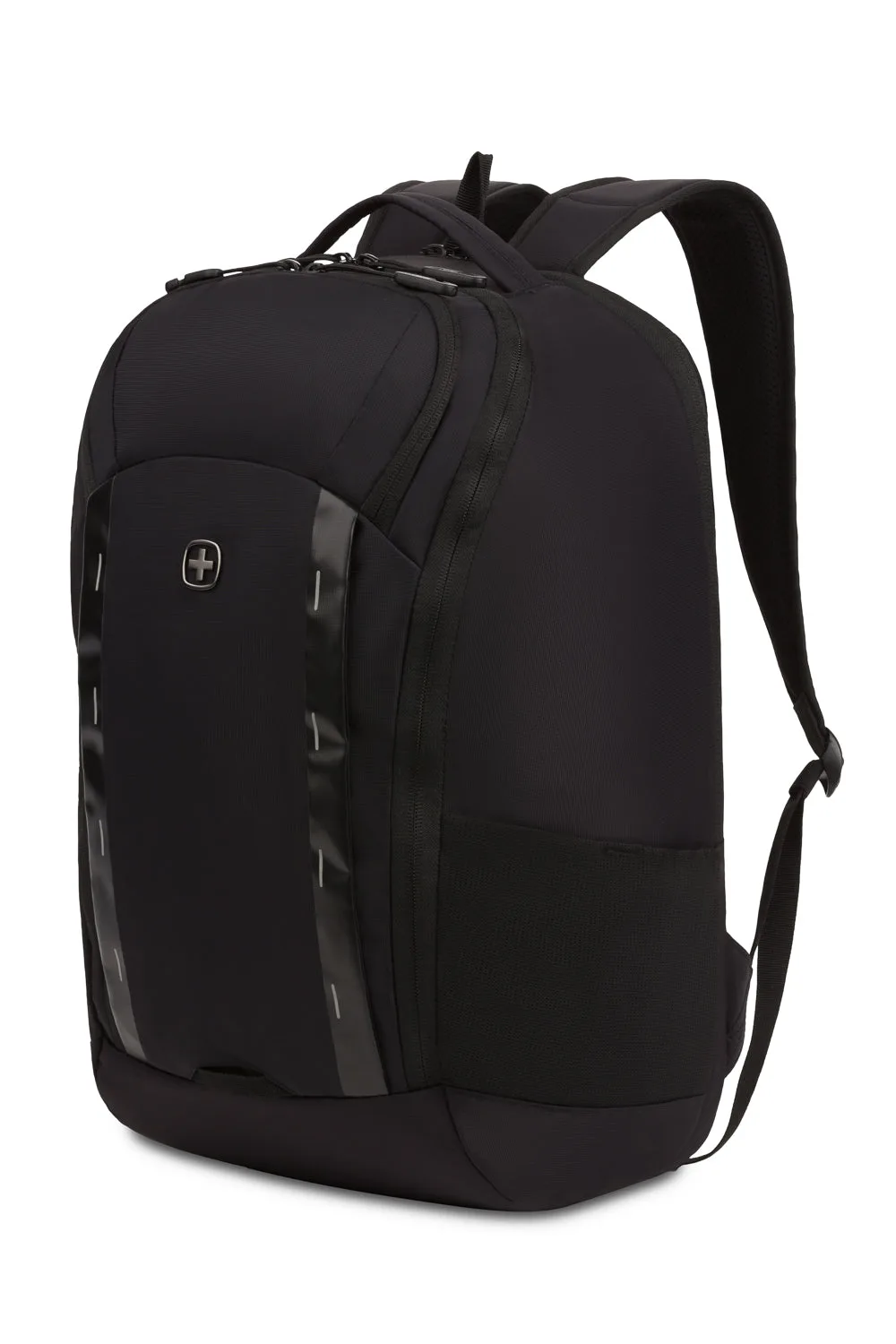
- SWISSGEAR Viibe Pro Laptop Backpack: Built for urban commuting with Anti-Grab zipper pulls and robust nylon loops. If you fly through busy transit hubs, the anti-grab hardware adds a layer of security when your attention is on the security line rather than your bag.
- SWISSGEAR Apex 20" Duffel: 100% polyester duffel with a spacious main compartment, two large zip pockets, a front pocket, and a mesh water bottle pocket. A duffel pairs well with a ScanSmart backpack on longer trips: the backpack handles the laptop and checkpoint, while the duffel carries clothes and gear as a carry-on.
A ScanSmart backpack does not change the rules of airport security, but it changes how much you have to do inside them. Pack the laptop on its own, open one panel, and keep moving. That routine is what turns a stressful checkpoint into a thirty-second stop.