Quick answer
Install an NVMe SSD into the UGREEN Mac Mini M4 Hub & Stand, then connect the hub to your Mac Mini M4 to add up to 8TB of fast external storage while keeping your desktop tidy.
Why use this hub for storage expansion?
The UGREEN Mac Mini M4 Hub & Stand serves double duty: it holds your Mac Mini M4 vertically to save desk space and houses an NVMe SSD enclosure. This means you can expand storage without an external drive cluttering your setup. The enclosure supports NVMe SSDs up to 8TB, so you have room for large media files, backups, or project archives.
What you need before starting
You need the UGREEN Mac Mini M4 Hub & Stand, a compatible NVMe SSD (M.2 NVMe, up to 8TB capacity), and a small Phillips-head screwdriver. The hub connects via USB-C to your Mac Mini M4. Ensure your Mac is running a recent version of macOS for best compatibility.
Setup steps
- Prepare the hub and SSD: Remove the bottom cover of the UGREEN Mac Mini M4 Hub & Stand using a Phillips-head screwdriver. Slide the cover off to reveal the NVMe slot. Insert your NVMe SSD at a slight angle, then press down and secure it with the provided screw. Common mistake: forcing the SSD into the slot. If it doesn't slide in easily, check alignment—the connector should face the slot pins.
- Reassemble the hub: Replace the bottom cover and tighten the screws gently. Do not overtighten, as this can strip the threads or crack the enclosure. Ensure the cover sits flush. Checkpoint: after tightening, wiggle the cover slightly to confirm it's secure. If it moves, recheck the screws.
- Connect to your Mac Mini M4: Place your Mac Mini M4 vertically into the hub's stand. Connect the hub's USB-C cable to an available port on your Mac Mini M4. The Mac should recognize the SSD enclosure as an external drive. Common mistake: using a low-power USB port. Use the Thunderbolt or USB-C port on the back of the Mac Mini for best performance.
- Format the SSD (if new): Open Disk Utility (search in macOS). Select the new drive (be careful not to select your main drive). Click 'Erase', choose a format (APFS for Mac-only, exFAT for cross-platform), and name the drive. Click 'Erase' again to confirm. Checkpoint: after formatting, the drive should appear on your desktop or in Finder. If not, check Disk Utility to see if it mounted.
- Verify and start using: Open a file and save it directly to the new drive to test. You can also run a speed test using a free tool like CrystalDiskMark or Blackmagic Disk Speed Test to confirm read/write speeds. Common mistake: forgetting to eject the drive before disconnecting. Always drag the drive icon to Trash or right-click 'Eject' to avoid data loss.
Product fact
-
UGREEN Mac Mini M4 Hub & Stand met NVMe SSD-behuizing 8TB Max: The UGREEN Mac Mini M4 Hub & Stand with NVMe SSD enclosure supports NVMe SSD storage up to 8TB maximum. This lets you choose an SSD that fits your budget and capacity needs, from a fast 1TB drive for daily work to an 8TB drive for large media libraries.
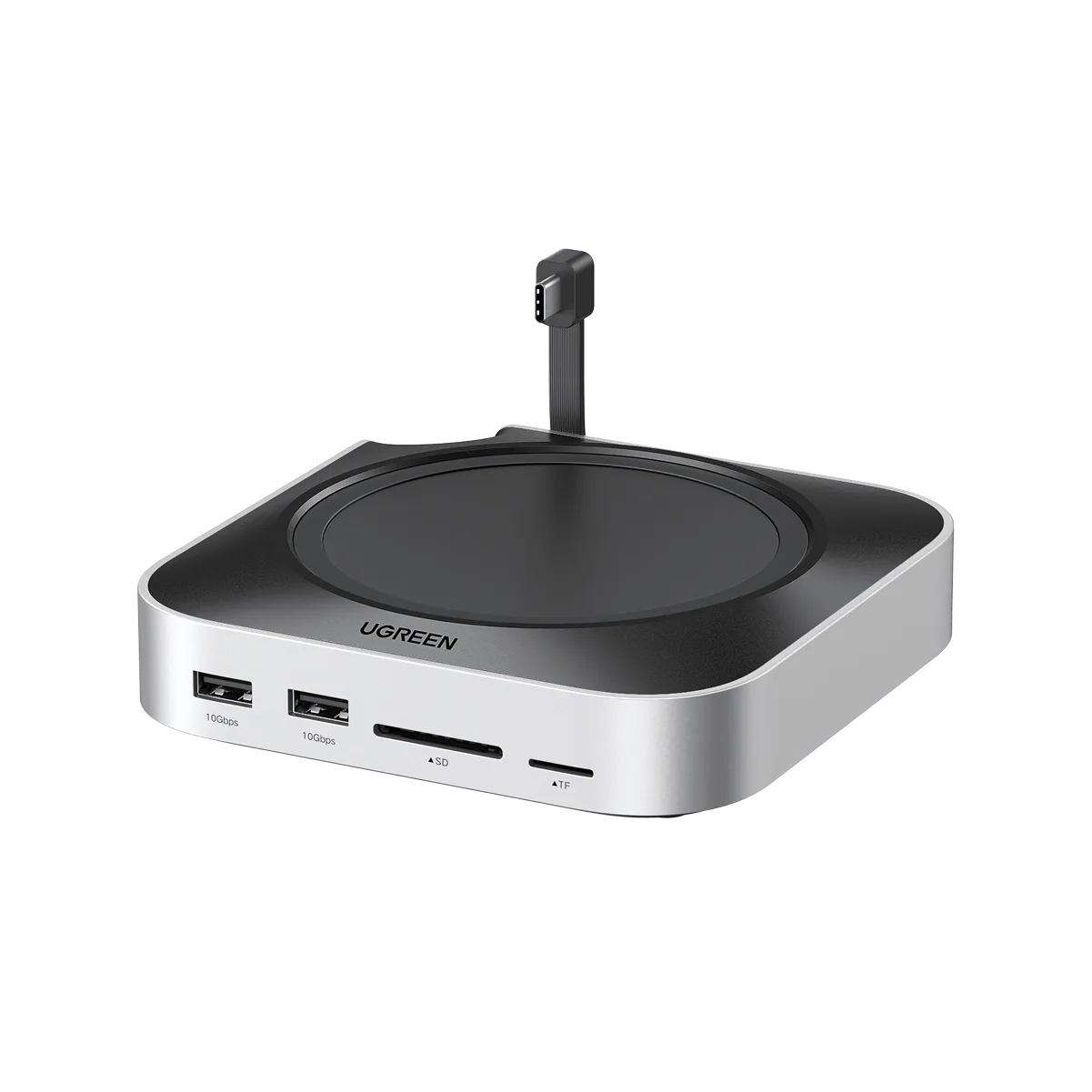
UGREEN Mac Mini M4 Hub & Stand met NVMe SSD-behuizing 8TB Max