Quick answer
The Nyko Smart Clip Plus securely attaches your smartphone to an Xbox Series X|S wireless controller, giving you a hands-free second screen for guides, achievement tracking, or mobile streaming.
Why use a phone mount with your Xbox controller?
Holding your phone in one hand while trying to play is awkward and often leads to dropped devices. A dedicated clip keeps the screen at eye level so you can follow a walkthrough, check the Xbox app, or record gameplay without juggling gear.
The Smart Clip Plus is designed specifically for the Xbox Series X|S controller shape, so it grips firmly without blocking the charging port or rear buttons. It also rotates to landscape or portrait orientation depending on what you're doing.
What the Smart Clip Plus does not include
The mount holds your phone only; it does not charge the controller or phone, nor does it include a built-in battery. If you need to keep your controller powered during long sessions, pair the clip with a separate charging solution like a charge base or play-and-charge kit.
How to attach and use the Smart Clip Plus
- Open the clip and align it with the controller: Press the release button on the back of the Smart Clip Plus to open the clamp wide. Slide the clamp over the center of your Xbox Series X|S controller, just above the Xbox button. The rubber pads should sit flush against the controller body. Do not force the clip onto the controller's edges or triggers; it is designed to grip the flat center section only.
- Insert your phone into the holder: Pull the top phone holder upward and place your smartphone inside. Release the holder so it grips the top edge of your phone. Make sure the volume and power buttons are not pressed by the holder's sides. Remove any thick case that prevents the holder from gripping the phone securely; a bare phone or slim case works best.
- Adjust the viewing angle: Rotate the phone holder 90 degrees to switch between landscape and portrait orientation. Tilt the phone forward or backward for a comfortable viewing angle while you play. If the phone feels loose after adjusting, tighten the pivot screw gently with a small Phillips screwdriver.
- Connect your controller and start using the second screen: Turn on your Xbox Series X|S controller as usual. Open the Xbox app, a guide, or a streaming app on your phone. The clip keeps the phone stable while you play. Keep the phone's screen brightness moderate to avoid overheating during long sessions; the clip does not provide active cooling.
Product details
-
Smart Clip Plus for Xbox Series X|S (Wireless Controller Phone Mount): The Nyko Smart Clip Plus for Xbox Series X|S conveniently attaches your smartphone directly to your wireless controller, delivering an integrated, hands-free second-screen experience. You can follow guides, check achievements, or stream mobile video without taking your hands off the controller.
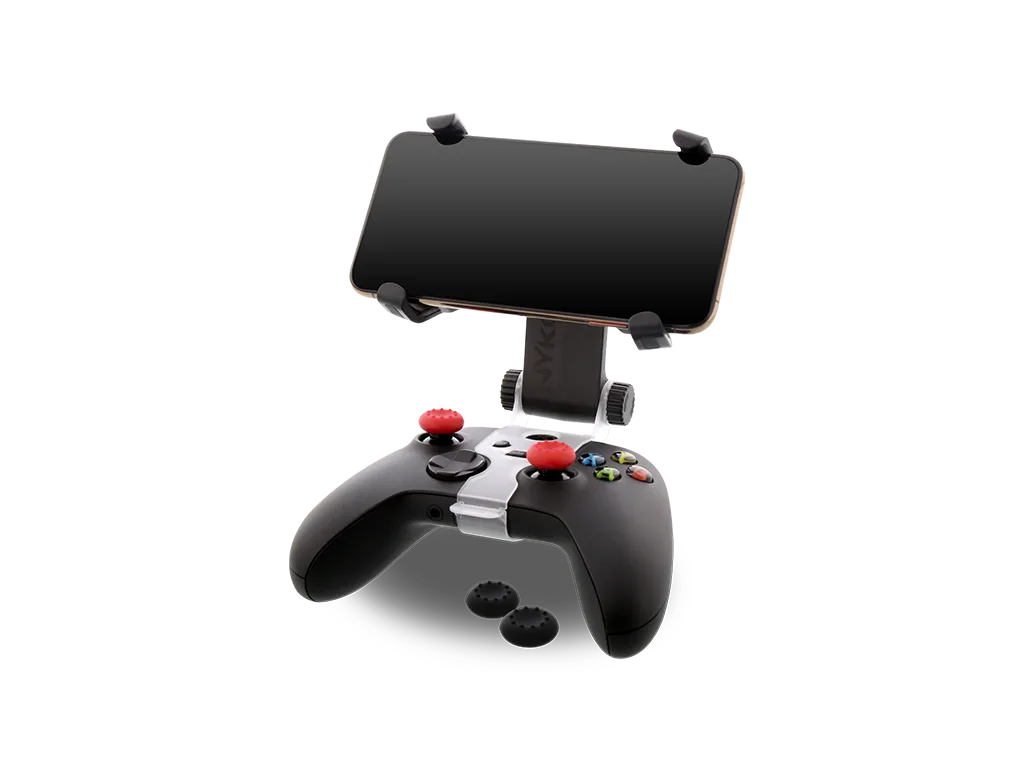
Smart Clip Plus for Xbox Series X|S (Wireless Controller Phone Mount)