Quick answer
Replacing the capacitors on your Sega Master System (a recap) restores reliable power delivery, fixes distorted audio, and clears up video signal issues. It is a straightforward soldering job if you take your time and match each capacitor's voltage and capacitance exactly.
Why recap your SMS?
The original electrolytic capacitors in the Sega Master System are over 30 years old. They dry out over time, causing symptoms like buzzing audio, a dim or rolling picture, random resets, or the console simply not powering on. A full recap addresses all of these at once and is often the first step before troubleshooting other issues.
Not every console needs a recap immediately. If your SMS works perfectly, you can wait, but preemptive replacement prevents future damage from leaking capacitors. The trade-off is that you need basic soldering skills and about an hour of careful work.
Step-by-step SMS capacitor replacement
- Gather tools and capacitors: You need a soldering iron (30-40W), solder wick or a desoldering pump, isopropyl alcohol, a small Phillips screwdriver, and a replacement capacitor kit. Match each capacitor's capacitance (µF) and voltage (V) exactly; higher voltage is safe, but never lower. Common mistake: using a capacitor with the wrong polarity or voltage rating. Check the silkscreen on the board for orientation.
- Open the console and locate the capacitors: Remove the screws on the bottom, lift the top shell, and disconnect the RF shield if present. Identify the capacitors on the main board near the power supply, audio amp, and video output sections. Take a photo for reference. Checkpoint: note the orientation of each capacitor (the stripe indicates negative). Mark the board with a dot if the silkscreen is unclear.
- Desolder the old capacitors: Heat each solder joint and remove the old capacitor using solder wick or a pump. Gently rock the capacitor to free it. Do not pull hard or you may lift the copper pad. Common mistake: overheating the pad. Apply heat for no more than 3-4 seconds per joint. Let the iron rest between capacitors.
- Clean the pads: Wipe the empty solder pads with isopropyl alcohol and a cotton swab to remove flux residue and debris. This ensures a clean connection for the new capacitor. Checkpoint: inspect each pad for damage. If a pad lifts, you may need to run a jumper wire to the nearest trace.
- Install the new capacitors: Insert each new capacitor with the negative lead (shorter lead, stripe side) aligned to the negative pad. Solder the leads, then trim the excess with flush cutters. Double-check polarity before soldering. Common mistake: reversing polarity. A reversed capacitor can bulge or leak within minutes. Visually confirm the stripe matches the board marking.
- Test before reassembly: Plug in the power and AV cables (do not short anything with the metal shell). Turn on the console. Check for stable power LED, clear video, and clean audio. If the console does not start, recheck your solder joints and capacitor orientation. Checkpoint: if you hear a hum or see wavy lines, you may have a cold solder joint. Reheat and add a tiny bit of fresh solder.
- Reassemble and enjoy: Once everything works, power off, unplug, and reassemble the console. Replace the RF shield and top shell, and tighten the screws evenly. Common mistake: over-tightening screws can crack the plastic shell. Snug is enough.
What you need
-
SMS New Capacitors: This is a service item for capacitor replacement (SMS New Capacitors) used with the Product Options application to facilitate order customization. If you prefer not to solder, you can select this service option and send in your console for a professional recap, ensuring the job is done correctly without risking damage to the board.
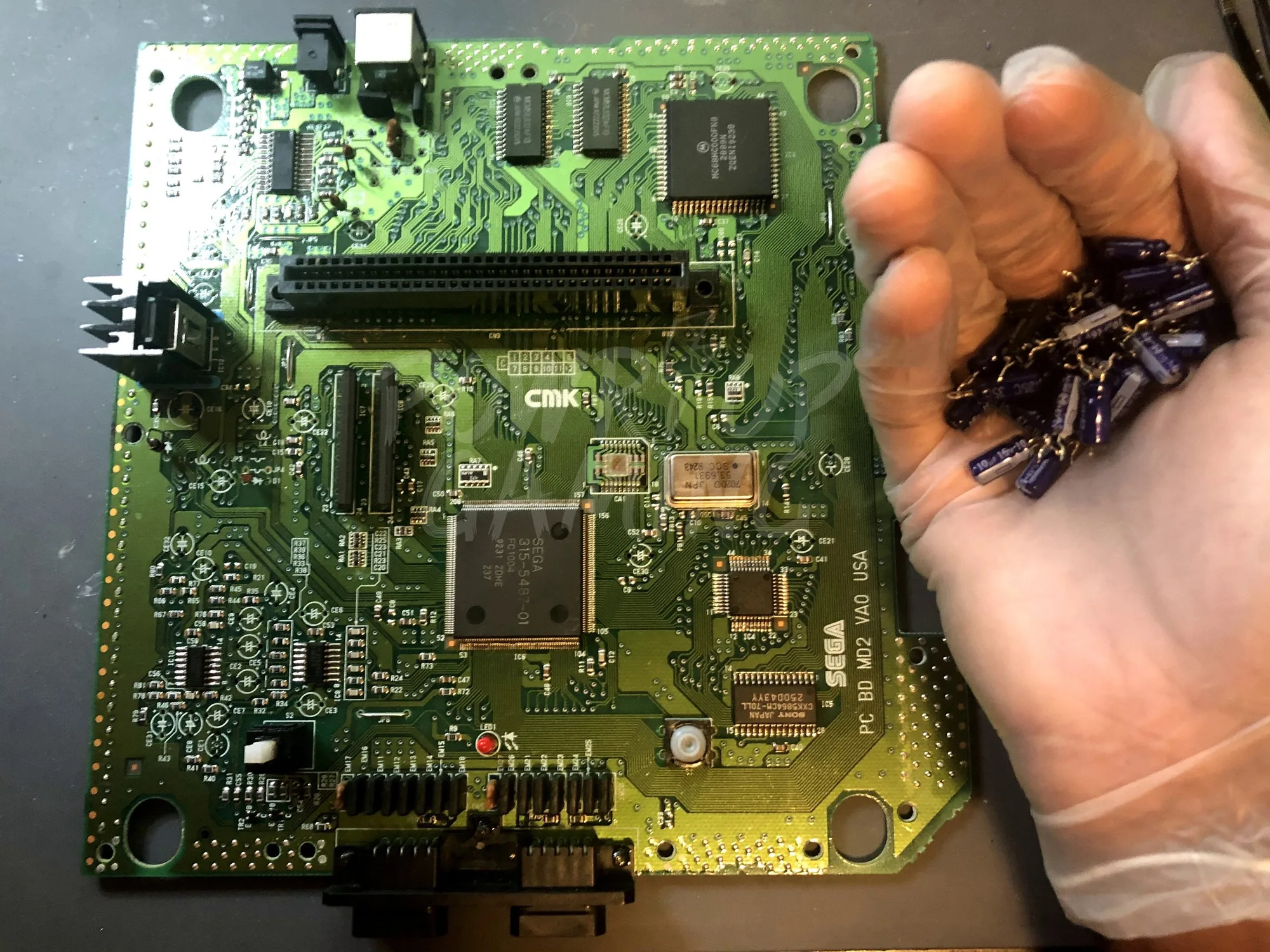
SMS New Capacitors