What You Need to Know Before Pairing
The TEIMA Colorful Wireless Keyboard & Mouse Combo offers two wireless connection methods: Bluetooth and a 2.4GHz USB receiver. This flexibility lets you connect to laptops, desktops, or tablets without cables cluttering your desk. The combo includes a full-size keyboard with a number pad and a responsive wireless mouse, all in a retro typewriter style that adds personality to any workspace.
Before starting, ensure your devices are powered on and within range for Bluetooth. The keyboard and mouse require batteries (not included in the package), so have fresh batteries ready. The 2.4GHz receiver is stored inside the mouse or keyboard compartment—check the product packaging for its location.
Pairing via 2.4GHz Receiver (Quickest Method)
- Insert the receiver: Locate the 2.4GHz USB receiver (usually tucked inside the mouse battery compartment or a slot on the keyboard). Plug it into an available USB port on your computer.
- Power on the keyboard and mouse: Turn on the power switch on both the keyboard and mouse. They should automatically connect to the receiver within a few seconds. If not, press the connect button (if available) on the underside of the devices.
- Test the connection: Open a text editor and type to confirm the keyboard works. Move the mouse to check cursor response. If nothing happens, try a different USB port or restart your computer.
Pairing via Bluetooth (for Tablets or Computers Without USB)
- Put the keyboard in pairing mode: Turn on the keyboard. Press and hold the Bluetooth pairing button (usually marked with a Bluetooth icon) until the LED indicator blinks rapidly. This means it is discoverable.
- Put the mouse in pairing mode: Similarly, turn on the mouse and press its Bluetooth pairing button until the LED blinks. The mouse may share the same button or a separate one.
- Connect on your device: Open the Bluetooth settings on your laptop, tablet, or phone. Look for 'TEIMA Keyboard' and 'TEIMA Mouse' in the list of available devices. Tap each to pair. Follow any on-screen confirmation prompts.
- Complete pairing: Once paired, the LED on each device will stop blinking and stay solid or dim. You can now use the keyboard and mouse wirelessly. If connection drops, repeat the steps.
Key Features That Support Your Setup
-
TEIMA Colorful Wireless Keyboard & Mouse Combo, Dual Bluetooth & 2.4G, Quiet Retro Typewriter Style, Full Size Bubble Keyboard with Number Pad, Aesthetic Desk Set for Laptop/PC/Office: Dual Bluetooth & 2.4G Wireless: Connect via Bluetooth or included 2.4GHz USB receiver. Flexible wireless use. This gives you two reliable ways to connect, so you can use the combo with devices that lack USB ports, like tablets, or with a standard computer for low-latency performance.
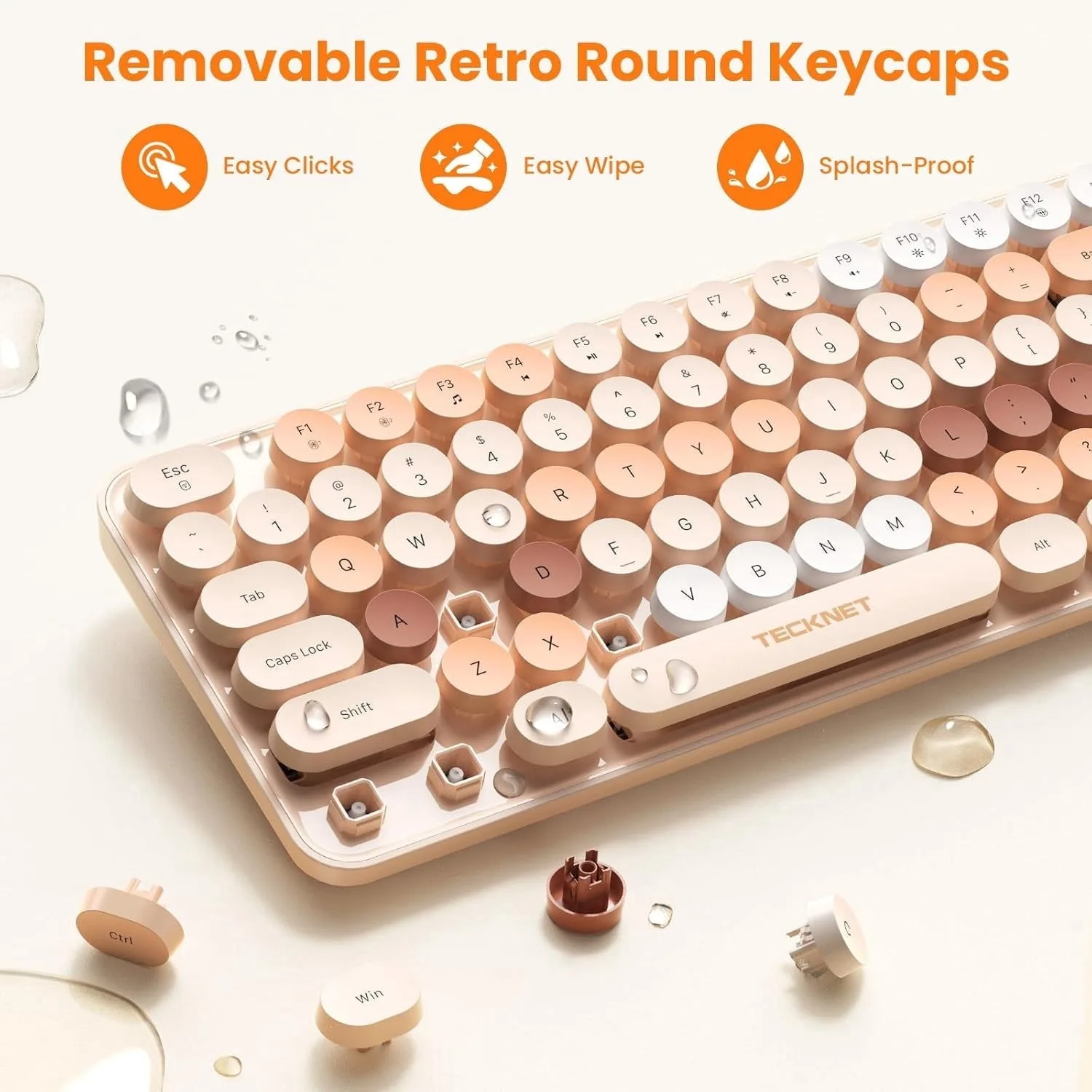
TEIMA Colorful Wireless Keyboard & Mouse Combo, Dual Bluetooth & 2.4G, Quiet Retro Typewriter Style, Full Size Bubble Keyboard with Number Pad, Aesthetic Desk Set for Laptop/PC/Office
-
TEIMA Colorful Wireless Keyboard & Mouse Combo, Dual Bluetooth & 2.4G, Quiet Retro Typewriter Style, Full Size Bubble Keyboard with Number Pad, Aesthetic Desk Set for Laptop/PC/Office: Full-size layout includes dedicated number pad – faster data entry. The number pad is especially useful for spreadsheet work or accounting tasks, making this combo practical for office and home use.
-
TEIMA Colorful Wireless Keyboard & Mouse Combo, Dual Bluetooth & 2.4G, Quiet Retro Typewriter Style, Full Size Bubble Keyboard with Number Pad, Aesthetic Desk Set for Laptop/PC/Office: Durable, Spill-Resistant & Built to Last: Durable keycaps + spill-resistant structure – handles accidental splashes. Spill resistance adds peace of mind in a busy workspace, protecting your investment from common accidents.
Tips for a Smooth Experience
If you encounter interference, try moving the receiver closer to the devices or switching to Bluetooth. The combo supports multiple devices, so you can pair it with both your laptop and tablet and switch between them using the Bluetooth button. Keep the keyboard and mouse within range of the receiver or paired device for best performance, following the supplied product instructions.
The retro typewriter style with round keycaps adds a fun aesthetic to your desk, but the keys are quiet enough for shared spaces. The included mouse is responsive and works well for everyday tasks like web browsing and document editing. If you ever need to reconnect, just turn the devices off and on again or re-pair via Bluetooth.