Quick answer
Plug the shared USB receiver into a free port, power on both devices, and wait a few seconds—the TK-KM014 combo should connect automatically. If it doesn't, reinsert the receiver or recharge the keyboard and mouse before trying again.
Why the shared receiver simplifies pairing
The TK-KM014 uses a single 2.4GHz USB receiver for both the keyboard and mouse, so you don't need to pair each device separately via Bluetooth. This means setup is essentially plug-and-play: the receiver acts as the bridge, and both devices are pre-paired at the factory. The main requirement is a free USB-A port and enough battery power in each device. If your laptop lacks a USB-A port, you'll need a USB-C hub or adapter—something to check before you start.
When to recharge instead of re-pair
The keyboard and mouse have built-in rechargeable batteries (500mAh and 400mAh respectively). If either device stops responding, low battery is a more likely cause than a lost pairing. Charge them fully before assuming a pairing fault. Also note that the receiver range is up to 49 feet (15 meters) in open space; walls and interference can reduce that, so keep the receiver and devices in the same room during setup.
TK-KM014 setup steps
- Charge both devices fully: Connect the keyboard and mouse to a USB power source using their charging cables and let them charge until full. This prevents mid-setup dropouts. A full charge before pairing avoids false troubleshooting.
- Insert the USB receiver: Plug the shared receiver into a free USB-A port on your computer. Avoid USB hubs or extension cables during initial setup, as they can weaken the signal. Use a direct port for the most reliable connection.
- Turn on the keyboard and mouse: Slide the power switches on both devices to the ON position. The keyboard and mouse should be pre-paired to the receiver from the factory. Check that both switches are clearly in the ON position—some have a middle OFF detent.
- Wait for automatic connection: Give the system 10–15 seconds to recognize both devices. The keyboard and mouse should start working without any driver installation. If nothing happens, try a different USB port before re-pairing.
- Test and adjust: Type in a text editor and move the mouse to confirm both work. If one device lags, move the receiver to a port on the same side as your devices or reduce distance. Lag usually points to interference or distance, not a pairing failure.
- Troubleshoot if needed: If a device still doesn't respond, unplug the receiver, wait 5 seconds, and plug it back in. Then power-cycle the device. If problems persist, recharge the device fully and repeat. A simple re-plug and power cycle resolves most connection issues.
Product facts
-
TECKNET Wireless Keyboard and Mouse Combo TK-KM014: Uses a single shared USB receiver for both keyboard and mouse with 2.4GHz wireless technology. You only need one free USB port, and there's no separate pairing process for each device.
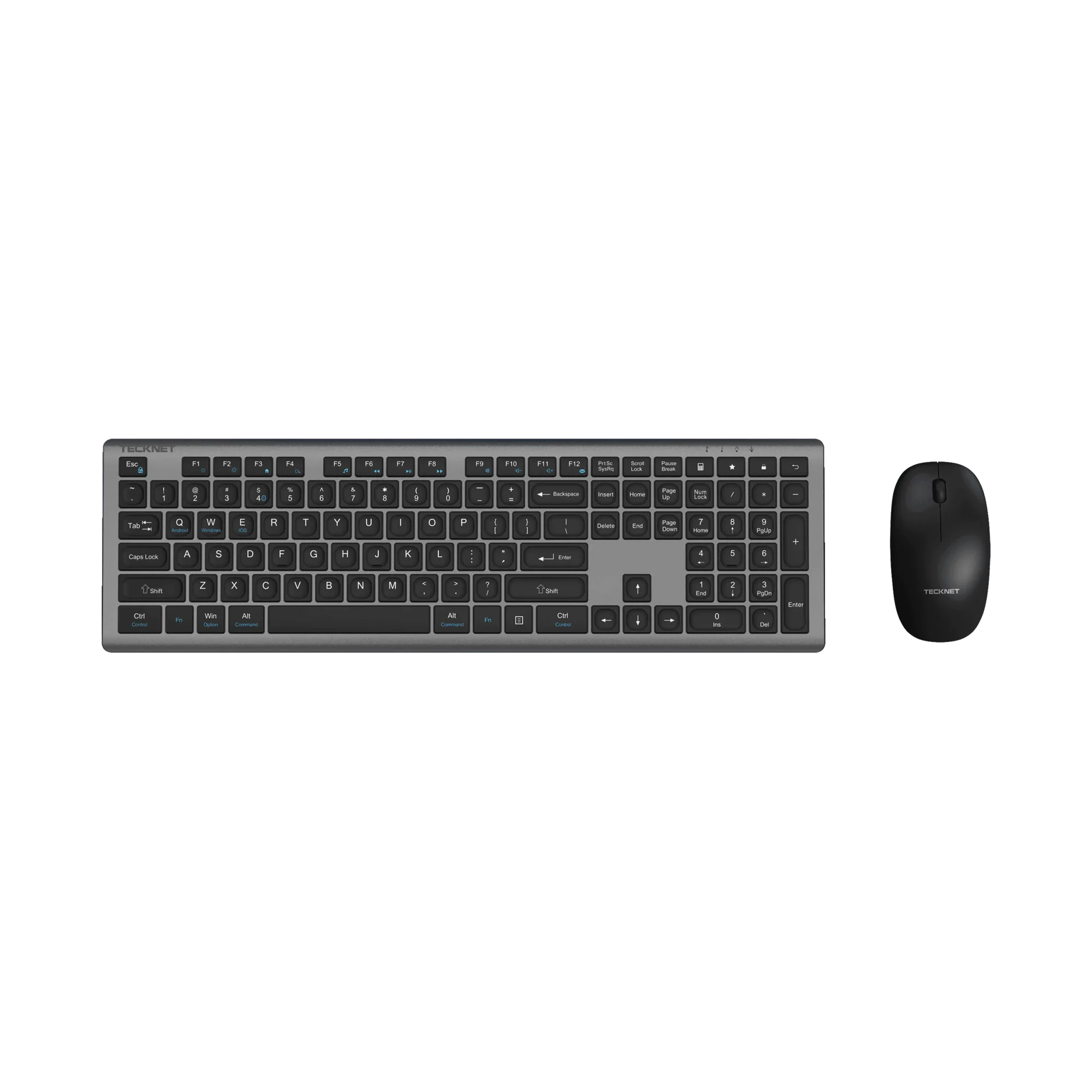
TECKNET Wireless Keyboard and Mouse Combo TK-KM014
-
TECKNET Wireless Keyboard and Mouse Combo TK-KM014: Built-in rechargeable batteries: 500mAh in the keyboard, 400mAh in the mouse. You won't need disposable batteries, but you should charge both devices before first use or if they become unresponsive.