Where the comparison actually applies
A tri-mode mechanical keyboard and a wireless mouse solve different problems on your desk. The keyboard handles text input, shortcuts, and often gaming controls, while the mouse handles pointing, selection, and precision tasks. Comparing them head-to-head only makes sense when you are deciding how to allocate desk space, USB ports, and budget between the two. This article uses the TECKNET TK-GK005 as the keyboard reference and explains what to check when pairing it with a wireless mouse you already own or plan to buy.
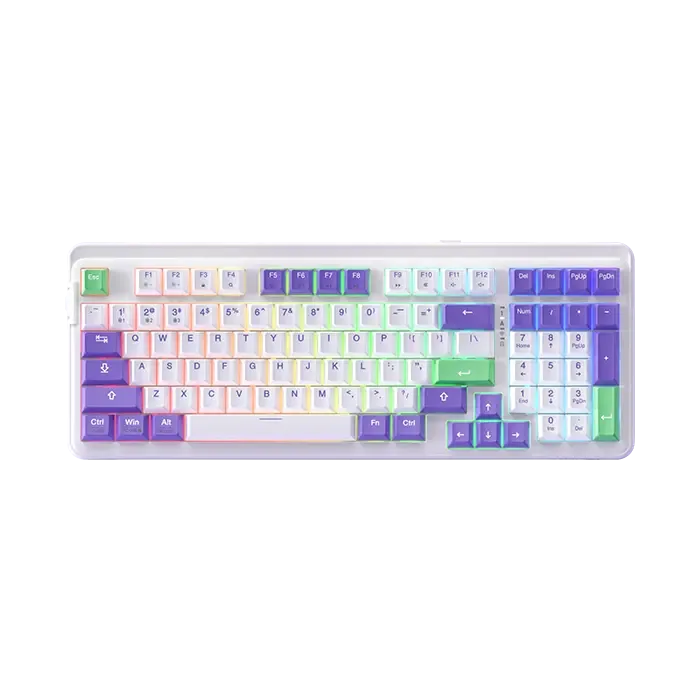
The TK-GK005 is a 96% layout, 97-key mechanical keyboard with three connection modes: wired USB-C, a 2.4GHz USB-A receiver, and Bluetooth. It supports up to five devices across those modes. That flexibility matters when you are also managing a mouse, because both devices compete for the same ports and wireless bandwidth.
Connection modes: what each device needs
The table below summarizes the connection options confirmed for the TK-GK005. A wireless mouse typically uses either a 2.4GHz USB-A receiver or Bluetooth, but the exact modes depend on the model you own. Check your mouse documentation before assuming it matches the keyboard's flexibility.
- Wired (USB-C): The TK-GK005 supports a wired USB-C connection with 0 latency, which TECKNET positions for gaming. This mode also recharges the keyboard. For a wireless mouse, wired mode is less common but some models offer it for charging while in use.
- 2.4GHz USB-A receiver: The TK-GK005 includes a USB-A receiver for plug-and-play wireless. If your mouse also uses a 2.4GHz receiver, you will need two free USB-A ports or a hub. Some mice support Bluetooth to free up a port.
- Bluetooth: The TK-GK005 Bluetooth mode saves USB ports and supports true wireless connection. It can remember multiple devices. A Bluetooth mouse can share the same benefit, but confirm your mouse supports Bluetooth before relying on it.
TECKNET TK-GK005 facts that affect desk pairing
-
TECKNET Tri-Mode BT5.0/Wired/Wireless Mechanical Keyboard,TK-GK005: 5 Devices & Zero Lag: Versatile computer keyboard with 3 connect mode choose and 5 device connect (3 via Bluetooth, others via wired and wireless). This means the keyboard alone can occupy one wired connection, one 2.4GHz receiver, and three Bluetooth slots. If your mouse also needs a receiver or Bluetooth slot, plan your port and pairing budget accordingly.
TECKNET Tri-Mode BT5.0/Wired/Wireless Mechanical Keyboard,TK-GK005
-
TECKNET Tri-Mode BT5.0/Wired/Wireless Mechanical Keyboard,TK-GK005: 96% layout 97-key keyboard cuts 30% space while retaining the numpad. A 96% layout leaves more room for mouse movement than a full-size keyboard, which matters if you use a low-sensitivity mouse for gaming or precision work.
-
TECKNET Tri-Mode BT5.0/Wired/Wireless Mechanical Keyboard,TK-GK005: Note: Xbox S series device requires USB-C wired cable, other connection methods are not supported yet. If you plan to use the keyboard with an Xbox Series S, you must use wired USB-C. A wireless mouse connected to the same console may also have specific requirements, so check both devices before assuming a wireless desk setup will work.
-
TECKNET Tri-Mode BT5.0/Wired/Wireless Mechanical Keyboard,TK-GK005: NOTE: Not suitable for MAC system Despite mentioning Mac/Win switching via FN+M/W, the product record explicitly states it is not suitable for Mac systems. Do not plan a Mac-based desk setup around this keyboard without confirming compatibility with TECKNET support.
Layout and space: how the keyboard affects your mouse
The TK-GK005 uses a 96% layout that retains the number pad while cutting about 30% of the space of a full-size keyboard. That extra desk area can make a real difference for mouse movement, especially if you play games at low sensitivity or do detailed design work. A smaller keyboard footprint often lets you position the mouse closer to your body, which can reduce shoulder strain.
The keyboard also has a two-level height stand for ergonomic positioning. If you raise the back of the keyboard, check that the front edge does not create a lip that interferes with your mouse hand. A wireless mouse with a low profile may pair better with a flat keyboard position, but this is a personal preference rather than a rule.
Compatibility checks before you commit
The TK-GK005 explicitly supports Windows and Linux, and the product record states it is not suitable for Mac systems. If you use a Mac, treat this keyboard as incompatible unless TECKNET confirms otherwise. For a wireless mouse, check its own compatibility list separately; many mice support Mac even when a keyboard does not.
For console use, the TK-GK005 works with Xbox Series S only in wired USB-C mode. A wireless mouse may or may not work with the same console, and the connection method matters. Verify both devices against your console's supported accessories before buying.
The keyboard's 2.4GHz receiver and Bluetooth modes are plug-and-play for supported systems, but the product record does not specify Bluetooth version or range. If you need reliable wireless at a distance, the wired mode is the only one with a confirmed zero-latency claim.
Practical pairing tips for a mixed desk
- Reserve one USB-A port for the keyboard receiver: The TK-GK005 includes a USB-A receiver. If your mouse also uses a 2.4GHz receiver, you will need two USB-A ports or a hub. Consider a Bluetooth mouse to free up a port.
- Use Bluetooth for devices you switch between often: The TK-GK005 can store three Bluetooth devices. Pair your computer, tablet, or phone there, and keep the 2.4GHz receiver for a device that needs low latency.
- Match your mouse connection to your priority: For gaming, a wired or 2.4GHz mouse is often preferred for latency. For office work, Bluetooth reduces port clutter. The TK-GK005 offers all three, so you can adapt.
- Check keyboard height against mouse comfort: The TK-GK005 has a two-level height stand. Try both positions and see how your wrist and mouse arm feel during long sessions.
What the evidence does not tell you
The supplied product record for the TK-GK005 does not include battery life figures, Bluetooth version, wireless range, or specific mouse compatibility. It also does not confirm whether the keyboard's 2.4GHz receiver can pair with a mouse from the same brand or any other brand. Do not assume interoperability between the TK-GK005 and a wireless mouse without checking the mouse's documentation or contacting TECKNET support.
Similarly, the record does not specify whether the keyboard's USB-C port can be used for data transfer or only charging. If you need wired data, use the included cable as instructed, but confirm with support if you plan to use a different cable.