Quick Answer
Most FlexSeries® Pro charging issues stem from a faulty cable, a dirty charging port, or a depleted battery. Start by inspecting the cable and port, then try a different power source. If the problem persists, consider replacing the cable or dock with genuine Freebird accessories.
A dead FlexSeries® Pro can disrupt your grooming routine, but charging problems are often easier to fix than you think. Whether your device isn't responding to the charger or the battery drains too quickly, this guide walks you through common issues and their solutions.
We'll cover symptoms like no charging indicator, intermittent charging, and slow charging, and provide step-by-step troubleshooting. By the end, you'll know exactly what to check and when to replace a component.
No Charging Indicator Light
If your FlexSeries® Pro doesn't show any sign of charging when plugged in, the first thing to check is the power source. Try a different USB port or wall adapter to rule out a faulty outlet. Also, ensure the cable is fully inserted into both the device and the power source.
Inspect the charging port on the shaver for lint, dust, or debris that might block the connection. Use a soft, dry brush or compressed air to clean it gently. If the port looks damaged, contact support.
- Always use the original cable or a certified replacement to avoid compatibility issues.
Intermittent Charging or Loose Connection
A loose connection often means the cable is damaged or the port is worn. Check the cable for fraying, bends, or exposed wires. If you find any damage, replace the cable immediately. The FlexSeries® USB Charging Cable is a direct replacement for the original, ensuring a secure fit.
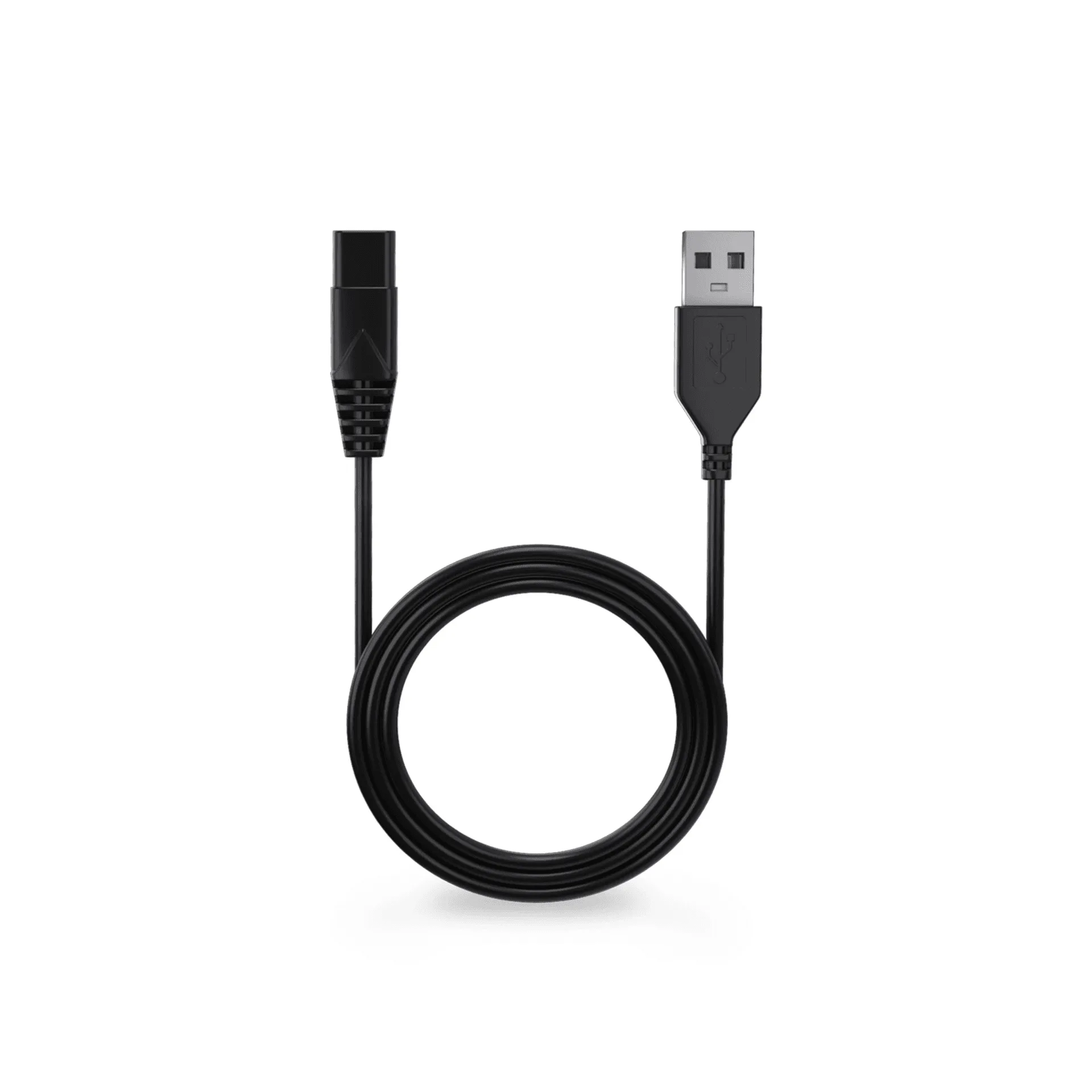
FlexSeries® USB Charging Cable
If the cable is fine, the issue might be the charging dock. Ensure the device sits properly in the dock and that the contacts are clean. Wipe them with a dry cloth.
- Try bending the cable at different points while charging to see if the connection cuts out – this indicates a break in the wire.
Slow Charging or Battery Drains Quickly
Slow charging can happen if you're using a low-power USB port, like those on some computers. Use a wall adapter with at least 1A output for optimal charging speed. If the battery still drains quickly, it might be time to recalibrate the battery by letting it fully discharge and then charging to 100%.
If the problem persists, the battery may be aging. While you can't replace the battery yourself, you can ensure you're using the correct charging accessories to maximize battery life.
- Avoid charging in extreme temperatures, as this can affect battery performance.
Charging Dock Not Working
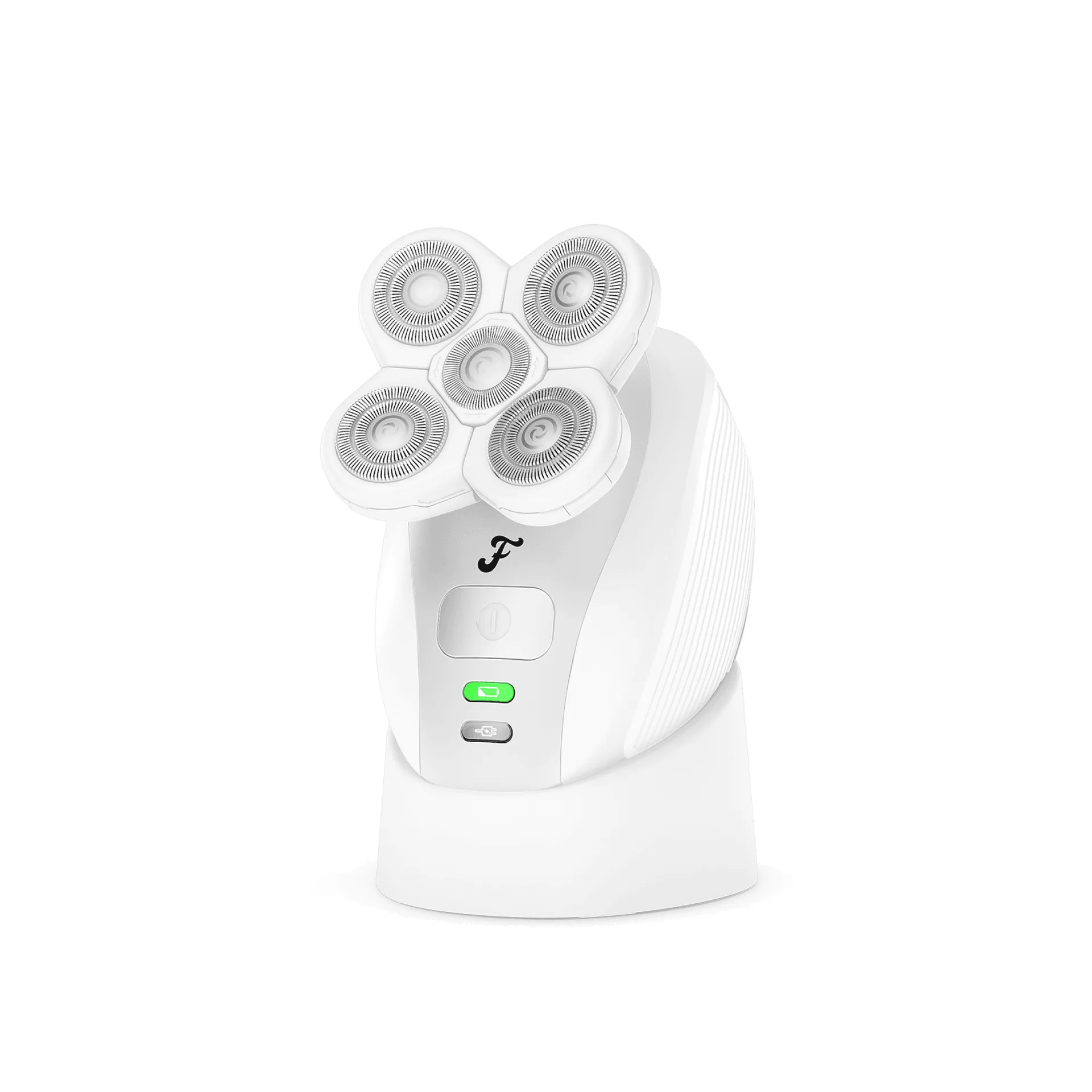
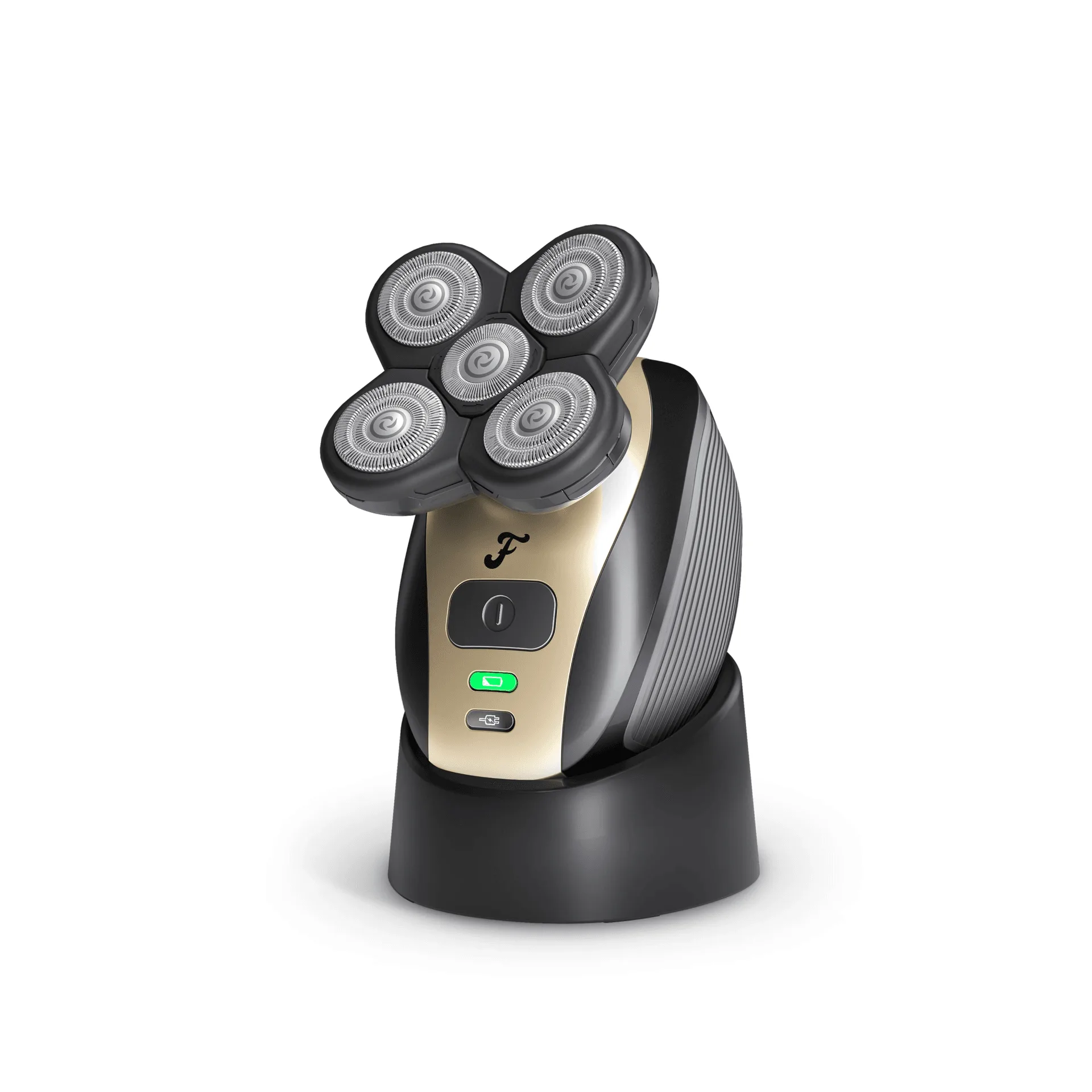
If you use a charging dock and it's not working, first check the cable connection to the dock. Try a different cable if possible. Also, clean the contacts on both the dock and the device. For a clutter-free solution, the https://myfreebirdetb.com/products/flexseries-charging-dock-for-women-349757FlexSeries® Charging Dock for Women offers a stable charging base, but ensure it's compatible with your device model.
If the dock still fails, test the device with a direct cable connection to isolate the issue. If it charges via cable, the dock's contacts may be faulty.
- Keep the dock on a flat, stable surface to ensure proper contact.
Diagnosis Guide
- Symptom: No charging indicator: Check power source, cable, and port cleanliness. Try a different outlet or adapter. If still no light, replace the cable or contact support.
- Symptom: Intermittent charging: Inspect cable for damage and clean contacts. Test with a different cable. If cable is damaged, replace with a genuine FlexSeries® USB Charging Cable.
- Symptom: Slow charging or quick drain: Use a wall adapter with adequate output. Recalibrate the battery by full discharge and charge. If issue persists, battery may need professional service.
- Symptom: Dock not working: Check cable connection, clean contacts, and test with direct cable. If dock is faulty, consider a replacement dock or use cable charging.
Product Facts
- FlexSeries® USB Charging Cable: Designed as a direct replacement for the original FlexSeriesTM cable, ensuring you're never left without a charge, even if your original cable goes missing. If your cable is damaged or lost, this affordable replacement keeps your device powered without compatibility worries.
- FlexSeries® Charging Dock for Women: Ensure your FlexSeriesTM is always ready for your next shave with the charging dock — while cutting clutter and unsightly cables on your counter. A dock can eliminate loose cable issues and provide a stable charging station, reducing wear on the charging port.
Charging issues with your FlexSeries® Pro are usually easy to resolve with a bit of troubleshooting. Start with the simplest checks, and if you need a reliable replacement cable, the FlexSeries® USB Charging Cable ensures you stay powered up. For a tidy charging station, explore the FlexSeries® Charging Dock for Women.