Start with the two things that actually block a connection
When your TrueBuds Glow earbuds won't pair, the problem usually sits in one of two places: the earbuds aren't discoverable, or your phone isn't looking for them. The catalog confirms the earbuds connect over Bluetooth and work with iPhone, Android, and other Bluetooth-enabled devices, so the fix is rarely about compatibility. It's about getting both sides into pairing mode at the same time.
Before you try anything else, make sure the earbuds have power. The charging case is a portable charger that provides multiple charges for the earbuds, so a quick stay in the case is the simplest first checkpoint. If the case itself is empty, the earbuds won't power on to pair at all.
What the TrueBuds Glow brings to a pairing session
-
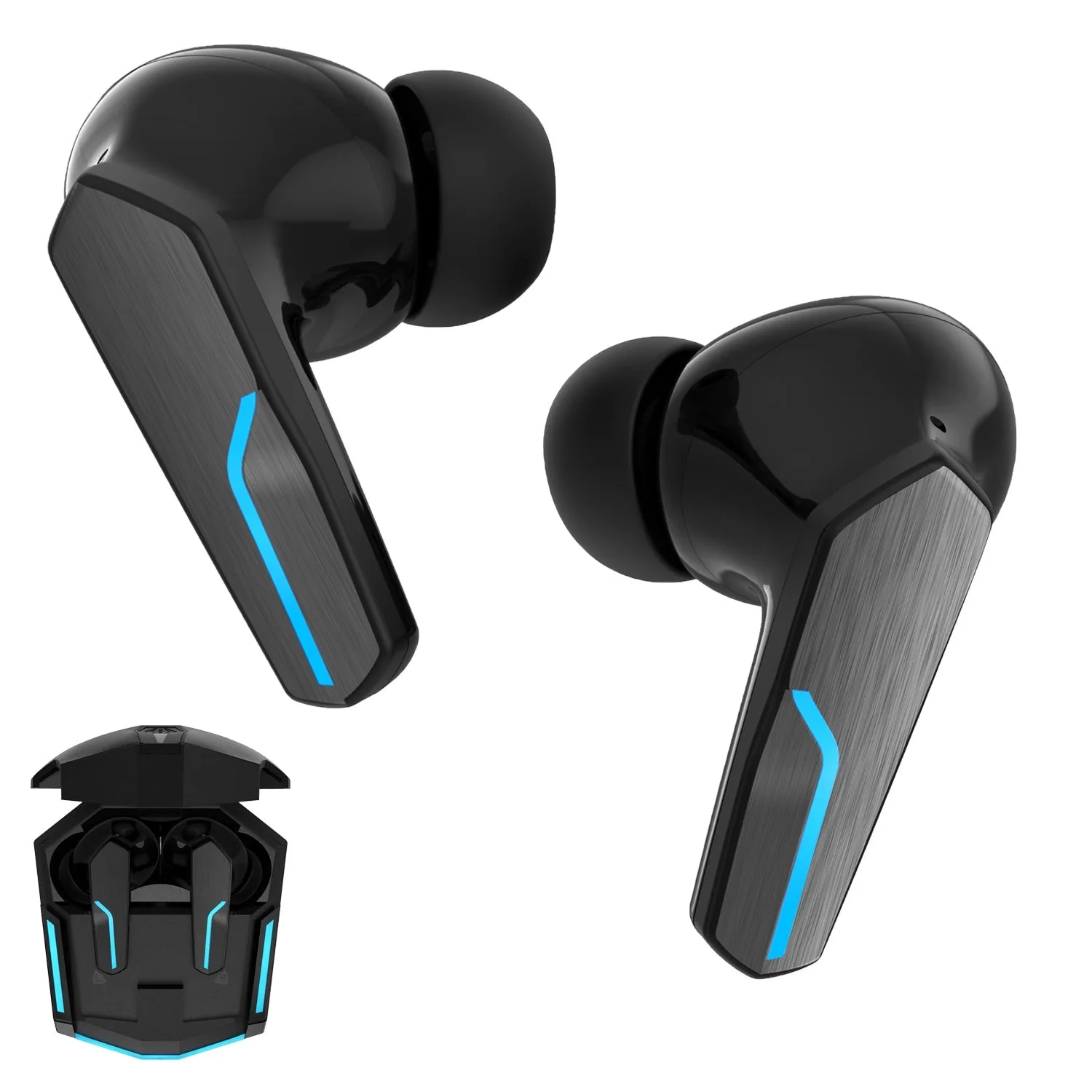
Gabba Goods TrueBuds Glow Wireless Premium Earbuds with Charging case for Bluetooth Ear Buds: The earbuds connect to devices via Bluetooth and are described as compatible with iPhone, Android, and other Bluetooth-enabled gadgets. This rules out phone-brand compatibility as the cause, so you can focus on the pairing process itself.
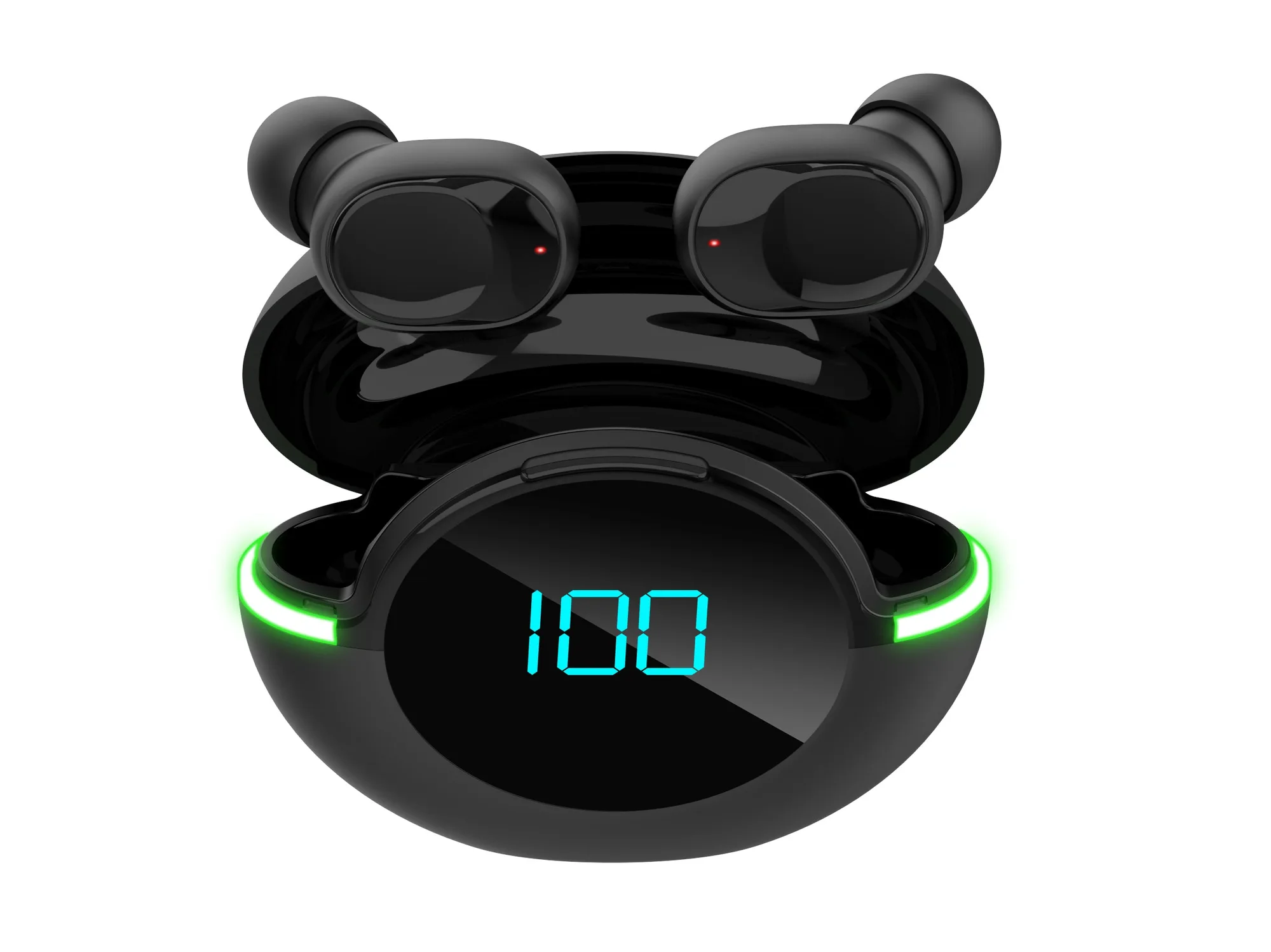
Gabba Goods TrueBuds Glow Wireless Premium Earbuds with Charging case for Bluetooth Ear Buds
-
Gabba Goods TrueBuds Glow Wireless Premium Earbuds with Charging case for Bluetooth Ear Buds: The included charging case doubles as a portable charger and provides multiple charges for the earbuds. A charged case is your first tool for getting the earbuds ready to pair.
-
Gabba Goods TrueBuds Glow Wireless Premium Earbuds with Charging case for Bluetooth Ear Buds: Touch-sensitive controls on the earbuds handle play, pause, track skipping, calls, and voice assistant activation with a tap. Accidental touches can interrupt pairing or audio, so keep fingers off the earbuds during the process.
A checkpoint-based pairing sequence
Use this order to isolate where the connection is failing. Each step confirms one link in the chain before you move to the next.
- Charge the earbuds in the case: Place both earbuds in the charging case and let them take a charge. The case provides multiple charges, so this is the most reliable way to rule out a dead battery.
- Turn Bluetooth off and back on: On your phone, toggle Bluetooth off, wait a moment, then turn it on again. This clears a stale connection attempt without changing any settings.
- Remove the old pairing from your phone: If the TrueBuds Glow appear in your Bluetooth list from a previous session, forget or remove that entry. Then start a fresh search.
- Put the earbuds into pairing mode: The supplied information does not describe a specific pairing-mode button sequence. Check the quick-start material that came with your earbuds for the exact step, then return to your phone's Bluetooth menu.
- Select the earbuds on your phone: When the TrueBuds Glow appear in the available devices list, tap them and confirm any on-screen prompt. Keep the earbuds close to the phone during this step.
- Keep hands off the touch controls: The earbuds use touch-sensitive controls, so avoid tapping or adjusting them while pairing. A stray touch can register as a command and interrupt the process.
When the charging case is the suspect
The case is a charger, not a pairing button, so it won't fix a Bluetooth problem directly. What it does is keep the earbuds powered. If the earbuds never light up or respond when you take them out, the case or its power source deserves attention first.
The catalog confirms the case provides multiple charges, but it does not specify how the case itself is recharged, how long a charge takes, or what the LED indicators mean. Those details aren't confirmed by the supplied information. If the case won't accept a charge at all, treat that as a hardware question for the seller rather than a pairing problem.
What a reset can and cannot do
A reset is a common suggestion for Bluetooth earbuds, but the supplied product information does not include a reset procedure for the TrueBuds Glow. That means there is no confirmed button combination or timing sequence to follow. Rather than guessing at one, use the pairing sequence above and the documentation that came with your earbuds.
If you have already removed the old pairing, toggled Bluetooth, and charged the earbuds, and your phone still doesn't list them, the next honest step is to test with a second device. The earbuds are described as compatible with a wide range of Bluetooth-enabled gadgets, so trying a tablet or another phone tells you whether the issue follows the earbuds or stays with the original phone.
Quick checks before you contact support
- Are the earbuds actually charged?: A short stay in the charging case is the fastest way to confirm power.
- Is the old pairing gone?: Remove the TrueBuds Glow from your phone's Bluetooth list before searching again.
- Are you too far from the phone?: Keep the earbuds and phone close together during the initial pairing attempt.
- Did a touch interrupt the process?: The touch controls are sensitive; set the earbuds down and avoid handling them until pairing completes.
- Does a second device see them?: Testing with another Bluetooth device helps you decide whether the problem is the earbuds or the original phone.