Quick Recommendation
Place the TurboPoly™ Table Fan on a stable desk away from walls, set it to the lowest speed that still moves air, and enable the magnetic‑drive mode for silent operation. If the fan still hums, add a rubber mat underneath to damp vibrations.
Open‑plan offices amplify any background sound, and a TurboPoly™ Table Fan can become a noticeable distraction. Understanding how the fan creates noise helps you target the right fixes without sacrificing airflow.
Below we break down the most common noise sources, why they happen, and step‑by‑step actions you can take to achieve a quieter workspace while keeping the room comfortably cool.
Identify the Noise Source
TurboPoly fans use magnetic‑drive technology that eliminates the traditional gear train, but noise can still arise from airflow turbulence, vibration against the desk, or the fan’s speed setting. Start by listening closely: a whirring sound usually means the motor is running at a higher speed than needed; a rattling noise often points to vibration.
Once you know the type of noise, you can apply a targeted solution. For whirring, lower the speed or switch to a quieter mode. For rattling, isolate the fan from the surface and check that the fan’s base is level.
- Use a non‑slip rubber mat under the fan to absorb vibrations.
- Keep at least 12 inches of clearance around the fan for smooth airflow.
Optimize Placement for Quiet Operation
Position the fan on a sturdy, flat surface away from walls or partitions that can reflect airflow and create additional turbulence. A height of about eye level (3‑4 feet) works well for desk use and reduces the need for high speed.
If possible, angle the fan slightly upward so the air stream moves across the room rather than directly into a wall. This reduces pressure buildup and the associated humming.
- Place the fan on a desk corner rather than the center to keep the airflow path clear.
Leverage Built‑In Quiet Features
Both TurboPoly™ Table Fan models include frictionless magnetic motors that already cut noise compared with conventional fans. Activate any “quiet mode” or lower the speed to the 2‑speed setting that still delivers sufficient airflow for a typical office space.
For the 565S model, take advantage of its 20dB‑quiet rating by using the app to schedule short bursts of higher speed only when extra cooling is needed.
- Set a timer for 30‑minute cooling cycles to avoid continuous high‑speed operation.
Diagnosis Summary
- Symptom: Audible whirring or rattling from the TurboPoly™ Table Fan during normal office use. Noise is noticeable enough to affect concentration.
- Likely Cause: Fan operating at higher speed than necessary, or vibration against a hard desk surface. Both issues are common in open‑plan layouts.
- Corrective Action: Lower speed to the minimum effective setting, place a rubber mat underneath, and ensure at least 12 inches of clearance on all sides. If noise persists after these steps, consider switching to a different fan model or relocating the fan to a quieter zone.
TurboPoly Table Fan Features That Matter
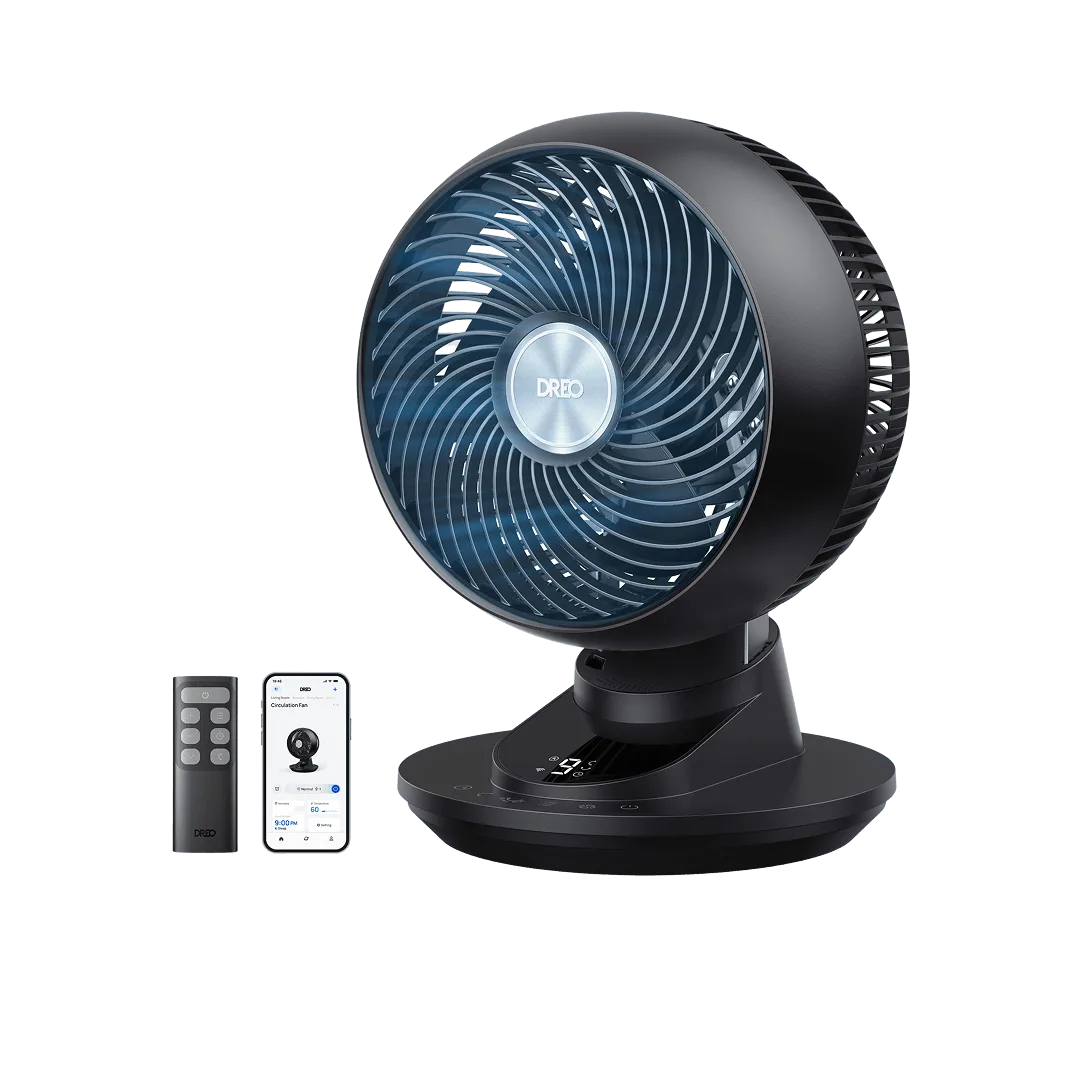
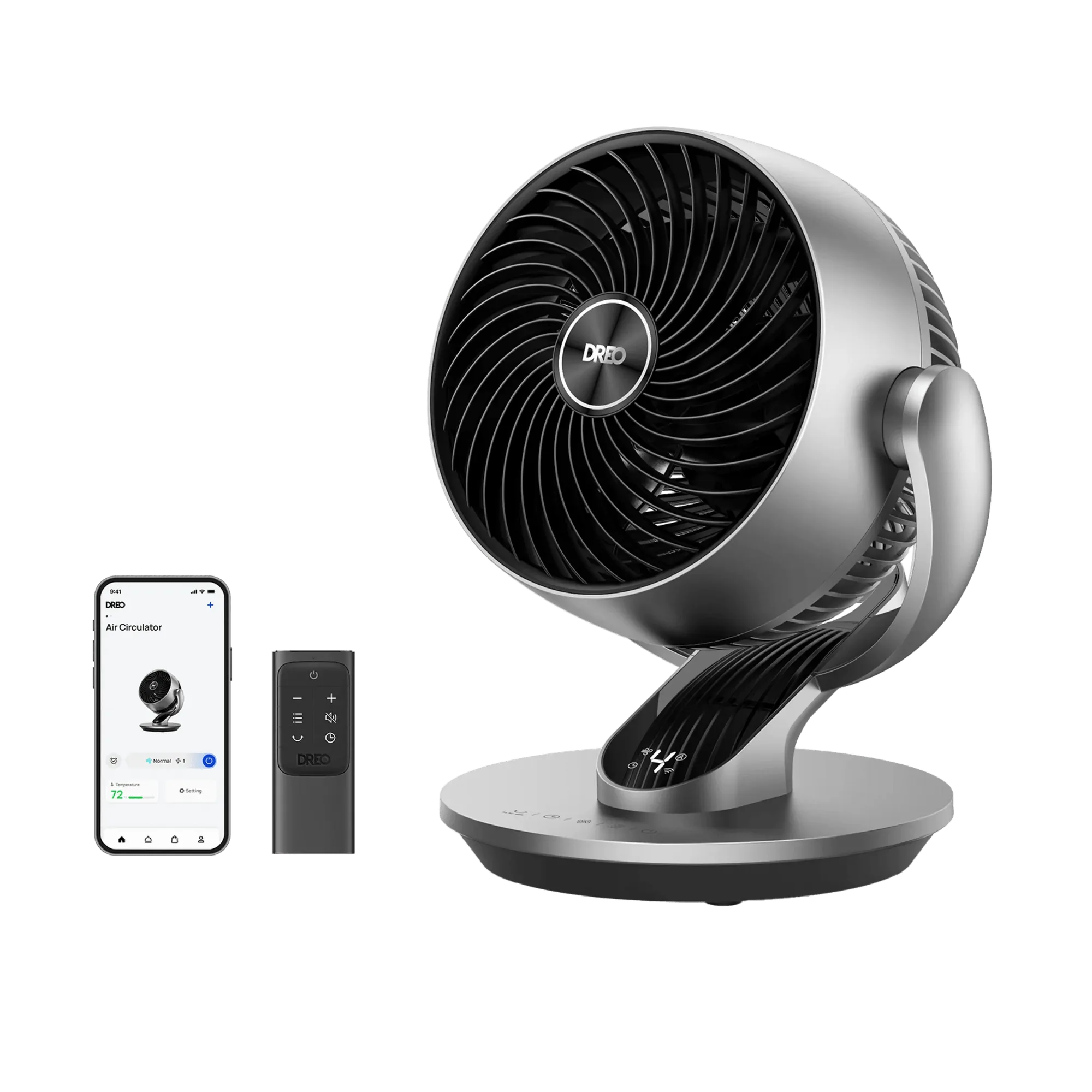
- TurboPoly™ Table Fan 511S: Turn airflow in any direction you want Make noise a thing of the past Frictionless performance Every spin is produced magnetically, reducing the resistance and noise produced in standard motors. Magnetic spin eliminates gear noise, making the fan naturally quieter than traditional desk fans.
- TurboPoly™ Table Fan 565S: DREO Smart Fan for Bedroom, Powerful 29 ft/s Airflow, 12 Inches, Desk Fans in 20dB Quiet, 90°+90° Oscillation, App/Voice Control, 9 Speeds & 8/12H Timer for Home Office Dorm The 20dB quiet rating and app‑controlled timer let you keep the fan on low speed for extended periods without disturbing coworkers.
By adjusting speed, placement, and using the built‑in quiet features, you can keep the TurboPoly™ Table Fan running efficiently while maintaining a peaceful office environment.