Why a USB-C to HDMI Adapter Is the Easiest Way to Connect
If your laptop has a USB-C port but your monitor only has HDMI, a USB-C to HDMI adapter is the simplest bridge. It lets you mirror or extend your screen to a larger display for presentations, streaming, or a more comfortable workspace. The Belkin USB-C to HDMI Adapter supports 4K resolution at 60Hz and Dolby Vision, so you get sharp, smooth visuals with enhanced color and contrast. This guide walks you through the connection process and what to check for a reliable setup.
How to Connect Your Laptop to a Monitor
Follow these steps to get your USB-C to HDMI connection working. The exact steps may vary slightly depending on your laptop and monitor, but the general process is the same.
- Check your laptop's USB-C port: Most modern laptops have a USB-C port that supports video output, but not all do. If your laptop's USB-C port doesn't support DisplayPort Alt Mode, the adapter may not work. Check your laptop's specifications if you're unsure.
- Connect the adapter to your laptop: Plug the USB-C end of the Belkin USB-C to HDMI Adapter into your laptop's USB-C port. The adapter's white finish matches most devices, so it won't look out of place on your desk.
- Connect an HDMI cable to the adapter: Use a standard HDMI cable (not included) and plug one end into the adapter's HDMI port. Make sure the cable is fully inserted for a secure connection.
- Connect the other end to your monitor: Plug the other end of the HDMI cable into your monitor's HDMI input. If your monitor has multiple HDMI ports, choose the one that matches the cable you're using.
- Select the correct input on your monitor: Use your monitor's on-screen menu to select the HDMI input you connected to. This is often done with a button on the monitor or a remote control.
- Adjust your display settings (if needed): Your laptop should automatically detect the monitor. If not, go to your operating system's display settings and choose to extend or duplicate your screen. You may also need to adjust the resolution to match your monitor's native resolution.
What the Belkin USB-C to HDMI Adapter Offers
Here are the key features of the Belkin USB-C to HDMI Adapter, based on the product information.
-
USB-C to HDMI Adapter (supports Dolby Vision): Supports 4K resolution at 60Hz for sharp, smooth video output. This ensures your external monitor displays crisp details and fluid motion, which is especially useful for presentations or watching high-resolution content.
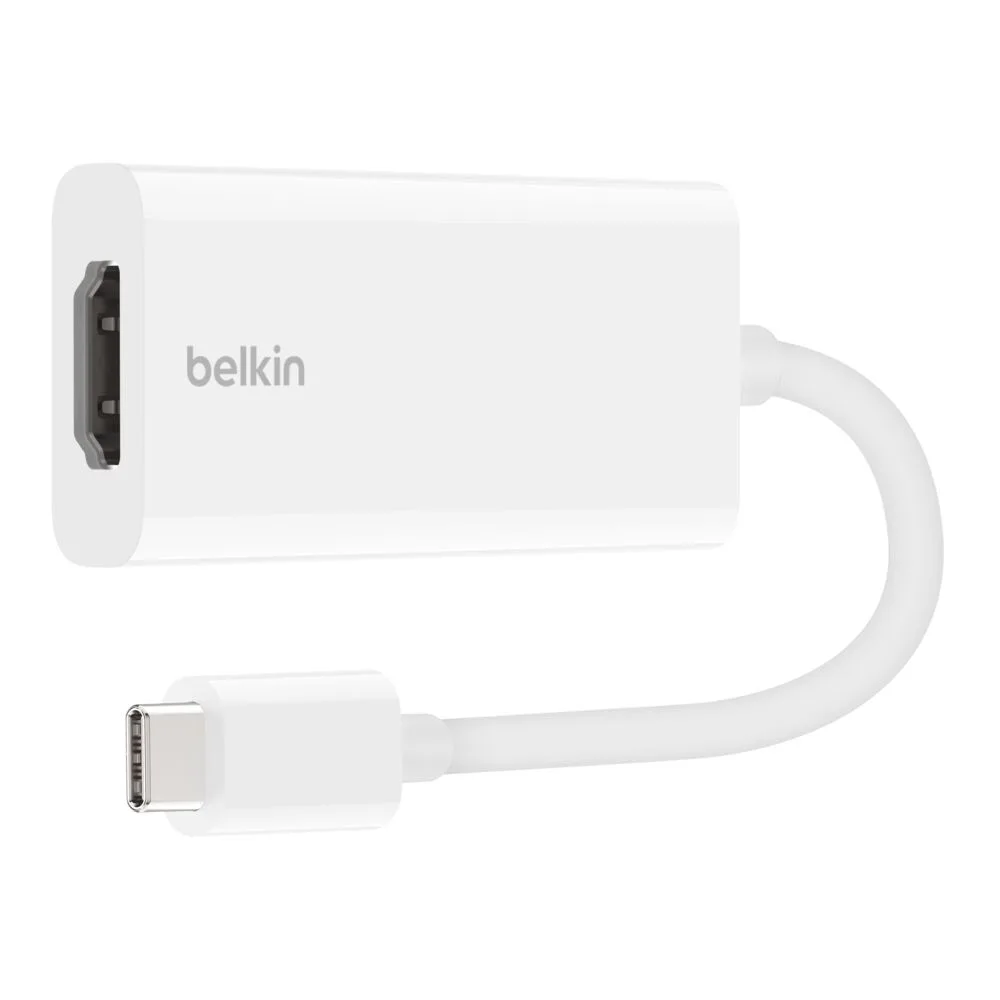
USB-C to HDMI Adapter (supports Dolby Vision)
-
USB-C to HDMI Adapter (supports Dolby Vision): Dolby Vision support enhances color and contrast. If your monitor supports Dolby Vision, you'll see more vibrant and lifelike images, making it a good choice for streaming or creative work.
-
USB-C to HDMI Adapter (supports Dolby Vision): USB-C to HDMI connectivity for versatile device pairing. The adapter works with any USB-C device that supports video output, giving you flexibility to connect different laptops or tablets to an HDMI display.
What to Check Before You Buy
Before purchasing a USB-C to HDMI adapter, verify that your laptop's USB-C port supports video output. Not all USB-C ports do. Also, consider your monitor's resolution and refresh rate. The Belkin adapter supports 4K at 60Hz, which is sufficient for most monitors. If your monitor supports a higher refresh rate, the adapter may not deliver it, but 60Hz is fine for typical office and entertainment use. The adapter's white finish is a minor aesthetic consideration, but it complements most setups.