Quick Answer
Most wireless microphone audio dropouts come from one of four causes: RF interference from crowded 2.4 GHz or UHF channels, antennas blocked by bodies or metal, too much distance or obstruction between transmitter and receiver, or a transmitter battery that is sagging under load. Work through symptoms in order, change one variable at a time, and stop swapping settings once the dropout is gone; if it returns in the same spot, the problem is environmental or hardware, not your setup.
Start With the Symptom, Not the Gear
A dropout is not one problem, it is a set of different problems that sound similar. Before you touch a menu, note three things: does the audio cut out completely or just get noisy, does it happen in one location or everywhere, and does it happen when the talent moves or when they stand still. Complete silence for a second or two usually points to RF loss or a receiver reboot. Crackling, hiss, or a robotic texture usually points to interference or a weak signal hitting the receiver's squelch. A dropout that only happens when the transmitter is against the body points to antenna blocking, not range.
Check Interference and Channel Congestion First
In urban venues, hotels, and conference centres, the 2.4 GHz band is crowded with Wi-Fi, Bluetooth, and other wireless mic systems. If your dropout is intermittent and location-dependent, scan for a clean channel and move the receiver away from routers, laptops, and LED walls. For UHF systems, use the receiver's scan or group function and avoid channels near local TV broadcasts. If you are running multiple systems, keep them on compatible groups rather than picking channels one by one.
Fix Antenna Placement and Line of Sight
Antennas work best with a clear path to the transmitter. Keep the receiver high and in the open, not inside a bag or behind a monitor. If the receiver has two antennas, angle them apart so they are not parallel. Body-worn transmitters should have the antenna away from skin and metal; a transmitter clipped to a belt under a jacket is one of the most common causes of dropouts that look like range problems. If the talent turns and the audio cuts, that is a blocking symptom, not a distance symptom.
Test Range Properly and Watch the Battery
Range claims assume clear line of sight, so test in the actual room instead of trusting a number. Walk the transmitter to the farthest camera position and watch the receiver's RF meter; if it drops below roughly half, you are near the edge. Batteries also cause dropouts that mimic RF loss, because a transmitter's output can sag before the battery indicator shows low. Swap in a freshly charged battery and repeat the same walk test. If the dropout disappears, the battery was the cause.
When to Stop Troubleshooting and Change Hardware
Stop adjusting once the dropout is gone in the same location and blocking position that failed before. If you have scanned channels, repositioned antennas, tested range, and swapped batteries, and the dropout still returns in the same spot, the limit is environmental or the system itself. At that point, change the tool rather than the settings: a compact internally recording transmitter can capture audio even when the RF link fails, and a model-specific accessory can solve a mounting or control problem that settings cannot.
Dropout Diagnosis Chart
- Audio cuts out completely for a second or two: Likely RF loss or a receiver reboot. Check line of sight, move the receiver into the open, and confirm the transmitter is not buried under clothing or metal. If it stops after repositioning, you are done. If it returns in the same spot, treat it as a range or environment limit.
- Crackling, hiss, or robotic audio instead of silence: Likely interference or a weak signal hitting squelch. Scan for a clean channel, move away from Wi-Fi routers and LED walls, and keep multiple systems on compatible groups. If a channel change clears it, lock that channel and stop adjusting.
- Dropout only when the talent turns or moves: Likely antenna blocking, not distance. Reposition the transmitter antenna away from skin and metal, and angle receiver antennas apart. If blocking still causes dropouts after repositioning, the body-worn placement is the limit.
- Dropout gets worse as the shoot goes on: Likely battery sag under load. Swap in a freshly charged battery and repeat the same walk test before changing any other setting. If a fresh battery fixes it, the old battery was the cause, not the wireless system.
- Dropouts persist after channel, antenna, range, and battery checks: The limit is environmental or hardware. Stop changing settings and change the tool instead, such as adding an internally recording transmitter for a safety track. This is the point to stop troubleshooting and choose different gear.
Gear That Solves Specific Dropout Causes
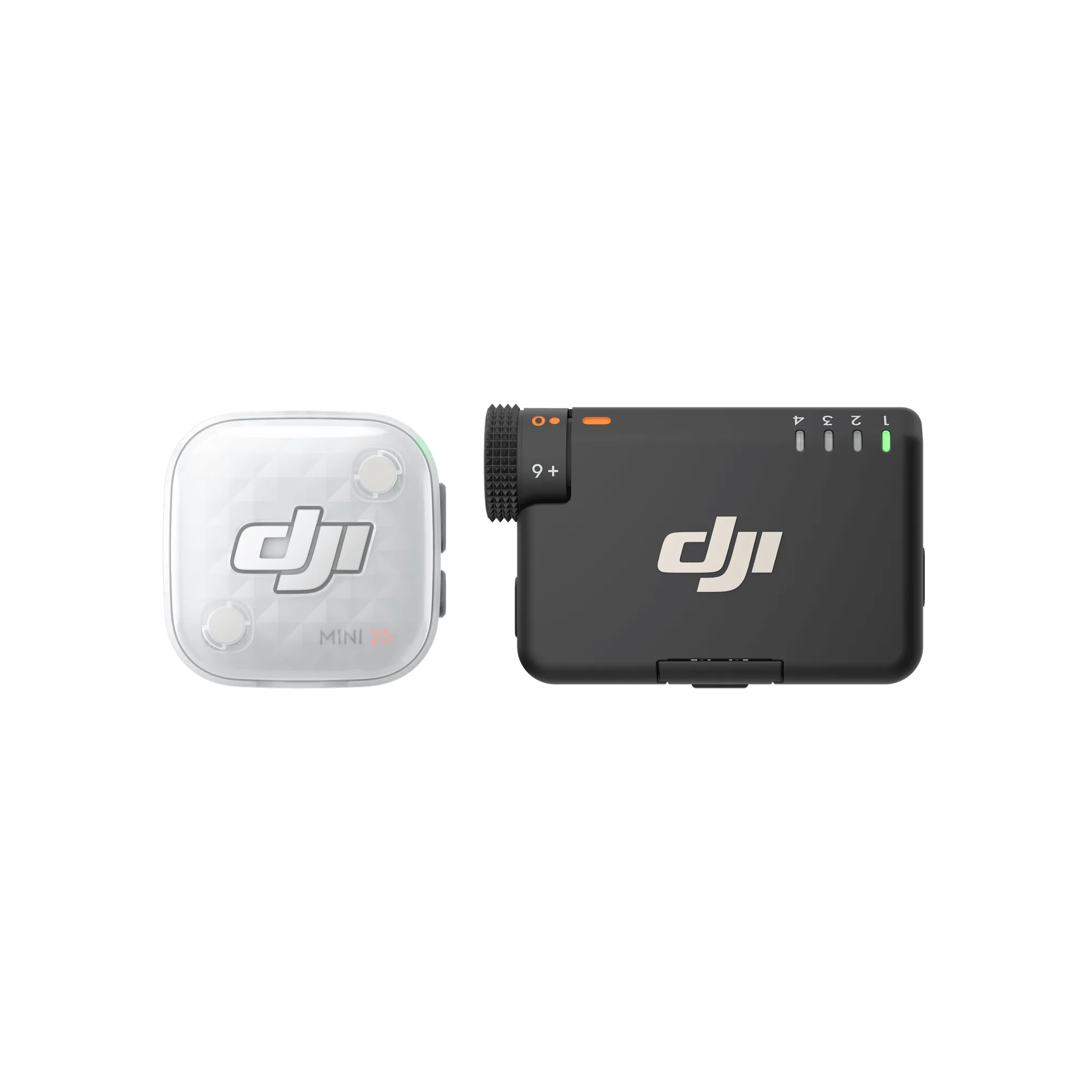
- DJI Mic Mini 2S (1 TX + 1 RX): The DJI Mic Mini 2S (1 TX + 1 RX) is a one-transmitter camera kit that pairs a 32-bit float internally recording transmitter with a receiver for cameras, phones, computers, and tablets. Internal 32-bit float recording gives you a safety track on the transmitter itself, so a dropout on the RF link does not automatically mean lost audio in solo interviews, lectures, or run-and-gun work.
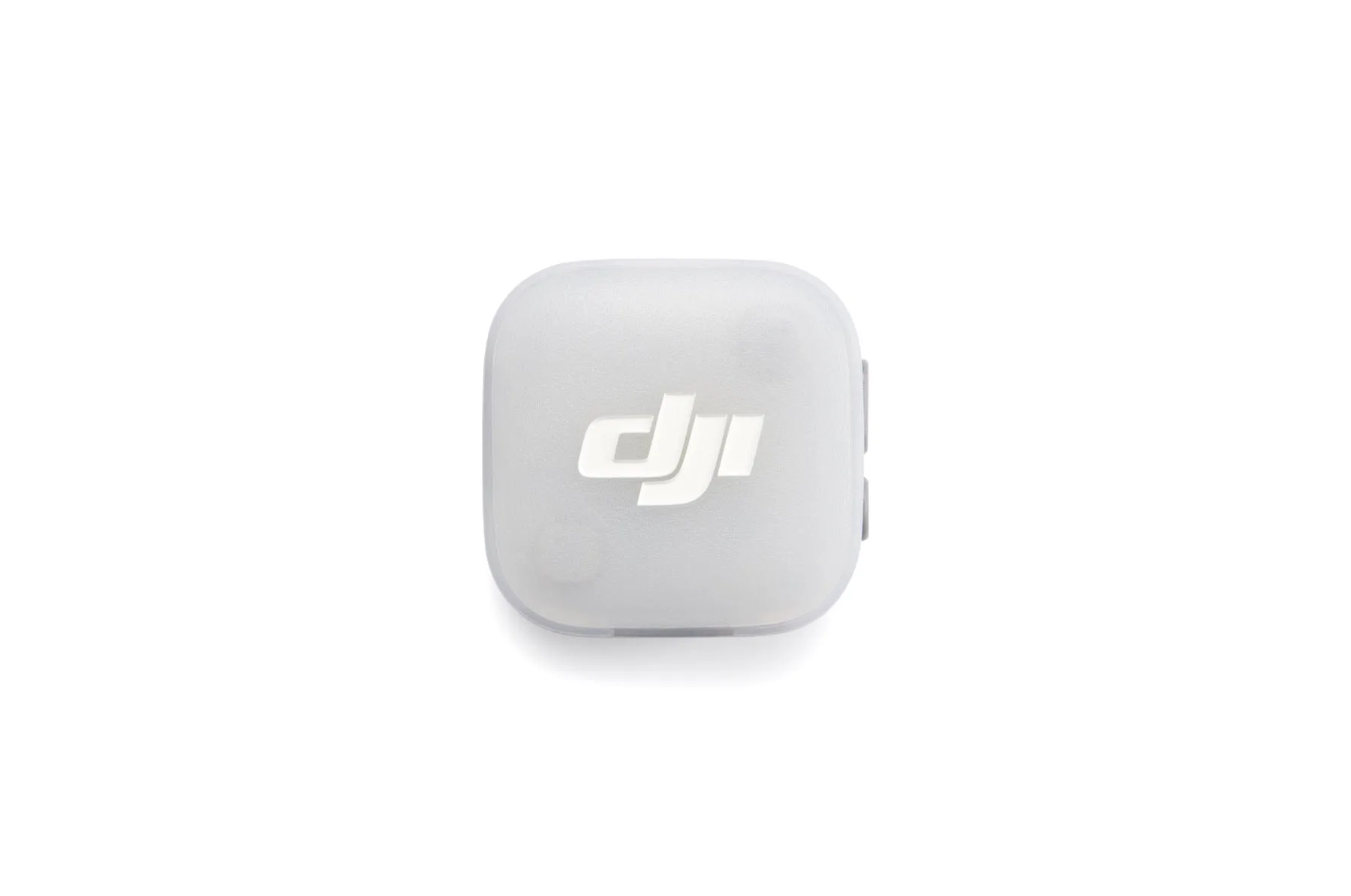
- DJI Mic Mini 2 Multi-Color Windscreens: The DJI Mic Mini 2 Multi-Color Windscreens are fuzzy covers for the DJI Mic Mini 2 transmitter that reduce wind noise outdoors and control plosives on close lav placements, with a colour mix for telling two transmitters apart. If your dropout complaint is actually wind noise or plosives triggering the receiver, windscreens address the real symptom instead of sending you chasing an RF problem that is not there.