Quick Answer
To play Yoostar 2 on Xbox 360, connect your Kinect sensor, insert the disc, and follow the on-screen calibration. For multiplayer, each player must stand within the sensor's field of view and take turns stepping into the green outline before recording.
Why Kinect Positioning Matters
Yoostar 2 relies entirely on the Kinect sensor to track your body and composite you into movie scenes. If the sensor is too high, low, or far away, it may cut off your head or feet during recording. Place the sensor at chest height, about 6 to 8 feet from where you'll stand, and ensure the room is well-lit but not directly backlit.
Multiplayer vs. Single-Player Differences
In single-player mode, you control one character per scene and the game handles the other roles. In multiplayer, each person must be tracked individually, which means the Kinect needs a clear view of everyone. The game supports up to four players locally, but only two can be in a scene at once. Plan your turns so the sensor can re-calibrate between takes.
Step-by-Step Setup and Play
- Connect and Position the Kinect Sensor: Plug the Kinect sensor into the Xbox 360's AUX port. Place it on a stable surface at chest height, 6–8 feet from your play area. Make sure no furniture or objects block the sensor's view. A common mistake is placing the sensor too high; this can cause the game to miss your feet during recording.
- Insert the Yoostar 2 Disc and Run Calibration: Insert the Yoostar 2 disc into your Xbox 360. The game will prompt you to run a Kinect calibration. Stand in the center of the play area and follow the on-screen instructions to adjust your position until the sensor sees your full body. Skipping calibration often leads to poor tracking—don't rush through it.
- Choose a Scene and Select Your Role: Browse the movie scene library and pick one you want to act out. The game will show you the original clip, then display a green outline where you should stand. Step into that outline so the Kinect maps your body onto the character. If the outline doesn't appear, back out and re-select the scene; a glitch can sometimes skip the mapping step.
- Invite Friends for Multiplayer Mode: From the main menu, select 'Multiplayer.' Each player must sign in with a separate Xbox Live profile or a guest account. The Kinect will scan the room and assign each player a character slot based on their position. Make sure all players stand still during the scan; moving can cause the game to assign the wrong character.
- Record and Review Your Performance: When the scene starts, follow the on-screen timing prompts to deliver your lines and perform actions. After the scene ends, the game will show a side-by-side comparison of your performance and the original clip. Save or delete the recording from the results screen. Laughing or stepping out of the green outline during recording will ruin the composite—stay in position until the scene finishes.
- Troubleshoot Common Kinect Issues: If the game doesn't detect you or your friends, check that the sensor isn't dusty and that the room has even lighting. Avoid standing too close to the sensor—less than 4 feet can cause the game to lose tracking. A common fix is to restart the Xbox 360 and re-run calibration; a soft reset clears temporary sensor glitches.
What You Need
-
NEW Yoostar 2: In The Movies Xbox 360 Video Game actor kinect sensor multiplayer: NEW Yoostar 2: In The Movies Xbox 360 Video Game actor kinect sensor multiplayer This disc includes over 70 movie scenes to act out, and it requires a Kinect sensor to track your movements and voice.
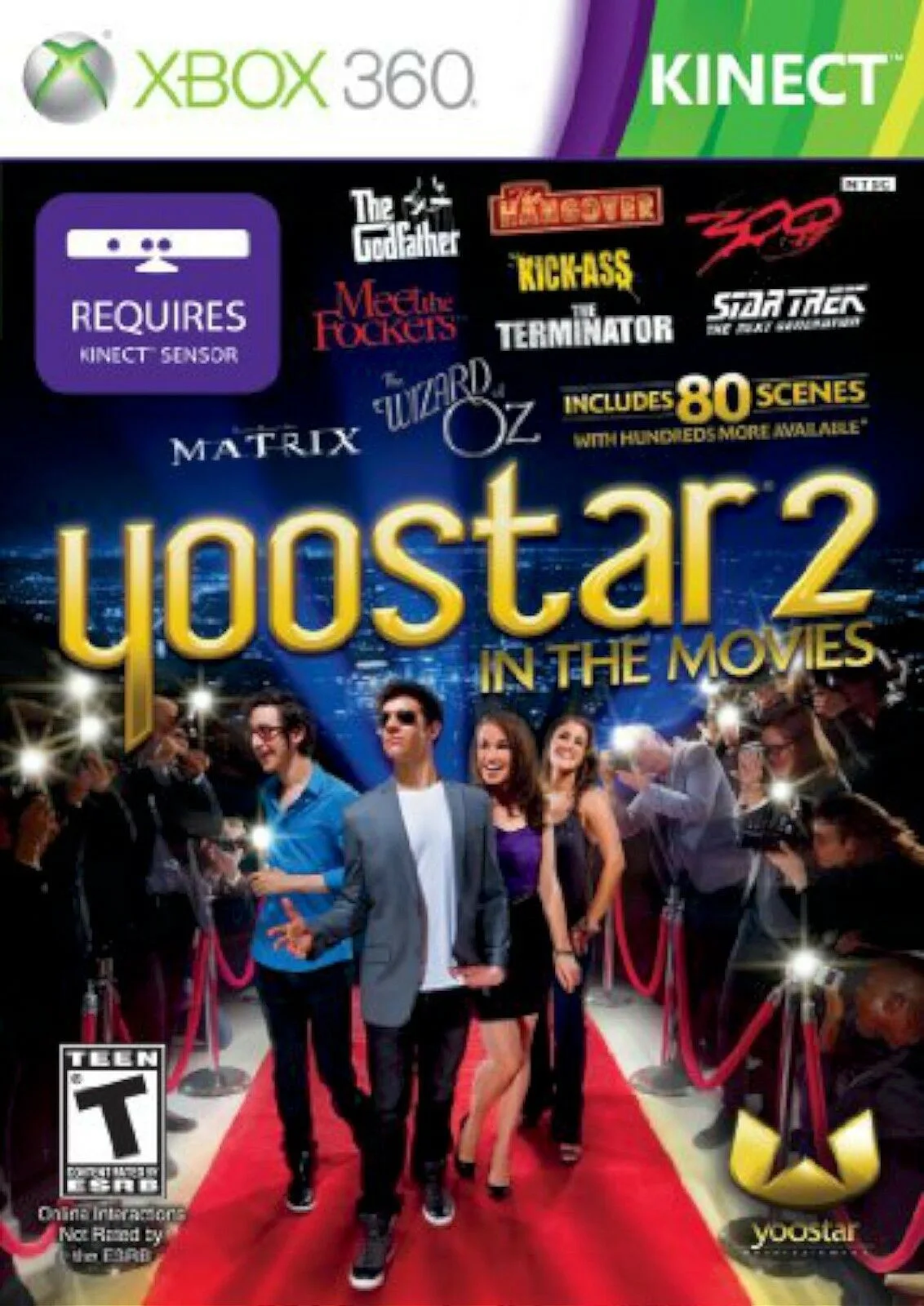
NEW Yoostar 2: In The Movies Xbox 360 Video Game actor kinect sensor multiplayer