Snel antwoord
Plaats je laptop eerst in een gevoerde sleeve en leg hem daarna plat tegen de achterwand van je koffer of in het laptopvak van je rugzak, nooit tegen de wielen of het telescopische handvat. Houd hem in je handbagage in plaats van in een ingecheckte koffer, en voeg een laatste laag zachte kleding eromheen toe zodat de sleeve niet verschuift.
Een laptop is vaak het duurste en meest kwetsbare item waarmee je reist, maar krijgt meestal de minste aandacht bij het inpakken. De meeste schade ontstaat niet door een dramatische val, maar door druk, trillingen en herhaalde kleine stoten in een tas die al vol is.
Het goede nieuws is dat het beschermen van een laptop geen speciale uitrusting vereist. Het vereist een sleeve, een verstandige positie in de tas en een paar inpakgewoonten die minder dan twee minuten kosten om op te zetten. Deze gids behandelt zeven stappen in volgorde, met de fout die je bij elke stap moet vermijden.
Waarom de plaatsing belangrijker is dan de vulling
Vulling absorbeert een enkele impact, maar de plaatsing bepaalt hoeveel impact de laptop in de eerste plaats bereikt. Een goed opgevulde laptop die tegen de wielkast van een koffer drukt, voelt nog steeds elke stoeprand en trap die de koffer overgaat. Dezelfde laptop plat tegen het stijve achterpaneel, opgevuld met kleding, merkt de reis nauwelijks.
Daarom volgen de stappen hieronder een volgorde: kies de juiste hoes, bereid de laptop voor, bouw een beschermende laag en plaats hem dan als laatste, zodat er niets zwaars bovenop komt. Een stap overslaan betekent meestal dat de laptop op de slechtste plek in de tas belandt.
Kies het juiste type hoes
Een hoes doet twee dingen: hij voorkomt dat de laptop verschuift en verdeelt de druk over een groter oppervlak. Kies voor een strakke pasvorm in plaats van een losse, want een laptop die in de hoes kan schuiven, stoot nog steeds tegen harde randen. Neopreen en met schuim gevoerde hoezen werken goed voor dagelijks reizen.
Als je rugzak een speciaal laptopvak heeft, is dat vak meestal de beste plek voor de laptop op reisdagen. Als je een koffer gebruikt, is een aparte hoes wat een gewone pakruimte verandert in bescherming voor laptopreizen. Vertrouw niet alleen op een zachte stoffen tas.
- Controlepunt: met de laptop erin mag de laptop niet meer dan een centimeter in welke richting dan ook verschuiven in de hoes.
- Fout om te vermijden: een hoes een maat groter kopen om een oplader te laten passen, waardoor de laptop los zit.
Bereid de laptop voor voordat hij erin gaat
Sluit de laptop volledig af in plaats van hem in slaapstand te laten. Een uitgeschakelde machine genereert minder warmte in een gesloten tas en wordt minder snel wakker om de batterij te legen tegen andere voorwerpen. Haal alle kabels los, inclusief dongles en SD-kaarten, want een aangesloten connector is een hefboom die de poort kan beschadigen als de tas wordt samengedrukt.
Veeg het scherm en toetsenbord af als je op een stoffige plek bent geweest, en sluit dan voorzichtig het deksel. Als je een harde beschermhoes op de laptop zelf gebruikt, laat die dan zitten; het voegt bescherming tegen krassen en kleine stoten toe zonder veel volume.
- Checkpoint: nothing protrudes from the laptop's ports before it goes into the sleeve.
- Mistake to avoid: packing the laptop while it is still warm from use, which traps heat against the sleeve.
Build a cushioned layer around the sleeve
In a suitcase, the laptop should sit against the back wall, which is the side nearest the telescopic handle, with soft items such as t-shirts or a light jumper folded flat on both sides. This creates a sandwich that absorbs vibration from the road. Avoid placing the laptop next to shoes, books, or anything with hard corners.
If you are using packing cubes, keep the laptop outside them. Cubes compress their contents, and compression is exactly what you do not want pressing on a screen. A flat layer of clothing gives more useful protection than a tightly packed cube.
- Checkpoint: press gently on the packed area around the laptop. You should feel softness, not a hard edge.
- Mistake to avoid: packing the laptop in the lid of a clamshell suitcase, where it is furthest from the rigid frame.
Position the laptop last and keep weight off it
Load everything else first, then slide the sleeved laptop into its final position. This way you are not tempted to stack heavy items on top of it later. In a backpack, the laptop compartment closest to your back is the most stable spot because it moves least as you walk.
Never put a laptop under a heavy bag, a camera, or a stack of books. If the bag is overfull, remove something else rather than forcing the zip closed over the laptop, because a strained zip transfers pressure straight to the screen.
- Checkpoint: the bag should close without resistance. If you have to push down to zip it, repack.
- Mistake to avoid: using the laptop as a stiffener at the bottom of a soft bag.
Handle the security and weather details
At security, take the laptop out of the sleeve if the officer asks, but keep the sleeve in the same tray so you can slide it straight back in. This avoids the common scene of a laptop going through the scanner bare and then being stacked under other people's trays.
For rain, a water-repellent bag helps, but a simple dry bag or a plastic sleeve inside your luggage adds cheap insurance. If you are checking a bag for part of the trip, keep the laptop with you; no sleeve makes a checked suitcase a safe place for a computer.
- Checkpoint: after security, confirm the laptop is back in the sleeve before you walk away from the tray.
- Mistake to avoid: leaving the laptop in a checked bag because the suitcase feels sturdy.
The seven-step laptop packing sequence
- Step 1: Pick a snug padded sleeve: Choose a sleeve that fits the laptop closely, with foam or neoprene padding on both faces. Test the fit before you travel. Checkpoint: the laptop should not slide inside the sleeve.
- Step 2: Shut down and unplug everything: Power the laptop off, remove dongles, SD cards, and charging cables, and let it cool if it has been running. Mistake to avoid: packing a warm laptop that then traps heat in the bag.
- Step 3: Put the laptop in the sleeve: Slide it in flat, with the screen facing away from the bag's outer wall, and close any flap or zip fully. Checkpoint: the sleeve closure is secure before it goes into the bag.
- Step 4: Build a soft layer on both sides: Use folded clothing or a light jumper as cushioning above, below, and beside the sleeved laptop, keeping hard items away. Mistake to avoid: packing shoes or books directly against the laptop.
- Step 5: Place it against the rigid back panel: In a suitcase, position the laptop on the handle side; in a backpack, use the compartment closest to your back. Checkpoint: the laptop sits flat, not on its edge or corner.
- Step 6: Load it last and keep weight off: Pack everything else first, then slide the laptop into place so nothing heavy ends up on top of it. Mistake to avoid: forcing the zip closed over a full bag.
- Step 7: Keep it with you and dry: Carry the laptop in your cabin bag, re-sleeve it immediately after security, and add a dry bag if rain is likely. Final check: the laptop never travels in a checked suitcase.
Gear from the Antler range that suits this job
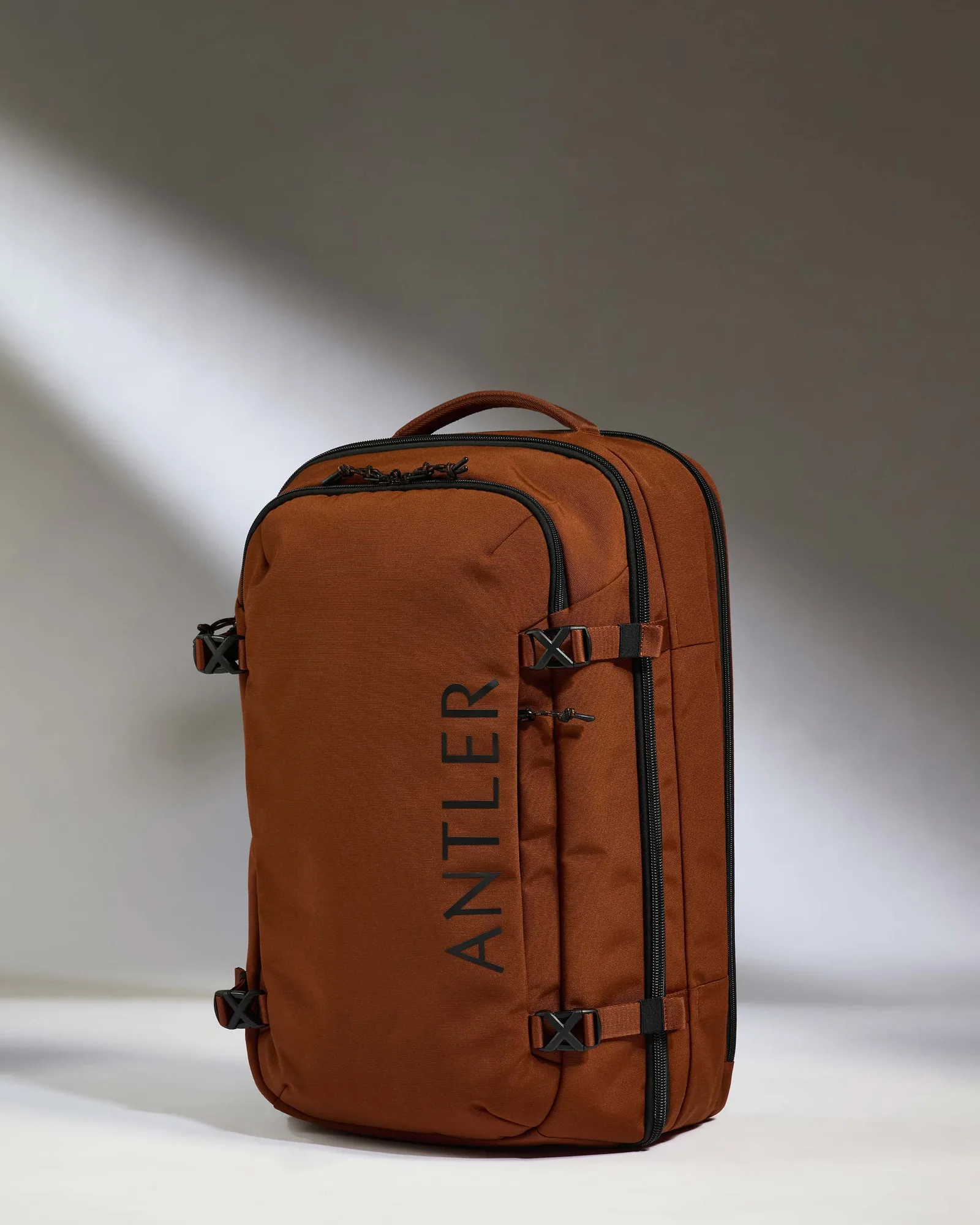
- Discovery 60L Hybrid Duffle Backpack in Clay Brown: Made with durable, water-repellent recycled fabrics and a full side opening with compression, matching the capacity of a cabin suitcase in a flexible backpack form. The water-repellent shell and side opening make it easier to load a sleeved laptop flat and keep it away from rain, while the backpack carry keeps the device with you instead of in a checked bag.
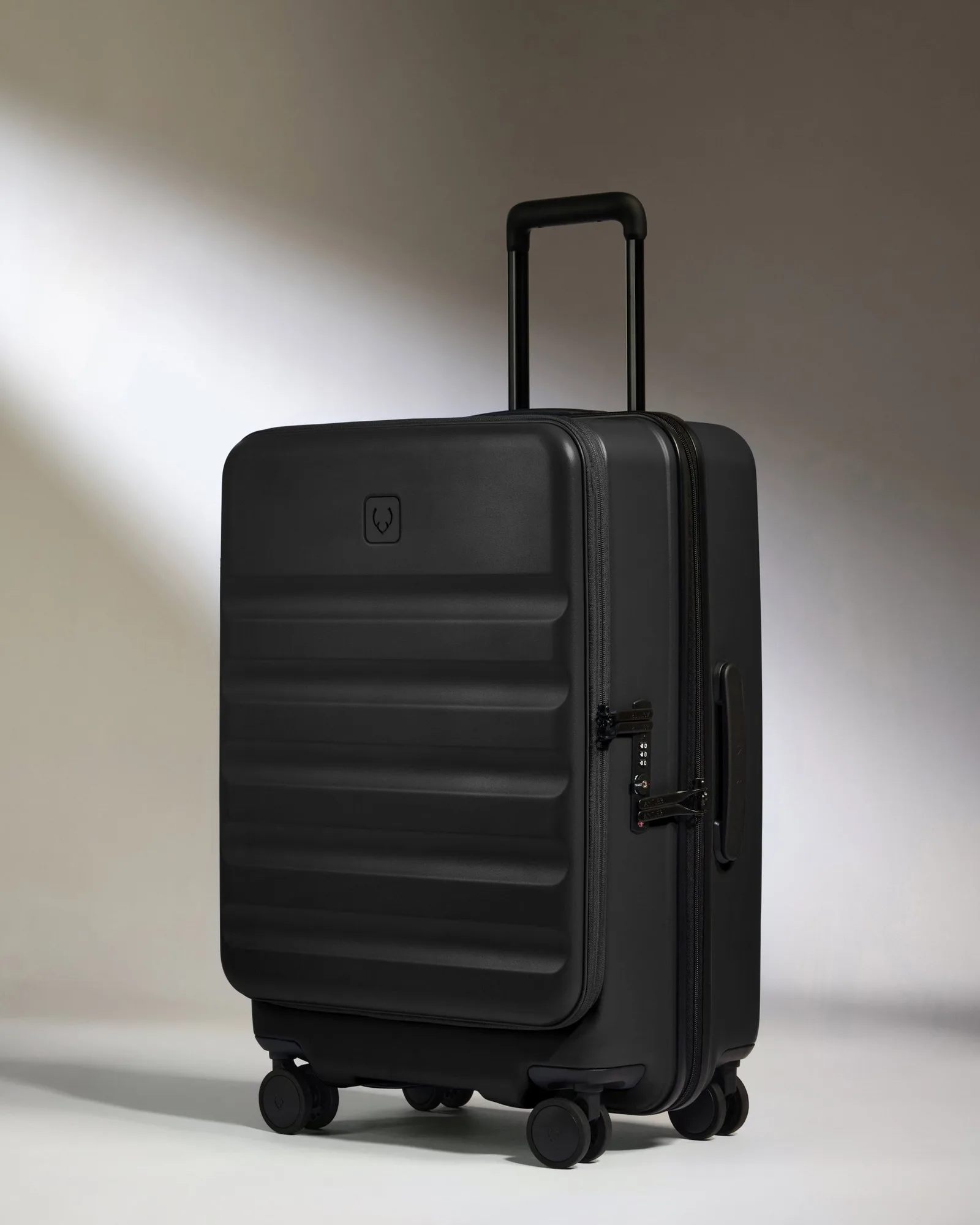
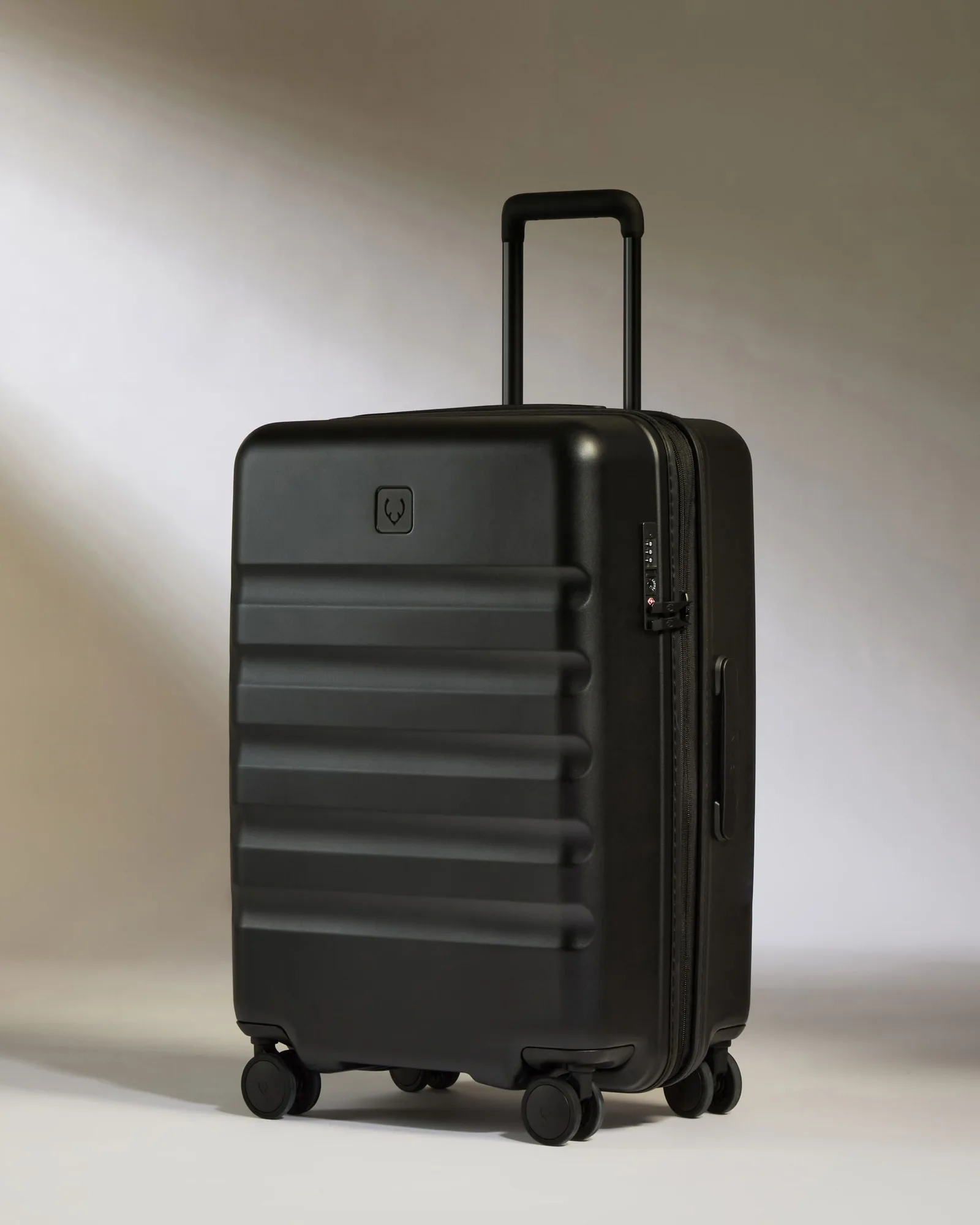
- Dual Opening Medium Luggage in Black - Icon Stripe: Combines a hard-shell exterior with a lightweight polycarbonate shell and a dual-opening design that makes it easy to pack a laptop flat against the rigid back panel. The hard shell protects the laptop from impacts during handling, and the dual opening means you can access the laptop without unpacking the whole case.
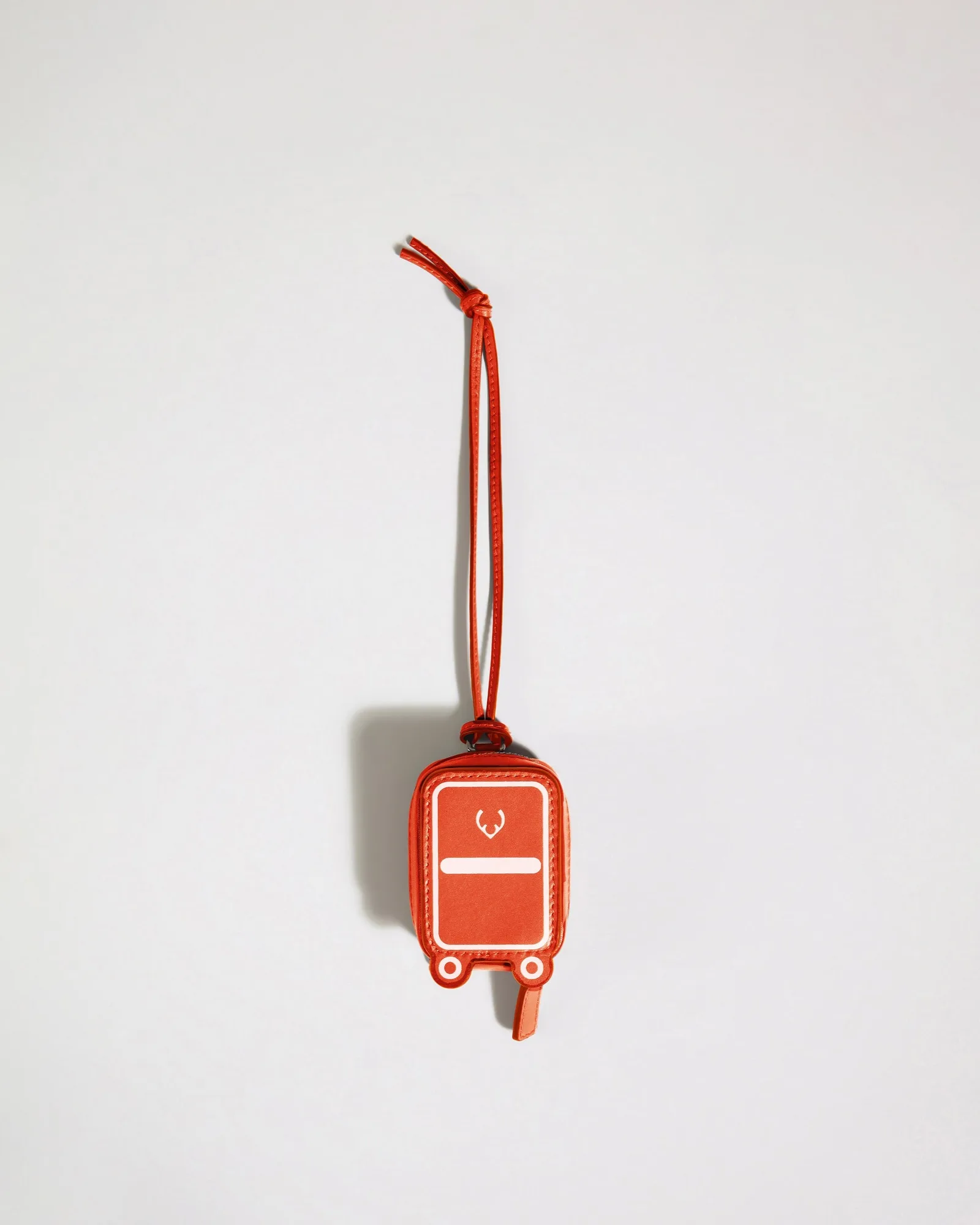
- Heritage Leather AirPods Case in Coral: Crafted from smooth leather in Antler's iconic suitcase silhouette, designed to hold even the largest AirPods or small essentials like charging cables and coins, with a removable lanyard. Keeping small tech accessories in one clipped pouch stops cables and earbuds from rattling loose against the laptop and scratching the screen.
Protecting a laptop on the road comes down to a snug sleeve, a soft layer, and a sensible position against the rigid side of your bag. Follow the seven steps in order, keep the laptop in your carry-on, and you can stop worrying about it and get on with the trip.