Resposta rápida
Coloque o portátil primeiro numa bolsa almofadada e, em seguida, posicione-o na horizontal contra a parede traseira da mala ou no compartimento para portátil da mochila, nunca junto às rodas ou à pega telescópica. Leve-o na bagagem de mão em vez de na bagagem despachada e envolva-o numa última camada de roupa macia para que a bolsa não se mova.
Um portátil costuma ser o item mais caro e mais frágil que leva consigo em viagens, mas é o que recebe menos atenção na hora de arrumar. A maioria dos danos não acontece por uma queda dramática, mas sim por pressão, vibração e pequenos impactos repetidos dentro de uma mala já cheia.
A boa notícia é que proteger um portátil não exige equipamento especial. Exige uma bolsa acolchoada, uma posição sensata na mala e alguns hábitos de arrumação que levam menos de dois minutos a pôr em prática. Este guia percorre sete passos por ordem, com o erro a evitar em cada um.
Porque a posição importa mais do que o acolchoamento
O acolchoamento absorve um impacto único, mas a posição decide quanta força chega ao portátil em primeiro lugar. Um portátil bem acolchoado encostado à caixa da roda de uma mala continua a receber todos os solavancos e degraus por onde a mala passa. O mesmo portátil, deitado contra o painel traseiro rígido e protegido por roupa, quase não sente a viagem.
É por isso que os passos abaixo seguem uma sequência: escolher a manga certa, preparar o portátil, criar uma camada protetora e, por fim, posicioná-lo para que nada pesado fique por cima. Saltar um passo normalmente significa que o portátil acaba no pior lugar da mala.
Escolha o tipo certo de manga
Uma manga faz dois trabalhos: impede o portátil de deslizar e distribui a pressão por uma área maior. Procure um ajuste justo em vez de folgado, porque um portátil que se move dentro da manga ainda vai bater contra arestas duras. Mangas de neoprene e com forro de espuma funcionam bem para viagens do dia a dia.
Se a sua mochila tiver um compartimento dedicado para portátil, esse compartimento costuma ser o melhor lugar para o portátil em dias de viagem. Se estiver a usar uma mala, uma manga separada é o que transforma um espaço de arrumação normal em proteção de viagem para o portátil. Não confie apenas numa bolsa de pano macio.
- Checkpoint: com o portátil lá dentro, a manga não deve deixar o dispositivo deslizar mais de um centímetro em qualquer direção.
- Erro a evitar: comprar uma manga um tamanho acima para caber o carregador, o que deixa o portátil solto.
Prepare o portátil antes de o colocar na manga
Desligue o portátil completamente em vez de o deixar em modo de suspensão. Uma máquina desligada gera menos calor numa bolsa fechada e é menos provável que acorde e esgote a bateria contra outros itens. Desligue todos os cabos, incluindo adaptadores e cartões SD, porque um conector ligado é uma alavanca que pode danificar a porta se a bolsa for comprimida.
Limpe o ecrã e o teclado se estiver em algum lugar empoeirado e feche a tampa suavemente. Se usar uma capa rígida no próprio laptop, deixe-a; ela adiciona proteção contra riscos e pequenos impactos sem muito volume.
- Checkpoint: nothing protrudes from the laptop's ports before it goes into the sleeve.
- Mistake to avoid: packing the laptop while it is still warm from use, which traps heat against the sleeve.
Build a cushioned layer around the sleeve
In a suitcase, the laptop should sit against the back wall, which is the side nearest the telescopic handle, with soft items such as t-shirts or a light jumper folded flat on both sides. This creates a sandwich that absorbs vibration from the road. Avoid placing the laptop next to shoes, books, or anything with hard corners.
If you are using packing cubes, keep the laptop outside them. Cubes compress their contents, and compression is exactly what you do not want pressing on a screen. A flat layer of clothing gives more useful protection than a tightly packed cube.
- Checkpoint: press gently on the packed area around the laptop. You should feel softness, not a hard edge.
- Mistake to avoid: packing the laptop in the lid of a clamshell suitcase, where it is furthest from the rigid frame.
Position the laptop last and keep weight off it
Load everything else first, then slide the sleeved laptop into its final position. This way you are not tempted to stack heavy items on top of it later. In a backpack, the laptop compartment closest to your back is the most stable spot because it moves least as you walk.
Never put a laptop under a heavy bag, a camera, or a stack of books. If the bag is overfull, remove something else rather than forcing the zip closed over the laptop, because a strained zip transfers pressure straight to the screen.
- Checkpoint: the bag should close without resistance. If you have to push down to zip it, repack.
- Mistake to avoid: using the laptop as a stiffener at the bottom of a soft bag.
Handle the security and weather details
At security, take the laptop out of the sleeve if the officer asks, but keep the sleeve in the same tray so you can slide it straight back in. This avoids the common scene of a laptop going through the scanner bare and then being stacked under other people's trays.
For rain, a water-repellent bag helps, but a simple dry bag or a plastic sleeve inside your luggage adds cheap insurance. If you are checking a bag for part of the trip, keep the laptop with you; no sleeve makes a checked suitcase a safe place for a computer.
- Checkpoint: after security, confirm the laptop is back in the sleeve before you walk away from the tray.
- Mistake to avoid: leaving the laptop in a checked bag because the suitcase feels sturdy.
The seven-step laptop packing sequence
- Step 1: Pick a snug padded sleeve: Choose a sleeve that fits the laptop closely, with foam or neoprene padding on both faces. Test the fit before you travel. Checkpoint: the laptop should not slide inside the sleeve.
- Step 2: Shut down and unplug everything: Power the laptop off, remove dongles, SD cards, and charging cables, and let it cool if it has been running. Mistake to avoid: packing a warm laptop that then traps heat in the bag.
- Step 3: Put the laptop in the sleeve: Slide it in flat, with the screen facing away from the bag's outer wall, and close any flap or zip fully. Checkpoint: the sleeve closure is secure before it goes into the bag.
- Step 4: Build a soft layer on both sides: Use folded clothing or a light jumper as cushioning above, below, and beside the sleeved laptop, keeping hard items away. Mistake to avoid: packing shoes or books directly against the laptop.
- Step 5: Place it against the rigid back panel: In a suitcase, position the laptop on the handle side; in a backpack, use the compartment closest to your back. Checkpoint: the laptop sits flat, not on its edge or corner.
- Step 6: Load it last and keep weight off: Pack everything else first, then slide the laptop into place so nothing heavy ends up on top of it. Mistake to avoid: forcing the zip closed over a full bag.
- Step 7: Keep it with you and dry: Carry the laptop in your cabin bag, re-sleeve it immediately after security, and add a dry bag if rain is likely. Final check: the laptop never travels in a checked suitcase.
Gear from the Antler range that suits this job
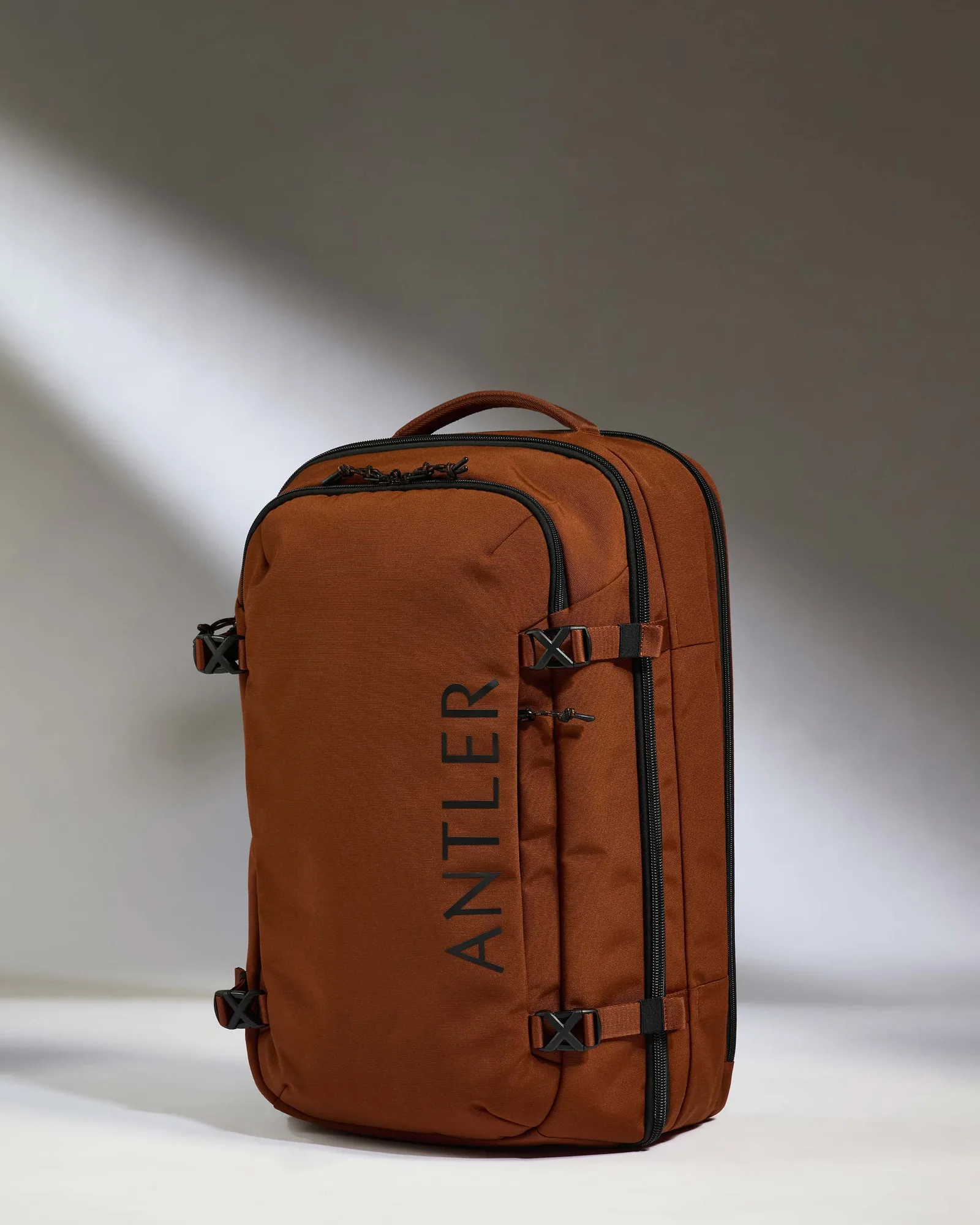
- Discovery 60L Hybrid Duffle Backpack in Clay Brown: Made with durable, water-repellent recycled fabrics and a full side opening with compression, matching the capacity of a cabin suitcase in a flexible backpack form. The water-repellent shell and side opening make it easier to load a sleeved laptop flat and keep it away from rain, while the backpack carry keeps the device with you instead of in a checked bag.
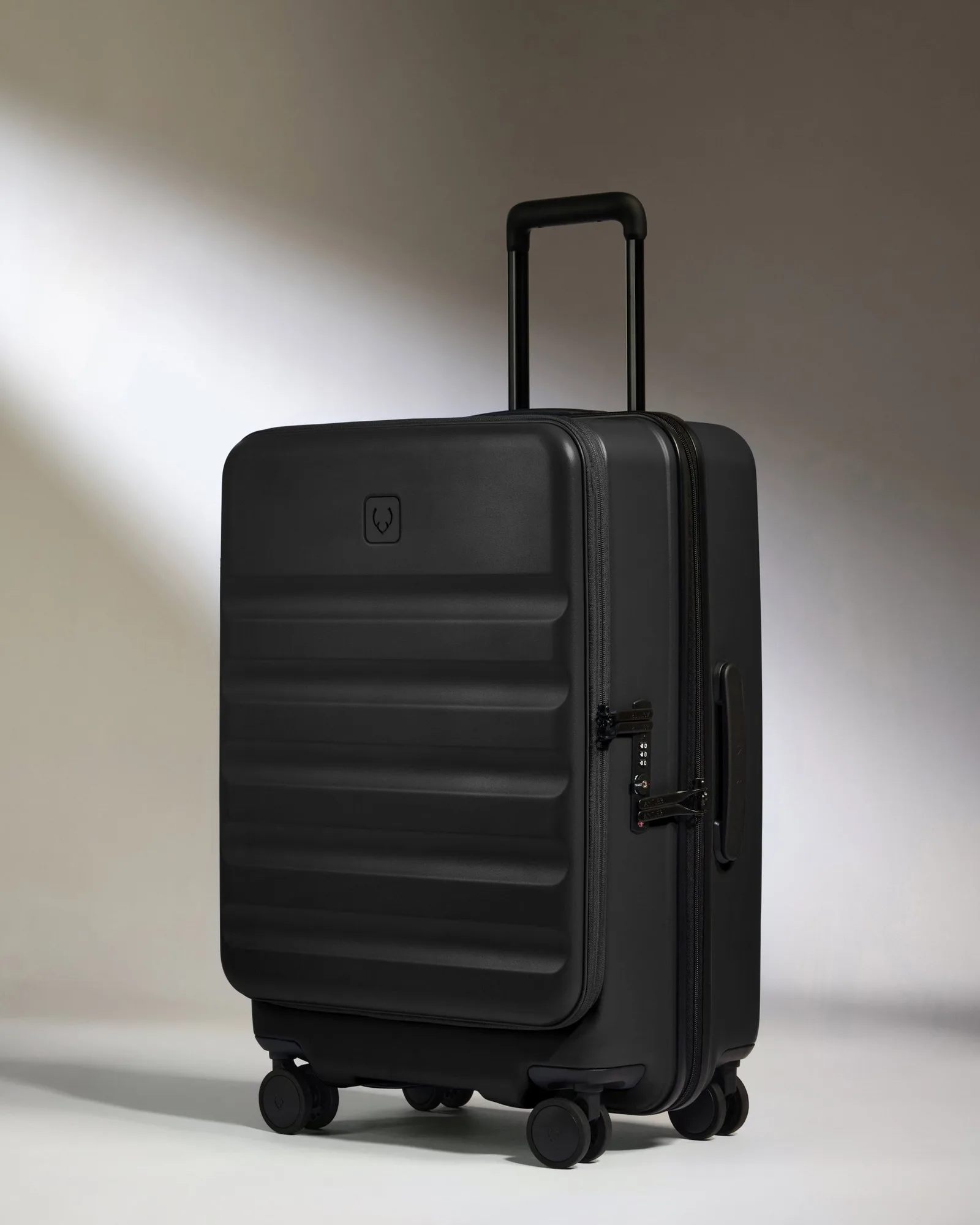
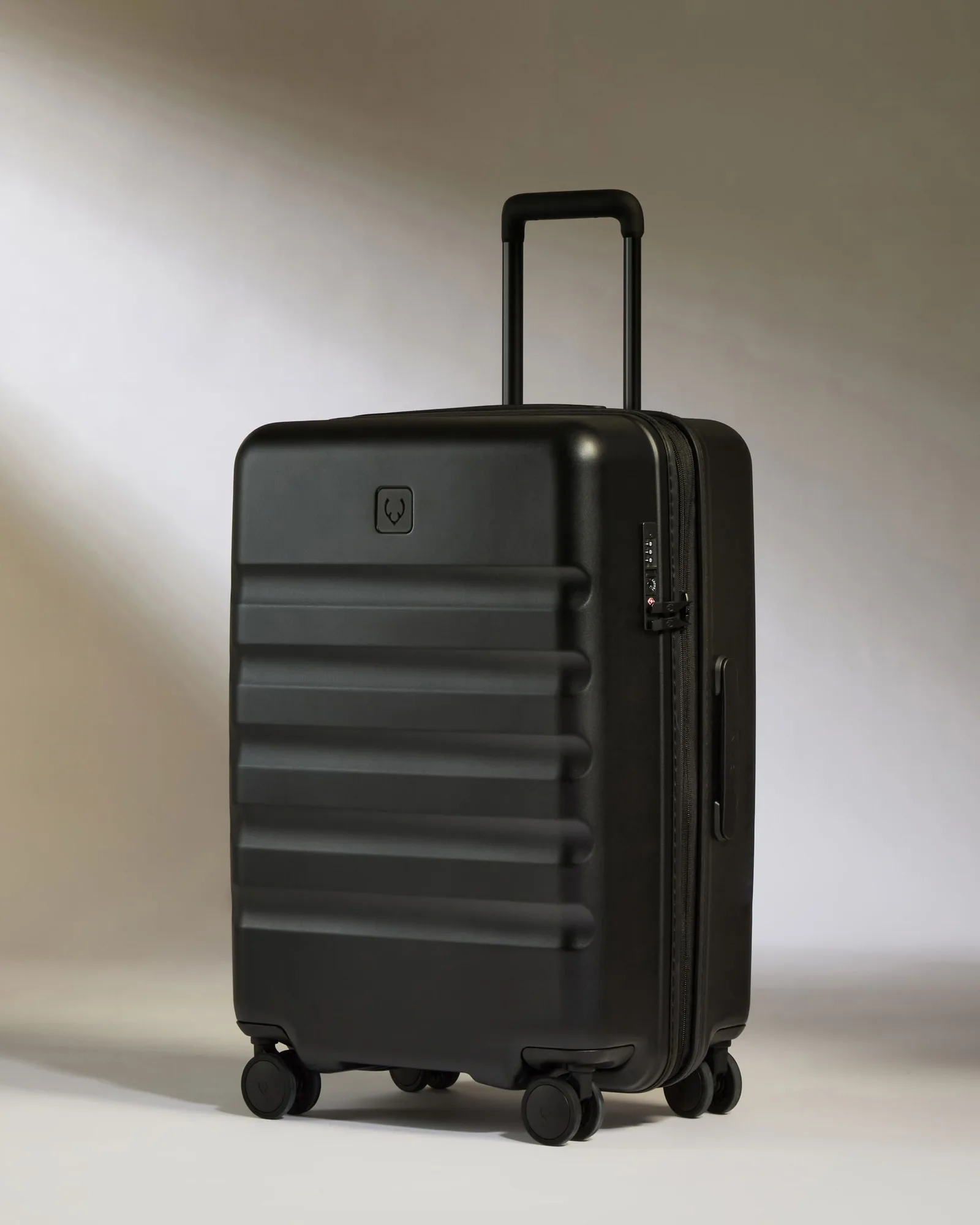
- Dual Opening Medium Luggage in Black - Icon Stripe: Combines a hard-shell exterior with a dual-opening design that lets you pack a laptop flat against the rigid back panel, away from the wheels and handle. The hard shell protects the laptop from impacts on the outside, while the interior straps and divider keep it from shifting during transit.
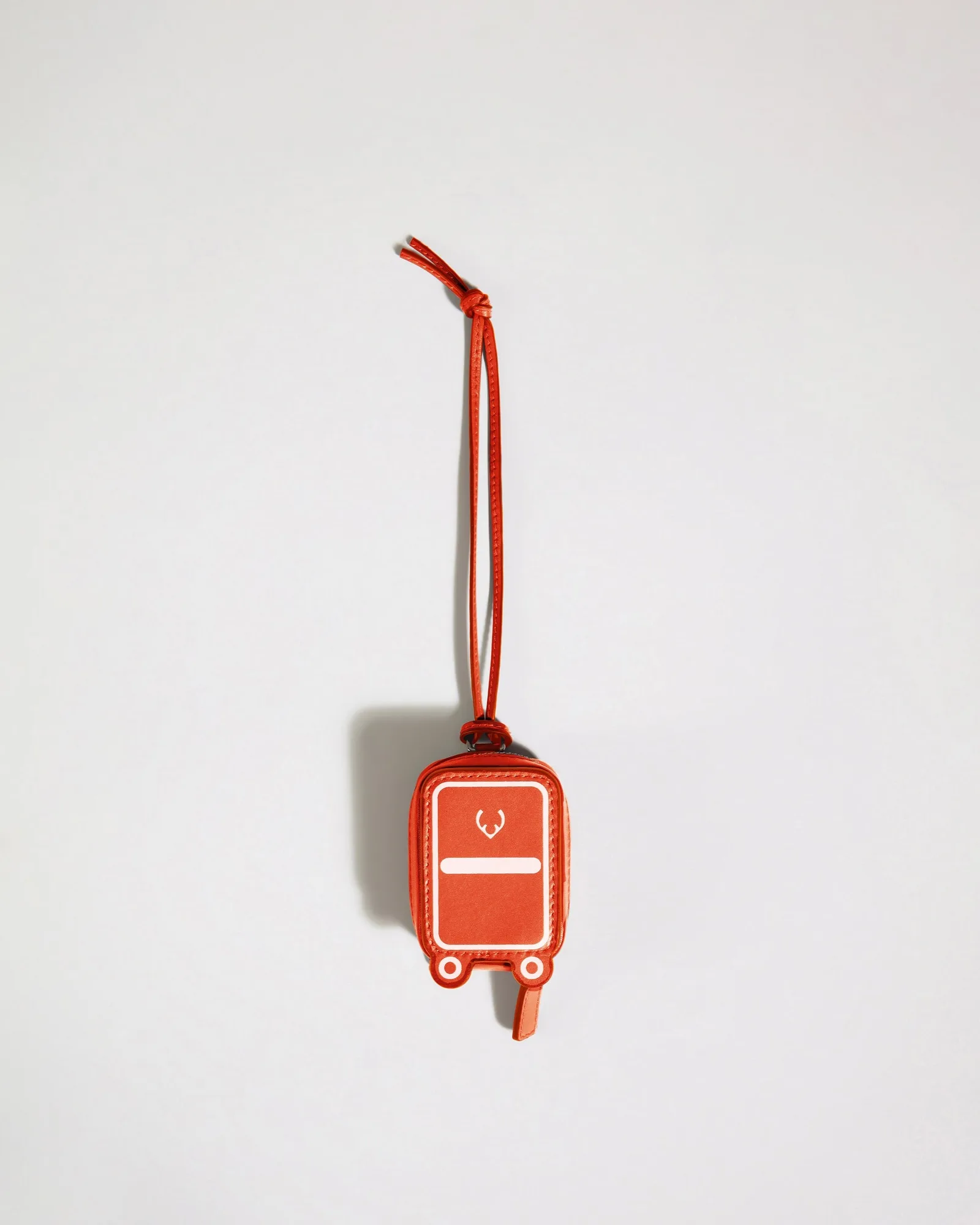
- Heritage Leather AirPods Case in Coral: Crafted from smooth leather in Antler's iconic suitcase silhouette, designed to hold even the largest AirPods or small essentials like charging cables and coins, with a removable lanyard. Keeping small tech accessories in one clipped pouch stops cables and earbuds from rattling loose against the laptop and scratching the screen.
Protecting a laptop on the road comes down to a snug sleeve, a soft layer, and a sensible position against the rigid side of your bag. Follow the seven steps in order, keep the laptop in your carry-on, and you can stop worrying about it and get on with the trip.