Quick answer
Pack your laptop in a padded sleeve first, then place it flat against the back wall of your suitcase or in the laptop compartment of your backpack, never against the wheels or telescopic handle. Keep it in your carry-on rather than a checked bag, and add a final layer of soft clothing around it so the sleeve does not shift.
A laptop is often the most expensive and most fragile thing you travel with, yet it usually gets the least packing attention. Most damage happens not from a dramatic drop but from pressure, vibration, and repeated small impacts inside a bag that is already full.
The good news is that protecting a laptop does not require special equipment. It requires a sleeve, a sensible position in the bag, and a few packing habits that take less than two minutes to set up. This guide walks through seven steps in order, with the mistake to avoid at each one.
Why placement matters more than padding
Padding absorbs a single impact, but placement decides how much impact reaches the laptop in the first place. A well-padded laptop pressed against a suitcase wheel housing still takes every curb and stair the bag rolls over. The same laptop sitting flat against the rigid back panel, cushioned by clothing, barely notices the trip.
This is why the steps below follow a sequence: choose the right sleeve, prepare the laptop, build a protective layer, then position it last so nothing heavy lands on top. Skipping a step usually means the laptop ends up in the worst spot in the bag.
Choose the right kind of sleeve
A sleeve does two jobs: it stops the laptop from sliding and it spreads pressure across a wider area. Look for a snug fit rather than a loose one, because a laptop that can shift inside its sleeve will still knock against hard edges. Neoprene and foam-lined sleeves work well for everyday travel.
If your backpack has a dedicated laptop compartment, that compartment is usually the best home for the laptop on travel days. If you are using a suitcase, a separate sleeve is what turns an ordinary packing space into laptop travel protection. Do not rely on a soft cloth bag alone.
- Checkpoint: with the laptop inside, the sleeve should not let the device slide more than a centimetre in any direction.
- Mistake to avoid: buying a sleeve one size up to fit a charger, which leaves the laptop loose.
Prepare the laptop before it goes in
Shut the laptop down fully rather than leaving it in sleep mode. A powered-down machine generates less heat in a closed bag and is less likely to wake up and drain its battery against other items. Unplug every cable, including dongles and SD cards, because a plugged-in connector is a lever that can damage the port if the bag is squeezed.
Wipe the screen and keyboard if you have been somewhere dusty, then close the lid gently. If you use a rigid shell case on the laptop itself, leave it on; it adds scratch and minor impact protection without much bulk.
- Checkpoint: nothing protrudes from the laptop's ports before it goes into the sleeve.
- Mistake to avoid: packing the laptop while it is still warm from use, which traps heat against the sleeve.
Build a cushioned layer around the sleeve
In a suitcase, the laptop should sit against the back wall, which is the side nearest the telescopic handle, with soft items such as t-shirts or a light jumper folded flat on both sides. This creates a sandwich that absorbs vibration from the road. Avoid placing the laptop next to shoes, books, or anything with hard corners.
If you are using packing cubes, keep the laptop outside them. Cubes compress their contents, and compression is exactly what you do not want pressing on a screen. A flat layer of clothing gives more useful protection than a tightly packed cube.
- Checkpoint: press gently on the packed area around the laptop. You should feel softness, not a hard edge.
- Mistake to avoid: packing the laptop in the lid of a clamshell suitcase, where it is furthest from the rigid frame.
Position the laptop last and keep weight off it
Load everything else first, then slide the sleeved laptop into its final position. This way you are not tempted to stack heavy items on top of it later. In a backpack, the laptop compartment closest to your back is the most stable spot because it moves least as you walk.
Never put a laptop under a heavy bag, a camera, or a stack of books. If the bag is overfull, remove something else rather than forcing the zip closed over the laptop, because a strained zip transfers pressure straight to the screen.
- Checkpoint: the bag should close without resistance. If you have to push down to zip it, repack.
- Mistake to avoid: using the laptop as a stiffener at the bottom of a soft bag.
Handle the security and weather details
At security, take the laptop out of the sleeve if the officer asks, but keep the sleeve in the same tray so you can slide it straight back in. This avoids the common scene of a laptop going through the scanner bare and then being stacked under other people's trays.
For rain, a water-repellent bag helps, but a simple dry bag or a plastic sleeve inside your luggage adds cheap insurance. If you are checking a bag for part of the trip, keep the laptop with you; no sleeve makes a checked suitcase a safe place for a computer.
- Checkpoint: after security, confirm the laptop is back in the sleeve before you walk away from the tray.
- Mistake to avoid: leaving the laptop in a checked bag because the suitcase feels sturdy.
The seven-step laptop packing sequence
- Step 1: Pick a snug padded sleeve: Choose a sleeve that fits the laptop closely, with foam or neoprene padding on both faces. Test the fit before you travel. Checkpoint: the laptop should not slide inside the sleeve.
- Step 2: Shut down and unplug everything: Power the laptop off, remove dongles, SD cards, and charging cables, and let it cool if it has been running. Mistake to avoid: packing a warm laptop that then traps heat in the bag.
- Step 3: Put the laptop in the sleeve: Slide it in flat, with the screen facing away from the bag's outer wall, and close any flap or zip fully. Checkpoint: the sleeve closure is secure before it goes into the bag.
- Step 4: Build a soft layer on both sides: Use folded clothing or a light jumper as cushioning above, below, and beside the sleeved laptop, keeping hard items away. Mistake to avoid: packing shoes or books directly against the laptop.
- Step 5: Place it against the rigid back panel: In a suitcase, position the laptop on the handle side; in a backpack, use the compartment closest to your back. Checkpoint: the laptop sits flat, not on its edge or corner.
- Step 6: Load it last and keep weight off: Pack everything else first, then slide the laptop into place so nothing heavy ends up on top of it. Mistake to avoid: forcing the zip closed over a full bag.
- Step 7: Keep it with you and dry: Carry the laptop in your cabin bag, re-sleeve it immediately after security, and add a dry bag if rain is likely. Final check: the laptop never travels in a checked suitcase.
Gear from the Antler range that suits this job
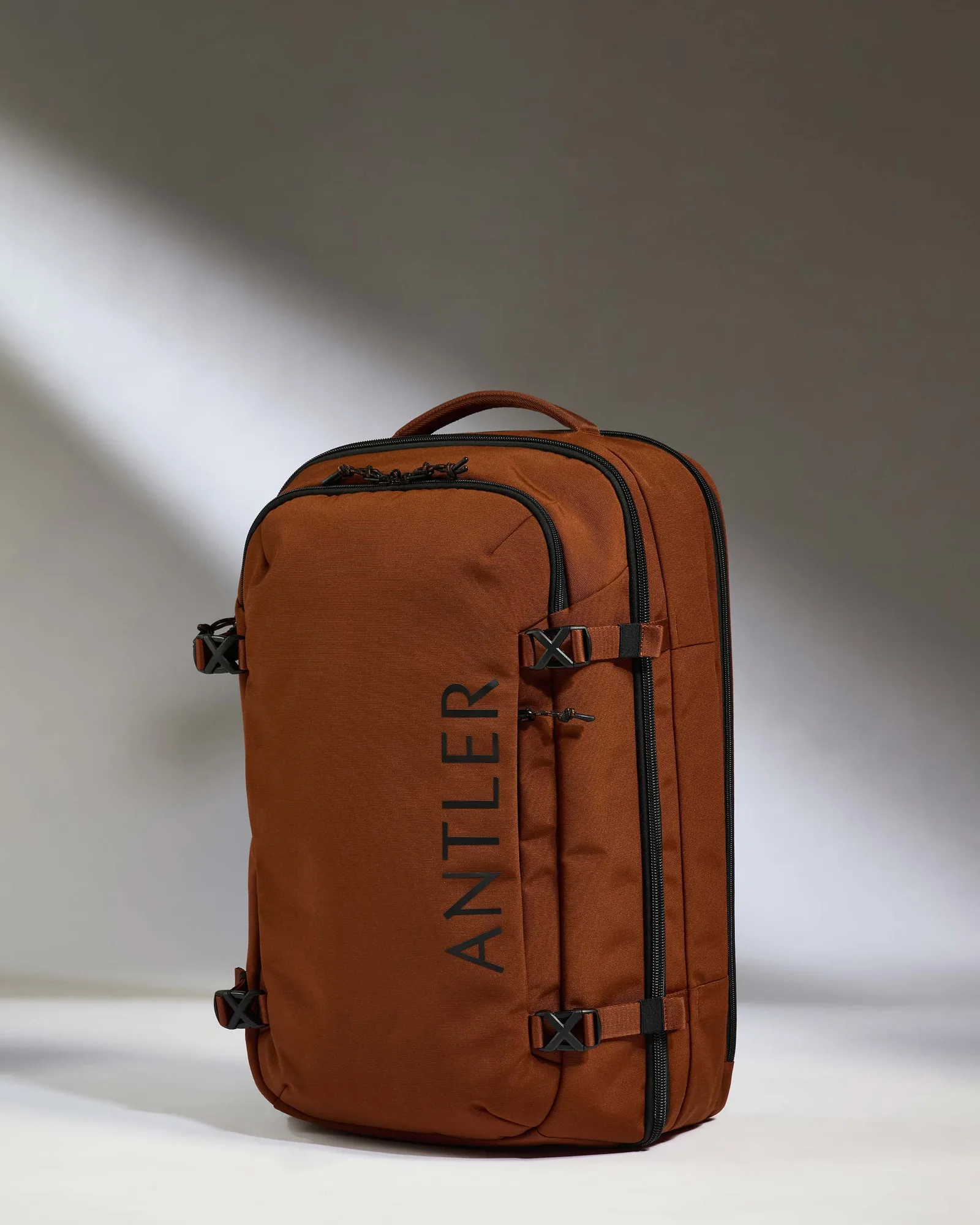
- Discovery 60L Hybrid Duffle Backpack in Clay Brown: Made with durable, water-repellent recycled fabrics and a full side opening with compression, matching the capacity of a cabin suitcase in a flexible backpack form. The water-repellent shell and side opening make it easier to load a sleeved laptop flat and keep it away from rain, while the backpack carry keeps the device with you instead of in a checked bag.
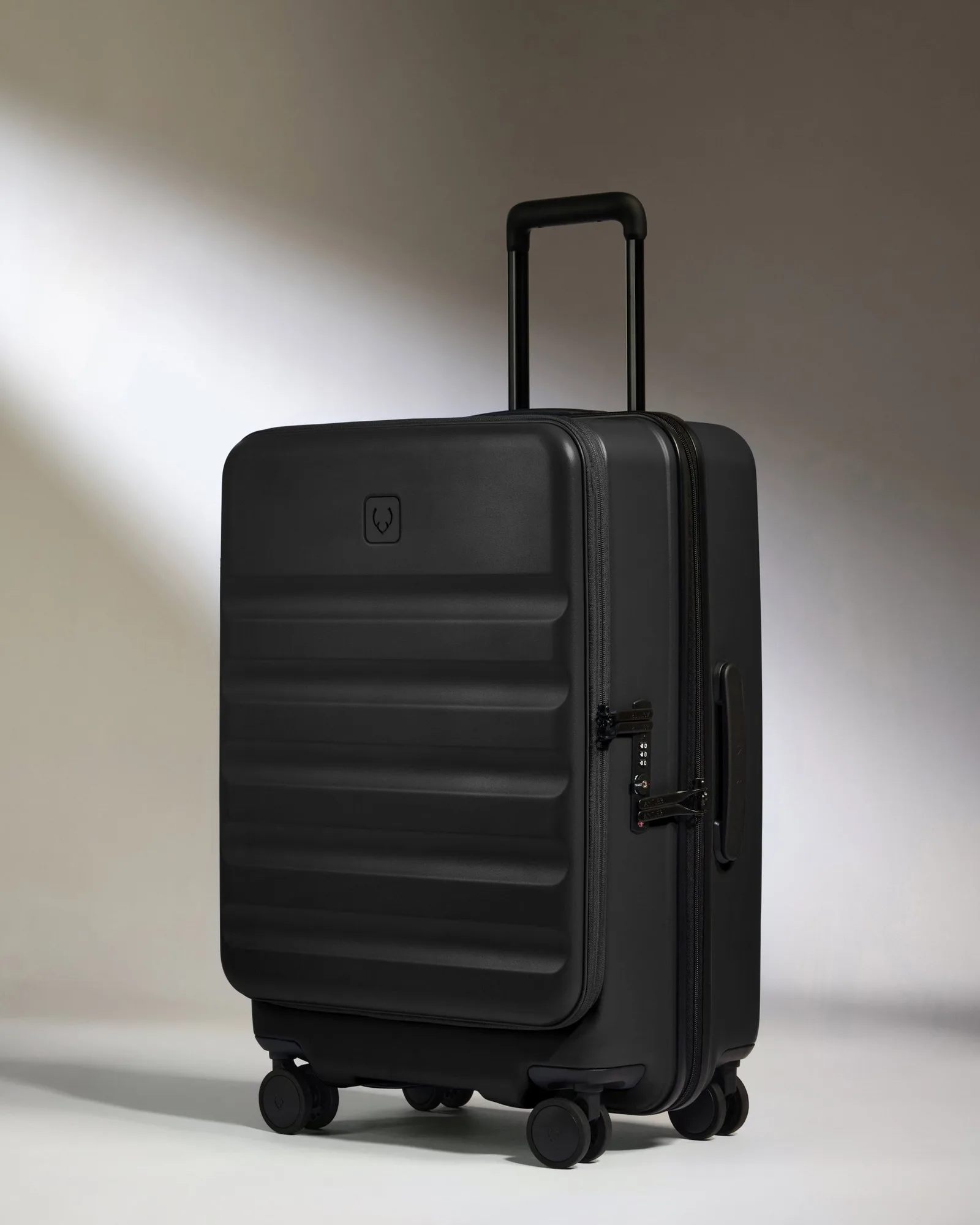
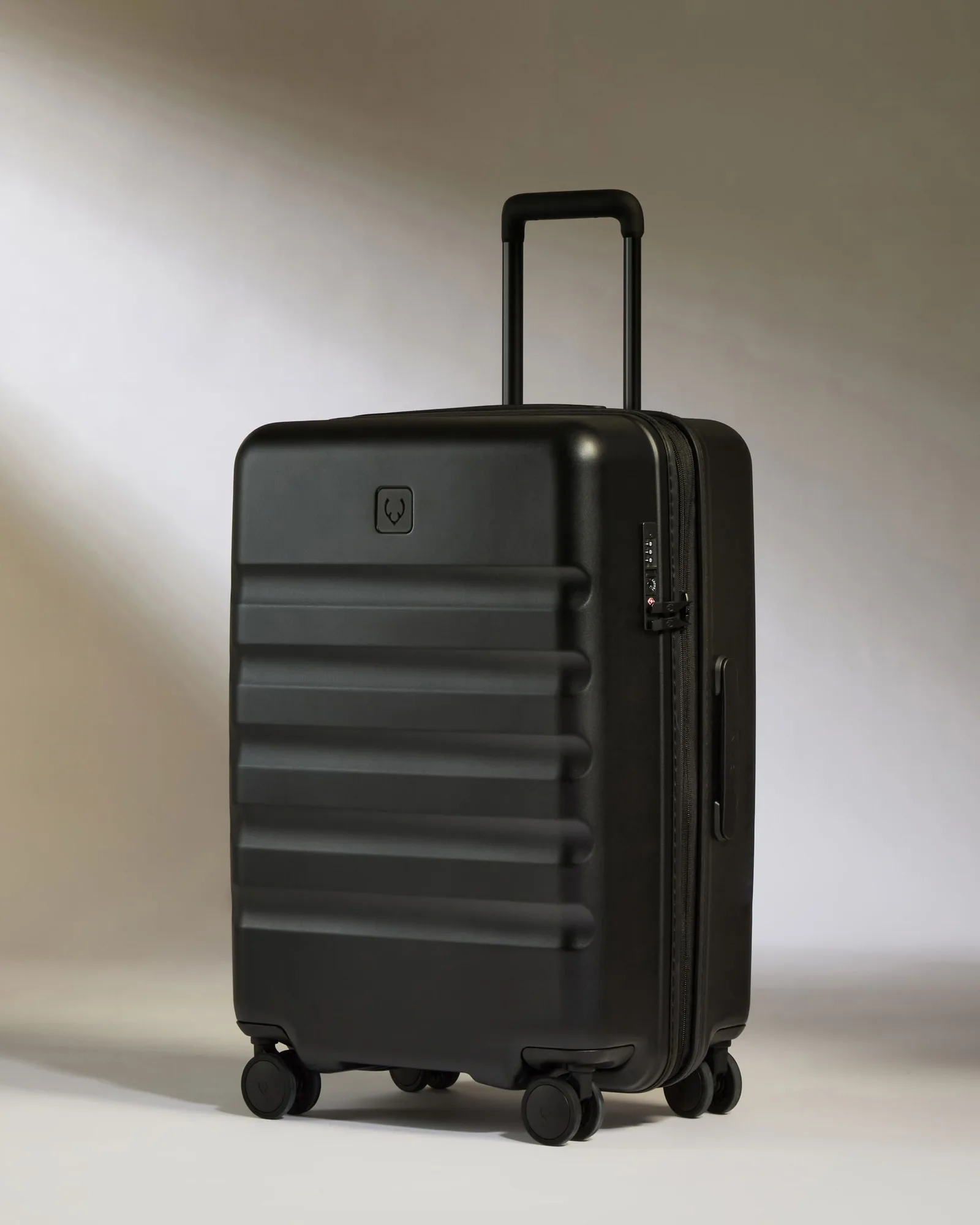
- Dual Opening Medium Luggage in Black - Icon Stripe: Combines a traditional clamshell with front-opening access, designed for trips of up to a week. Front access means you can reach a laptop sleeve without opening the whole case, so you are less likely to leave the laptop exposed on a bed or bench while repacking.
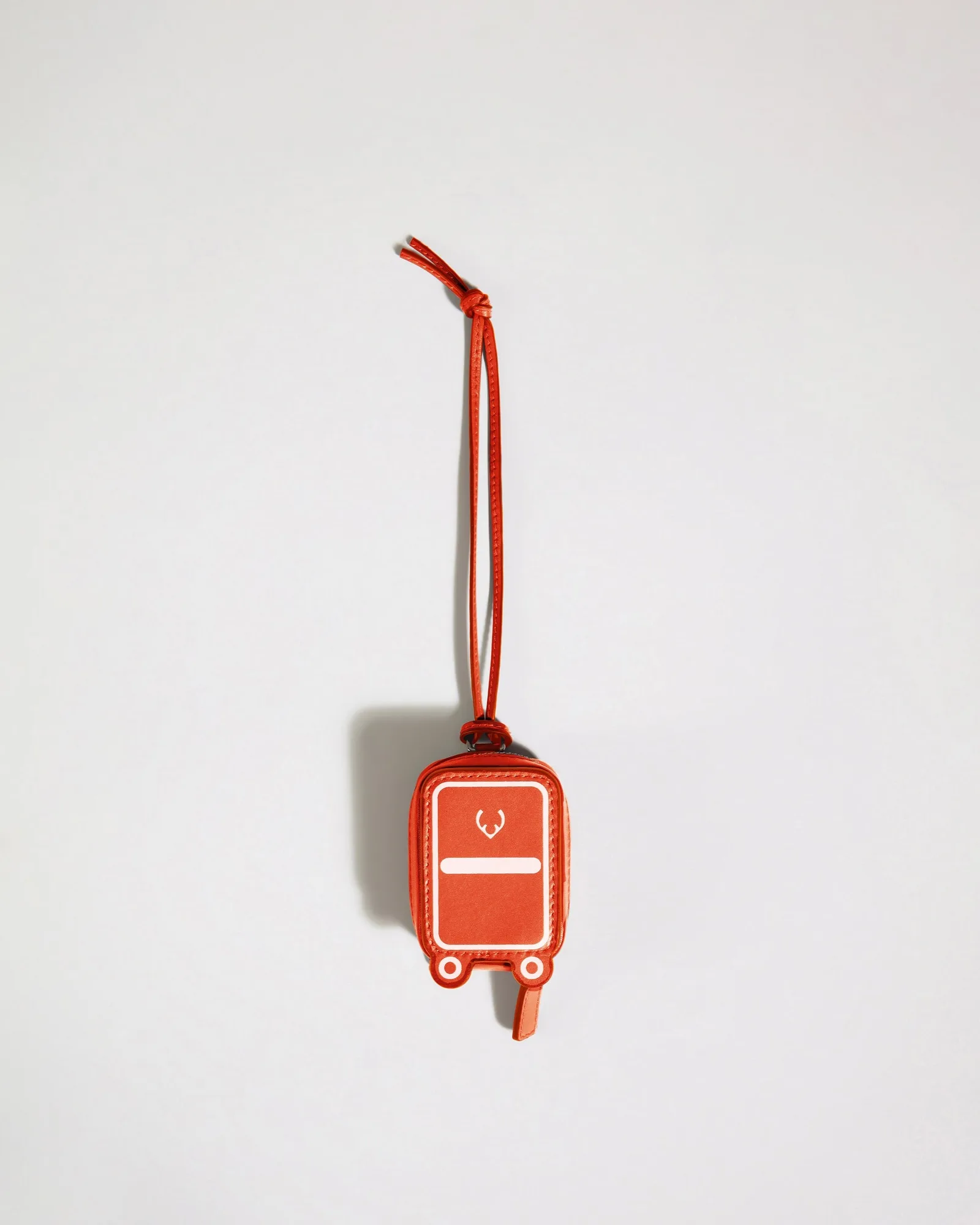
- Heritage Leather AirPods Case in Coral: Crafted from smooth leather in Antler's iconic suitcase silhouette, designed to hold even the largest AirPods or small essentials like charging cables and coins, with a removable lanyard. Keeping small tech accessories in one clipped pouch stops cables and earbuds from rattling loose against the laptop and scratching the screen.
Protecting a laptop on the road comes down to a snug sleeve, a soft layer, and a sensible position against the rigid side of your bag. Follow the seven steps in order, keep the laptop in your carry-on, and you can stop worrying about it and get on with the trip.