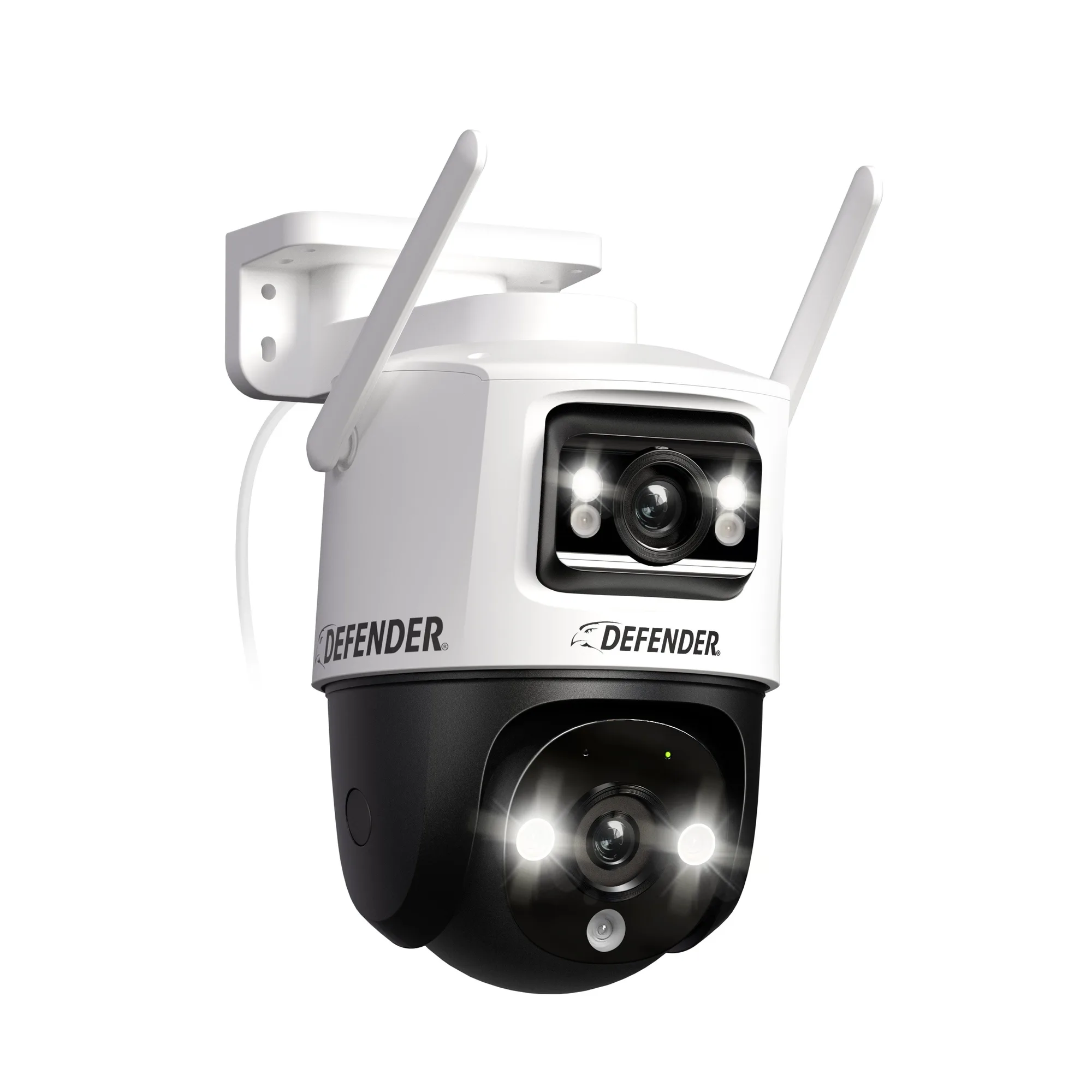
Common Issues with the Defender AI Guard Pro 3K PLUS
The Defender AI Powered Guard Pro 3K PLUS Dual Lens PTZ Wi-Fi 6 Plug-in Security Camera (2 Pack) offers reliable high-definition surveillance, but like any advanced device, you may occasionally run into setup or performance hiccups. This guide focuses on the most commonly reported problems and what you can check using the camera's supplied capabilities.
Because the camera is plug-in powered and uses Wi-Fi 6, many issues stem from power continuity or wireless interference rather than hardware faults. Below, we address each problem in practical terms.
Camera Specifications That Affect Troubleshooting
-
AI POWERED Guard Pro 3K PLUS Dual Lens PTZ Wi-Fi 6 Plug-in Security Camera, 2 Pack: Plug-in power ensures continuous operation without battery swaps; includes two cameras in a single pack. If the camera loses power, check the outlet and cable first. No battery backup means a power outage will interrupt recording.
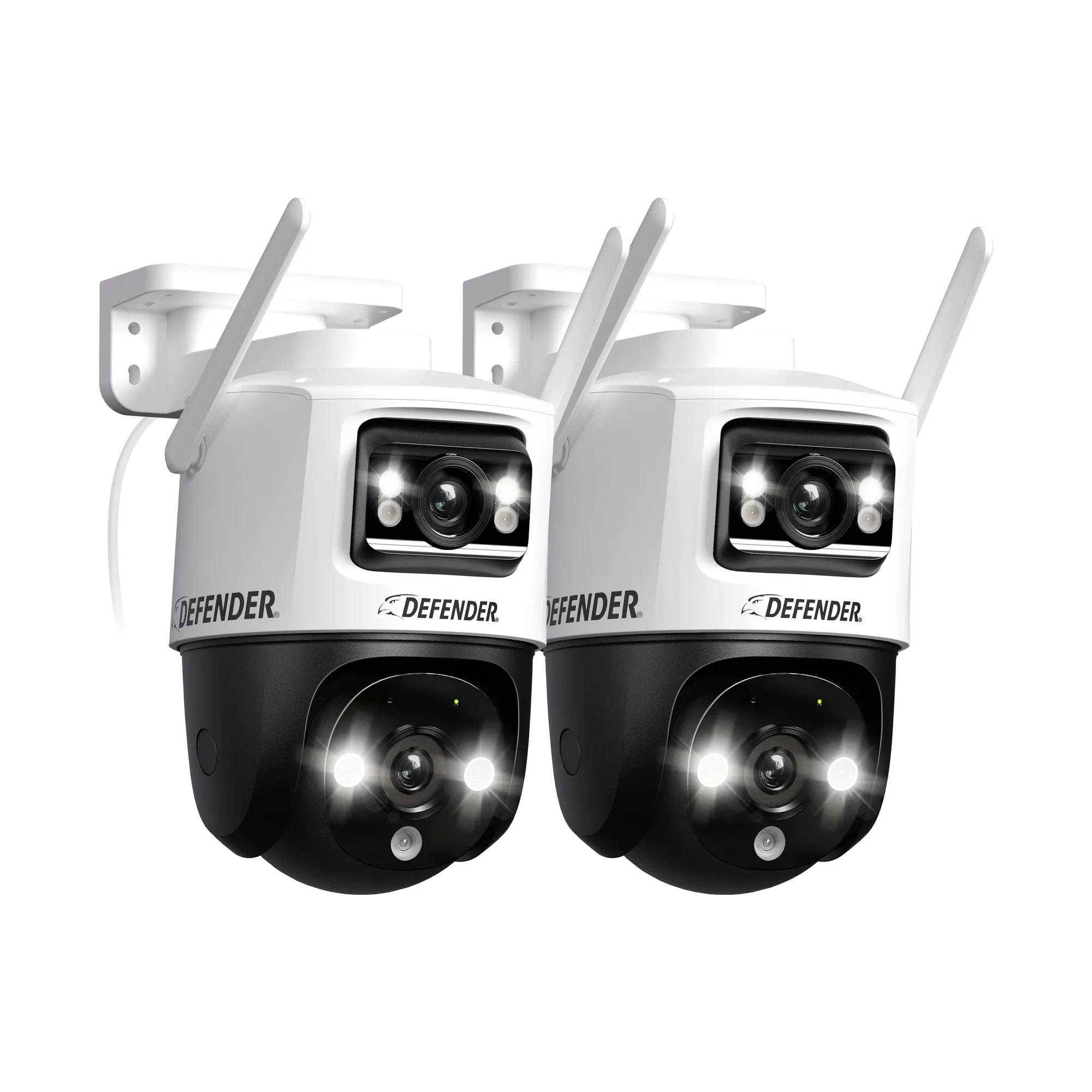
AI POWERED Guard Pro 3K PLUS Dual Lens PTZ Wi-Fi 6 Plug-in Security Camera, 2 Pack
-
AI POWERED Guard Pro 3K PLUS Dual Lens PTZ Wi-Fi 6 Plug-in Security Camera, 2 Pack: Wi-Fi 6 connectivity offers faster, more stable wireless performance for streaming and control. Wi-Fi 6 helps reduce lag and dropouts, but it requires a compatible router to deliver full benefits. If your router is older, you may still see occasional disconnects.
-
AI POWERED Guard Pro 3K PLUS Dual Lens PTZ Wi-Fi 6 Plug-in Security Camera, 2 Pack: AI-powered detection helps reduce false alerts by focusing on relevant motion events. False alarms can still occur if the camera is aimed at moving branches or shadows. Adjusting placement and sensitivity (if available in your app) can help.
Wi-Fi 6 Connectivity Issues
If your camera frequently disconnects or streams with buffering, check these factors:
- Router compatibility: Wi-Fi 6 is backward compatible, but to get the advertised speed and stability, your router should also support Wi-Fi 6. Check your router's specs or consider upgrading.
- Signal strength: Place the camera within a reasonable range of your router. Thick walls or metal obstacles can weaken the signal. A Wi-Fi extender or mesh system may help.
- Channel congestion: In dense neighborhoods, many networks compete for the same channels. Use your router's management app to switch to a less crowded channel or enable DFS channels if supported.
False Alerts from Motion Detection
AI-powered detection is designed to reduce false alerts, but it's not perfect. If you're getting too many notifications:
- Check camera placement: Avoid aiming the camera at areas with frequent small motion like trees, flags, or busy roads. The dual lens design gives a wider field of view, so you may need to adjust the angle.
- Review detection zones: If your camera app supports custom motion zones, set them to ignore areas that trigger unwanted alerts (e.g., a neighbor's driveway). This is not confirmed for all apps, so consult your camera's manual.
- Environmental factors: Rapid light changes, shadows, or insects near the lens can sometimes trigger detection. Wipe the lens clean and ensure no spider webs or debris are in front.
PTZ (Pan, Tilt, Zoom) Not Responding
If the camera's PTZ function stops working or moves erratically:
- Power cycle the camera: Unplug the camera for a brief period, then plug it back in. This resets the motor controller without losing saved settings.
- Check for physical obstructions: Ensure nothing is blocking the camera's movement range. Even a slight obstruction can cause the motor to stall or skip.
- App or firmware issue: Make sure the camera's firmware and the companion app are up to date. Outdated software can cause PTZ commands to fail. Check the Defender app for updates.
Power and Continuous Operation
The Guard Pro 3K PLUS is a plug-in camera, meaning it relies on a constant power source. If the camera goes offline, first check the outlet with another device to confirm it's working. Also inspect the power cable for damage, especially near the connectors. Because there is no battery backup, a power outage will stop recording until power is restored. Consider using a UPS (uninterruptible power supply) for critical locations.
What the Supplied Information Does Not Cover
This guide is based on the camera's confirmed specifications. The supplied information does not include specific troubleshooting steps from the manufacturer, such as reset button locations, app settings menus, or advanced configuration options. For issues beyond these basics, refer to the camera's included manual or contact Defender support. Do not attempt to disassemble the camera or modify its hardware.