Quick answer
To set up an app-controlled bullet vibrator, first charge it fully, then download the companion app and enable Bluetooth on your phone. Turn on the vibrator and pair it within the app, not in your phone's Bluetooth settings. Test the connection with a short-range session before trying long-distance control.
Before you pair: charge and prepare your devices
A successful app controlled bullet vibrator setup starts with power. Charge the vibrator fully using its supplied cable; a partial charge can cause the device to drop offline mid-pairing. While it charges, install the companion app from your phone's official app store and create an account if required. Then enable Bluetooth and location services on your phone—some Android versions need location permission for Bluetooth scanning.
Keep the vibrator within a few feet of your phone during the first pairing. If you are using a wireless vibrator app pairing for the first time, close other Bluetooth devices like earbuds or smartwatches to reduce interference. This step prevents the most common 'device not found' error.
Pairing the vibrator with the app: step-by-step
Turn on the vibrator by pressing its power button until it vibrates or a light blinks. Open the app and go to its device or pairing menu. The app will scan for nearby devices; select your vibrator from the list. If prompted for a code, try 0000 or 1234, but many modern toys pair without one. Once connected, the app may ask you to name the device or update firmware—do not skip a firmware update, as it often improves Bluetooth stability.
A common mistake is trying to pair through your phone's system Bluetooth settings instead of the app. For most app-controlled toys, the app manages the connection; pairing in system settings can block the app from finding the device. If you already paired in system settings, forget the device there and start over inside the app.
Testing modes and long-distance control
After pairing, spend a few minutes testing the app's modes at close range. Classic mode gives steady vibration, while music mode syncs the vibration to sound picked up by your phone's microphone. Shake mode responds to phone movement, and interactive mode may let a partner control the intensity from their own phone. Test each mode to confirm the vibrator responds without lag.
For long distance vibrator control, both partners need the app and a stable internet connection. The controlling partner sends an invite or connects via a room code, depending on the app. Keep the vibrator paired to the receiving phone via Bluetooth; the app relays commands over the internet. Expect a slight delay—this is normal. If the connection drops, move the vibrator and phone closer together and re-pair.
Troubleshooting Bluetooth vibrator connection issues
If the app cannot find your vibrator, first confirm the vibrator is on and charged. Toggle Bluetooth off and on again, then restart the app. On Android, check that location permission is allowed for the app. If you see a 'paired but not connected' status, unpair the device in your phone's Bluetooth settings, then pair again inside the app. For persistent bluetooth vibrator troubleshooting, clear the app's cache or reinstall it.
Interference from Wi-Fi routers, microwaves, or other Bluetooth devices can shorten range. Keep the vibrator and phone on the same side of your body and avoid covering either with thick fabric or metal. If the vibrator disconnects during use, a low battery is a likely cause; charge it and try again.
Setup steps at a glance
- Charge fully and install the app: Plug in the vibrator until fully charged. Download the companion app from the official store and enable Bluetooth on your phone. A full charge prevents mid-setup disconnects.
- Turn on the vibrator and open the app: Press the power button until the vibrator turns on. Open the app and go to its pairing or device menu. Do not pair through your phone's Bluetooth settings; use the app.
- Select your device in the app: The app will scan for nearby devices. Tap your vibrator's name when it appears. If asked for a code, try 0000 or 1234. If it doesn't appear, move the vibrator closer and restart the app.
- Test modes at close range: Try classic, music, shake, and interactive modes to confirm the vibrator responds instantly. Test before relying on it for long-distance play.
- Set up long-distance control: Use the app's invite or room feature to connect with a partner. Both phones need internet; the vibrator stays paired via Bluetooth to one phone. A slight delay is normal; keep the vibrator and phone close.
- Troubleshoot connection drops: If the vibrator disconnects, check battery level, toggle Bluetooth, and re-pair inside the app. Avoid other Bluetooth devices nearby. Low battery is the most common cause of dropouts.
Product facts
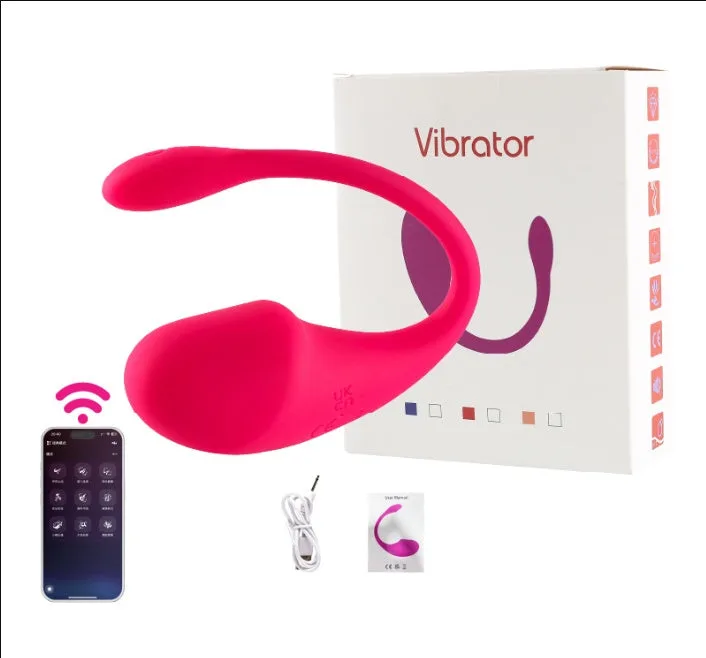
- Wireless Bullet Egg Vibrating App Remote Control G-Spot Dildo SexToys For Women: Smart App Controlled: connects via Bluetooth, compatible with iOS and Android. The app has multiple modes including classic, music, delimit, shake, and interactive. Also controllable by power button. Long Distance Play: use the app to make a video call with your partner. This vibrator is designed for app-based control, so following the app pairing steps is essential. The variety of modes gives you options to test during setup, and long-distance play means you can stay connected even when apart.