Quick Answer
Corepad Grips for the Razer Deathadder V3 Pro provide a secure, sweat-resistant surface that improves control without adding bulk. Install them carefully with a clean, dry mouse to ensure a bubble-free, long-lasting fit.
Why Corepad Grips for the Deathadder V3 Pro?
The Razer Deathadder V3 Pro has a smooth, glossy surface that can feel slippery during intense gaming sessions, especially if your hands tend to sweat. Corepad Grips add a soft, textured layer that gives you a confident hold, so you can make precise movements without your hand sliding.
These grips are designed specifically for the Deathadder V3 Pro shape, so they cover the main contact points—sides and top buttons—without interfering with the mouse's functionality. The adhesive is strong enough to stay put, but you can remove them cleanly if needed, as long as you replace them within the recommended timeframe.
What to Expect: Feel and Durability
Corepad Grips have a soft, slightly rubbery texture that feels comfortable even during long sessions. They add a subtle thickness that improves grip without changing the mouse's shape dramatically. The material also absorbs moisture, so your hands stay dry and in control.
Keep in mind that these grips are consumable. The manufacturer recommends replacing them every 3–5 months to avoid adhesive residue on your mouse. If you use your mouse heavily or have particularly sweaty hands, you might need to replace them sooner.
Step-by-Step Installation Guide
- Clean the mouse surface: Wipe the Deathadder V3 Pro with a microfiber cloth and isopropyl alcohol to remove oils and dust. Let it dry completely. A clean, dry surface is essential for the adhesive to bond properly.
- Peel and align the side grips: Carefully peel one side grip from the backing. Align it with the contour of the left side, starting from the front edge, and press down gradually. Start from one edge and smooth outward to avoid trapping air bubbles.
- Apply the right side grip: Repeat the same process for the right side, ensuring the grip follows the curve near the thumb rest. If the grip shifts, peel it off and reapply immediately—do not stretch it.
- Attach the top button grips: Place the smaller grips on the left and right mouse buttons, aligning them with the button edges. Press firmly. Avoid covering the seam between the button and shell to prevent interference with clicks.
- Press and set: Go over all grips with your fingers, applying even pressure. Let the mouse sit for a few minutes before use. A final press ensures full adhesion and prevents peeling at the edges.
Corepad Grips for Razer Deathadder V3 Pro
-
Corepad Grips - Razer Deathadder V3 Pro: Corepad recommends replacing the grips every 3–5 months to avoid issues with adhesive removal. Regular replacement prevents sticky residue from building up on your mouse, making future swaps easier and keeping your gear clean.
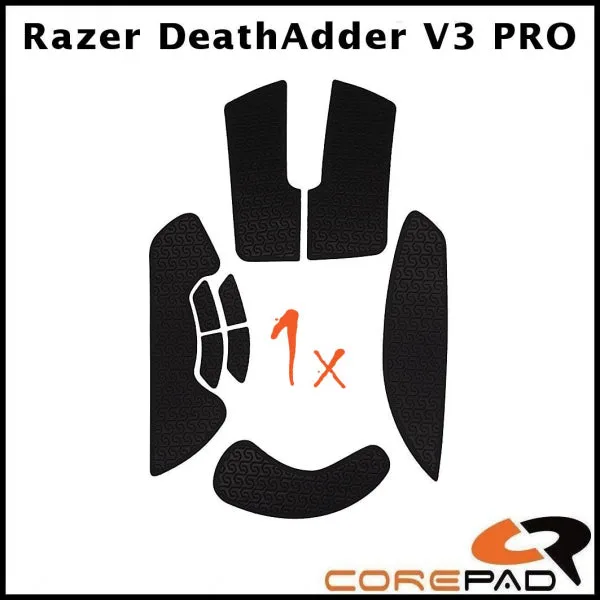
Corepad Grips - Razer Deathadder V3 Pro