Quick answer
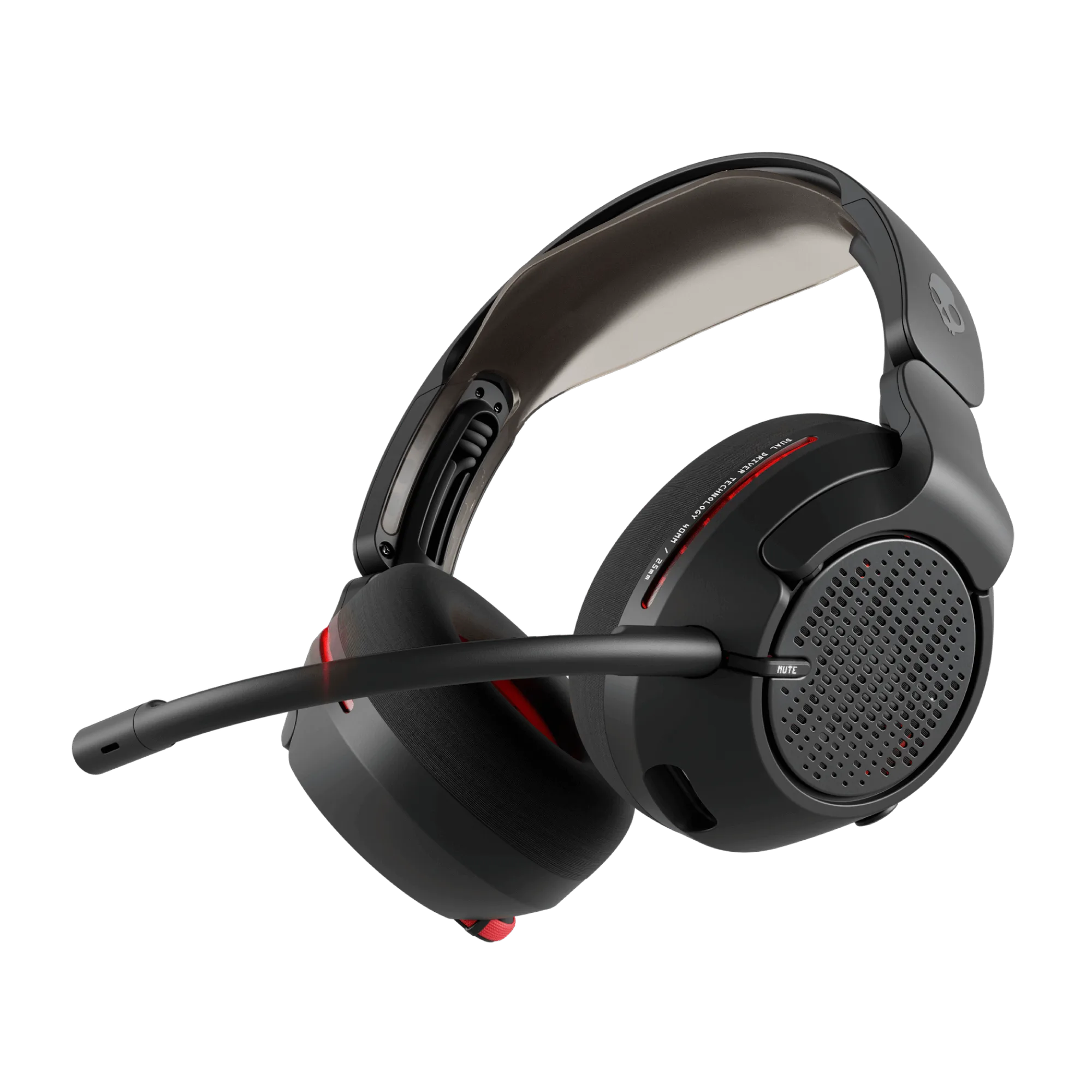
Charge your Crusher PLYR 720 fully before first use, then power it on and put it in pairing mode. Connect via Bluetooth or the included wireless transmitter for low-latency gaming. Once connected, adjust the mic and activate Crusher Bass and THX Spatial Audio to match your game.
Before you start: what you need
Unbox your Crusher PLYR 720 and confirm you have the headset, USB-C charging cable, and any wireless transmitter or dongle that came in the box. The headset supports Bluetooth and likely a 2.4GHz wireless connection for gaming, but check your specific package for included accessories. You'll also want a powered USB port on your PC or console for charging and a device with Bluetooth or a free USB port for the transmitter.
Step 1: Charge the headset completely
Plug the USB-C cable into the headset and a powered USB port. A full charge typically takes a few hours. While charging, the LED indicator will show charging status—consult the manual for exact light patterns. Avoid using the headset while charging if you want the fastest top-up.
Step 2: Power on and enter pairing mode
Press and hold the power button until you hear a tone or see the LED flash. The headset will automatically enter pairing mode if no device is connected. If it doesn't, hold the power button longer or check for a dedicated pairing button. A common mistake is releasing the button too early—wait for the audible confirmation.
Step 3: Connect to your gaming device
For Bluetooth: open your device's Bluetooth settings, select 'Crusher PLYR 720' from the list, and confirm. For a 2.4GHz transmitter: plug the dongle into your PC or console, power on the headset, and it should connect automatically. If using a transmitter, you may need to switch the headset to the correct input mode. Check that the headset is not simultaneously connected to another device, which can cause audio dropouts.
Step 4: Adjust microphone settings
Position the boom mic close to your mouth but not touching your lips. In your game or chat app, set the Crusher PLYR 720 as both the input and output device. Test your mic level in the app's settings—if you sound too quiet, increase the mic gain; if there's background noise, enable noise suppression if available. Some platforms require you to select the headset manually even after pairing.
Step 5: Optimize Crusher Bass and spatial audio
Use the Crusher Bass slider on the headset to adjust bass intensity. Start at a low setting and increase gradually to avoid distortion. For THX Spatial Audio, enable it in the headset's companion app or via the transmitter if supported. This creates a 3D soundstage that helps with directional audio in games. Not all games support spatial audio, so test in a familiar title first.
Setup steps at a glance
- Charge fully: Connect the USB-C cable to a powered port and wait for a full charge before first use. Checkpoint: LED indicates charging status; avoid using while charging for fastest charge.
- Power on and pair: Hold the power button until you hear a tone, then select the headset in your device's Bluetooth settings or plug in the wireless transmitter. Mistake to avoid: releasing the power button too early—wait for the audible confirmation.
- Set as default device: In your gaming platform or chat app, set Crusher PLYR 720 as both the audio output and microphone input. Checkpoint: Test your mic in the app's settings to ensure you're heard clearly.
- Tune Crusher Bass and spatial audio: Adjust the Crusher Bass slider to your preference and enable THX Spatial Audio if available. Mistake to avoid: maxing out bass immediately—increase gradually to prevent distortion.
Product facts
- Crusher® PLYR® 720: Crusher PLYR 720 features Crusher Bass, open-back acoustics, and THX Spatial Audio. These features let you feel deep bass and pinpoint directional sounds, enhancing immersion in games.