Quick answer
Set up your Custom North Intel Edition by connecting your peripherals, powering on for the first boot, updating drivers and Windows, then configuring game settings for optimal performance.
Why a proper first boot matters
Your Custom North Intel Edition is a pre-configured system, but the first boot is still your chance to verify that everything is running as expected. This is when you ensure the operating system activates properly, all drivers are current, and your display is recognized at the right resolution and refresh rate.
Skipping driver updates or misconfiguring your display settings can lead to stuttering or lower frame rates in games. Taking a few extra minutes during setup saves you from troubleshooting later.
Trade-offs: pre-configured vs. manual tuning
MAINGEAR ships the Custom North Intel Edition ready to use, which means you get a stable baseline without overclocking. If you want extra performance, you can manually adjust settings in BIOS or use Intel's tuning tools, but this may void warranties or reduce system stability.
For most gamers, the factory configuration is the sweet spot: it balances performance and reliability. Only tweak advanced settings if you understand the risks and are comfortable with troubleshooting.
Step-by-step setup for your Custom North Intel Edition
- Unbox and inspect: Carefully remove your Custom North Intel Edition from the box and place it on a stable, well-ventilated surface. Check that all included cables and accessories are present. Common mistake: forgetting to remove packing foam from inside the case, which can block airflow and cause overheating. Verify that the case is clear of any packing material before powering on.
- Connect your peripherals and display: Plug in your keyboard, mouse, and monitor. Use the video outputs on your graphics card, not the motherboard, to ensure you're using the dedicated GPU. Common mistake: plugging the monitor into the motherboard's HDMI or DisplayPort, which may use integrated graphics and limit performance. Double-check that your monitor cable is connected to the GPU ports.
- Power on for the first boot: Connect the power cable, then press the power button. You should see the system boot to the Windows setup or login screen. If nothing appears, check that the monitor is on the correct input source. Common mistake: assuming the system is broken when it's just a display input issue. Confirm the monitor input is set to the correct port.
- Complete Windows setup and updates: Follow the on-screen prompts to finish Windows setup, then run Windows Update to install the latest patches. Also, update your graphics drivers from the manufacturer's website (NVIDIA or AMD) for best gaming performance. Common mistake: skipping driver updates, which can cause crashes or poor performance in new games. Set Windows Update to automatic to keep your system secure and stable.
- Configure game settings: Open your favorite games and adjust graphics settings based on your monitor's resolution and refresh rate. Use in-game benchmarks or tools like MSI Afterburner to monitor FPS and temperatures. Common mistake: maxing out every setting without checking performance, which can lead to stuttering. Aim for a stable frame rate that matches your monitor's refresh rate.
About your Custom North Intel Edition
-
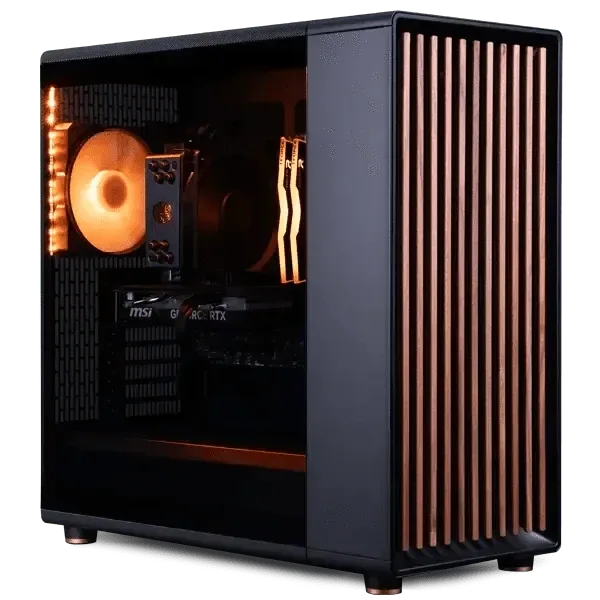
Custom North | Intel Edition: The MAINGEAR Custom North | Intel Edition is a custom desktop PC built around Intel platform options. This means your system is tailored to Intel components, so you can expect compatibility with Intel-specific features like Quick Sync and Thunderbolt, which can enhance gaming and streaming.
Custom North | Intel Edition