Quick answer
To set up an EQDIR Bluetooth adapter for EQMOD wireless control, power the mount, pair the adapter with your PC, note the outgoing COM port, select that port in EQMOD with the correct baud rate, then connect. The EQDIR Bluetooth for EQMOD is the simplest fit for Skywatcher HEQ5 Syntrek/PRO, NEQ6 Syntrek/PRO, AZ EQ6-GT and EQ8 mounts because it connects directly to the mount and needs no hand controller.
Before you start: mount and PC checks
Confirm your mount is one of the supported Skywatcher models and that it is powered on before you begin pairing. The adapter replaces the hand controller, so leave the handbox disconnected and plug the adapter into the mount's hand-controller port. On the PC side, verify Bluetooth 2.1 support or a compatible USB Bluetooth dongle; older or generic dongles sometimes fail to hold a stable serial link.
Install or update EQMOD and ASCOM first. If you plan to use TheSkyX with a Software Bisque mount, the WiSky MKS 5000 Wi-Fi Control is the matching wireless path instead of Bluetooth, since it is designed for MKS 5000-based mounts and TheSkyX Pro or TheSkyX for iOS.
Pair the adapter and find the COM port
On Windows, open Bluetooth settings, put the EQDIR adapter in pairing mode, and add it as a device. Once paired, open Device Manager and expand Ports (COM & LPT). Look for the outgoing serial port the adapter created and write down that COM number. If no port appears, remove the device, reboot, and pair again; a missing outgoing port is the most common reason EQMOD cannot see the mount.
If you use a Garmin GPS for Gemini 2 System, keep its COM port separate from the mount's port. Two devices sharing one port will cause intermittent connection failures in EQMOD.
Configure EQMOD for the Bluetooth link
Open the EQMOD ASCOM driver setup, choose the COM port you recorded, and set the baud rate to match the adapter's default. Enable the option to connect on startup only after a successful manual test. For remote or permanent setups, test the link with the mount parked and tracking off so you can hear or see immediate movement when you press a direction button.
If you are running a Paramount with an MKS 5000 board, skip the Bluetooth pairing and use WiSky instead; it plugs into the MKS 5000 and is configured from the Bisque TCS window in TheSkyX Pro.
Step-by-step EQDIR Bluetooth setup
- Power the mount and connect the adapter: Turn on the mount, plug the EQDIR Bluetooth adapter into the hand-controller port, and leave the handbox disconnected. Checkpoint: the adapter's LED should indicate power before you search for it on the PC.
- Pair the adapter with your PC: In Windows Bluetooth settings, add the adapter as a device and wait for pairing to complete. Mistake to avoid: pairing while the mount is off, which can create a stale device entry.
- Record the outgoing COM port: Open Device Manager, expand Ports (COM & LPT), and note the COM number created by the adapter. If no port appears, remove the device and pair again; do not proceed without a port number.
- Select the port and baud rate in EQMOD: In the EQMOD ASCOM setup, choose the recorded COM port and set the baud rate to the adapter's default. Mistake to avoid: leaving EQMOD on a different port used by another device.
- Test the link with a manual slew: Connect in EQMOD and press a direction button while watching the mount move. Checkpoint: if the mount does not move, recheck the port and baud rate before changing other settings.
- Lock in the connection for your session: Once the manual test works, enable connect-on-startup and park the mount before closing the session. Next step: repeat the same port selection each night, or save it in your ASCOM profile.
Hardware that matches this setup
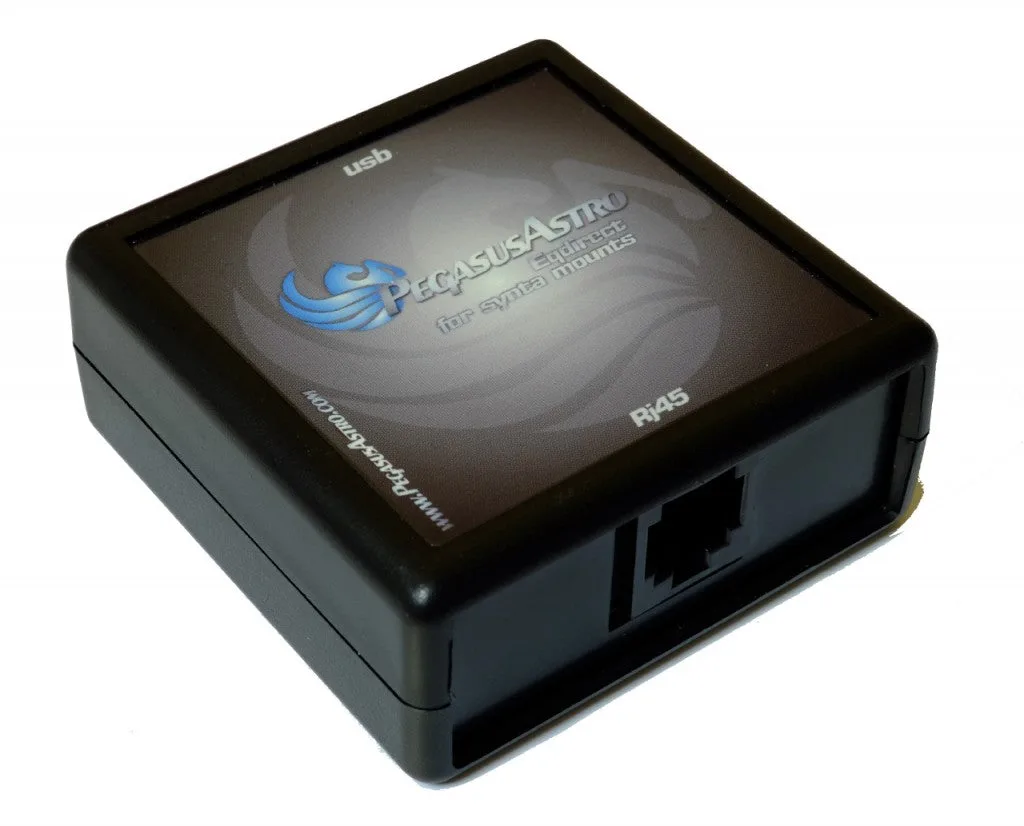
- EQDIR Bluetooth for EQMOD: Compact EQDir Bluetooth Adapter for EQMOD connects Skywatcher HEQ5 Syntrek/PRO, NEQ6 Syntrek/PRO, AZ EQ6-GT and EQ8 mounts to a Bluetooth 2.1 supported PC or laptop without a handbox controller. This is the direct-fit adapter for the mounts covered in this guide, so you can skip hand-controller passthrough and reduce cabling at the mount.
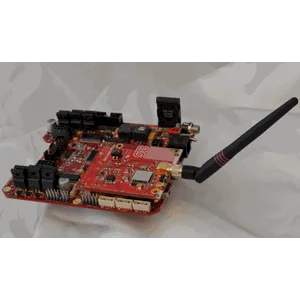
- WiSky MKS 5000 Wi-Fi Control: WiSky MKS 5000 Wi-Fi Control is a PCB that plugs into the MKS 5000 and lets TheSkyX Pro or TheSkyX for iOS wirelessly control Paramount ME II, MX, MYT, or any Paramount ME upgraded with the MKS 5000. If your mount uses the MKS 5000 system, WiSky is the correct wireless control option rather than an EQDIR Bluetooth adapter.
- Garmin GPS for Gemini 2 System: Garmin GPS for Gemini 2 System incorporates the Garmin GPS into an existing Gemini 2 mount system. Gemini 2 users adding GPS should plan a separate COM port so the GPS and mount control do not conflict.