Quick Answer
Install the Video Doorbell E340 first, then pair it with the Smart Display E10 in the eufy Security app. Use the display's multi-view feature to monitor your entrance alongside other cameras.
Why Pair the Doorbell with the Display?
The Smart Display E10 turns your doorbell into a hands-free intercom. When someone rings, the display lights up with the live feed and a voice alert, so you can see who's there without checking your phone.
The E340's dual cameras give you a head-to-toe view of visitors and a package-level view of deliveries. Pairing it with the E10 means those views appear automatically on the display, making it easier to decide whether to answer the door.
Plan Your Wi-Fi and Power Setup
Both devices need a stable 2.4 GHz Wi-Fi connection. Place the display within range of your router and the doorbell's chime box. The doorbell can be wired to existing doorbell wiring or run on its built-in battery if wiring isn't available.
If you're using the battery, expect to recharge it periodically. Wired installation provides continuous power and avoids downtime, but requires a compatible transformer. Check your doorbell's voltage before starting.
Step-by-Step Setup Process
- Mount the Doorbell E340: Choose a spot about 4 feet above the ground for the best head-to-toe view. Use the included mounting bracket and secure it to your wall. If wiring, connect the wires to the terminals and attach the doorbell to the bracket. If using battery, slide the battery in and mount the doorbell. Check that the doorbell is level and the camera lens is not blocked by any overhang.
- Power On and Connect the Doorbell: Turn on the doorbell and open the eufy Security app. Tap '+' to add a new device, select Video Doorbell E340, and follow the in-app prompts to connect it to your 2.4 GHz Wi-Fi network. If the connection fails, move closer to the router or check your network band. Ensure your phone is on the same Wi-Fi network as the doorbell during pairing.
- Set Up the Smart Display E10: Plug in the Smart Display E10 and wait for it to boot. In the eufy Security app, add the display as a new device. Follow the prompts to connect it to the same Wi-Fi network and log into your eufy account. Use the same eufy account for both devices so they can sync automatically.
- Pair the Doorbell with the Display: On the Smart Display E10, go to Settings > Cameras and select 'Add Camera'. Choose the Video Doorbell E340 from the list and confirm the pairing. The display will now show the doorbell feed when someone rings or triggers motion. If the doorbell doesn't appear, check that both devices are on the same network and restart the display.
- Configure Multi-View: On the display, swipe to the multi-view screen and tap 'Edit' to add up to four camera feeds. Select the doorbell and any other eufy cameras you have. Arrange the tiles to your preference and save. You can reorder the tiles anytime by holding and dragging them.
- Test the System: Press the doorbell button and check that the display lights up with the live feed and a voice alert. Walk in front of the camera to verify motion detection. Adjust motion zones in the app if needed. If the display doesn't alert, check the notification settings in the app for the doorbell.
What This Combo Offers
-
eufy Smart Display E10 + Video Doorbell E340: The Smart Display E10 lights up with a live feed and voice alert when the doorbell rings, the door is unlocked, or a camera detects motion. You get instant visual confirmation of who's at the door without needing to pull out your phone.
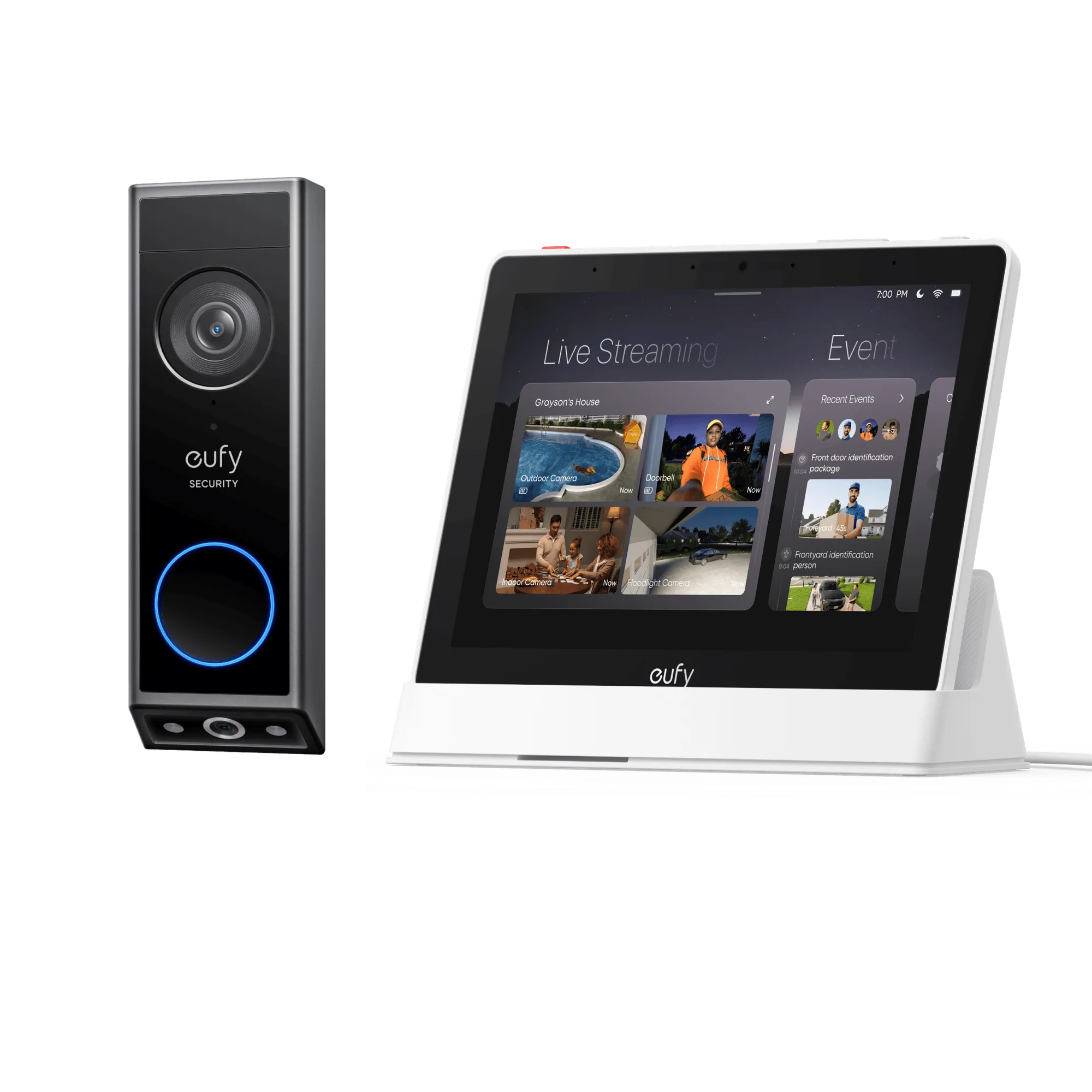
eufy Smart Display E10 + Video Doorbell E340
-
eufy Smart Display E10 + Video Doorbell E340: The display can show four simultaneous live feeds on one screen. You can monitor the front door, backyard, and other cameras at a glance, making it easier to keep an eye on your whole property.
Once paired, you'll have a hands-free view of your front door and the ability to monitor multiple cameras on one screen. For more help, explore the eufy Security app's settings or consult the user manuals.