Quick Answer
Most eufy Floodlight Camera E340 issues—connectivity drops, motion detection misses, and night vision problems—can be resolved with a few targeted steps: check power and Wi-Fi, update firmware, adjust motion zones and sensitivity, and clean the lens. If problems persist after a full reset, contact eufy support for hardware diagnosis.
The eufy Floodlight Camera E340 is a reliable outdoor security device, but like any tech, it can occasionally act up. Whether the camera goes offline, misses motion, or shows poor night vision, you don't need to panic. Many issues have simple fixes you can do in minutes.
This guide walks through the most common problems and their solutions, from connectivity and motion detection to night vision and resets. We'll help you diagnose the root cause and get your camera back to full protection.
Connectivity Issues: Camera Goes Offline or Won't Connect
If your eufy Floodlight Camera E340 drops offline or fails to connect, start by checking your Wi-Fi signal. The camera needs a stable 2.4 GHz connection; 5 GHz networks are not supported. Move your router closer or add a Wi-Fi extender if the camera is far from the router.
Also, verify that the camera is receiving power. The floodlight camera is hardwired, so check the circuit breaker and the wiring connections. A loose wire can cause intermittent power loss, which looks like a connectivity problem.
If Wi-Fi and power are fine, reboot the camera by turning it off and on. Then, update the eufy Security app to the latest version, as outdated apps can cause connection errors.
- Ensure your router broadcasts a 2.4 GHz network.
- Check the circuit breaker and wiring for the floodlight.
- Reboot the camera and update the eufy Security app.
Motion Detection Problems: Missed Events or False Alerts
Motion detection issues usually come down to settings. If the camera misses events, the motion sensitivity might be too low, or the motion zones may not cover the right areas. Open the eufy Security app, go to the camera's settings, and adjust the motion sensitivity slider. You can also draw custom motion zones to focus on the most active areas, like your driveway or front walk.
False alerts are often caused by trees, passing cars, or small animals. Use the camera's human and vehicle detection filters to reduce unnecessary notifications. If you still get false alerts, lower the sensitivity or resize the motion zones to exclude busy streets.
Also, make sure the camera's firmware is up to date. Firmware updates often improve motion detection algorithms and fix bugs. Check for updates in the app under the camera's settings.
- Adjust motion sensitivity and set custom motion zones.
- Enable human and vehicle detection filters to reduce false alerts.
- Update firmware to get the latest motion detection improvements.
Night Vision Issues: Blurry or Dark Footage
If night vision looks dark or blurry, the first thing to do is clean the camera lens. Dirt, spider webs, and moisture can obscure the view and reduce infrared performance. Use a soft, dry cloth to gently wipe the lens and the IR sensors.
Check that the floodlight is working correctly. The camera's color night vision relies on the floodlight to illuminate the scene. If the floodlight is dim or not turning on, it may affect image quality. Verify the floodlight settings in the app and ensure it's set to turn on when motion is detected or on a schedule.
If the image is still poor, the camera's IR cut filter might be stuck. This is less common but can happen. Try toggling the night vision mode in the app from 'Auto' to 'On' and back to 'Auto' to force the filter to switch.
- Clean the lens and IR sensors regularly.
- Check floodlight settings to ensure proper illumination.
- Toggle night vision mode to reset the IR cut filter.
How to Reset Your eufy Floodlight Camera E340
A reset can resolve many persistent issues, but it should be your last step before contacting support. There are two types of resets: a soft reset and a factory reset.
A soft reset simply reboots the camera. You can do this by turning off the power at the circuit breaker for about 10 seconds, then turning it back on. This often clears temporary glitches.
If that doesn't work, a factory reset will erase all settings and return the camera to its default state. Locate the reset button on the camera (usually a small pinhole). Press and hold it for about 10 seconds until you hear a beep. Then, set up the camera again in the eufy Security app.
After a factory reset, you'll need to reconnect the camera to your Wi-Fi and reconfigure your motion zones and other preferences. It's a good idea to write down your settings before resetting so you can restore them quickly.
- Soft reset: power cycle at the breaker for 10 seconds.
- Factory reset: hold the reset button for 10 seconds until beep.
- Reconfigure settings after reset.
Firmware Update: Keep Your Camera Up to Date
Firmware updates fix bugs, improve performance, and add new features. If you're experiencing issues, make sure your camera is running the latest firmware. In the eufy Security app, go to the camera's settings and look for 'Firmware Update'. If an update is available, install it. Keep the camera powered on and close to the router during the update to avoid interruptions.
You can also enable automatic updates in the app settings so you don't have to check manually. Regular updates are key to maintaining reliable performance and security.
- Check for firmware updates in the app regularly.
- Enable automatic updates if available.
- Keep the camera powered and close to the router during updates.
Diagnosis: From Symptom to Solution
- Camera offline or won't connect: Check Wi-Fi signal (2.4 GHz), power supply, and reboot the camera. Update the app. If the camera still won't connect, try a factory reset.
- Motion detection misses or false alerts: Adjust sensitivity, set motion zones, and enable human/vehicle filters. Update firmware. If issues persist, consider the camera's placement or environmental factors.
- Night vision is dark or blurry: Clean the lens and IR sensors, check floodlight settings, and toggle night vision mode. If the image is still poor, contact eufy support for hardware inspection.
Related eufy Products That Can Help
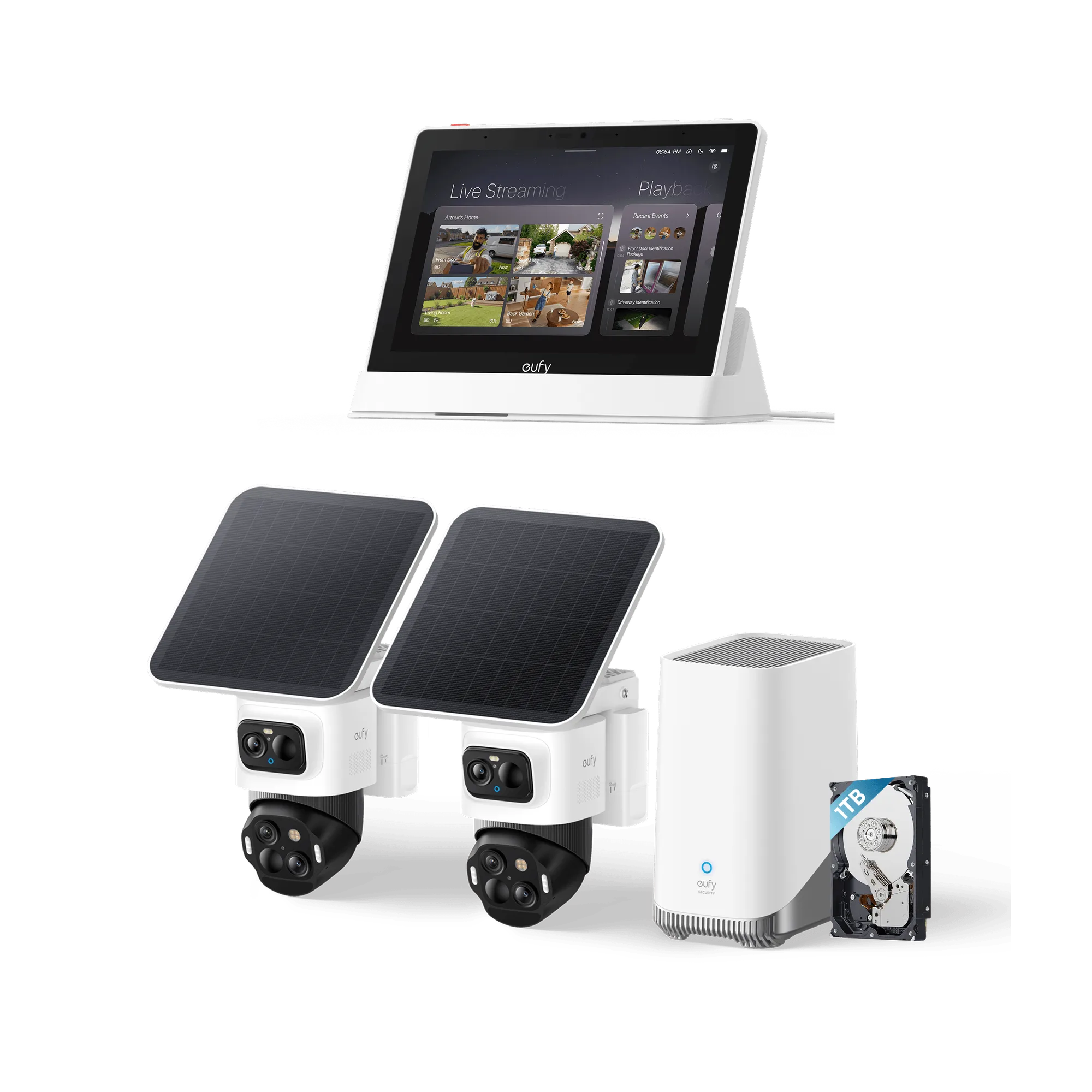
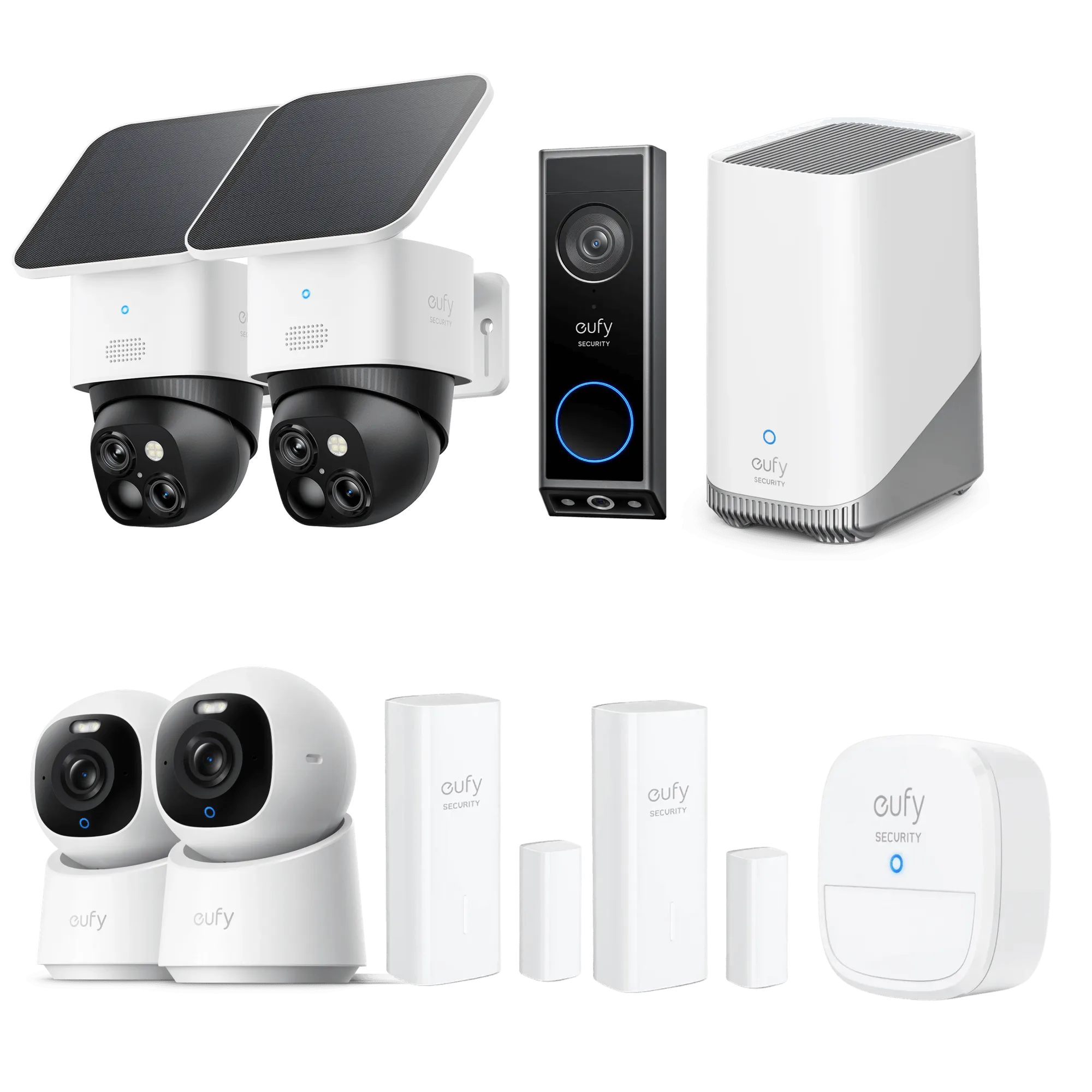
- https://eufydu.com/products/e8e00122-071a3d9253ba7fc46ebb3990-563358eufy PoE NVR Security System S4: The Ultimate 4-Cam System: Safeguard every corner with two 4K bullet cameras for key areas, two bullet-PTZs for a wide 4K view, and one 2K PTZ for 8× zoom and seamless 360° coverage for intelligent, active monitoring. Powered by AI-ISP for vibrant color and enhanced low-light visibility. If your floodlight camera's night vision is consistently poor, a system with AI-ISP can provide better low-light performance and more comprehensive coverage.
- eufy 4G LTE Cam S330 (3-Cam Pack): Forever Power: Empower your viewing to go anywhere you desire. Enjoy 24/7 off-the-grid freedom with the upgraded solar panel and a powerful 9,400 mAh battery. Seamless Connectivity with 4G and Wi-Fi: Ultimate security with uninterrupted access. If Wi-Fi signal is lost, the auto-switching 4G feature swaps to mobile data. If you're dealing with persistent Wi-Fi connectivity issues in remote areas, this camera offers a 4G fallback to keep your security online.
Most eufy Floodlight Camera E340 issues are fixable with a few simple steps. Start with the basics—power, Wi-Fi, and settings—and work your way up to a reset. If problems continue, don't hesitate to reach out to eufy support; your camera should be protecting your home, not frustrating you.