Getting Started with Your GabbaGoods Thermal Camera
The GabbaGoods Insta Print Camera combines instant photography with modern digital features. Whether you have the model with a dedicated Selfie Mode or the one with a 180° rotating lens, you can capture and print memories in moments. This guide walks you through the selfie and printing process using the supplied information.
Both camera models come with 3 rolls of thermal printing paper, so you can start printing right out of the box. The thermal printing technology uses heat-activated paper — no ink cartridges required.
What Each Camera Offers for Selfies and Printing
-
GabbaGoods Insta Print Thermal Printing Camera with Selfie Mode- Includes 3 Rolls of Printing Paper: The GabbaGoods Insta Print Thermal Printing Camera features a dedicated Selfie Mode for capturing your best angles and spontaneous moments effortlessly. This model makes selfie-taking simple with a one-button mode, ideal for parties and events.

GabbaGoods Insta Print Thermal Printing Camera with Selfie Mode- Includes 3 Rolls of Printing Paper
-
GabbaGoods Insta Print Camera with Selfie Lens: The GabbaGoods Insta Print Camera with Selfie Lens has a 180° rotating lens for selfies and group shots, plus instant thermal printing for crisp black-and-white prints. The swiveling lens gives you flexibility to frame your shot, and the thermal printing works without ink.
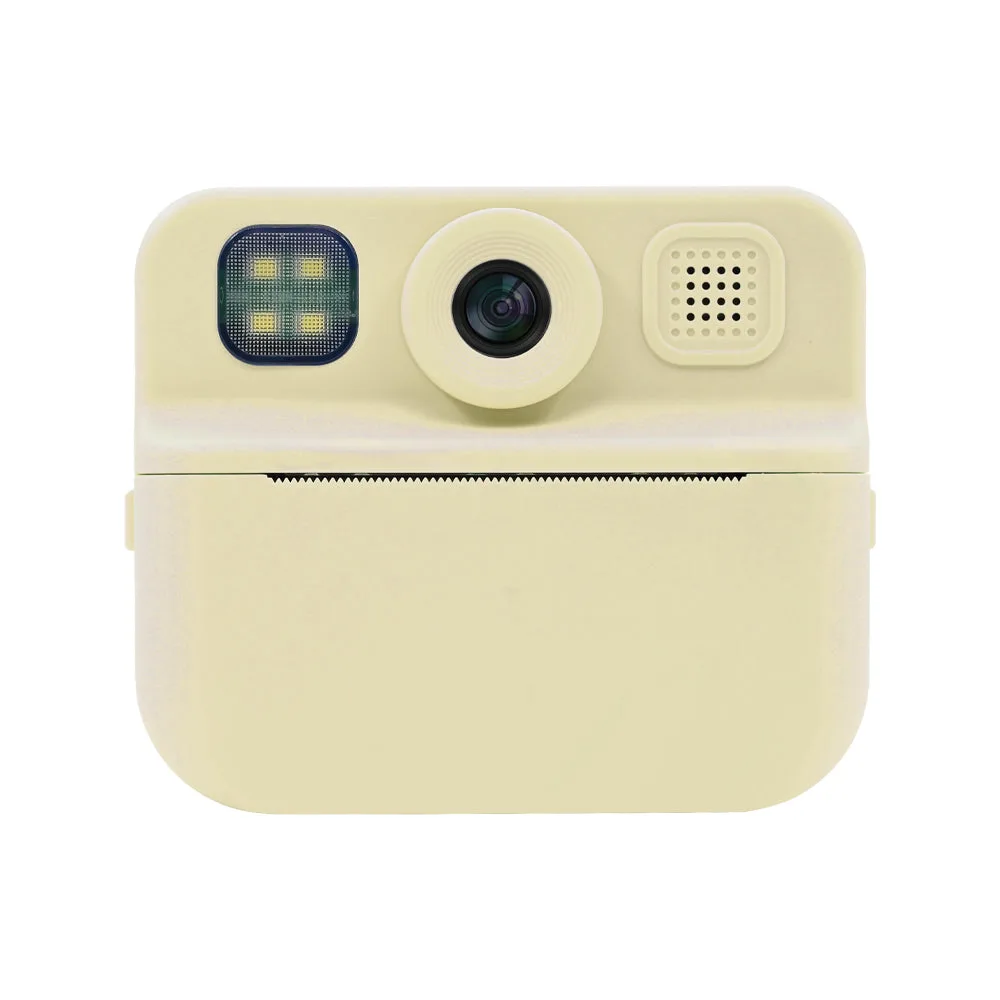
GabbaGoods Insta Print Camera with Selfie Lens
How to Use Selfie Mode on Your GabbaGoods Camera
The exact steps depend on which model you have. Use these general guidelines based on the supplied features.
- For the dedicated Selfie Mode model (Product ID 1305823): Turn on the camera and select the Selfie Mode option from the controls. Position the camera at a good angle, then press the shutter to take your selfie. The camera will print the image automatically.
- For the rotating lens model (Product ID 1305825): Rotate the 180° lens to face you. Use the viewfinder or screen to frame your shot. Press the shutter button to capture the photo, then select print to get your instant black-and-white print.
Printing and Refilling Paper
Both models use thermal paper rolls. Here is how to manage printing and refills.
- Printing a photo: After taking a picture, the camera will print it automatically or after you press the print button (depending on the model). The print comes out in black and white using heat-activated paper.
- Refilling paper: When the paper runs out, open the paper compartment, remove the empty roll core, and insert a new thermal paper roll. The GabbaGoods Insta Print Camera comes with 3 rolls to get you started. For refills, you can purchase compatible thermal paper rolls from the store.
- Adjusting print settings: For the model with Selfie Mode (Product ID 1305823), you can change the ink gradient settings by opening the settings menu and setting the number to 5. This adjusts the print darkness.
Tips for Great Selfies and Prints
Use good lighting for the best photo quality. The thermal prints are black and white, so contrast matters more than color. Hold the camera steady while the print is processing to avoid streaks. Both cameras are compact and portable, making them easy to bring to parties, events, or on adventures.
The rotating lens model (Product ID 1305825) also records 1080p video and stores photos on its built-in 32GB storage, so you can reprint favorites later. Its rechargeable battery provides 8–10 hours of use and charges in about 3.5 hours.