Quick answer
To install or replace mechanical fret buttons on your CRKD Gibson Les Paul guitar controller fret neck, follow the step-by-step process below. The modular design makes it straightforward, but careful handling is key.
Why mechanical fret buttons matter
Mechanical fret buttons provide tactile feedback that can improve your rhythm gaming performance. They are more responsive than standard rubber-dome buttons, which is especially helpful during fast solos or dense chord patterns.
The CRKD Gibson Les Paul fret necks come with mechanical buttons pre-installed, but you might want to replace them if they wear out or if you prefer a different feel. The modular design allows for easy swaps without needing to replace the entire neck.
Choosing between OG and Solo fret necks
CRKD offers two fret neck variants: the OG and the Solo. The OG features a classic 5-button layout, while the Solo adds bottom solo buttons for advanced techniques. Both are compatible with all CRKD guitar controllers, so your choice depends on your play style.
If you're upgrading from an older controller, the OG layout feels familiar. If you want to explore new techniques, the Solo layout gives you extra buttons to work with.
Step-by-step installation
- Prepare your workspace: Lay your CRKD guitar controller on a flat, clean surface. Have the new fret neck and any small tools (like a screwdriver) ready. Ensure the controller is powered off and disconnected from any console or PC. Check that you have the correct replacement neck for your controller model.
- Remove the old fret neck: Locate the release mechanism (usually a latch or screw) at the base of the neck where it connects to the guitar body. Gently detach the neck, being careful not to pull on the wiring ribbon. Do not force the neck; if it doesn't detach easily, double-check for screws or locks.
- Align the new fret neck: Take your new Gibson Les Paul fret neck and align its connector with the socket on the guitar body. Insert it at a slight angle, then press firmly until it clicks into place. Make sure the connector is fully seated to avoid intermittent connection issues.
- Test the buttons: Power on your controller and test each fret button individually. Play a few notes or chords to ensure all buttons register correctly and the RGB lighting (if present) works as expected. If a button doesn't respond, re-seat the neck and test again.
- Secure and finalize: If your neck has a locking screw, tighten it gently. Give the neck a slight wiggle to confirm it's stable. Your installation is complete. Avoid over-tightening screws, as this can strip threads or crack plastic.
Product facts
-
Gibson Les Paul Brown OG Guitar Controller Fret Neck - Mechanical Fret Buttons: The Gibson Les Paul Brown OG Guitar Controller Fret Neck features a classic OG fret layout and mechanical fret buttons for precise tactile feedback. This neck is ideal if you prefer the traditional 5-button layout and want the responsive feel of mechanical switches.
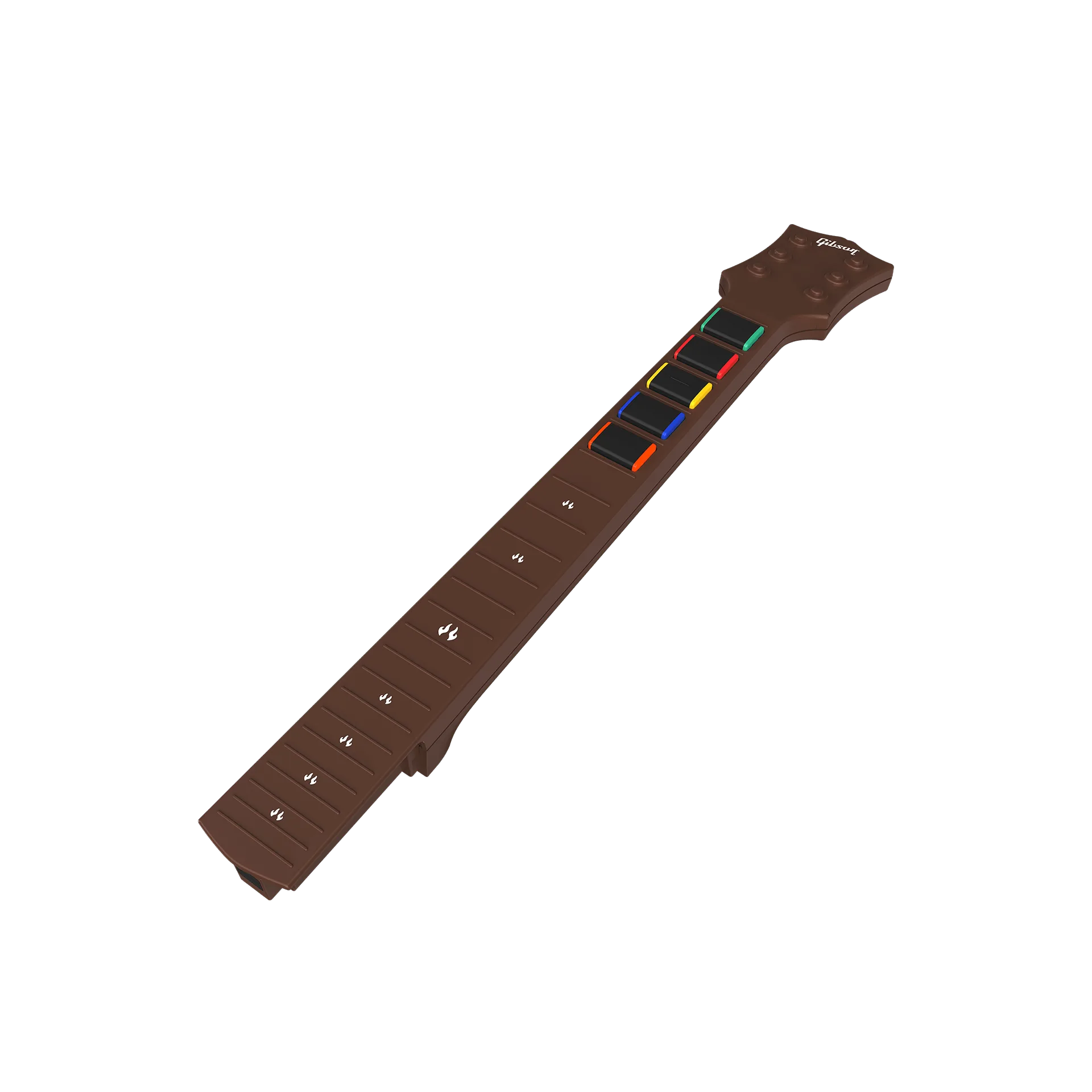
Gibson Les Paul Brown OG Guitar Controller Fret Neck - Mechanical Fret Buttons
-
Gibson Les Paul Brown Solo Guitar Controller Fret Neck – Mechanical Fret Buttons: The Gibson Les Paul Brown Solo Guitar Controller Fret Neck includes bottom solo buttons for enhanced playability. Choose this neck if you want access to solo buttons for advanced techniques without losing the mechanical button feel.
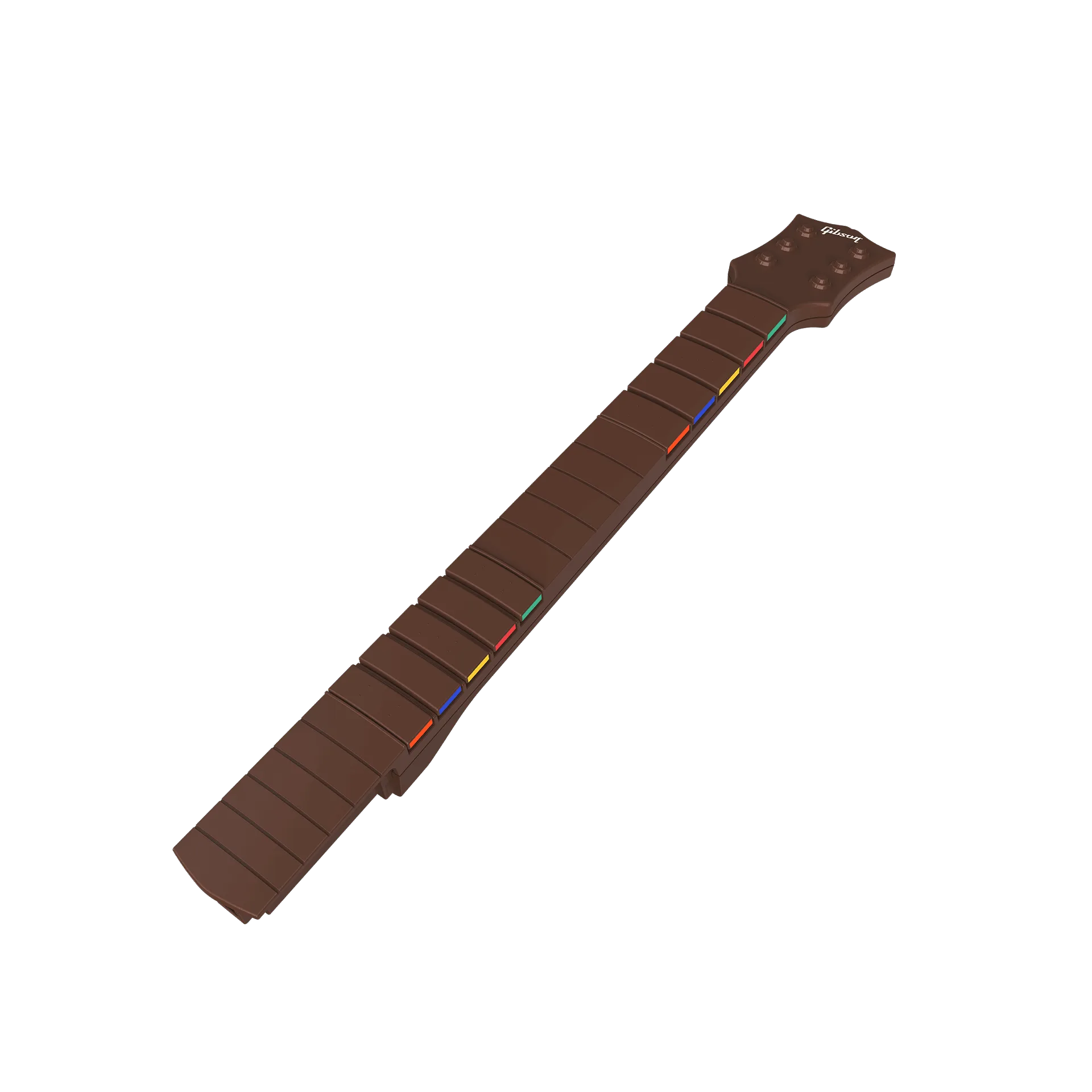
Gibson Les Paul Brown Solo Guitar Controller Fret Neck – Mechanical Fret Buttons