Quick answer
Use holiday bokeh presets to add festive light effects to winter portraits, but adjust exposure and white balance first to keep skin tones natural.
Why bokeh presets work for winter portraits
Winter portraits often have flat, gray light or harsh flash. Bokeh presets add soft, glowing circles of light that mimic holiday decorations or twinkling lights, creating a warm, festive mood without reshooting.
The key is to apply the bokeh effect subtly so it enhances the subject rather than overwhelming them. Overdoing it can make skin look washed out or muddy.
Trade-off: bokeh vs. skin tones
Bokeh presets boost highlights and add warm color casts, which can shift skin tones toward orange or yellow. You may need to reduce the preset's opacity or use a brush to mask the effect off the face.
Starting with a preset that includes a skin tone protection layer, like those in the Holiday Bokeh Collection, saves time. If yours doesn't, add a luminance mask to limit the effect to highlights only.
How to apply holiday bokeh presets to winter portraits
- 1. Start with a properly exposed portrait: Adjust exposure and white balance in Lightroom before applying any preset. A neutral base ensures the bokeh effect doesn't amplify unwanted color casts or blow out highlights. Common mistake: applying presets to underexposed photos, which makes skin look dull and muddy.
- 2. Apply the preset and check skin tones: Select a holiday bokeh preset from the collection and apply it. Immediately zoom in on the subject's face. If skin looks too warm or unnatural, reduce the preset's opacity to 50-70%. Checkpoint: if skin still looks off, use the HSL panel to desaturate orange and yellow slightly.
- 3. Mask the bokeh effect away from the face: Use a brush mask with 0% clarity and low exposure to paint over the face, keeping the bokeh effect on the background and clothing only. This preserves the festive mood without altering skin. Common mistake: forgetting to mask, which results in unnatural skin tones across the entire portrait.
- 4. Fine-tune the bokeh highlights: Use the Tone Curve to lift the highlights slightly, making the bokeh circles pop. If the effect is too strong, lower the texture slider to soften the glow. Checkpoint: compare before and after by pressing the backslash key to ensure the bokeh adds depth, not distraction.
- 5. Export and save as a custom preset: Once you're happy with the edit, save the settings as a new preset for future winter portraits. Name it something like "Winter Boke Soft" to reuse quickly. Common mistake: not saving adjustments, so you have to redo the masking and tone curve next time.
Product facts
-
Holiday Bokeh Lightroom Presets - Limited Edition Collection: The Holiday Bokeh Limited Edition Collection includes 18 presets with varying festive looks. You can choose a preset that matches your specific lighting and subject, from subtle sparkle to bold holiday glow, without editing each photo from scratch.
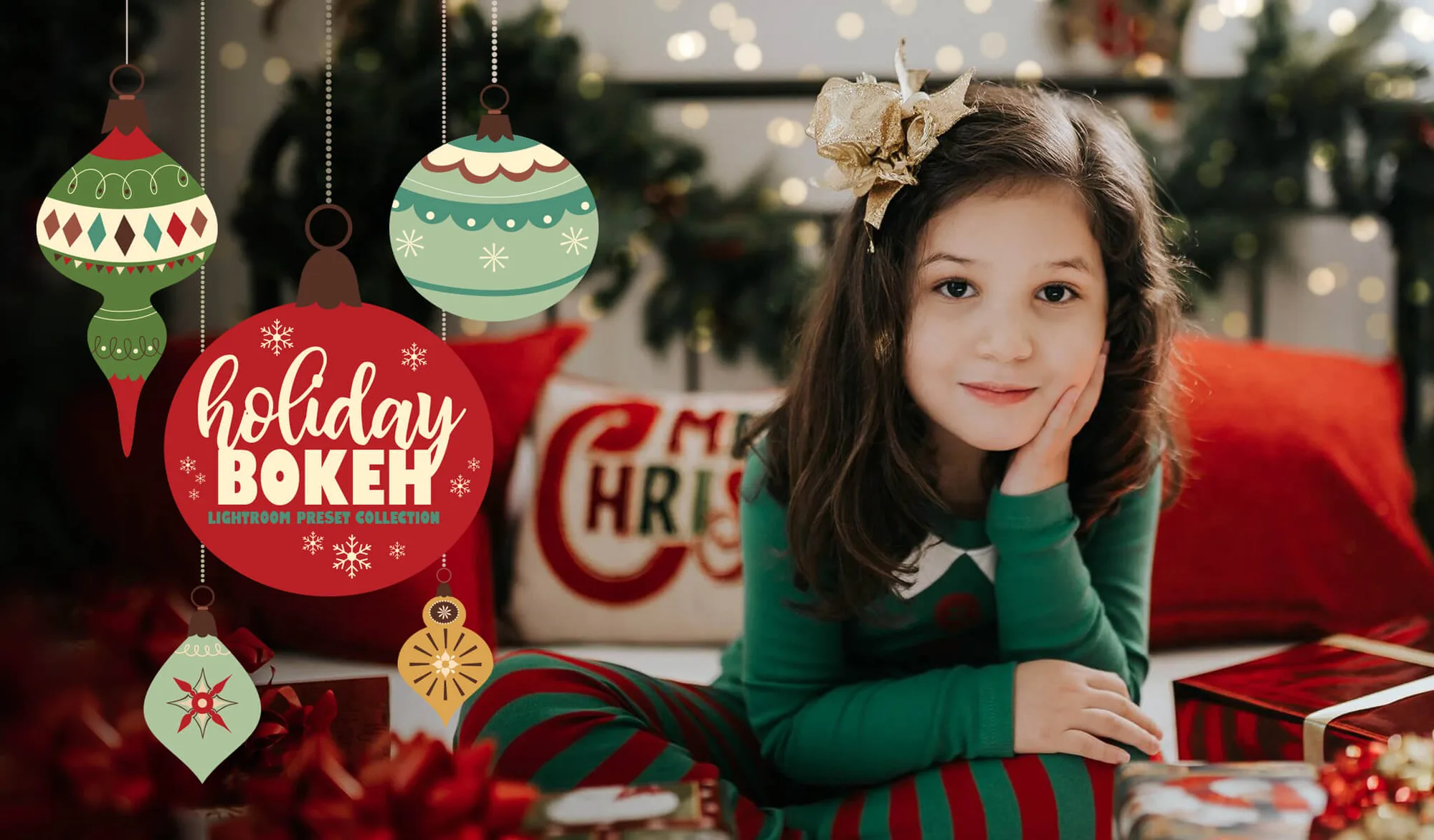
Holiday Bokeh Lightroom Presets - Limited Edition Collection