Quick answer
Clean the mouse shell with isopropyl alcohol, dry it fully, then place Silver Fox dots where your thumb, ring, and pinky fingers rest. Apply Corepad grips after the dots so the sheet edges sit flat. Press each piece for 30 seconds and let the adhesive set for a few hours before heavy play.
Prep the shell before any adhesive touches it
Oils from your hands stop dots and grips from bonding. Wipe the sides, top, and any glossy areas with a lint-free cloth and isopropyl alcohol, then wait until the surface is completely dry. A damp shell traps moisture under the adhesive and causes early lifting.
If you are replacing old grips, peel them slowly and remove leftover residue with the same alcohol wipe. Do not use a blade or scraper on glossy coatings; fingernail pressure and a warm cloth are enough to lift old adhesive without scratching the shell.
Place the dots where your fingers actually sit
Hold the mouse in your normal grip and look at where your thumb, ring finger, and pinky contact the shell. Those three spots matter more than any symmetrical layout, because dots only help if they sit under pressure points.
Start with one dot per contact point and test the feel before adding more. Extra dots can change the width of the mouse in your hand, which is useful for a thin shell but distracting on a mouse that already fills your palm.
Apply grips after the dots are set
Corepad grips cover larger areas than dots, so fit them once the dots are already pressed down. Line up the cutouts with the mouse buttons and side buttons first, then smooth the sheet from the center outward to push out air bubbles.
Keep the grips away from seams, sensor openings, and cable exits. Adhesive that bridges a seam will lift when the shell flexes during play. If a grip edge overlaps a dot, trim the grip rather than stacking adhesive on adhesive.
Step-by-step installation
- Clean and dry the shell: Wipe contact areas with isopropyl alcohol and a lint-free cloth, then wait for the surface to dry completely. Checkpoint: no shine or oily film should remain before you peel any backing.
- Test dot placement in your grip: Hold the mouse normally and mark where your thumb, ring finger, and pinky rest, then place one dot at each contact point. Mistake to avoid: copying a photo layout instead of your own hand position.
- Press each dot firmly: Hold steady pressure on every dot for about 30 seconds, working from the center of the dot outward. Checkpoint: edges should sit flush with no lifted corners.
- Fit the Corepad grips: Align the grip cutouts with the buttons and side buttons, then smooth from the center outward to remove air bubbles. Mistake to avoid: stretching the grip to fit, which pulls it out of alignment.
- Let the adhesive set: Leave the mouse unused for a few hours so the adhesive cures fully before a long session. Next step: replace grips every 3-5 months to keep removal clean.
Products used in this install
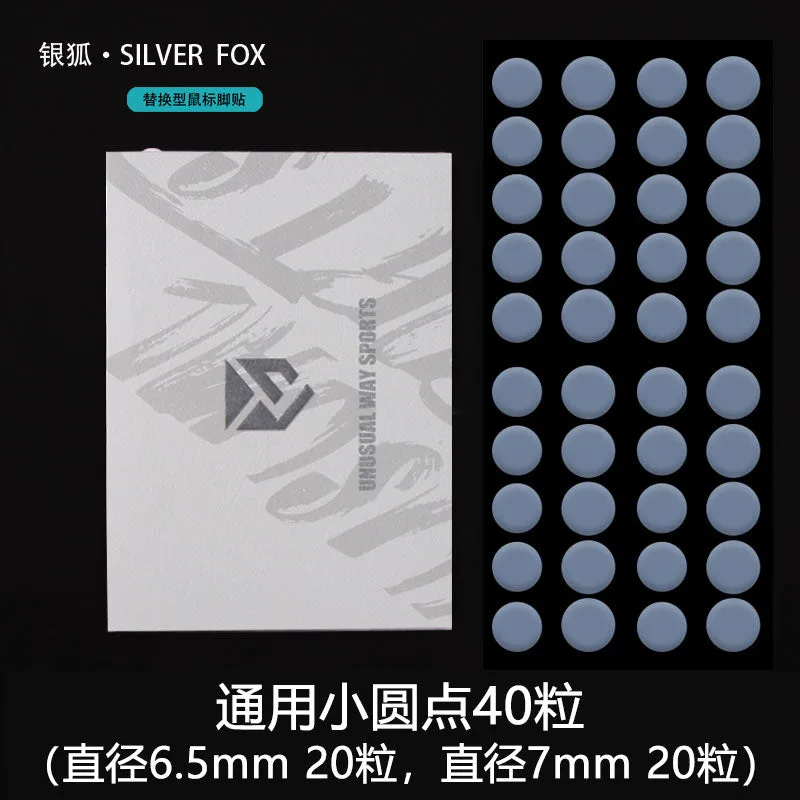
- Silver Fox - Dots: Silver Fox - Dots are premium replacement mouse skates designed to enhance comfort and precision, working as a replacement for worn-out skates or an upgrade for smoother glide and lower friction. They restore consistent glide on a worn mouse without replacing the whole skate set.
- Corepad Grips - Glorious Model I: Corepad Grips for the Glorious Model I are recommended to be replaced every 3-5 months to avoid potential issues with adhesive removal. Plan a replacement window so old adhesive never becomes difficult to remove.
- Silver Fox - Lamzu Maya: Silver Fox - Lamzu Maya skates are premium replacement mouse skates designed for comfort and precision, and the Black PRO version is engineered for a quieter glide, especially on glass mouse pads. If you play on glass, the quieter glide reduces the scraping noise standard PTFE skates can produce.