Quick answer
Break in new mouse skates by cleaning your mousepad, installing the skates flat and centered, then playing normally for a few hours instead of forcing the process with sandpaper or harsh cleaners. Expect the glide to feel scratchy at first and smooth out as the PTFE edges wear in. If the glide still feels uneven after several sessions, reseat or replace the skates rather than pressing harder.
Fresh skates rarely feel as smooth as the worn pair you just removed. The edges are still sharp from manufacturing, the adhesive is still settling, and your mousepad has to adjust to a new contact surface. That scratchy, slightly slow feeling is normal, and it usually fades within a few play sessions.
This guide walks through the full break-in process in order, from prep to the first few hours of use. It also covers the mistakes that cause uneven glide, the checkpoints that tell you the skates are seated correctly, and when a set of skates is genuinely defective rather than just new.
Why new skates feel scratchy at first
Mouse skates are made from PTFE, a low-friction plastic that wears in with use. Out of the package, the edges are cut cleanly but not rounded off, so they catch slightly on the pad surface. As you play, those edges polish down and the contact patch becomes smoother, which is why glide improves over the first few hours.
Thickness and material affect how long this takes. A 0.75mm PTFE skate like Corepad Skatez has more material to wear through than a thinner option, so it may hold its initial texture a little longer. Thinner skates tend to settle faster but leave less material for long-term wear.
- Expect the biggest change in the first two to four hours of play.
- Cooler rooms and slower, softer pads make break-in feel longer.
- If glide gets worse over time instead of better, stop and inspect the skates.
Prep your mouse and pad before the first session
Before you install anything, wipe the mouse base with isopropyl alcohol and let it dry completely. Any dust or old adhesive left on the base will create a high spot under the new skate, which shows up as a wobble or a scratchy patch that never goes away. A clean base is the single biggest factor in a flat, even install.
Clean your mousepad too. Lint, hair, and dried sweat create friction that mimics a bad break-in. A quick wipe with a damp microfiber cloth and a full dry is enough. If your pad has a coating or you have not washed it in months, a deeper clean is worth doing first so you are not blaming the skates for a dirty surface.
- Let the mouse base dry fully before applying skates; trapped moisture weakens adhesive.
- Do not use paper towels on the pad; they leave fibers behind.
Install the skates flat and centered
Peel the backing carefully and set each skate down in one motion. Pressing from the center outward with a firm, even thumb press helps the adhesive bond without trapping air. If you lift and reposition a skate, the adhesive picks up dust and the bond weakens, so take your time on the first placement.
Check that each skate sits inside its recess if your mouse has one. A skate that overhangs the edge will catch on the pad and feel like a defect even though the install is the problem. Give the adhesive a few minutes to set before you start moving the mouse around.
- Press from the middle outward, not from the edge inward.
- If a skate will not sit flat, remove it, clean the base again, and use a fresh set.
Use it normally instead of forcing the process
The most reliable way to break in mouse skates is to play. Normal aim, flicks, and tracking movements wear the PTFE evenly across the whole contact patch, which is exactly what you want. Forced methods like rubbing the skates on sandpaper or dragging them over rough surfaces remove material unevenly and shorten the life of the skates.
A few hours of normal use is usually enough to feel a clear difference. If you want to speed things up slightly, spend ten minutes doing slow circles and figure-eights on your pad before a session. That spreads the wear without the risk of flat spots.
- Avoid sandpaper, concrete, and abrasive cloths; they ruin the contact surface.
- Do not press down hard to force glide; extra pressure wears the pad and the skates.
Checkpoints that tell you the break-in is working
Glide should improve gradually and evenly. Run your fingertip along each skate edge after a session; a properly broken-in edge feels smooth and slightly rounded, not sharp. If one skate still feels sharp while the others are smooth, that skate is likely sitting proud of the base or has adhesive trapped underneath.
Listen as well as feel. A faint, consistent swish is normal. A rhythmic click or scrape that matches the mouse's movement usually means a skate is lifting at one corner. Reseat it before you keep playing, because a lifted skate will wear unevenly and never break in properly.
- Even glide across all four contact points is the goal.
- A single noisy corner is an install problem, not a break-in problem.
When to replace instead of waiting
If glide is still rough after several full sessions, the skates may be the wrong thickness for your pad or simply a bad set. Very soft, thick pads amplify the feeling of sharp edges, so a thinner skate can feel smoother on that surface. Conversely, a hard pad rewards a thicker skate with more consistent contact.
Replacement sets are inexpensive, so it is rarely worth fighting a set that will not settle. Swapping to a different material or thickness is a faster fix than continuing to play on skates that feel wrong. Keep the old set as a backup only if it still glides cleanly.
- Give a new set at least three or four play sessions before judging it.
- If one skate fails and the rest are fine, you can often replace just that piece.
Break-in steps in order
- Clean the mouse base and pad: Wipe the base with isopropyl alcohol and let it dry fully, then clean lint and dust off your mousepad with a damp microfiber cloth. Checkpoint: the base should look dull and dry with no residue before you peel any backing.
- Install each skate flat and centered: Set each skate down in one motion and press from the center outward so the adhesive bonds evenly without trapped air. Mistake to avoid: lifting and repositioning a skate, which picks up dust and weakens the bond.
- Let the adhesive set: Wait a few minutes after installation before heavy use so the 3M adhesive can grip the base properly. Checkpoint: no skate should shift or lift when you press gently on its edge.
- Play normally for the first few hours: Use your mouse as usual for aim and tracking. Add ten minutes of slow circles and figure-eights if you want to even out the wear faster. Mistake to avoid: sandpaper, concrete, or hard pressing, all of which wear the skates unevenly.
- Check the edges after each session: Run a fingertip along each skate edge. It should feel progressively smoother and slightly rounded rather than sharp. Checkpoint: if one edge stays sharp while others smooth out, reseat that skate.
- Decide whether to keep or replace: Give the set three or four full sessions. If glide is still rough or one skate keeps lifting, swap in a fresh set or try a different thickness. Next step: replace rather than keep forcing a set that will not settle.
Skates worth considering for a clean break-in
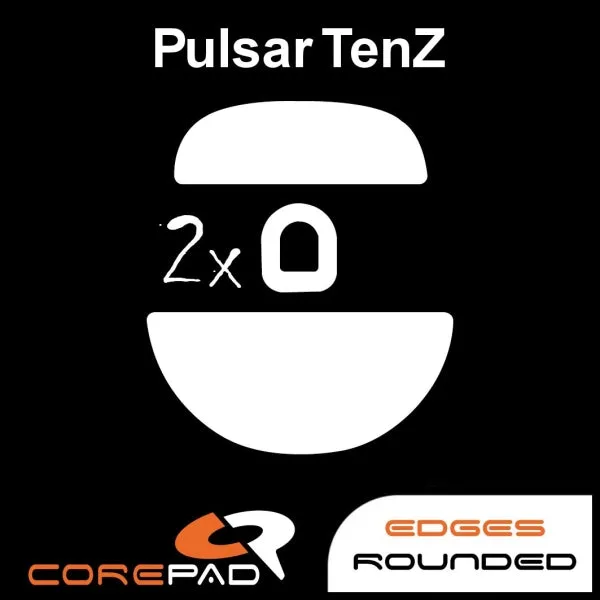
- Corepad Skatez - Pulsar TenZ Signature: 1 pack contains 2 sets of Skatez, made from 100% pure PTFE with high-quality 3M adhesive and a 0.75mm thickness. Two sets per pack means you have a spare if your first install does not sit flat, and the 0.75mm thickness gives you enough material to wear in gradually without wearing through quickly.
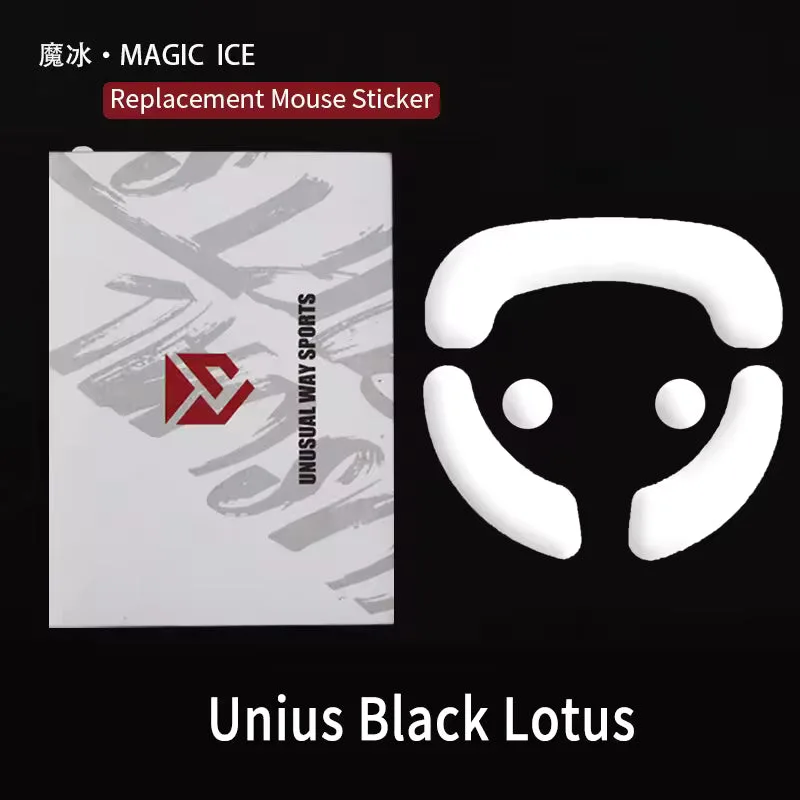
- Magic Ice - Unius Black Lotus: Premium replacement mouse skates designed to enhance comfort and precision, with rounded edges that help prevent scratching. Rounded edges reduce the initial scratchy feeling, so break-in is shorter and the first session already feels closer to a settled glide.
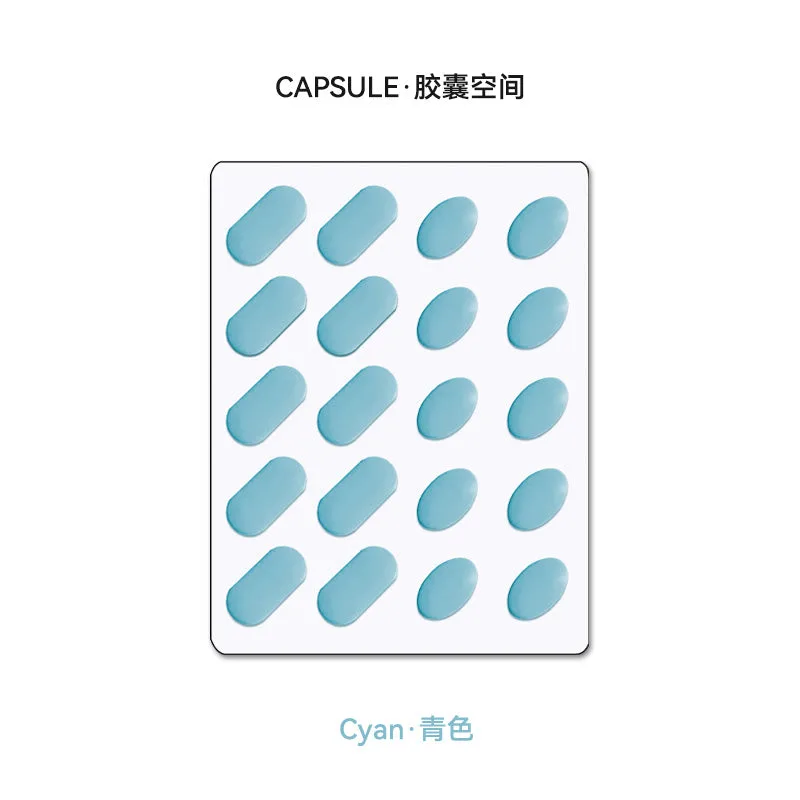
- CAPSULE Dots: Developed after feedback that some players prefer a larger contact surface than dots or donut-shaped skates, especially on softer mouse pads. If your break-in feels slow on a soft pad, a larger contact surface spreads pressure more evenly and can feel more stable than small dot skates.
- Esports Tiger ICE - Zowie ZA11 / ZA12 / FK / AM / S1 / S2 / Ducky Feather: Tiger Gaming 2021 ICE release with rounded edges, pure PTFE material, and a smoother glide; 1 pack contains 1 set of replacement feet. The rounded edges and smoother-glide PTFE shorten the rough phase, but with only one set per pack you should get the install right the first time.
Breaking in new mouse skates is mostly about patience and a clean install. Prep the base and pad, seat the skates flat, then let normal play do the work. If a set still feels rough after a few sessions, replace it instead of grinding it down further.