Quick answer
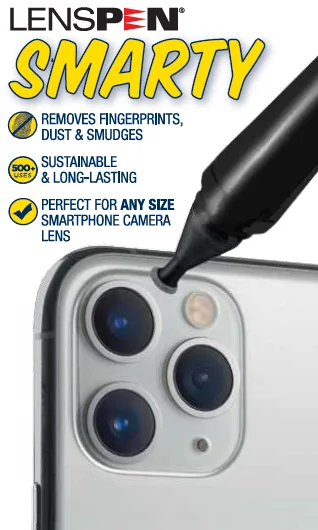
Clean your smartphone camera lens with a dry, lens-safe tool rather than your shirt or a tissue. Brush off loose grit first, then use a non-liquid cleaner made for optical surfaces. The SMARTY Smart Phone Lens Cleaner is built for this exact job: it removes fingerprints, dust, and smudges from any size smartphone camera lens.
Why phone camera lenses get smudgy so fast
Your phone camera lens sits exactly where your fingers, pocket lint, and face oils end up. That thin film of grease scatters light and softens contrast, which is why photos look hazy or glow around bright lights even when the lens looks clean. The problem is rarely the glass itself; it is what is sitting on the glass.
What you should never use on a phone lens
Skip paper towels, bathroom tissue, and the hem of your shirt. Wood fibers and trapped grit can leave fine scratches in the coating, and household glass cleaner can creep around the lens edge. A dry microfiber cloth is fine for a quick pass, but it mostly pushes oil around instead of lifting it. For smudge removal that actually lasts, use a cleaner designed for optical surfaces.
How often to clean your phone camera lens
There is no fixed schedule, because it depends on your pockets and your hands. A practical rule: check the lens before any photo session you care about, and clean whenever you see a haze or a halo around lights in the preview. If you shoot in the rain, at the beach, or after eating, clean before you shoot rather than after.
Step-by-step: clean your phone camera lens
- Step 1: Power down and inspect the lens: Turn the phone off so the camera is not trying to focus while you work. Look at the lens at an angle under a light to see dust, grit, or a greasy film. Checkpoint: if you see visible grit, do not wipe yet. Grit plus pressure equals scratches.
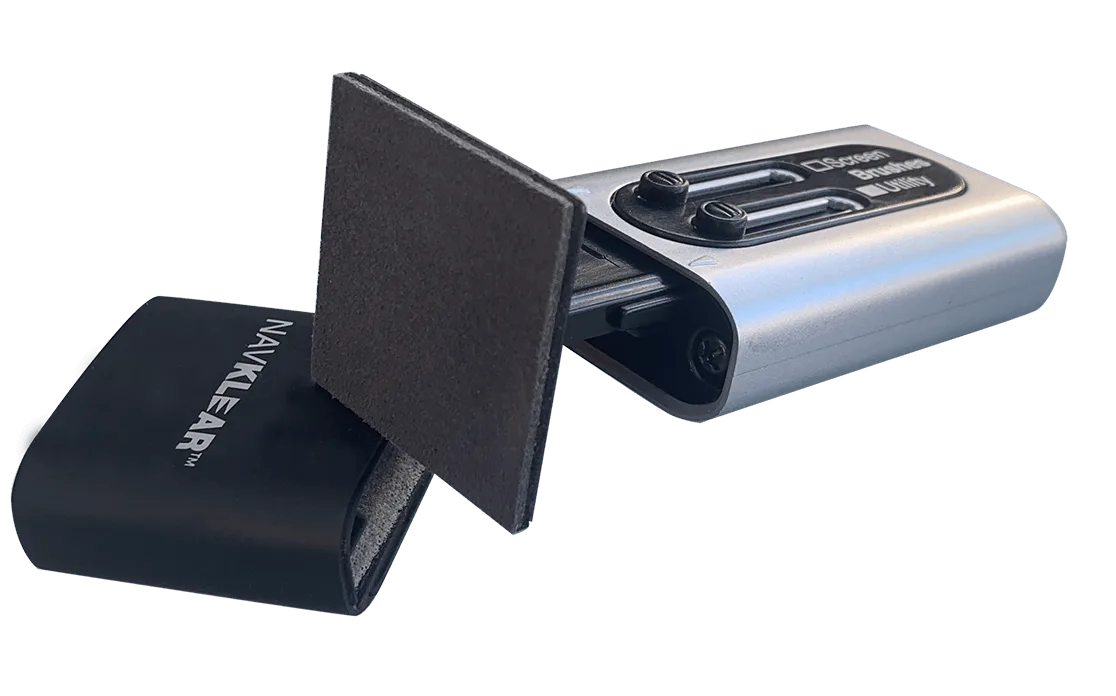
- Step 2: Brush away loose particles: Use a soft retractable brush, like the one on the NavKlear GPS Screen Cleaner, to sweep dust off the lens and the raised camera ring. Brush in one direction, then flick the brush clean away from the phone. Common mistake: brushing back and forth drags grit across the glass instead of removing it.
- Step 3: Wipe the lens with a lens-safe cleaner: Use the SMARTY Smart Phone Lens Cleaner on the lens surface. Its non-liquid cleaning element is designed to lift fingerprints, dust, and smudges without leaving wet residue around the lens edge. Checkpoint: one or two light passes is enough. Pressing hard does not clean better and risks the coating.
- Step 4: Check the result in the camera app: Open the camera and point it at a bright, even surface, such as a white wall or a lamp. Look for haze or a halo around the light. If the halo is gone, you are done. If it remains, repeat Step 3 once rather than scrubbing.
- Step 5: Store the cleaner where you will actually use it: Keep the cleaner in your bag or car so you can clean the lens before a shot instead of after. Avoid loose pockets with keys or coins that can scratch the tool. Next step: clean the front-facing camera and any screen you touch often, using the same dry, non-liquid method.
Product facts
- SMARTY Smart Phone Lens Cleaner: SMARTY Smart Phone Lens Cleaner removes fingerprints, dust, and smudges, and is described as sustainable, long-lasting, and perfect for any size smartphone camera lens. It is a dry, pocketable tool that targets the exact film that makes phone photos look soft, without liquid that can seep around the lens.
- NavKlear GPS Screen Cleaner: NavKlear by LensPen is a screen cleaner with a retractable dust removal brush and a non-liquid cleaning element designed to never dry out. If you also clean a GPS or car screen, the same non-liquid approach avoids spray residue on touch surfaces.