Quick Answer
To clean your gaming keyboard safely, unplug it, remove keycaps, and use compressed air and a soft brush to clear debris, then wipe surfaces with a slightly damp cloth. Avoid liquid cleaners directly on the board.
Why Regular Cleaning Matters
Dust, crumbs, and oils from your fingers can accumulate between keys and affect both feel and performance. Over time, sticky or unresponsive keys become a common issue, especially if you eat or drink near your setup.
A quick weekly wipe and a deeper monthly clean can prevent buildup before it becomes a problem. This is simpler than you might think, and it doesn't require special tools beyond items you likely already have.
Tools You'll Need
You don't need an expensive cleaning kit. A can of compressed air, a soft-bristled brush (like a clean paintbrush or makeup brush), a microfiber cloth, and a small container of isopropyl alcohol (70% or less) are enough.
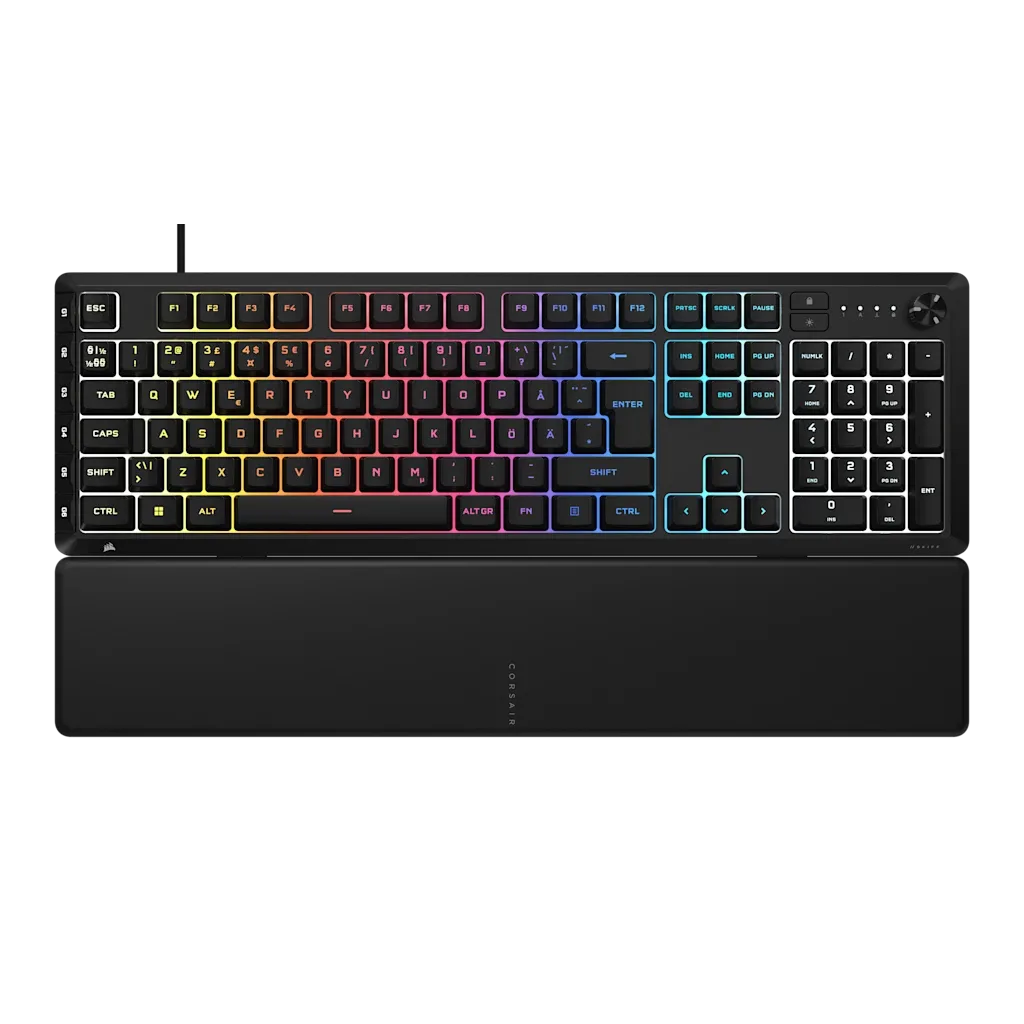
If your keyboard has a detachable cable or wrist rest, remove those first for easier access. For keyboards like the SKIFF 100 PLUS with a removable palm rest, this makes the job much more manageable.
Step-by-Step Cleaning Guide
- Symptom: Dust or debris between keys: If you see crumbs or dust under the keycaps, it's time to clean. Unplug the keyboard and turn it upside down to shake out loose particles. Do this before any wet cleaning.
- Likely cause: Accumulated debris and oils: Regular use brings in dust and skin oils. To address this, remove the keycaps carefully using a keycap puller or your fingers (if they pop off easily). Then use compressed air to blow out remaining debris from the switch area. If keycaps resist removal, stop and check your keyboard's manual—some boards require a different removal method.
- Corrective action: Clean surfaces and keycaps: Wipe the keyboard frame with a microfiber cloth slightly dampened with isopropyl alcohol. Clean the keycaps in a bowl of soapy water, rinse, and let them dry completely before reattaching. Ensure everything is fully dry before reassembly.
- Stop point: When to seek professional help: If you notice sticky or unresponsive keys after cleaning, or if liquid was spilled inside the keyboard, do not attempt further disassembly. Contact the manufacturer or a professional repair service instead. Your warranty may cover certain issues, so check before opening the case.
Product Spotlight
-
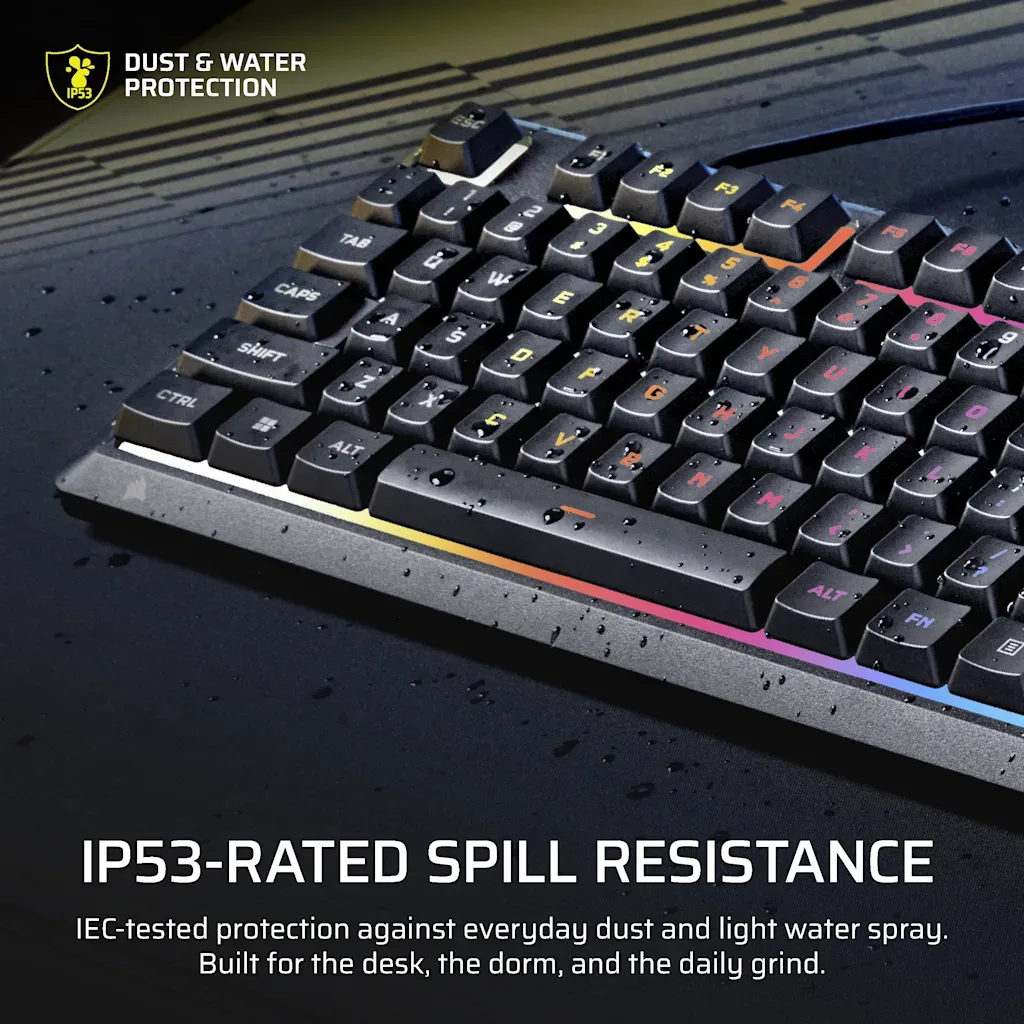
SKIFF 100 PLUS Gaming-Tastatur (ND): The CORSAIR SKIFF 100 PLUS features a detachable palm rest and IP53 certification for dust and water resistance. This means you can remove the palm rest for easier cleaning, and the IP53 rating gives you some tolerance for accidental spills, though you should still avoid direct liquid contact.
SKIFF 100 PLUS Gaming-Tastatur (ND)