Quick answer
Most retro handheld issues like a blank screen or unresponsive buttons are caused by low batteries, a dirty cartridge slot, or a simple frozen system. Start by checking the battery compartment and cleaning the contacts with a dry cloth before trying any other fix.
Before You Start: Safety and Tools
Always remove any batteries and disconnect the device from power before cleaning or inspecting internal parts. You only need a small Phillips-head screwdriver, a dry microfiber cloth, and a can of compressed air for most fixes. Avoid using liquids or metal tools near the circuit board.
Common Problem: Device Won't Power On
If your handheld game system won't turn on, the most likely cause is dead or incorrectly inserted batteries. Check that the batteries are fresh and placed with the correct polarity. For rechargeable models, confirm the charging cable is firmly connected and the port is free of debris. A faulty power switch can also prevent startup—try toggling it several times to clear any oxidation.
Common Problem: Blank or Flickering Screen
A blank screen often means the game cartridge is not making proper contact. Remove the cartridge, gently blow on the connector pins, and reinsert it firmly. If the screen flickers, adjust the contrast or brightness wheel if your model has one. Persistent screen issues may indicate a loose ribbon cable inside the unit, which requires opening the shell to reseat.
Common Problem: Unresponsive Buttons or D-Pad
Sticky or unresponsive buttons are usually caused by dirt or debris under the rubber pads. Open the battery compartment and remove the screws to access the button membrane. Clean the membrane and circuit board contacts with a dry cloth or isopropyl alcohol (90% or higher). Avoid using cotton swabs that leave fibers. Reassemble carefully and test each button.
Step-by-Step Troubleshooting Process
- Check Power Source: Remove and reinsert batteries, ensuring correct polarity. For USB-charged models, try a different cable and power adapter. Common mistake: assuming a charged battery is good—test with fresh alkaline batteries instead. If the power LED still doesn't light, move to step 2.
- Inspect Cartridge and Slot: Remove the game cartridge and inspect the gold contacts. Clean them gently with a dry cloth or isopropyl alcohol. Reinsert the cartridge firmly until it clicks. Common mistake: inserting the cartridge upside down or at an angle. If the screen remains blank, try a different game cartridge to rule out a faulty game.
- Reset the System: Turn off the device, remove batteries (or unplug USB power), wait 30 seconds, then reinsert batteries and power on. This clears temporary glitches. Common mistake: only pressing the reset button without fully removing power. If the system still freezes, proceed to clean the button contacts.
- Clean Button Contacts: Open the battery compartment, remove screws, and lift the circuit board carefully. Wipe the rubber button pads and the gold contact circles with a dry cloth. Use compressed air to blow out dust. Common mistake: using too much liquid cleaner that seeps under the screen. Reassemble and test each button. If individual buttons remain dead, the rubber pad may need replacement.
- Test with Known Working Accessories: If available, try a different set of batteries, a different game cartridge, and a different charging cable. This isolates whether the issue is with the handheld or the accessory. Common mistake: assuming the problem is internal when it's just a worn-out cable. If the handheld works with known good accessories, replace the faulty accessory.
Products That Help You Troubleshoot
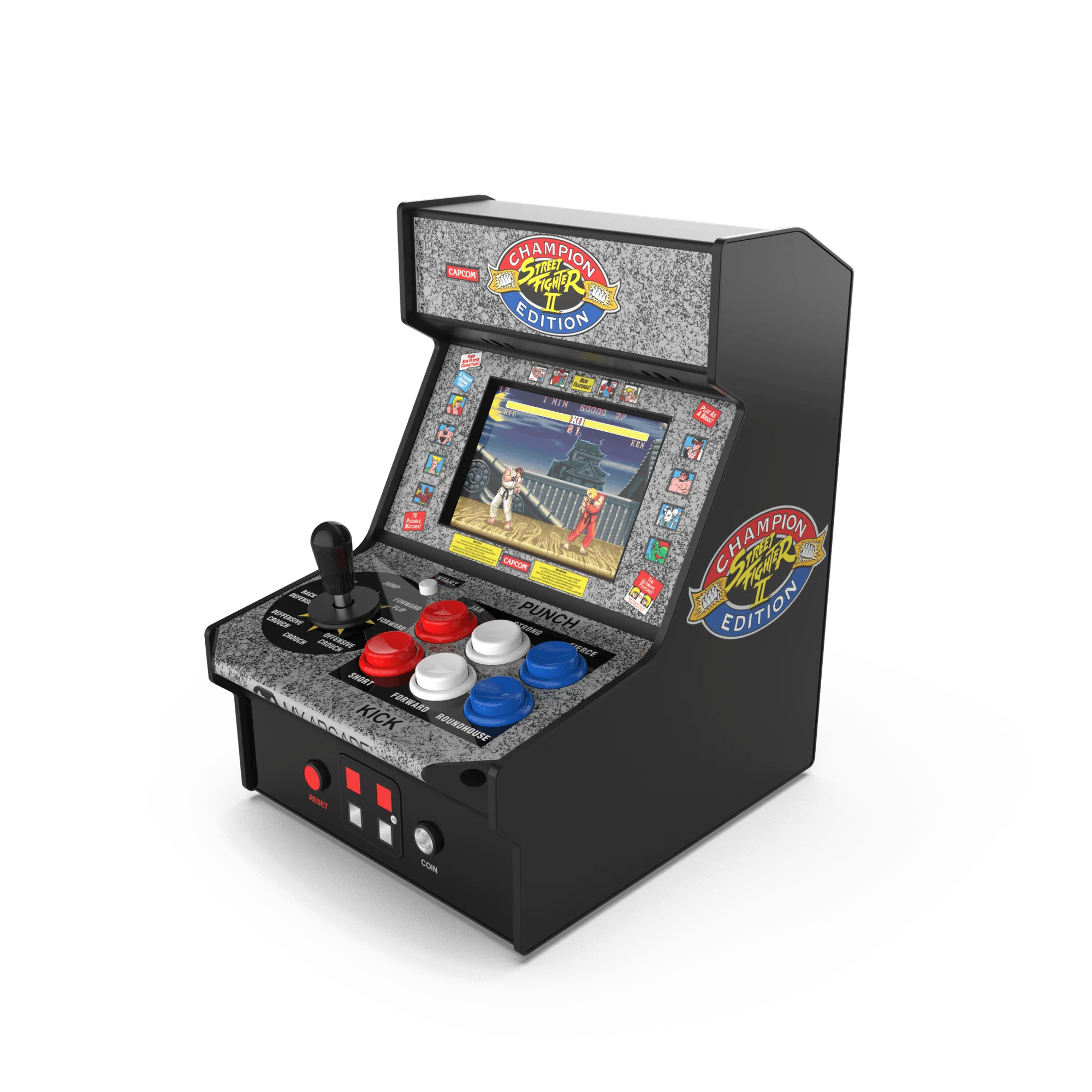
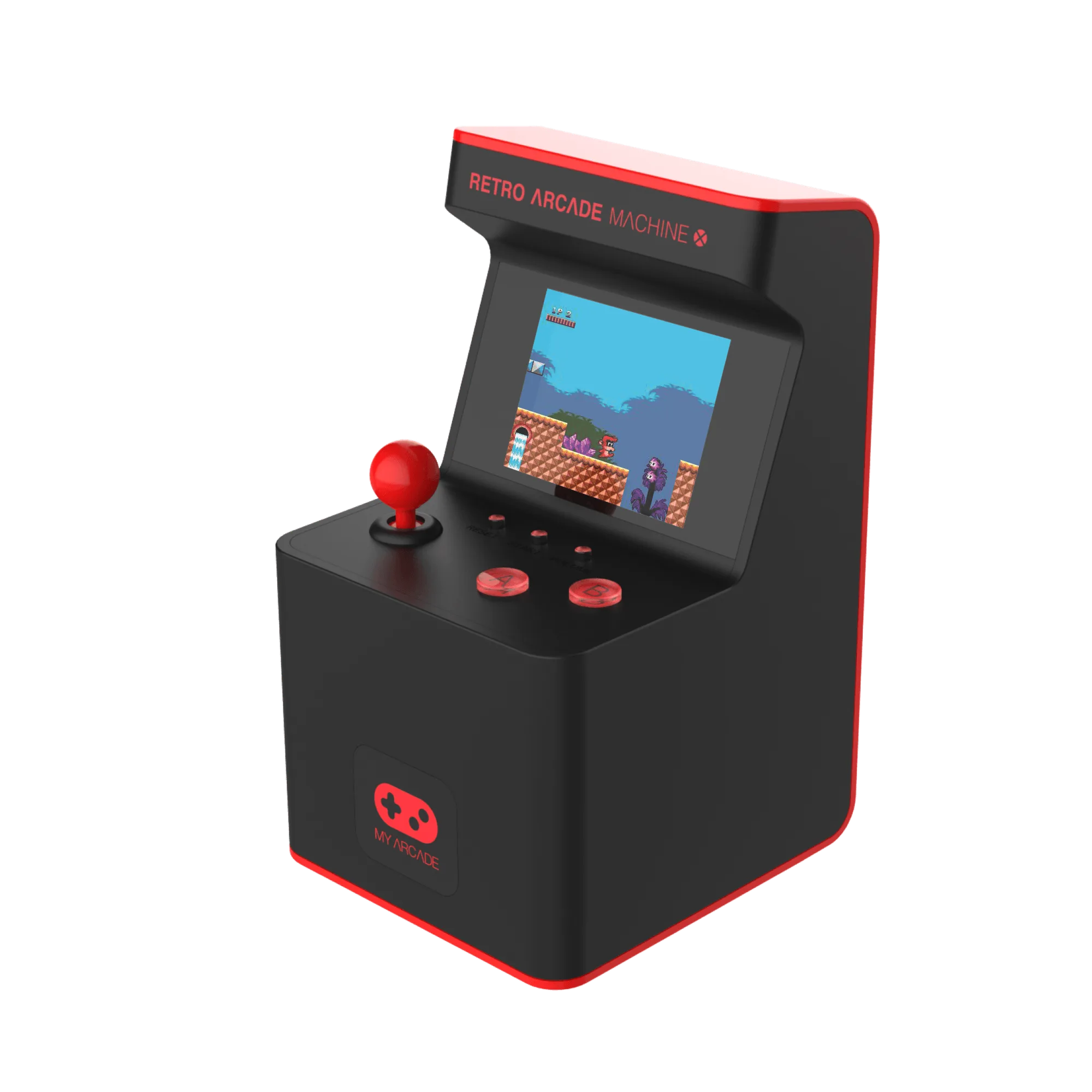
- Retro Arcade Machine X: The Retro Arcade Machine X includes 300 games and a full color LCD screen with controls that mimic original arcade cabinets. If you own this model and face screen issues, the full color LCD is a sealed unit—so cleaning the cartridge slot is the first step before considering a replacement.
- GO GAMER CLASSIC- Black/Red: The Go Gamer Classic features a full color 2.5" screen and an On/Off LED switch for power indication. The LED switch helps you quickly tell if the device is receiving power. If the LED is off, focus on battery or power connection troubleshooting first.