Quick Answer
To install a Black DLC clipper blade and cutter, remove the old blade, align the new fixed and moving blades on the clipper, secure them with screws, and check the blade gap before use.
Before You Start: Safety and Tools
Always unplug the clipper before handling the blade assembly. You'll need a small Phillips-head screwdriver (usually included with your clipper) and a clean, well-lit workspace. If your clipper has a removable blade drive lever, note its position before disassembly so you can reinstall it correctly.
Black DLC blades like the Faper Black DLC and T1000 Echo Fade are precision-ground and coated for corrosion resistance. Handle them by the edges to avoid transferring oils from your fingers onto the cutting surfaces.
Choosing the Right Cutter for Your Blade
The Faper Black DLC Clipper Blade uses a Slim Deep Tooth Cutter, which is lighter and has longer teeth for versatile cutting. The T1000 Echo Fade blade pairs with a Shallow 2.0 Cutter, designed for a louder, more defined crunch feedback. Using the wrong cutter can cause poor alignment or uneven cuts, so match the cutter to the blade model.
Step-by-Step Installation Guide
- Remove the Old Blade Assembly: Unplug the clipper. Unscrew the two or four screws holding the blade in place (typically on the sides or center). Lift the old fixed blade and moving cutter off the clipper. Note the orientation of any spring or lever underneath. Common mistake: Forgetting to note the lever position can make reinstallation difficult. Take a photo before removing.
- Clean the Clipper Mounting Surface: Wipe the clipper body where the blade sits with a dry cloth to remove hair, dust, and old oil. Check that the drive pin (the small metal tab that moves the cutter) is clean and moves freely. Empty
- Position the Fixed Blade: Place the new Black DLC fixed blade onto the clipper so its screw holes align with the clipper's mounting posts. For the Faper Black DLC, the ridged side faces outward. For the T1000 Echo Fade, ensure the oil reservoir is accessible. Check that the blade sits flat—no rocking. If it doesn't, debris may be trapped underneath.
- Attach the Moving Cutter: Slide the deep tooth cutter (Slim Deep Tooth for Faper, Shallow 2.0 for T1000) onto the drive pin. The cutter's teeth should mesh with the fixed blade's teeth. Gently press down until the cutter sits flush. Common mistake: Forcing the cutter onto the pin can bend the drive lever. If it doesn't slide on easily, realign the cutter.
- Secure with Screws: Insert and tighten the screws evenly in a cross pattern (if four screws) or side-to-side (if two). Do not overtighten—snug is enough. Overtightening can warp the blade or strip the threads. Empty
- Check Blade Gap and Test: With the clipper unplugged, manually move the cutter side to side. It should glide smoothly without binding. Plug in and run for 5 seconds, then unplug and feel the blade temperature. If hot, the gap is too tight—loosen screws slightly and recheck. A properly installed Black DLC blade should run cool and produce a clean, even cut. If the clipper sounds labored, stop and adjust.
Blade and Cutter Details
-
Faper Black DLC Clipper Blade & Slim Deep Tooth Cutter: The Faper Black DLC Clipper Blade features a self-sharpening Black Diamond Carbon coating that stays cooler and sharper longer. This means fewer adjustments during installation and longer intervals between sharpening, making setup more forgiving for beginners.
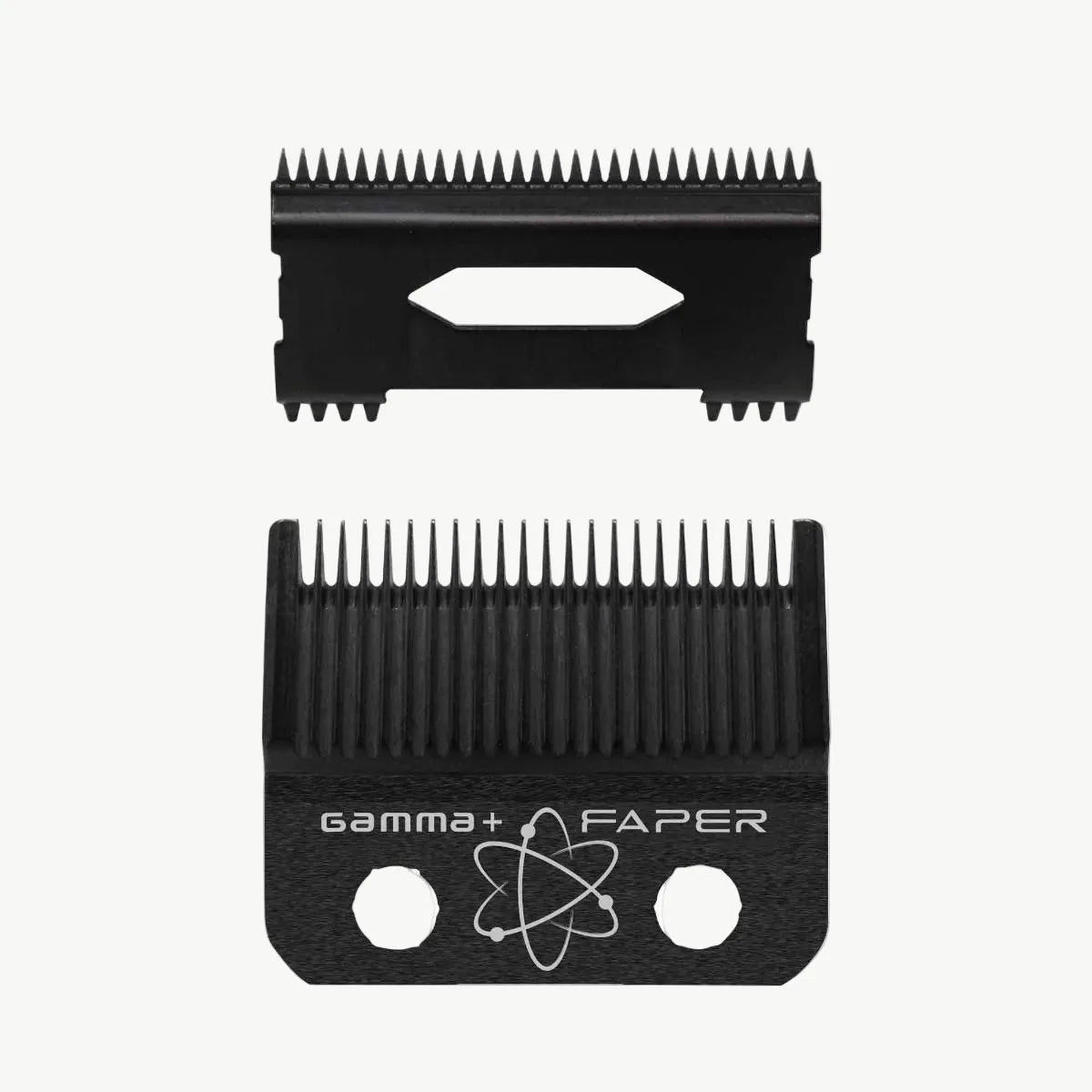
Faper Black DLC Clipper Blade & Slim Deep Tooth Cutter
-
Black DLC T1000 Echo Fade Blade & Shallow 2.0 Cutter: The T1000 Echo Fade blade has an oil reservoir for continuous lubrication and a premium metal blend that runs cooler under load. The oil reservoir reduces friction during use, so after installation you won't need to oil the blade as frequently to maintain performance.
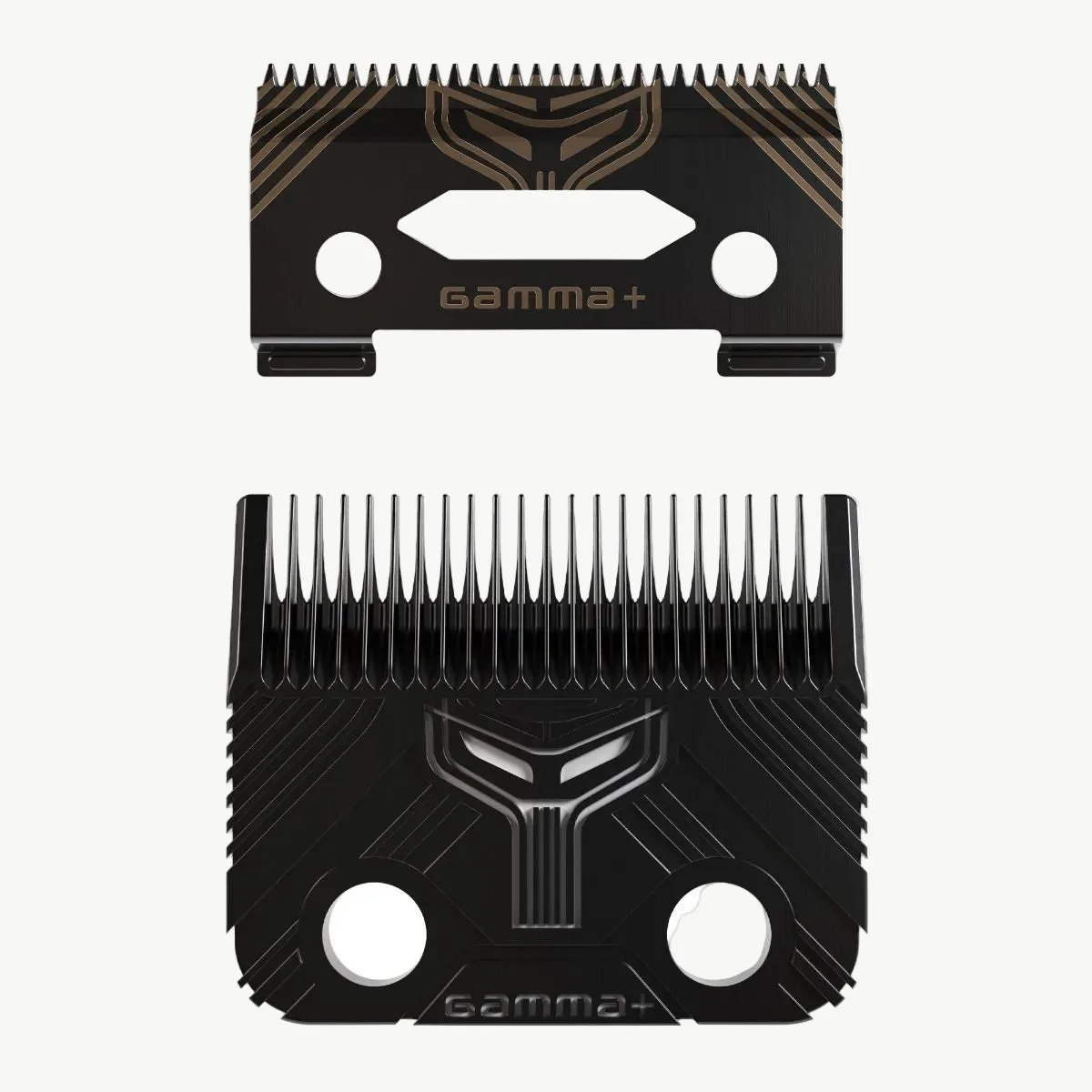
Black DLC T1000 Echo Fade Blade & Shallow 2.0 Cutter