Quick answer
To lubricate switches for a creamy sound, apply a small amount of dielectric grease or PTFE lubricant to the switch stem and housing, then actuate the switch several times to distribute the lubricant evenly. Avoid over-lubricating, as excess can attract dust and cause stickiness.
Why Lubrication Matters for Switch Sound
Lubricating your mechanical keyboard switches reduces friction between moving parts, which directly affects the sound and feel of each keystroke. A well-lubricated switch produces a smoother, quieter sound often described as 'creamy'—a soft, muted thock rather than a sharp clack. This is especially important for linear switches like the EPOMAKER Cream Marble Switch Set, which rely on smooth linear actuation for their signature feel.
Choosing the Right Lubricant
Not all lubricants are safe for keyboard switches. Avoid WD-40 or oil-based lubricants that can degrade plastic over time. Instead, use a dielectric grease (like Super Lube) or a PTFE-based lubricant. These are non-conductive, long-lasting, and won't damage the switch housing or keycaps. For switches with factory lubrication, such as the EPOMAKER Sea Salt Silent V3, additional lube may not be needed—check the manufacturer's guidance first.
Step-by-Step Lubrication Process
- Prepare your workspace: Remove the keycaps from the switches you want to lubricate. Use a keycap puller or your fingers to gently lift each cap. Place them in a safe container to avoid losing them. Common mistake: pulling keycaps at an angle can damage the stem. Pull straight up.
- Apply lubricant sparingly: Dip a toothpick or small brush into your chosen lubricant and apply a tiny amount to the switch stem (the part that moves up and down). One small dab is enough for most switches. Over-lubrication is the most common error. Excess grease can seep into the switch housing and attract dust, causing stickiness over time.
- Distribute the lubricant: Press the switch several times to work the lubricant into the moving parts. You should feel a smoother actuation and hear a softer sound. Wipe away any excess with a lint-free cloth. If the sound becomes muffled or inconsistent, you may have used too much. Remove the switch and wipe it clean before reapplying a smaller amount.
- Reinstall keycaps and test: Place the keycaps back onto the switches, pressing firmly until they click into place. Type a few sentences to test the sound and feel across all lubricated switches. Checkpoint: if a switch still sounds clacky, it may need a second tiny application. If it feels mushy, you've over-lubricated.
Products Mentioned in This Guide
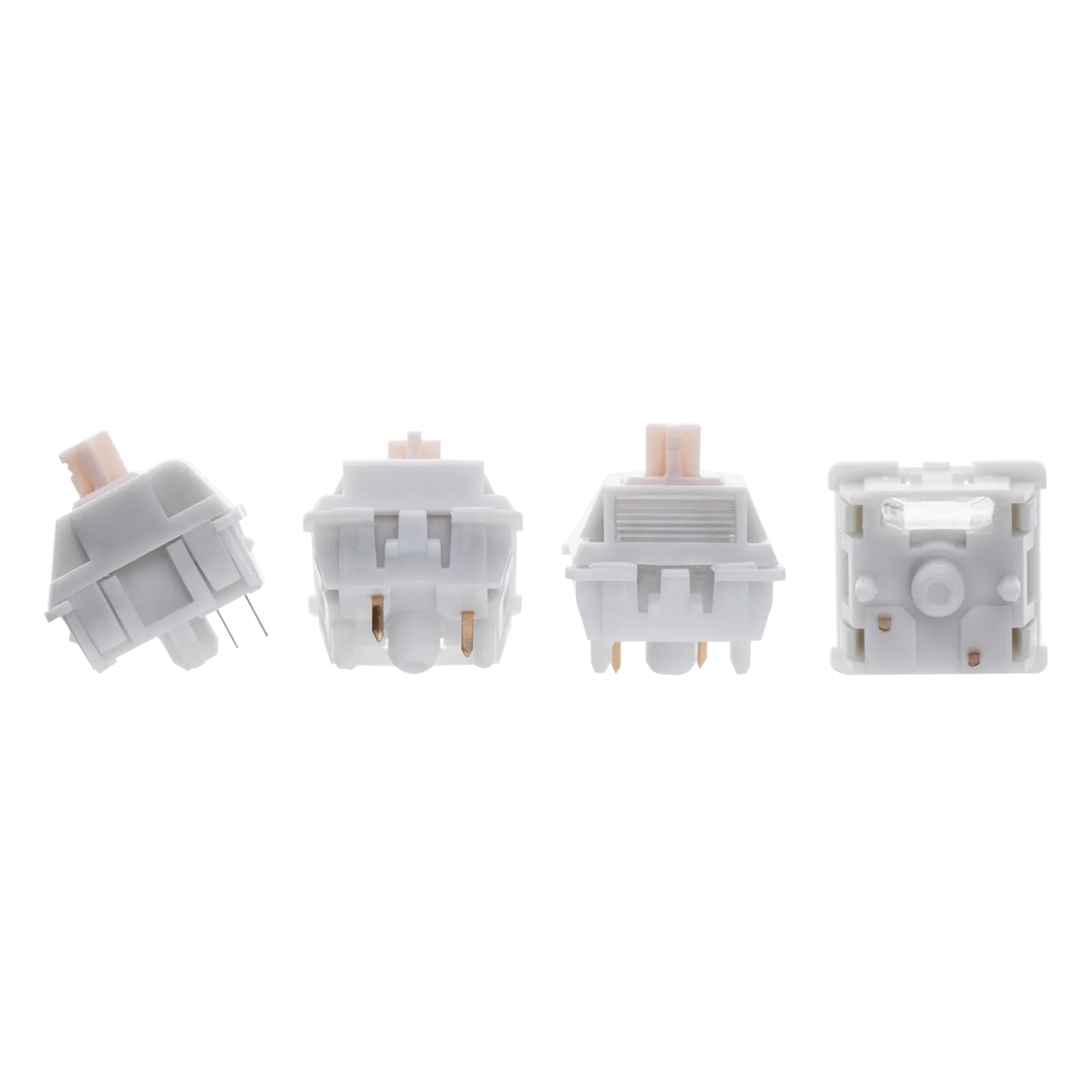
- EPOMAKER Cream Marble Switch Set: Effortless Linear ActuationGiven that the Creamy Jade Switch has gained widespread love and recognition from users with its outstanding performance, we are proud to officially launch the Epomaker Cream Marble Switch as a new member of the Creamy Switch family. It not only continues the smooth user experience but also adds a unique texture. The Cream Marble linear switch provides a smooth and steady keypress… If you already own or plan to buy these switches, their linear design benefits most from periodic lubrication to maintain that smooth, creamy feel. Over-lubricating can mute the distinct texture, so apply sparingly.
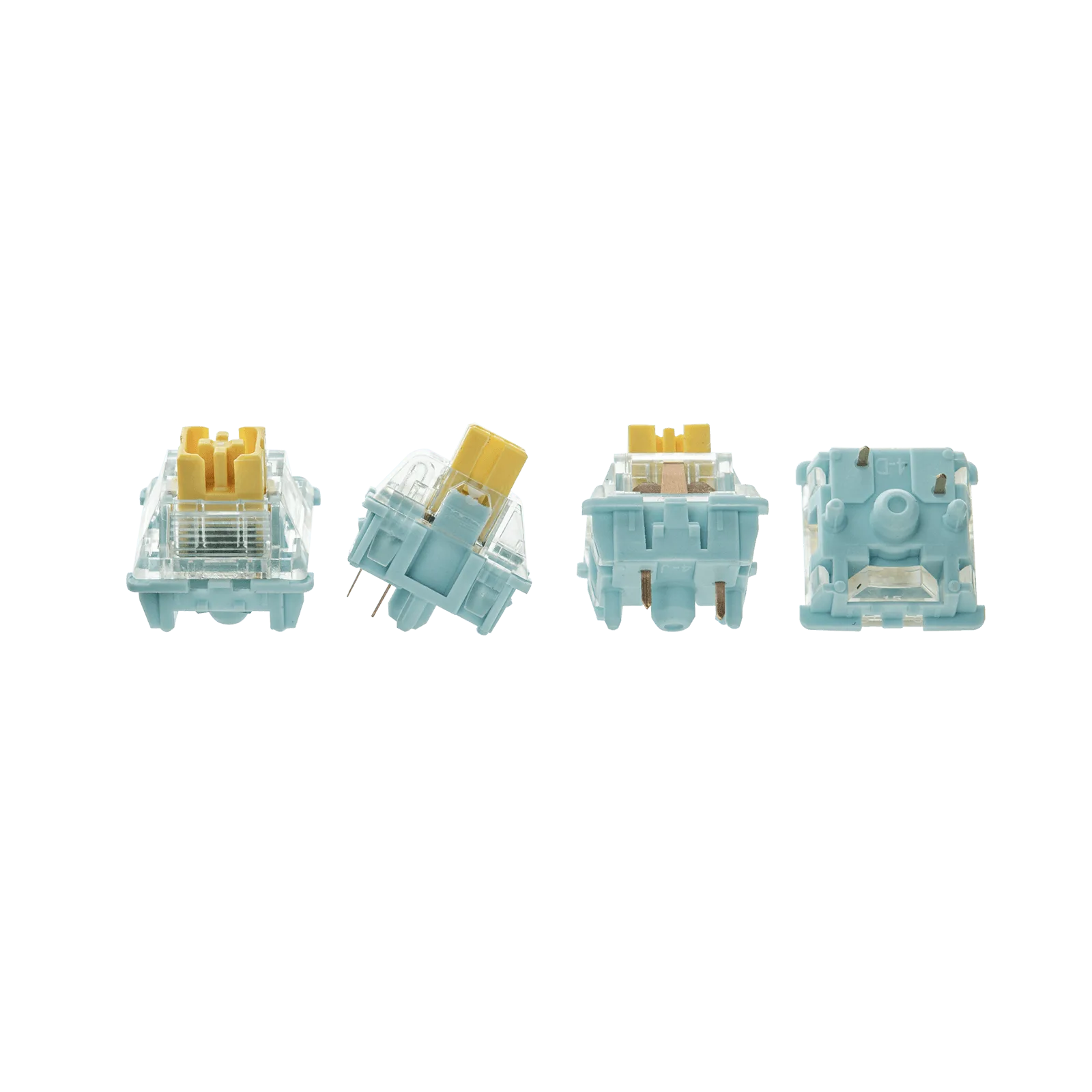
- EPOMAKER Sea Salt Silent V3: Peak Silence Meets Effortless SmoothnessAre you tired of the annoying "clacky" sound from mechanical keyboards while typing? Looking for a factory-lubed, plug-and-play silent switch that lets you immerse yourself in a whisper-quiet typing experience? What’s more, the Sea Salt Silent V3 Switch is equipped with top-tier shock absorption technology, which effectively eliminates key noise. These switches come pre-lubricated from the factory, so skip the lubrication step unless you notice a change in sound or feel. Adding extra lube could compromise the built-in shock absorption and silence.