Quick Answer
Mount a monitor to your SimXPro GT-RS by first attaching the monitor mount bracket to the front vertical profiles of the rig, then securing the VESA plate to your monitor and sliding it onto the bracket. The key is to pre-assemble all loose hardware before tightening anything.
Why Bracket Placement Matters
The SimXPro GT-RS uses 40x80mm aluminium profiles. The monitor mount bracket must attach to the two front vertical uprights. If you place it too high, the monitor will sit above your natural eye line; too low and it may interfere with your pedal tray. Measure from the floor to your seated eye position, then mark the profiles before bolting.
Choosing the Right Hardware
The GT-RS monitor mount kit typically includes T-nuts, M8 bolts, and washers. Use the supplied flat washers under the bolt head to distribute load evenly on the aluminium profile. Do not substitute with shorter bolts—they may not reach the T-nut, causing the bracket to slip under monitor weight.
Step-by-Step Installation
- 1. Prepare the Profiles: Slide two T-nuts into the front channel of each vertical upright on your GT-RS. Position them at the height that matches your seated eye level. Leave them loose for now. Common mistake: inserting T-nuts sideways so they don't lock into the channel. Ensure the spring clip faces outward.
- 2. Attach the Monitor Mount Bracket: Hold the monitor mount bracket against the uprights and align its holes with the T-nuts. Insert M8 bolts with flat washers through the bracket and into the T-nuts. Finger-tighten only. Do not fully tighten yet—you will need slight play to level the bracket.
- 3. Level and Tighten: Use a spirit level across the top of the bracket. Adjust the bracket left or right until it is perfectly horizontal. Then torque all four bolts evenly to 15-20 Nm. Checkpoint: after tightening, re-check the level. Uneven torque can pull the bracket out of alignment.
- 4. Attach the VESA Plate to the Monitor: Screw the VESA plate onto the back of your monitor using the correct M4 screws (usually included). Tighten them snugly but do not overtighten—monitor housings are plastic and can crack. Common mistake: using screws that are too long. They can puncture the monitor back panel. Test fit first.
- 5. Mount the Monitor on the Bracket: Lift the monitor and slide the VESA plate onto the bracket's rail. Engage the locking mechanism or safety screw to prevent accidental detachment. Adjust tilt and swivel to your preference. Always have a second person help lift larger monitors. Dropping the monitor can damage both the screen and the rig.
- 6. Cable Manage: Route your display cable along the profile using zip ties or adhesive clips. Leave enough slack for tilt/swivel movement, but avoid loops that could snag. Checkpoint: plug in the cable before routing—some ports are recessed and hard to reach once the monitor is fully positioned.
Product Used in This Guide
-
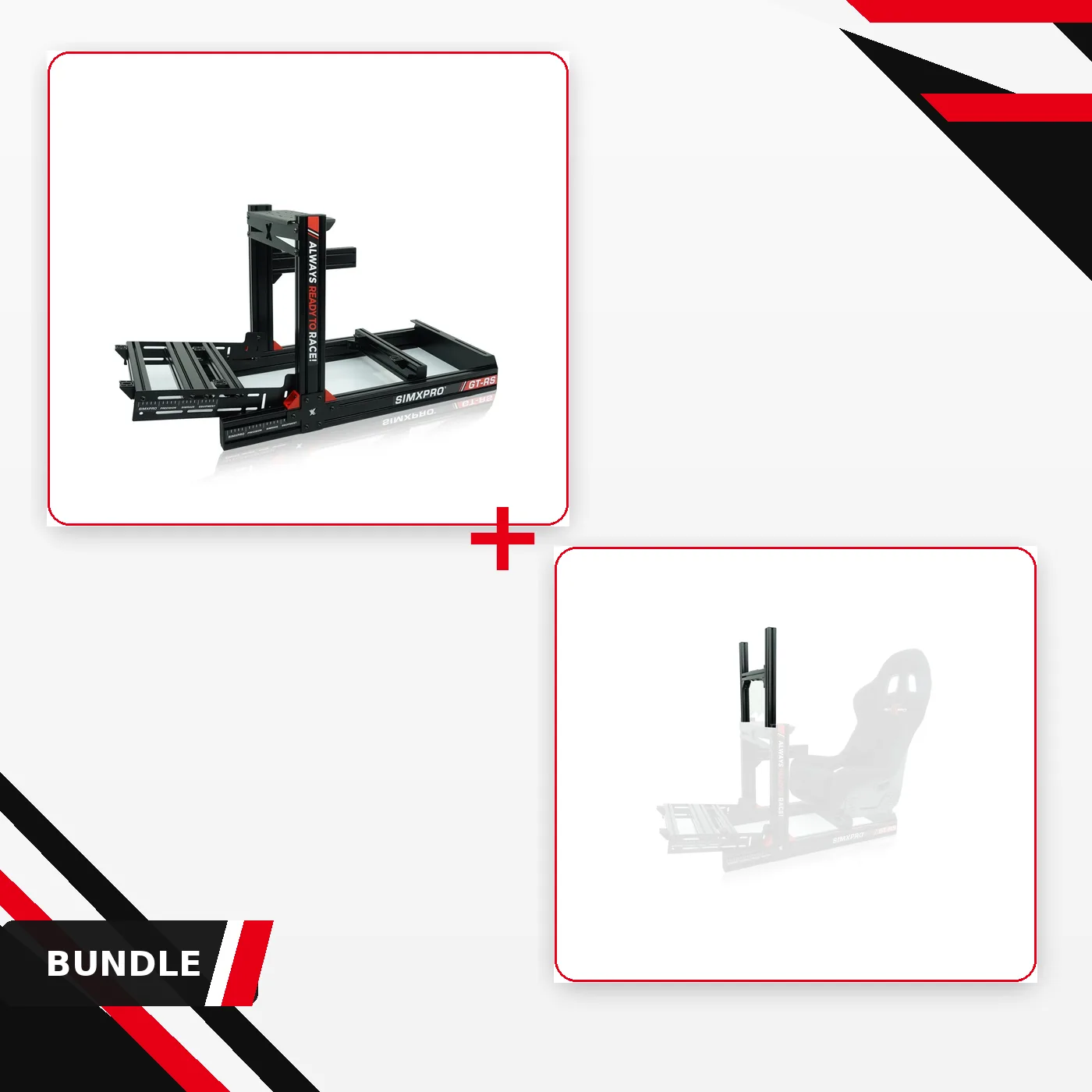
SimXPro GT-RS + Monitor Mount: The SimXPro GT-RS is built from high quality 40x80 aluminium profiles designed for clean integration and smooth adjustability. The profile slots accept standard T-nuts, so you can reposition the monitor mount bracket without drilling new holes.
SimXPro GT-RS + Monitor Mount