Quick answer
Organize your university backpack by weight, not by habit: put your laptop in the padded sleeve closest to your back, keep heavy books in the main compartment's center, and reserve front pockets for flat, light items. Then build a small everyday kit so you stop repacking each morning. If your bag has a laptop sleeve, use it every time, even for a short walk across campus.
Most students pack a backpack once and then keep adding to it until the zipper complains. A better approach is to decide where each category of item lives, then refill those spots on autopilot. That is what college backpack organization really means: a fixed layout you can restock in two minutes.
This guide walks through eight steps in order, from choosing the right bag to a weekly reset. Each step includes the mistake that quietly ruins the setup, so you can catch it before your shoulder does.
Step 1: Choose a bag that matches your actual device
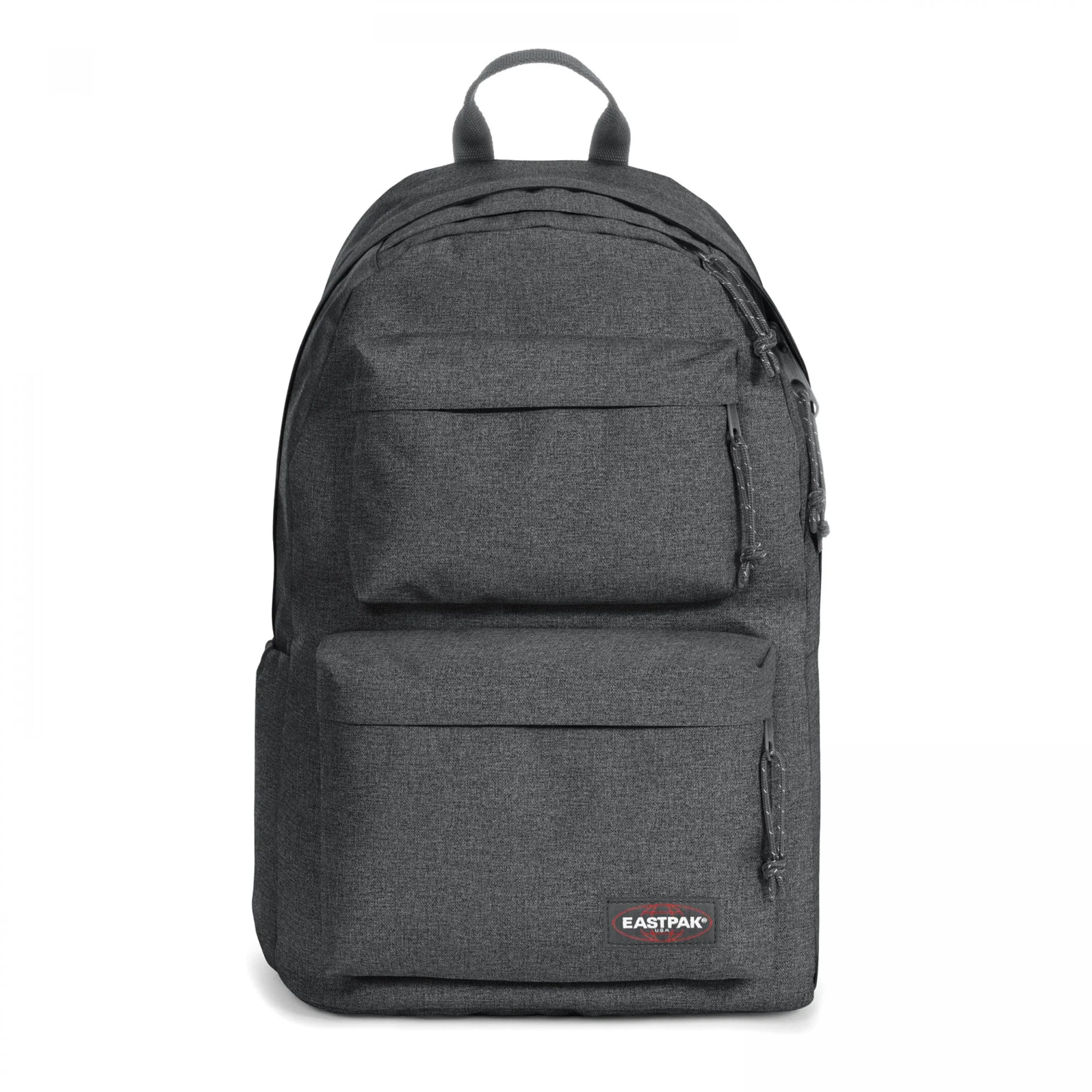
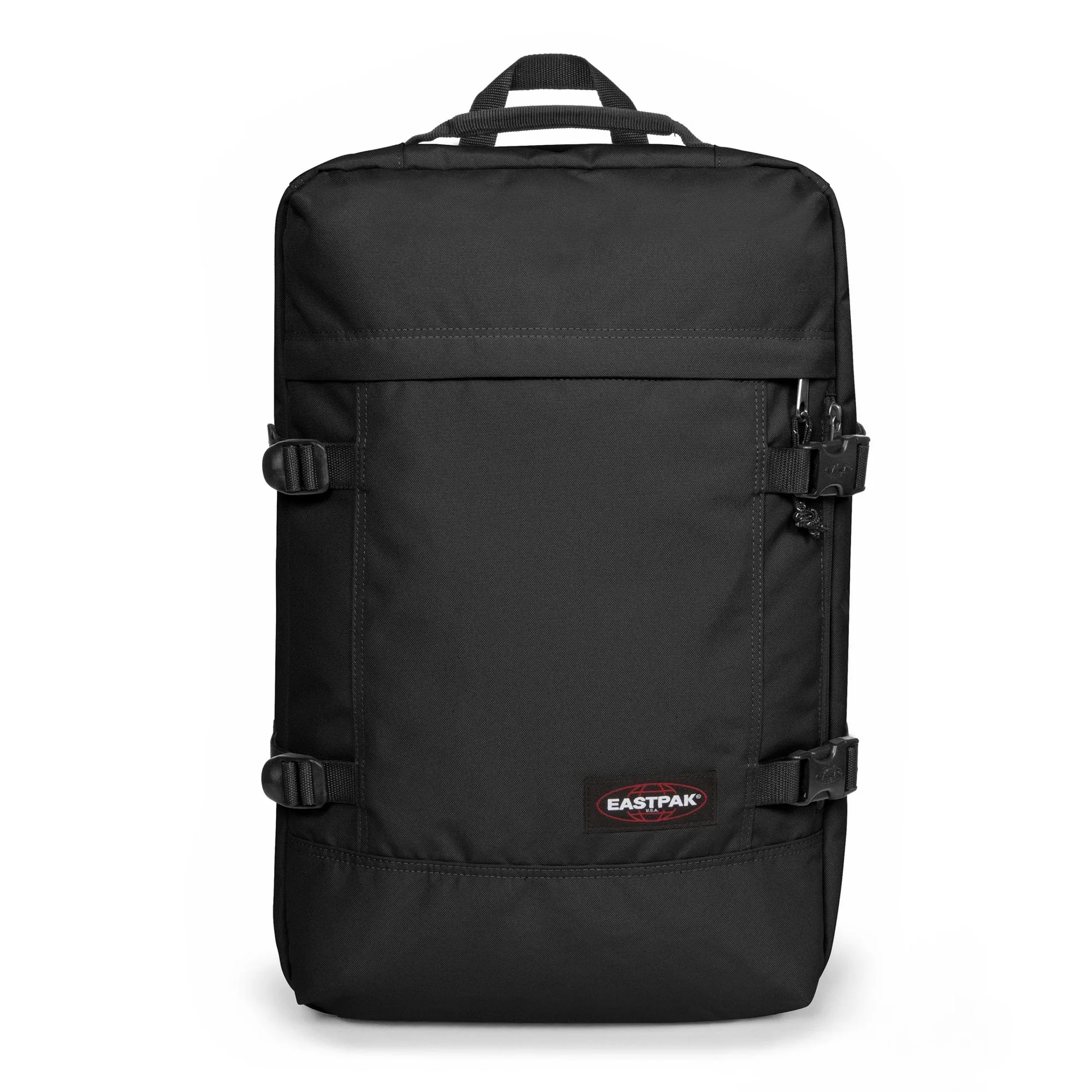
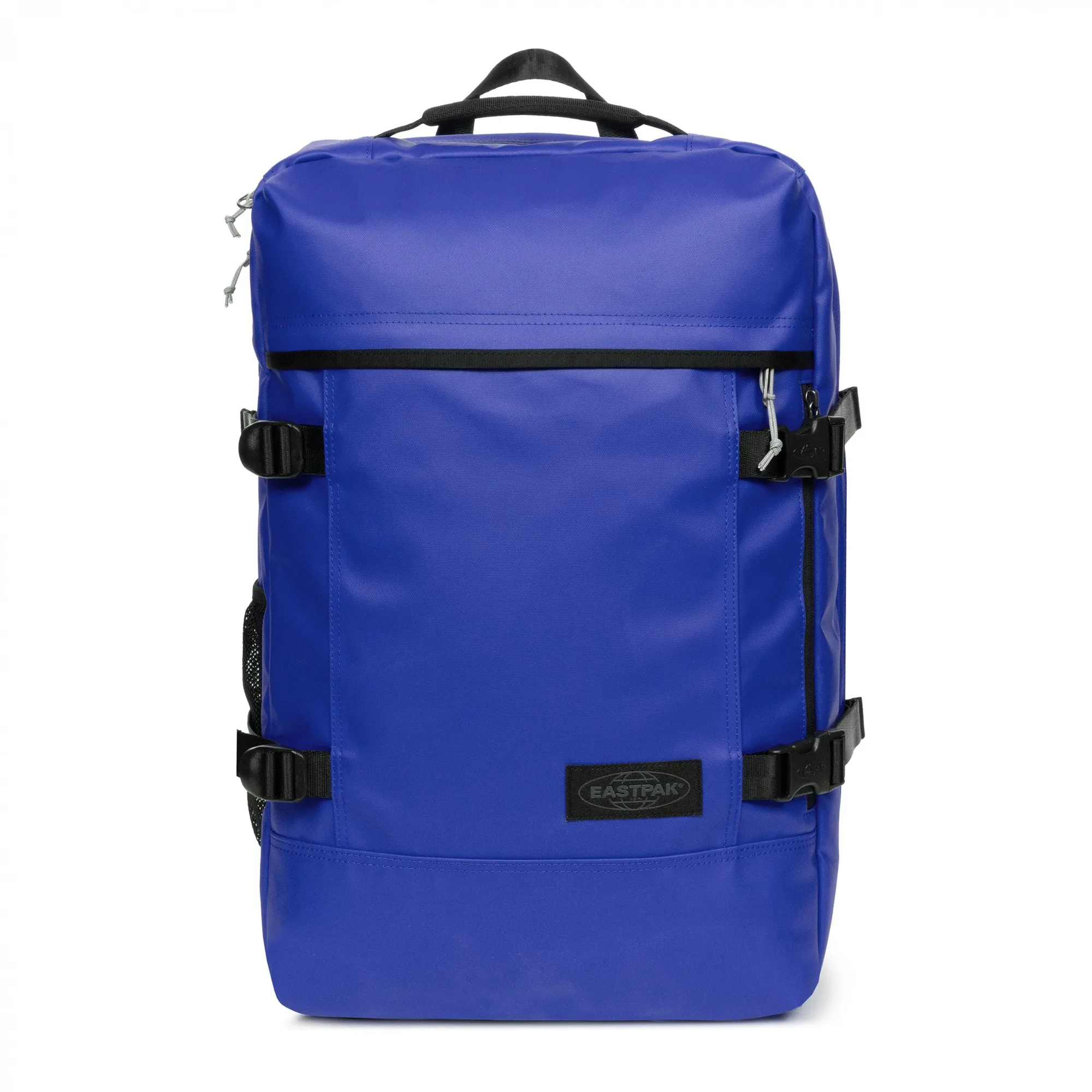
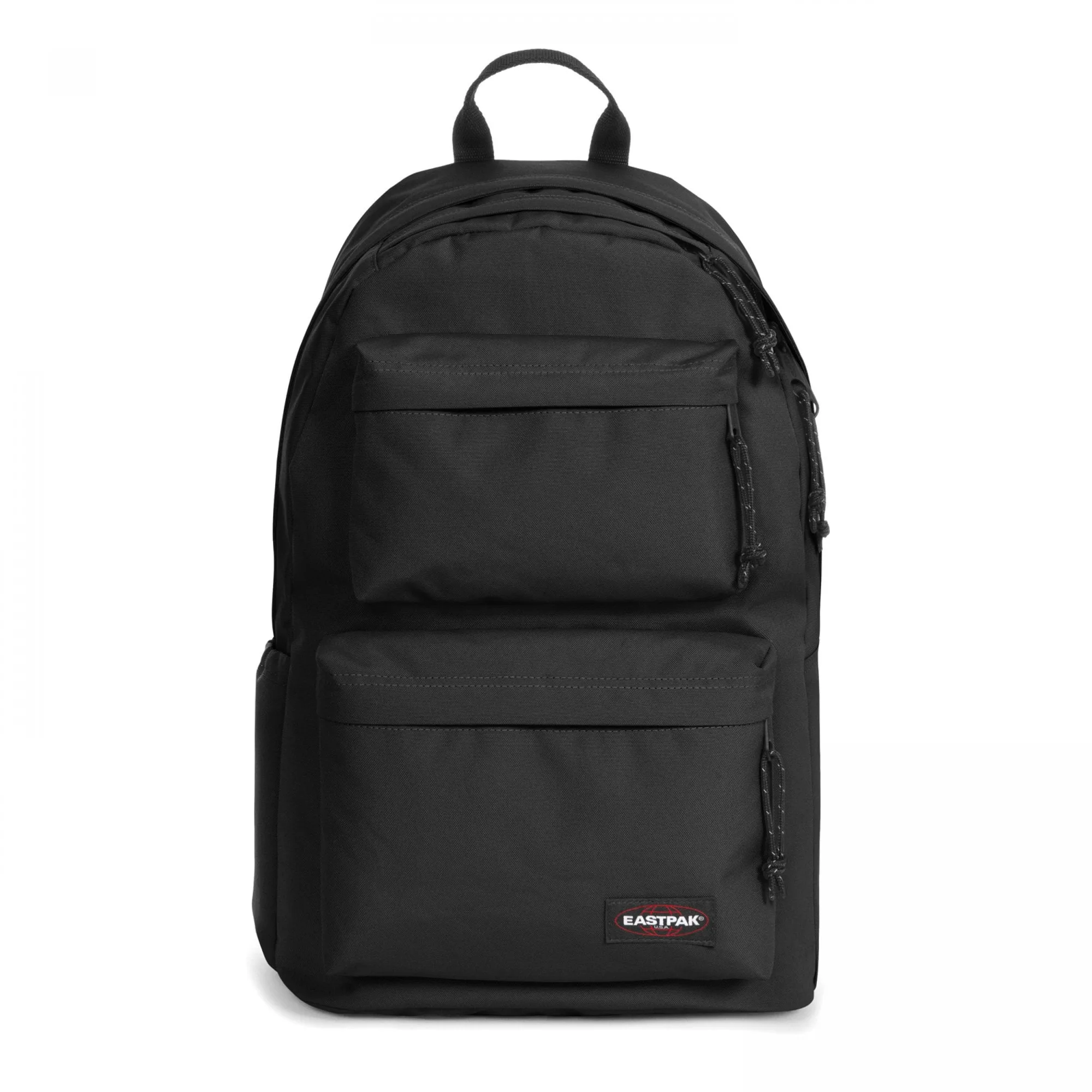
Before you organize anything, confirm your laptop fits the sleeve. A 13-inch laptop in a sleeve built for 17 inches slides around, and a 17-inch laptop simply will not fit a smaller sleeve. The https://eastpakex.com/products/padded-double-black-denim-b8a41e91ef35fd3c11caed1c-1384308Padded Double Black Denim has a padded laptop sleeve for devices up to 13 inches, while the Travelpack Black and Travelpack Tarp Blue both list a 17-inch laptop sleeve. Matching device to sleeve is the one decision you cannot fix later with better packing.
The common mistake is buying by looks and hoping the laptop fits. Measure your device first, then check the stated sleeve size. If your bag has no padded sleeve at all, use a separate padded laptop case and treat it as your first packing layer.
- Checkpoint: zip your laptop into the sleeve before your first class day, not on the morning of a deadline.
Step 2: Load the heaviest items closest to your back
Weight placement decides how tired you feel by 3 p.m. Put the laptop and any heavy textbooks in the compartment nearest your spine, centered rather than pushed to one side. This keeps the load against your back instead of pulling your shoulders backward. Lighter items, such as a hoodie or lunch, go toward the front of the main compartment.
The mistake here is stacking everything vertically against the front panel because it is easier to see. That shifts the center of gravity away from your body and makes the straps dig in. If your bag has a padded back panel, that surface is your reference point: heavy items sit against it.
- Checkpoint: stand in front of a mirror. If the bag tilts backward on its own, move weight closer to your back.
Step 3: Assign one home to every category
Pick a permanent spot for each category: laptop, chargers and cables, pens and highlighters, notebook, water bottle, keys, and snacks. Once assigned, you never search again, because your hand knows where to go. Bags with an inside organizer make this easier, since the pockets already suggest categories. The Tecum M CNNCT Coat, for example, includes a dedicated laptop sleeve, an organizer, and a bottle holder.
The common mistake is using the same pocket for whatever is in your hand that day. That is how chargers end up in the front pocket and pens end up loose in the main compartment. Write your layout on a sticky note for the first week if you need to.
- Keep cables in one small pouch rather than loose; loose cables tangle and hide damage.
Step 4: Keep daily items in the outer pockets
Your student ID, transit card, phone, and keys should live in outer or quick-access pockets so you are not opening the main compartment in a queue. This is also where a security pocket earns its place. The Padded Double Black Denim has two zip-fastening front pockets and a zippered security pocket on the back, which is a sensible spot for a wallet or passport-sized item on busy days.
The mistake is putting valuables in the most obvious outer pocket where a hand can reach them in a crowd. Use a zipped pocket that sits against your body, and keep the easy-access front pocket for things you do not mind losing, like a granola bar.
- Checkpoint: can you reach your transit card without taking the bag off? If not, move it.
Step 5: Give your bottle a fixed, upright spot
A bottle holder only works if the bottle actually goes back into it. Choose the side pocket and commit to it, then check that the bottle is closed before it goes in. Both the Tecum M CNNCT Coat and the Padded Double Black Denim include a bottle holder, so there is no reason for a water bottle to lie on top of your laptop.
The mistake is carrying an oversized bottle that stretches the pocket and eventually tears the seam, or leaving a half-empty bottle loose in the main compartment. If your bottle does not fit the holder, it is the wrong bottle for this bag.
- Empty and refill the bottle at the end of each day so it never leaks onto books overnight.
Step 6: Balance the load and adjust the straps
Once the bag is packed, tighten the shoulder straps so the bag sits high on your back, then adjust any sternum or compression strap. A bag that hangs low swings with every step and puts strain on your lower back. Padded shoulder straps and a padded back panel, like those on the Padded Pak'r Sunday Grey, only help when the straps are adjusted to your body rather than left at factory length.
The mistake is carrying the bag on one shoulder for a full day, which throws off your posture and makes one strap wear faster. If you must go one-shoulder for a short walk, shorten the strap first so the bag stays close to your body.
- Checkpoint: the bottom of the bag should sit around your lower back, not below your hips.
Step 7: Build a leave-the-house kit
Create a small pouch with a charger, cable, pen, painkiller, and a spare padlock, then keep it permanently in the bag. This single habit prevents the most common student problem: arriving at a lecture with a dead laptop and no cable. It also means your morning routine is just grabbing the bag, not repacking it.
The mistake is treating the kit as a place to store everything you might ever need. A kit that weighs too much gets emptied onto a desk and never rebuilt. Keep it to items you use at least weekly.
- Restock the kit every Sunday, not every morning.
Step 8: Do a weekly reset
Once a week, empty the bag completely, shake out crumbs, remove old receipts and handouts, and put each item back in its assigned spot. This takes about five minutes and catches problems early, such as a fraying strap, a cracked bottle lid, or a laptop sleeve that has started to separate. It also resets your weight distribution after a heavy week.
The mistake is only cleaning the bag when something breaks or smells. A weekly reset keeps the layout working and makes the bag last longer, which matters if you plan to keep it for several semesters.
- Checkpoint: if you have not used an item in two weeks, it does not belong in your daily carry.
Your university backpack setup in eight steps
- Match the sleeve to your laptop: Measure your device and confirm the stated sleeve size before you pack anything. A laptop that slides around is a laptop that will eventually get dropped.
- Put weight against your back: Place the laptop and heavy books in the compartment closest to your spine, centered. If the bag tilts backward when you stand still, redistribute.
- Assign one home per category: Give the laptop, cables, stationery, bottle, and keys a fixed pocket each. If you have to think about where something goes, the system is not finished.
- Move daily items outward: Keep transit card, phone, and keys in quick-access or zipped pockets, not the main compartment. Valuables go in a zipped pocket against your body.
- Commit to the bottle holder: Use the side pocket every time and close the bottle before it goes in. A bottle that does not fit the holder belongs in a different bag.
- Adjust the straps: Tighten shoulder straps so the bag sits high, then use any sternum or compression strap. One-shoulder carrying is for short walks only.
- Build a leave-the-house kit: Keep a charger, cable, pen, and small essentials in one pouch that never leaves the bag. Restock it weekly, not daily.
Backpack features that make organizing easier
- Tecum M CNNCT Coat: Streamlined backpack with a dedicated laptop sleeve, an inside organizer, a security pocket, and a bottle holder. The organizer and bottle holder remove two decisions from your morning, and the security pocket gives valuables a less exposed home.
- Padded Double Black Denim: Medium backpack with a padded laptop sleeve for devices up to 13 inches, two zip-fastening front pockets, a side bottle holder, and a zippered security pocket on the back. If your laptop is 13 inches or smaller, this layout separates daily items from study items without extra pouches.
- Padded Pak'r Sunday Grey: Classic backpack with a roomy main compartment, signature front pocket, padded shoulder straps, and a padded back panel. A simple two-zone bag works well if you prefer a pouch-based system over built-in organizers.
- Travelpack Tarp Blue: 2-in-1 travel bag that can be carried as a backpack or duffle, with a padded laptop sleeve for devices up to 17 inches, two main compartments, tuck-away straps and handles, and water-repellent fabric. Useful if you commute with a large laptop or occasionally need to convert your campus bag into a weekend bag.
A university backpack works best when the layout is fixed and the refill is automatic. Start with step one, get the laptop sleeve right, then build outward from your back. Once the system is in place, organizing your bag takes minutes, and your shoulders will notice the difference.