Quick Answer
To pair a wireless microphone with your camera, insert the receiver into your camera's microphone input, power on both units, and let them auto-sync. If they don't connect automatically, press the pairing button on each unit. Always check the audio levels before recording.
Understanding Wireless Microphone Types
Wireless microphones come in two main types: analog and digital. Analog systems are simpler but more prone to interference, while digital systems offer clearer audio and more stable connections. Most modern wireless mics use the 2.4 GHz frequency band, which works well in most environments but can be affected by Wi-Fi signals.
The transmitter connects to the microphone (often a lavalier or handheld), and the receiver plugs into your camera. Some systems have a built-in receiver that attaches directly to the camera's hot shoe or cold shoe, making them compact and easy to use.
Preparing Your Camera for Connection
Before pairing, make sure your camera has a microphone input jack (usually a 3.5mm TRS or TRRS port). If your camera lacks one, you may need an external audio recorder or an adapter. Also, check that your camera's audio input is set to 'External Mic' in the menu; otherwise, it may record from the built-in mic only.
For cameras with a USB-C port, some wireless microphone receivers can connect via USB, but this is less common. Always consult your camera manual to confirm compatibility.
Step-by-Step Pairing Guide
- Step 1: Insert the Receiver into Your Camera: Plug the wireless microphone receiver into your camera's microphone input jack. If the receiver has a locking mechanism, secure it. Mount the receiver on the camera's hot shoe or cold shoe if applicable. Common mistake: Forcing the plug into the wrong port. Ensure it's the mic input, not the headphone output.
- Step 2: Power On Both Units: Turn on the transmitter (the part attached to the microphone) and the receiver. Most systems have a power button or switch. Wait for the LED indicators to light up. Checkpoint: If the LED doesn't light, replace or charge the batteries. Many systems use AA batteries or built-in rechargeables.
- Step 3: Initiate Pairing (if needed): Many wireless microphones auto-pair when powered on. If they don't, press the pairing button on both the transmitter and receiver. They should sync within a few seconds, indicated by a steady LED. Common mistake: Pressing the pairing button on only one unit. Both must be in pairing mode simultaneously.
- Step 4: Set Camera Audio Levels: Go to your camera's audio settings and set the input level to manual. Speak into the microphone at your normal recording volume and adjust the gain so the audio meter peaks around -12 dB to -6 dB, avoiding red clipping. Checkpoint: If the audio is too quiet or distorted, adjust the gain on the transmitter (if available) or the camera. Avoid using auto gain, which can cause inconsistent levels.
- Step 5: Test and Monitor: Record a short test clip and play it back through headphones. Listen for static, dropouts, or background noise. If you hear issues, move the transmitter closer or change the channel/frequency if your system allows. Final step: Always monitor audio during recording. A quick test can save you from unusable footage.
Product Facts
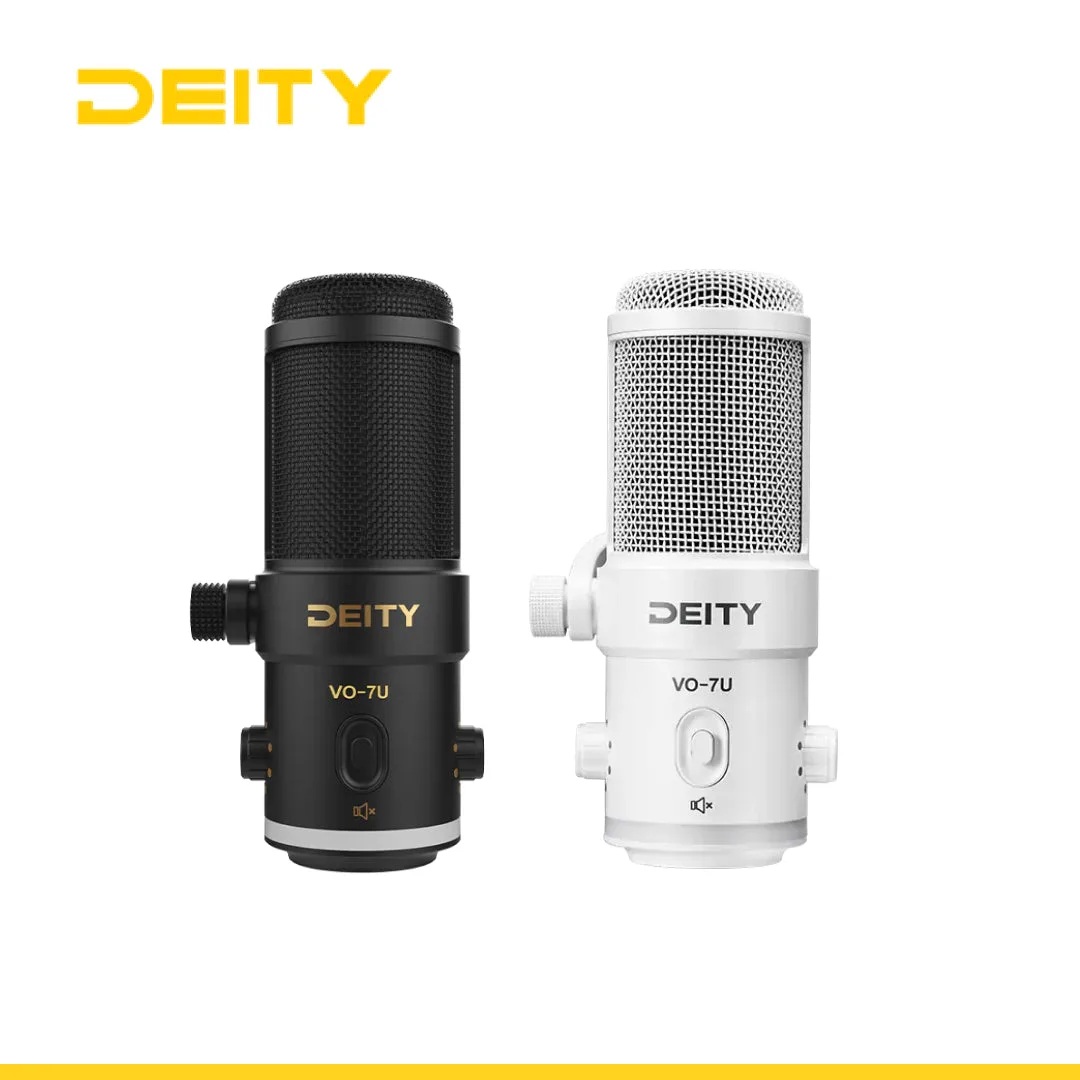
- Deity VO-7U Dynamic USB Streamer Microphone With RGB Lights with Tripod Kit (Black, White): The Deity VO-7U is a dynamic USB microphone designed for streamers and podcasters. It features a tight pickup pattern that rejects room noise so your audience hears only you. If you're pairing a wireless microphone for streaming or podcasting, a dynamic USB mic like the VO-7U can serve as a backup or primary audio source, offering excellent noise rejection for clean recordings.