Quick answer
Turn on your TEKKO ONE, press the sync button on the console, then press the pair button on your Tekko Controller. The LED will stop flashing once connected.
What you need before you start
Make sure your TEKKO ONE is powered on and has enough battery or is plugged in. The Tekko Controllers are wireless and designed specifically for the TEKKO ONE, so no additional adapters are required.
If you are setting up multiple controllers for local multiplayer, have all controllers ready before starting the sync process. Each controller pairs independently.
Common pairing issues and fixes
If a controller does not sync on the first attempt, turn it off and on again, then repeat the pairing process. Interference from other wireless devices can occasionally cause delays.
For persistent connection drops, check that your TEKKO ONE firmware is up to date. The console’s built-in game search function does not affect controller pairing, but a system restart can resolve most sync glitches.
Step-by-step pairing guide
- Power on the TEKKO ONE: Plug in your console or ensure it has sufficient battery, then press the power button. Wait for the home screen to load completely before proceeding. Do not attempt to pair while the console is still booting — the sync function is only active after the system is ready.
- Activate pairing mode on the console: Press and hold the sync button located on the side or back of the TEKKO ONE until the indicator light starts blinking. This puts the console into discovery mode. The sync button is small and may require a pen tip. If you don't see a blinking light, check that the console is not in sleep mode.
- Put the Tekko Controller into pairing mode: Press and hold the pair button on the back of the controller for about 3 seconds. The LED on the front will blink rapidly, indicating it is searching for the console. If the LED stays solid without blinking, the controller is already paired to another device. Reset it by holding the pair button for 10 seconds.
- Confirm the connection: Once the console and controller find each other, the LED on the controller will become solid. The TEKKO ONE may briefly show a confirmation message on screen. If the LED continues blinking after 30 seconds, repeat steps 2 and 3. Moving the controller closer to the console can help.
- Pair additional controllers for multiplayer: Repeat steps 2 through 4 for each extra Tekko Controller. The TEKKO ONE supports multiple controllers simultaneously for local multiplayer sessions. Each controller must be paired one at a time. Trying to sync two at once will cause both to fail.
Products mentioned
-
Tekko Controllers: The Tekko Controllers are designed for use with the TEKKO ONE retro games console, offering a reliable and familiar way to enjoy classic gaming sessions. They pair wirelessly out of the box, so you don't need extra dongles or cables for a clean gaming setup.
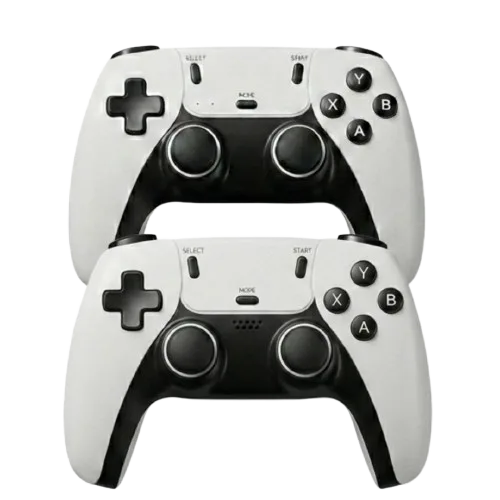
Tekko Controllers
-
TEKKO ONE - Retro Games Console: The TEKKO ONE Retro Games Console features a built-in game search function for easy navigation and is available in multiple colors and storage capacities. Once your controller is synced, you can quickly browse your game library and jump into retro titles without leaving the couch.
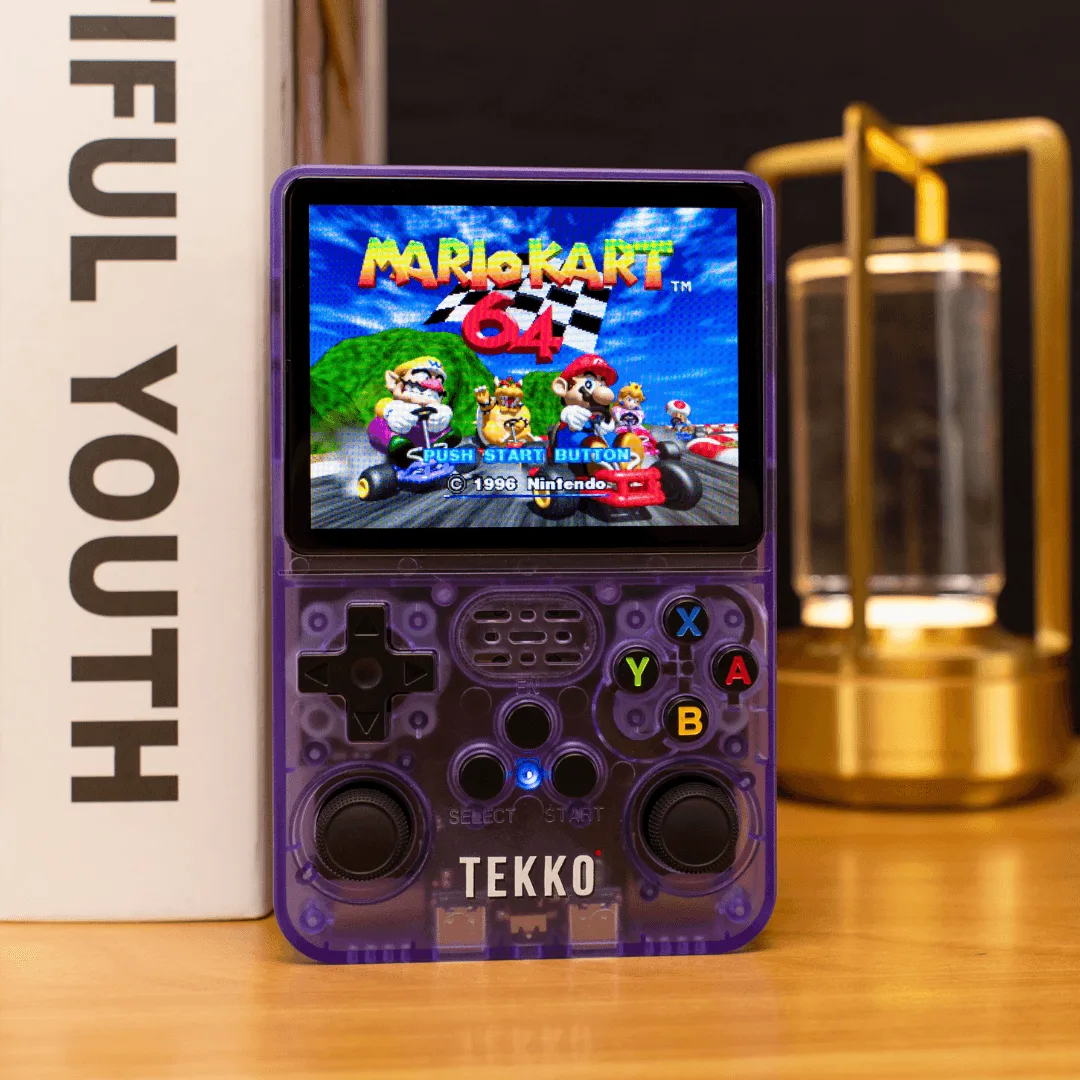
TEKKO ONE - Retro Games Console