Quick Answer
Refill your Canon BCI-6 ink tanks when the low-ink warning appears, but replace them if the printhead is clogged or the tank is damaged. Always use genuine Canon BCI-6 ink for reliable performance and color accuracy.
Refill vs. Replace: Which Is Right?
Refilling your Canon BCI-6 ink tanks can save money, but it isn't always the best choice. If your prints show missing lines or banding, the printhead may be clogged; in that case, replacing the tank with a genuine Canon BCI-6 cartridge can help restore quality. Genuine Canon inks are formulated to match your printer's printhead and paper for consistent color and longevity.
If you refill, use a high-quality refill kit and follow the instructions carefully. Overfilling can cause leaks and poor print quality. If you notice any damage to the tank's chip or the rubber seal, replace the tank instead of refilling it.
Step-by-Step Refill and Replacement
- Check the Ink Level: Look at your printer's ink level indicator or the low-ink warning. If a tank is low, you can either refill it or replace it. If the tank is empty or the warning persists after refilling, replace it. Always confirm which color is low; don't replace all tanks unnecessarily.
- Prepare Your Workspace: Lay down paper towels and wear gloves. Have your replacement Canon BCI-6 tank or refill kit ready. For refills, follow the kit's instructions to fill the tank to the indicated line—do not overfill. Overfilling can cause leaks; if you're unsure, replace instead.
- Remove the Old Tank: Open the printer cover and wait for the cartridge holder to stop moving. Press down on the old tank to release it, then pull it out. Dispose of it properly if you're replacing. Never force the tank out; if it sticks, check that the holder is unlocked.
- Install the New or Refilled Tank: Remove the protective tape from the new tank (or the refilled tank's vent). Slide the tank into the correct slot, matching the color label. Press down until it clicks into place. Ensure the tank is fully seated; a loose tank can cause connection errors.
- Run a Printhead Clean and Test Print: Close the cover and run the printer's cleaning cycle from the utility menu. Then print a nozzle check pattern to confirm all colors are flowing. If lines are missing, run another cleaning cycle. If two cleaning cycles don't fix the issue, the printhead may be clogged; consider a deeper cleaning or replacement.
Product Spotlight
-
Canon BCI-6PC Photo Cyan Ink Tank: The Canon BCI-6PC Photo Cyan Ink Tank is designed to deliver vibrant print quality and exceptional reliability for photos and documents. Using a genuine photo cyan tank ensures accurate color reproduction and long-lasting prints, especially when printing photos.
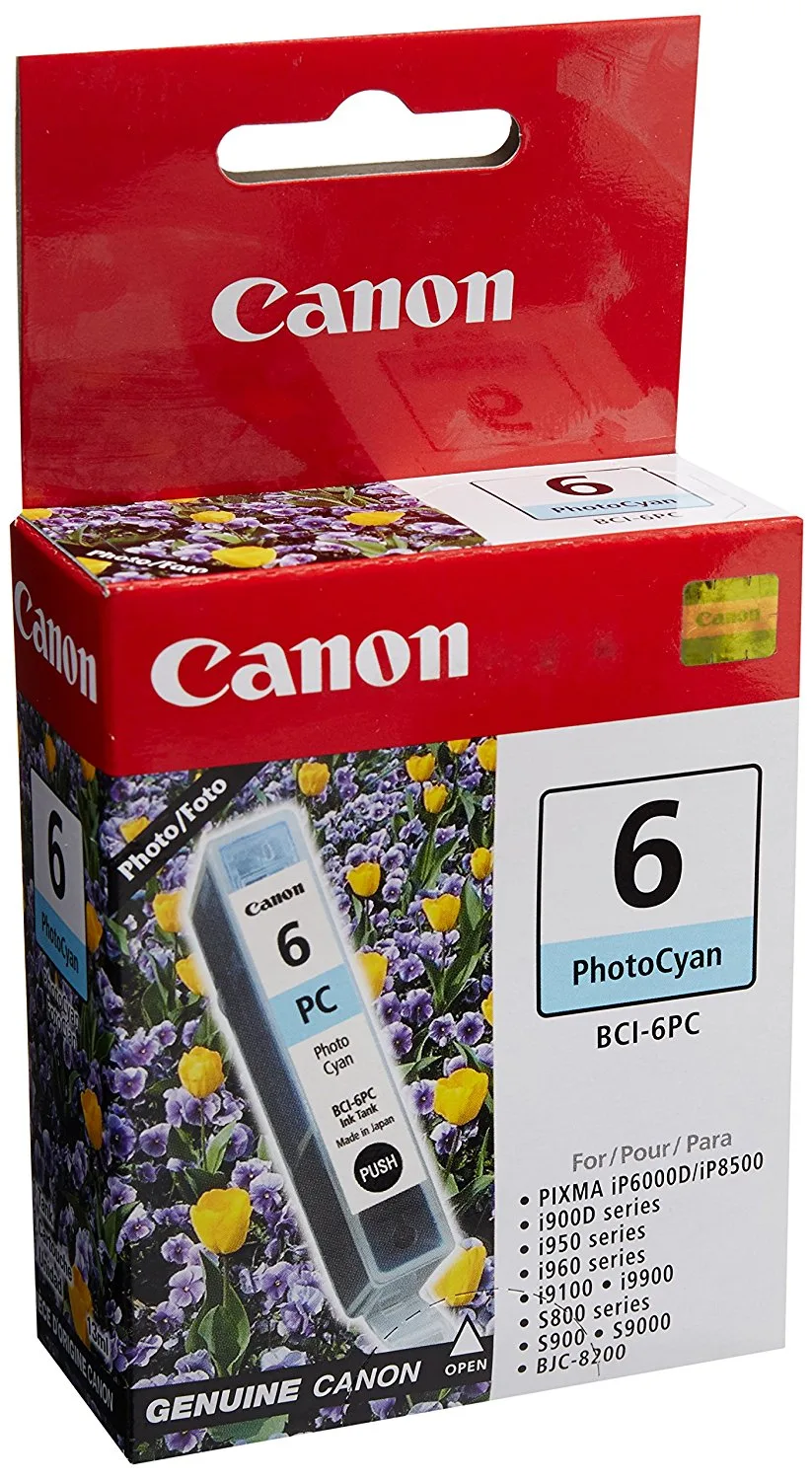
Canon BCI-6PC Photo Cyan Ink Tank