Quick Answer
To set up a dual monitor gaming desk without clutter, start by choosing the right monitor size and mount, then arrange the monitors at eye level, route cables along the desk or monitor arm, and use cable ties or sleeves to keep everything tidy. A monitor arm is the single most effective upgrade for reclaiming desk space and simplifying cable management.
Choose the Right Monitor Size and Mount
Before you start moving things around, decide whether you want a dual monitor arm or two separate stands. A dual monitor arm frees up desk space and makes it easier to align the screens, but it requires a desk that can support the clamp or grommet mount. If your desk is thin or has a glass top, two sturdy standalone stands might be safer and still keep things organized.
Monitor size matters for both comfort and desk space. A 27-inch monitor is a popular choice for gaming because it offers a good balance of screen area and pixel density. If you're considering 27-inch models, check the bezel width—thinner bezels reduce the visual gap between screens and make the setup feel more seamless.
Position the Monitors at Eye Level
Place the primary monitor directly in front of you and the secondary monitor to the side, angled slightly toward your seat. The top of the primary screen should be at or just below eye level so you don't strain your neck. If you use a monitor arm, adjust the height and tilt so both screens are aligned horizontally.
A common mistake is setting both monitors at the same height even when you use one far more than the other. If you game on one screen and keep chat or guides on the other, make the primary screen the focal point and let the secondary screen sit slightly lower or farther away. This reduces neck rotation and keeps your focus where it belongs.
Manage Cables Along the Desk and Arm
Cable management is what separates a clean dual monitor setup from a tangled mess. Start by plugging all cables into the monitors and then route them along the monitor arm's channels or down the back of the desk. Use adhesive cable clips or a cable tray to keep power and video cables off the desk surface.
If you're using a monitor arm, route the cables through the arm's built-in cable management before attaching the monitors. For standalone stands, bundle the cables with velcro ties and run them along the desk edge. A common mistake is leaving excess cable slack—measure the length you need and coil the rest neatly near the desk leg.
Use a Single Power Source and Cable Sleeves
Two monitors mean two power bricks and at least two video cables. To reduce clutter, plug both monitors into a single power strip with a surge protector and hide it under the desk. Then use a cable sleeve or braided wrap to combine the power and video cables into one tidy bundle.
A practical checkpoint is to ensure that cables aren't pinched by the monitor arm's movement. If you adjust the arm often, leave a little slack in the cables and use a spiral wrap that can flex. This prevents wear on the cables and keeps the setup looking clean even when you reposition the screens.
Optimize Desk Space for Peripherals
Once the monitors and cables are in place, reclaim the desk surface for your keyboard, mouse, and other essentials. If you're using a monitor arm, you'll have extra room that would have been taken up by monitor stands. Keep only the peripherals you use daily on the desk and store the rest in a drawer or on a shelf.
A common mistake is overcrowding the desk with decorative items or extra devices. If you need a clean surface for gaming, prioritize function over decoration. A small cable box or under-desk tray can hold chargers, USB hubs, and other accessories that would otherwise add visual noise.
Step-by-Step Setup Checklist
- Measure your desk and monitor sizes: Check the desk depth and the monitor's VESA mount compatibility. If the desk is too shallow, a dual arm may not fit comfortably. Common mistake: skipping measurements and ending up with monitors that don't align or an arm that overhangs the desk edge.
- Install the monitor arm or stands: Attach the arm to the desk with a clamp or grommet mount, or place the stands. Ensure the mounting point is solid and level. Checkpoint: the arm should not wobble when you nudge it—tighten the clamp before moving on.
- Connect and route cables: Plug in the video and power cables, then route them along the arm's channels or down the back of the desk. Use cable ties to bundle them. Common mistake: leaving cables loose behind the desk, which creates a tangle every time you move the monitors.
- Adjust monitor height and angle: Set the primary monitor at eye level and angle the secondary screen toward your seating position. Align the top edges for a seamless look. Checkpoint: your neck should stay neutral when looking at the center of the primary screen.
- Tidy the desk surface: Place your keyboard and mouse in a comfortable position, and use a cable box or under-desk tray for extra accessories. Common mistake: cluttering the desk with non-essentials that undo the clean look you just created.
Product Facts
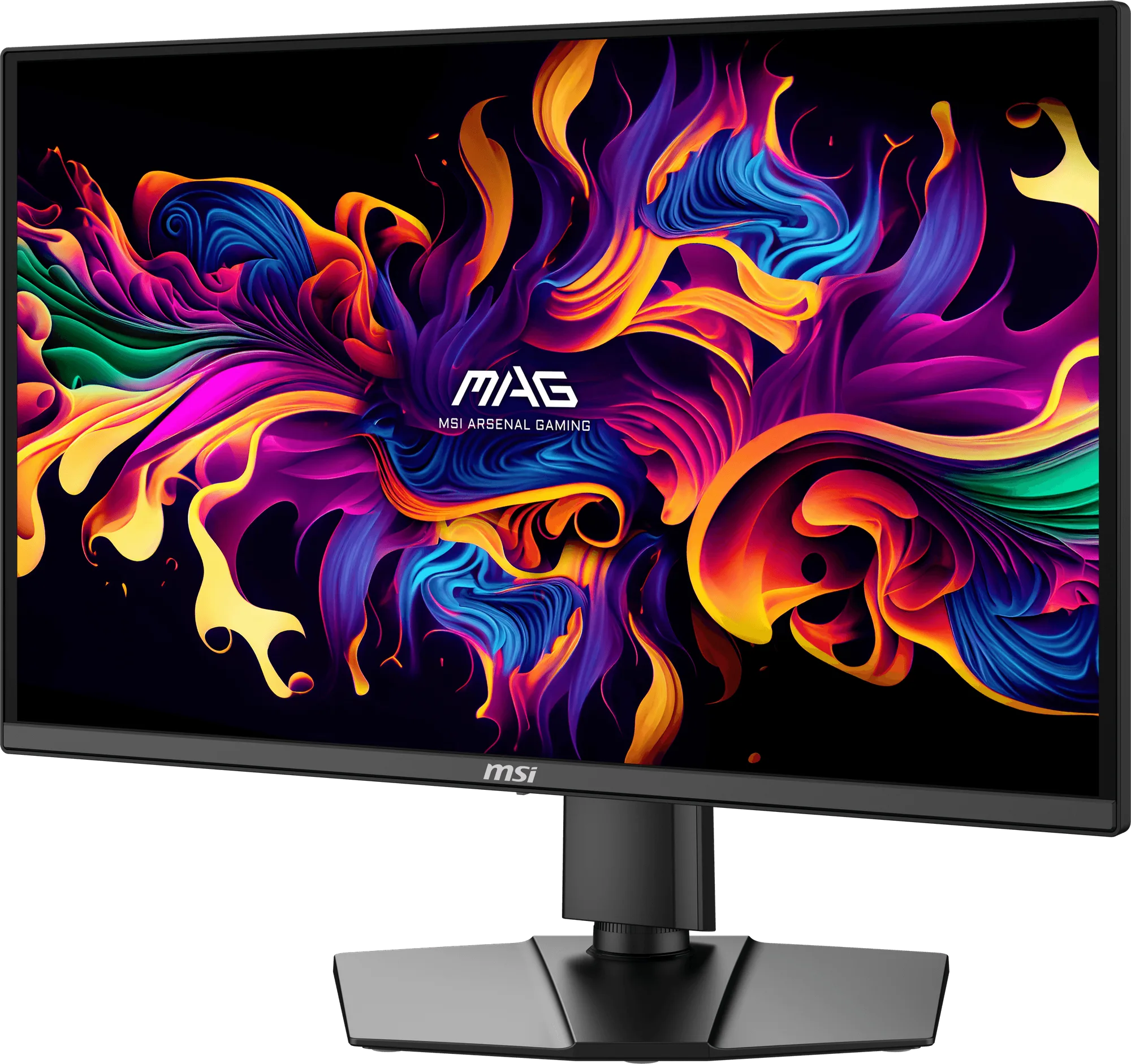
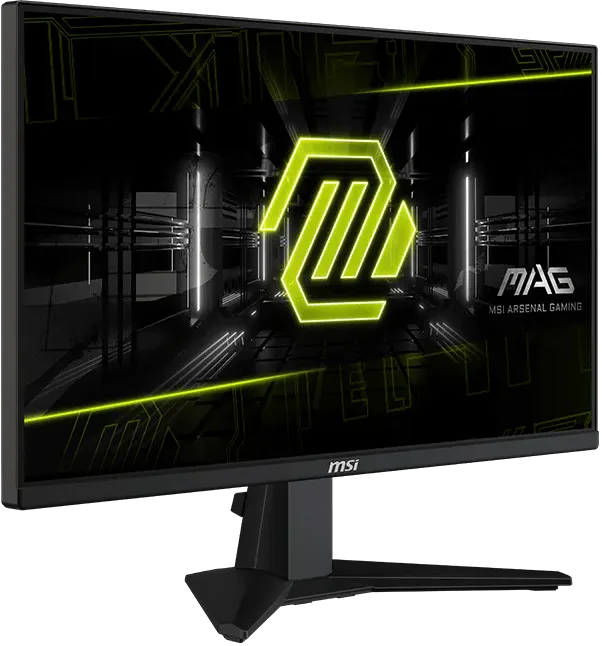
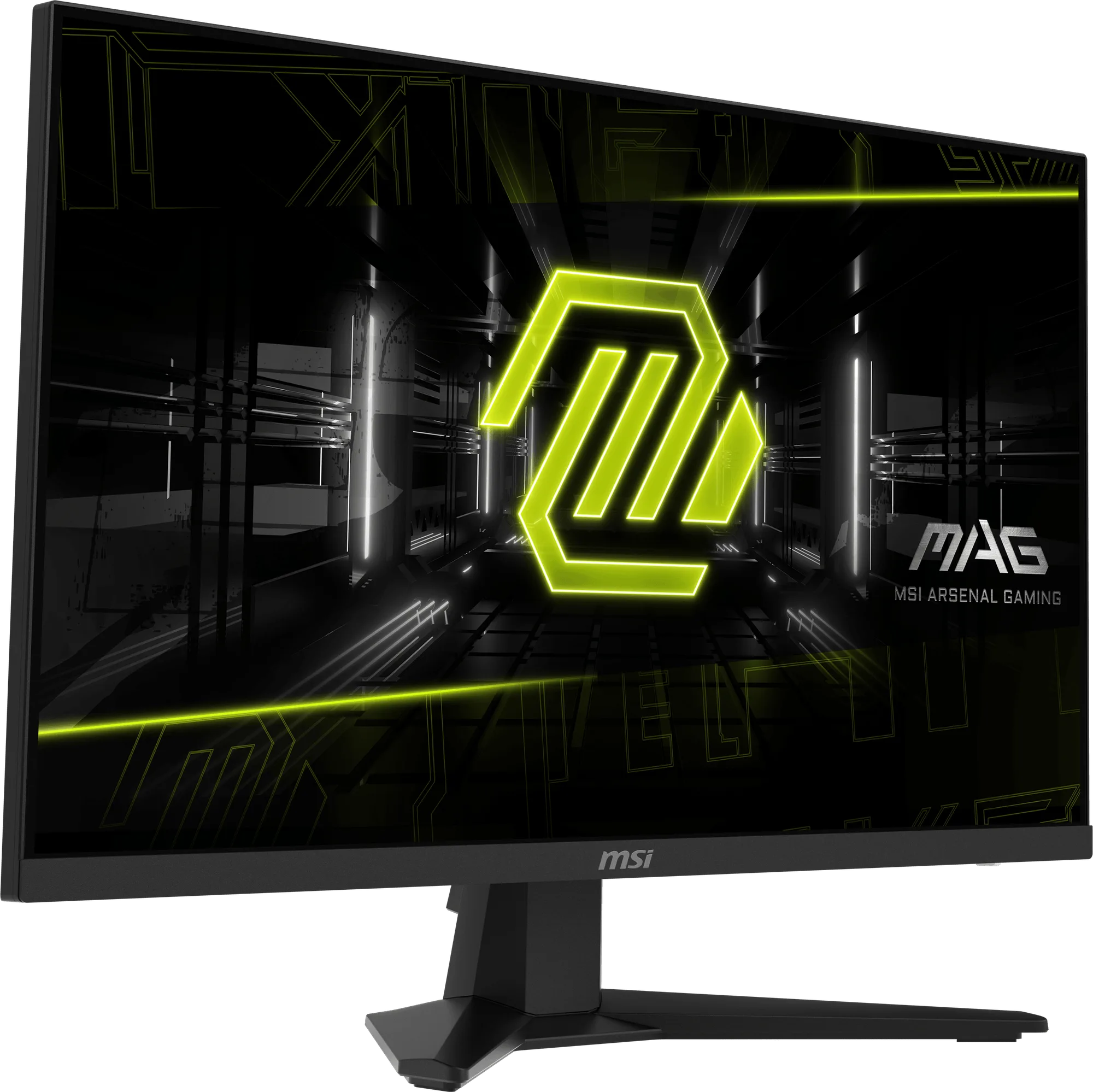
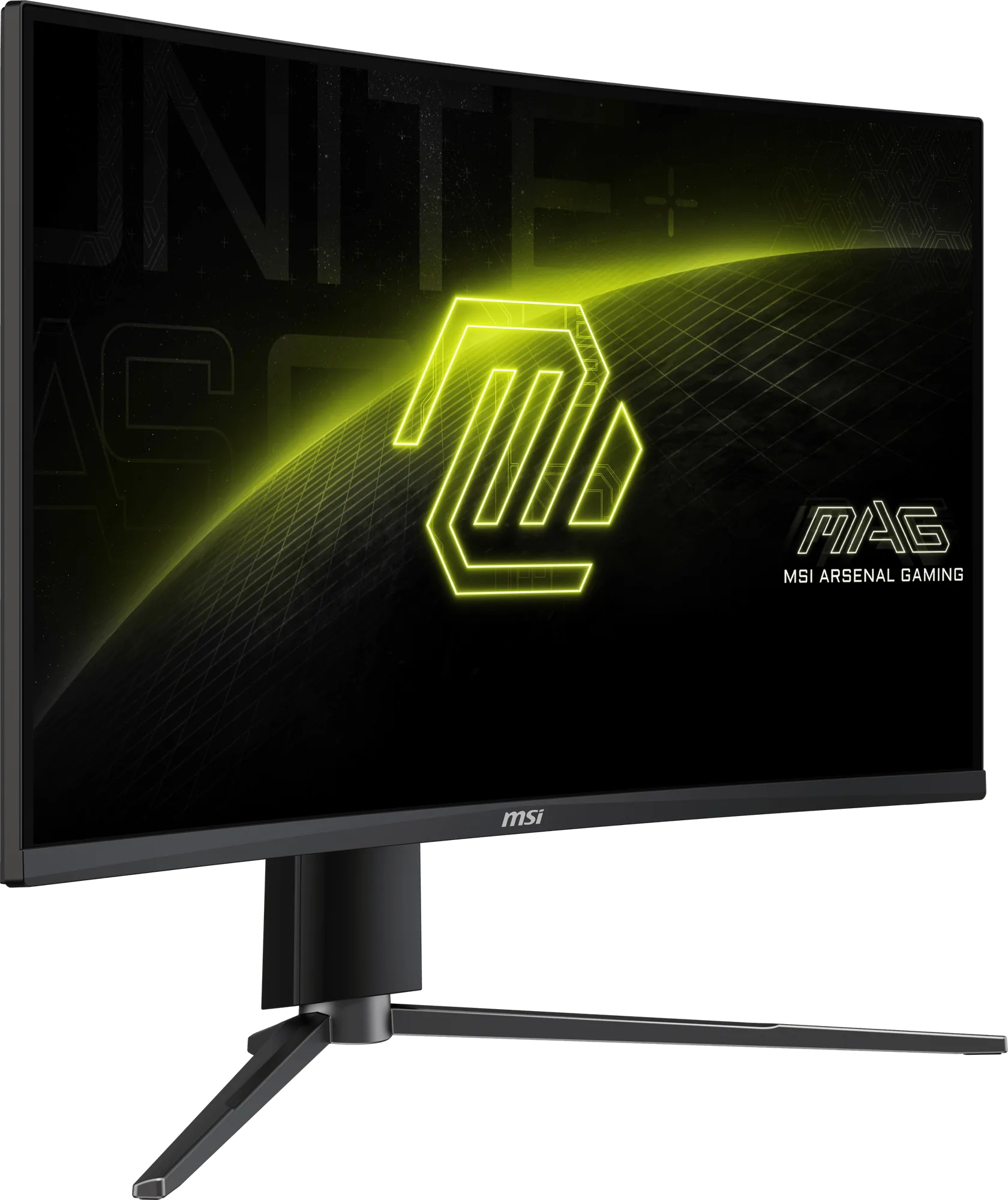
- MSI MAG 274QF X24 27" 240Hz Gaming Monitor: The MSI ARSENAL GAMING (MAG) series is engineered to give gamers the edge they need to dominate on the virtual battlefield. Inspired by the rugged durability and unwavering reliability of military-grade equipment, the MAG series is built to provide an unwavering defense in every gaming scenario. A 27-inch 240Hz monitor like this one fits the recommended size for dual setups and its durable build can handle frequent adjustments if you mount it on an arm.
Once your dual monitors are aligned and cables are tucked away, you'll have a cleaner desk and a more focused gaming space. If you're building a new setup, consider a 27-inch 240Hz monitor for smooth gameplay and a sturdy mount to keep everything stable.