What to Expect from a Factory Renewed MacBook Air M2
A factory renewed MacBook Air M2 offers the same M2 chip performance and slim design as a new unit, but at a lower price. The unit has been inspected, tested, and restored to like-new condition. Before you begin setup, confirm that the packaging includes the MacBook Air with M2 chip and that the exterior shows no damage. The renewed process typically means the internal components are fully functional, but the box may not be retail-grade.
First Boot and Initial Configuration
When you power on the MacBook Air M2 for the first time, macOS will guide you through a setup wizard. Follow these steps to get your laptop ready for daily use.
- Connect to power and press the power button: The MacBook Air M2 uses MagSafe charging. Plug in the charger, then press the power button on the keyboard. The Liquid Retina display should light up within seconds.
- Select your language and region: Choose your language and region from the on-screen prompts. This determines keyboard layout, date format, and time zone.
- Connect to Wi-Fi: The setup wizard will ask you to connect to a Wi‑Fi network. Use a network you trust, as macOS will download any available updates during setup.
- Sign in with or create an Apple ID: You can sign in with an existing Apple ID or create a new one. An Apple ID is required to access the App Store, iCloud, and other Apple services. If you prefer to skip this step, choose 'Set up later'.
- Create a local user account: Set a username and password for your local account. This password will be used to unlock the laptop and authorize system changes.
- Complete the setup and restart: Once you finish the wizard, macOS will apply settings and restart. After reboot, you'll see the desktop. The MacBook Air M2 is now ready for use.
Key Specs That Matter for Setup
-
Apple - MacBook Air 13.6" Laptop - M2 chip Built for Apple Intelligence - 8GB Memory - 512GB SSD - Space Gray (factory renewed): Supercharged Performance : M2 chip with up to 10-core GPU and 24GB memory for fast, smooth multitasking. The M2 chip ensures that first-boot tasks like software updates and app installations run quickly, even if you open multiple apps at once.
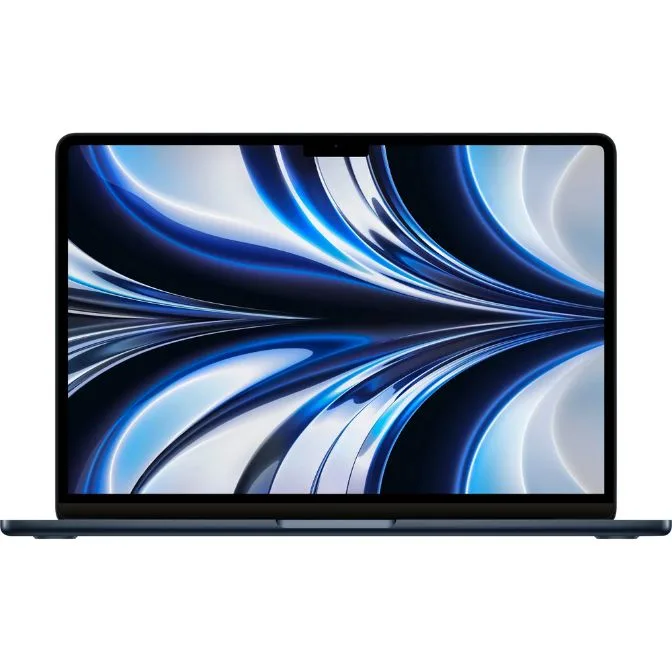
Apple - MacBook Air 13.6" Laptop - M2 chip Built for Apple Intelligence - 8GB Memory - 512GB SSD - Space Gray (factory renewed)
-
Apple - MacBook Air 13.6" Laptop - M2 chip Built for Apple Intelligence - 8GB Memory - 512GB SSD - Space Gray (factory renewed): All-Day Battery : Up to 18 hours of video playback. You can complete the entire setup process on battery power without needing to stay plugged in, though it's still recommended to keep the charger connected during initial updates.
-
Apple - MacBook Air 13.6" Laptop - M2 chip Built for Apple Intelligence - 8GB Memory - 512GB SSD - Space Gray (factory renewed): Stunning Display: 13.6” Liquid Retina with 500 nits brightness and vibrant colors. The bright, sharp display makes it easy to read on-screen instructions during setup, even in well-lit rooms.
-
Apple - MacBook Air 13.6" Laptop - M2 chip Built for Apple Intelligence - 8GB Memory - 512GB SSD - Space Gray (factory renewed): Seamless Connectivity : MagSafe charging, 2 Thunderbolt 3 ports, and a headphone jack. The Thunderbolt 3 ports let you connect external monitors, storage drives, or a wired Ethernet adapter if your Wi‑Fi is unreliable. The headphone jack is handy for private audio during setup.
Post-Setup Checks for a Renewed MacBook Air M2
After the initial setup, run macOS Software Update to ensure all system and security patches are installed. Open 'About This Mac' to confirm the model and processor match the M2 chip. Check that the storage capacity (512GB SSD) and memory (8GB) are as expected. If you notice any discrepancies or performance issues, contact the seller within the return window. The factory renewal process typically includes a full hardware test, but it's wise to verify the basics yourself.
What the Supplied Information Does Not Cover
The supplied records do not include specific battery cycle count, keyboard backlight settings, or detailed warranty terms. For battery health, use the built-in macOS System Report or third‑party tools. If you need help with Apple ID recovery or data migration from an old computer, refer to Apple's official support pages. This guide covers only the initial setup steps that are confirmed by the supplied evidence.