Quick answer
To set up a factory renewed MacBook Pro for work, start with a thorough physical inspection, then run Apple Diagnostics, install macOS updates, configure your user account and security settings, and finally install your essential work apps and data.
Why the 2019 Intel MacBook Pro is still a solid work choice
The 2019 MacBook Pro with a Core i9 processor and 32 GB of RAM handles demanding workflows like coding, video editing, and running multiple virtual machines without breaking a sweat. Its 512 GB SSD ensures fast app launches and file transfers, though you may want an external drive if you work with large media files daily.
One trade-off: the Intel architecture runs warmer and has shorter battery life than Apple Silicon models. Plan to keep it plugged in during heavy tasks or invest in a cooling pad.
Step-by-step setup guide
- Inspect the device and accessories: Unbox your factory renewed MacBook Pro and check for any visible scratches or dents (minor cosmetic wear is normal for renewed units). Verify that the charger, cable, and any included adapters are present and undamaged. Plug in the charger before proceeding. If the power adapter or cable is missing, contact the seller immediately before starting setup.
- Run Apple Diagnostics: Turn on the MacBook Pro and immediately hold the D key. Apple Diagnostics will test the hardware—memory, logic board, battery, and fans. If any error code appears (e.g., ADP000 for no issues), note it and restart. A clean diagnostic confirms the renewed unit is sound. A failing battery or logic board error means the unit needs replacement or repair under warranty.
- Perform a fresh macOS installation (optional but recommended): Even if the Mac boots to the setup assistant, a clean install ensures no leftover profiles or bloatware. Restart and hold Command + R to enter Recovery Mode. Use Disk Utility to erase the internal SSD (name it Macintosh HD), then reinstall the latest macOS version compatible with this 2019 model (macOS Ventura or Monterey). Erasing the drive deletes all data—make sure you have backed up anything you need from the old setup.
- Configure your user account and security settings: Follow the setup assistant: select your language, connect to Wi-Fi, and sign in with your Apple ID. Enable FileVault disk encryption for work data protection. Set a strong login password and consider enabling Touch ID for faster authentication. Disable automatic login for security. Skipping FileVault leaves your work files unencrypted if the laptop is lost or stolen.
- Update macOS and install essential work apps: Open System Settings > General > Software Update and install all available updates. Then download your work tools: a browser (Chrome, Firefox), office suite (Microsoft 365, LibreOffice), communication apps (Slack, Zoom), and any industry-specific software. Restart after major updates. Delaying macOS updates can leave your machine vulnerable to security exploits that target work data.
- Optimize performance and storage for work: In System Settings, go to Battery and enable Low Power Mode when unplugged to extend run time. Check Storage settings to offload unused apps and files. If you work with large files, configure an external SSD as a secondary work drive. For the 2019 Intel model, consider installing a fan control app to manage thermals during long compiles or renders. Without thermal management, the Core i9 can throttle under sustained load, reducing compile and export speeds.
Product facts
-
2019 Apple MacBook Pro with 2.3GHz Intel Core i9 (16-inch, 16GB RAM, 1TB Storage) Space Gray (Renewed) (Minor scratches on Product) (factory renewed): 512 GB SSD for fast storage, 32 GB RAM for smooth multitasking, and a powerful Core i9 2.60 GHz processor for top performance. This configuration lets you run multiple professional apps simultaneously without slowdowns, making it ideal for development, design, or data analysis work.
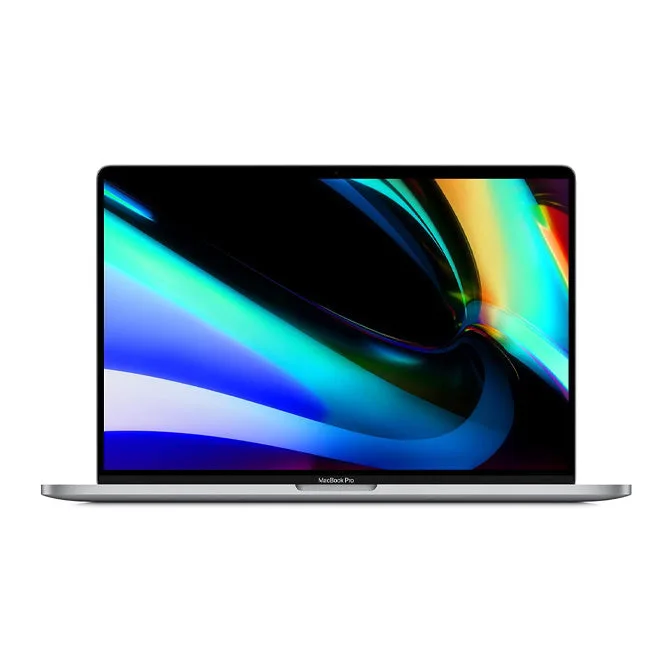
2019 Apple MacBook Pro with 2.3GHz Intel Core i9 (16-inch, 16GB RAM, 1TB Storage) Space Gray (Renewed) (Minor scratches on Product) (factory renewed)