Quick Answer
To set up a home karaoke party with a Bluetooth speaker, place the speaker at ear level in the center of the room, pair your device, and connect a wireless microphone for the best sound.
Why Speaker Placement Matters
The position of your Bluetooth speaker can make or break your karaoke experience. Placing it on the floor muffles the sound, while putting it too high can cause echoes. Aim for ear level when you're standing, and keep it away from walls to reduce bass buildup.
For outdoor parties, consider the environment. Wind and open space can scatter sound, so position the speaker on a table or a sturdy surface facing the singing area. If you're using a speaker like the Sony ULT Field 7, its portability makes it easy to move around and find the sweet spot.
Microphone and Audio Source Considerations
Most Bluetooth speakers don't have a built-in microphone input, so you'll need a separate wireless mic that connects to your phone or tablet. Check the mic's compatibility with your device and the karaoke app you plan to use.
Latency can be an issue with Bluetooth audio. If you notice a delay between the music and the mic, try using a wired connection or a low-latency codec like aptX if your speaker supports it. For the Sony ULT Field 7, its sound field optimization can help minimize audio lag in some setups.
Step-by-Step Karaoke Setup
- Place the speaker: Position your Bluetooth speaker on a stable surface at ear level, away from walls and corners, to ensure balanced sound projection. Avoid placing the speaker on the floor to prevent muffled audio.
- Pair your device: Turn on the speaker and put it in pairing mode. On your phone or tablet, go to Bluetooth settings and select the speaker from the list. If prompted, enter the PIN or confirm the connection. Make sure your device's volume is set to at least 80% before starting the music.
- Connect the microphone: If using a wireless mic, pair it with your device according to the mic's instructions. Open your karaoke app and test the mic to ensure the audio is clear and in sync with the music. If there's a delay, try lowering the Bluetooth audio quality in your device settings to reduce latency.
- Set up the playlist: Create a playlist of karaoke tracks in advance, mixing upbeat songs and crowd favorites. Use the app's queue feature to keep the flow going without interruptions. Have a backup playlist ready in case the Wi-Fi drops or the app crashes.
- Adjust the sound: Use the speaker's equalizer or sound modes to boost vocals and reduce bass if the music overpowers the singing. On the Sony ULT Field 7, you can use the 7-band equalizer to fine-tune the sound. Do a quick sound check before guests arrive to avoid mid-party adjustments.
Speaker Spotlight
-
Sony ULT Field 7 Wireless Portable Bluetooth Karaoke Party Speaker IP67: The Sony ULT Field 7 features an X-Balanced Speaker Unit with a non-circular diaphragm for richer, clearer sound, and a large 114 mm x 114 mm woofer for deep bass. This means your karaoke vocals and backing tracks will sound full and clear, even in a lively party setting.
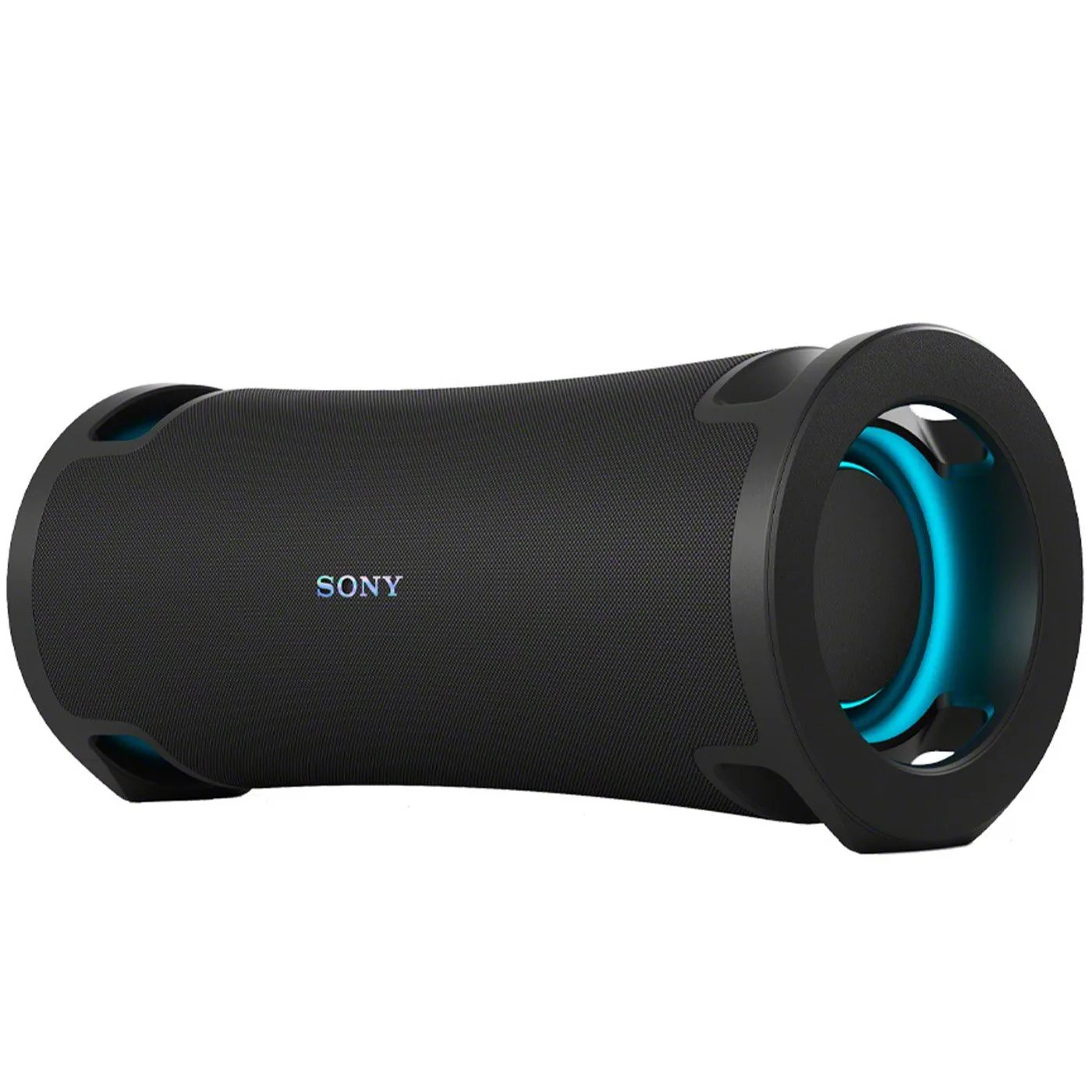
Sony ULT Field 7 Wireless Portable Bluetooth Karaoke Party Speaker IP67