Quick answer
Place the station near an outlet, plug in the included cable, then set your iPhone, Apple Watch, and AirPods on their designated spots. No pairing or app needed.
Why a 3-in-1 station simplifies your desk
A single wireless charging station replaces three separate cables and adapters. Instead of hunting for the right cord each time, you just drop your devices onto the pad. This works especially well if you own an iPhone, Apple Watch, and AirPods—all three can charge at once from one wall outlet.
The trade-off is that you lose the ability to use your phone while it charges on a flat pad. If you frequently need to pick up your phone during charging, a stand-style station might be more convenient. However, the flat pad design is more compact for travel or a small nightstand.
How to set up your 3-in-1 wireless charging station
- 1. Choose a flat, stable surface near an outlet: Place the charging station on a desk, nightstand, or countertop. Ensure the surface is dry and free of metal objects like keys or coins, which can interfere with charging or cause overheating. Keep metal objects at least 2 inches away from the charging pads.
- 2. Plug in the power cable: Connect the included USB cable to the station and plug the adapter into a wall outlet. Do not use a computer USB port—it may not supply enough power for three devices at once. Use the supplied adapter for reliable power delivery.
- 3. Place your iPhone on the phone charging area: Position your iPhone face up, centered over the marked charging zone. If you use a case, make sure it is thinner than 5 mm (0.2 inches). Thicker cases, pop sockets, or magnetic grips can block the connection. Check case thickness if the phone doesn't start charging within a few seconds.
- 4. Set your Apple Watch on the watch charger: Align the back of your Apple Watch with the dedicated watch charging puck. The watch will snap into place magnetically. Make sure the watch band is not folded under the back. If the watch doesn't charge, remove any metal band links from the back sensor area.
- 5. Place your AirPods case on the AirPods spot: Set your AirPods (any generation) or AirPods Pro case on the marked area. The case must have its charging light facing up. Wireless charging works with the standard AirPods case only if it supports wireless charging (check your model). Older AirPods with a Lightning-only case won't charge wirelessly—use the Lightning cable instead.
- 6. Confirm all devices are charging: Look for the charging indicators: your iPhone shows a battery icon with a lightning bolt, the Apple Watch shows a green charging ring, and the AirPods case glows amber or green. If any device doesn't respond, reposition it slightly. A blinking orange light on the station usually means a device is misaligned or the case is too thick.
What you need to know about the 3-in-1 station
-
3 in 1 Charging Station for iPhone, Wireless Charger for iPhone 16 15 14 13 12 11 X Pro Max & Apple Watch - Wireless Charging Station for AirPods 4 3 Pro - Brand New: This station charges iPhone, Apple Watch, and AirPods simultaneously using a single cable. It includes a wide-range induction coil. You only need one power cord and one wall adapter, cutting cable clutter. The wide coil means you don't have to place your phone in an exact spot—just near the center.
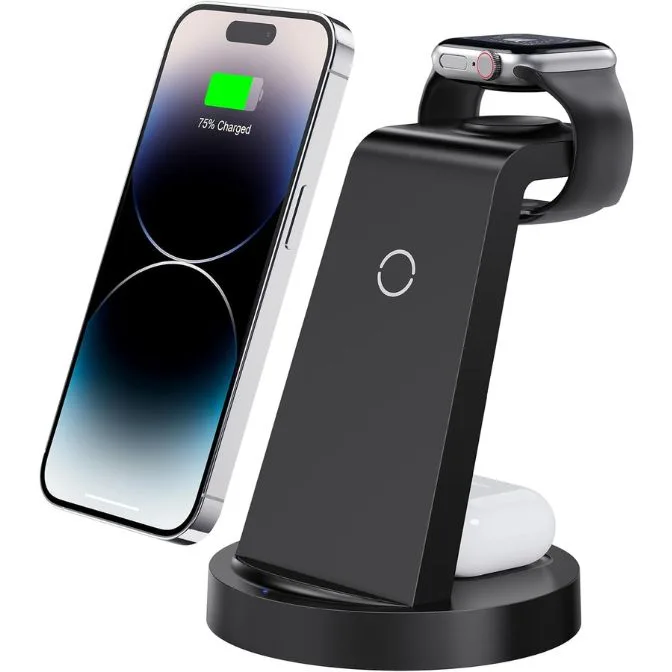
3 in 1 Charging Station for iPhone, Wireless Charger for iPhone 16 15 14 13 12 11 X Pro Max & Apple Watch - Wireless Charging Station for AirPods 4 3 Pro - Brand New